Write and publish a post
Start a post, fill in the title, summary and cover, build the content from blocks, choose a space and topics, then save it and submit it for review so it can be published.
Guide · Tutorial · Writing John Smith1 day ago · 6 min read · 155 views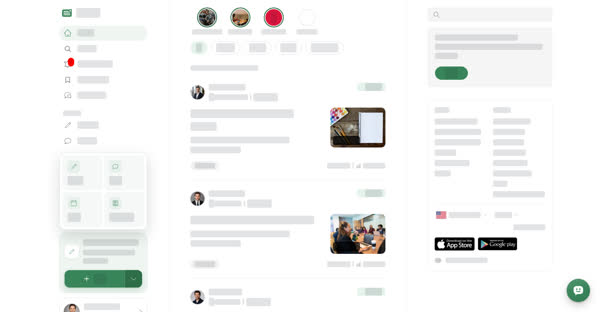
Every post on Boogir belongs to a space and is checked by that space's reviewers before it goes live. This guide takes you through the post form from start to finish.
How the form is laid out
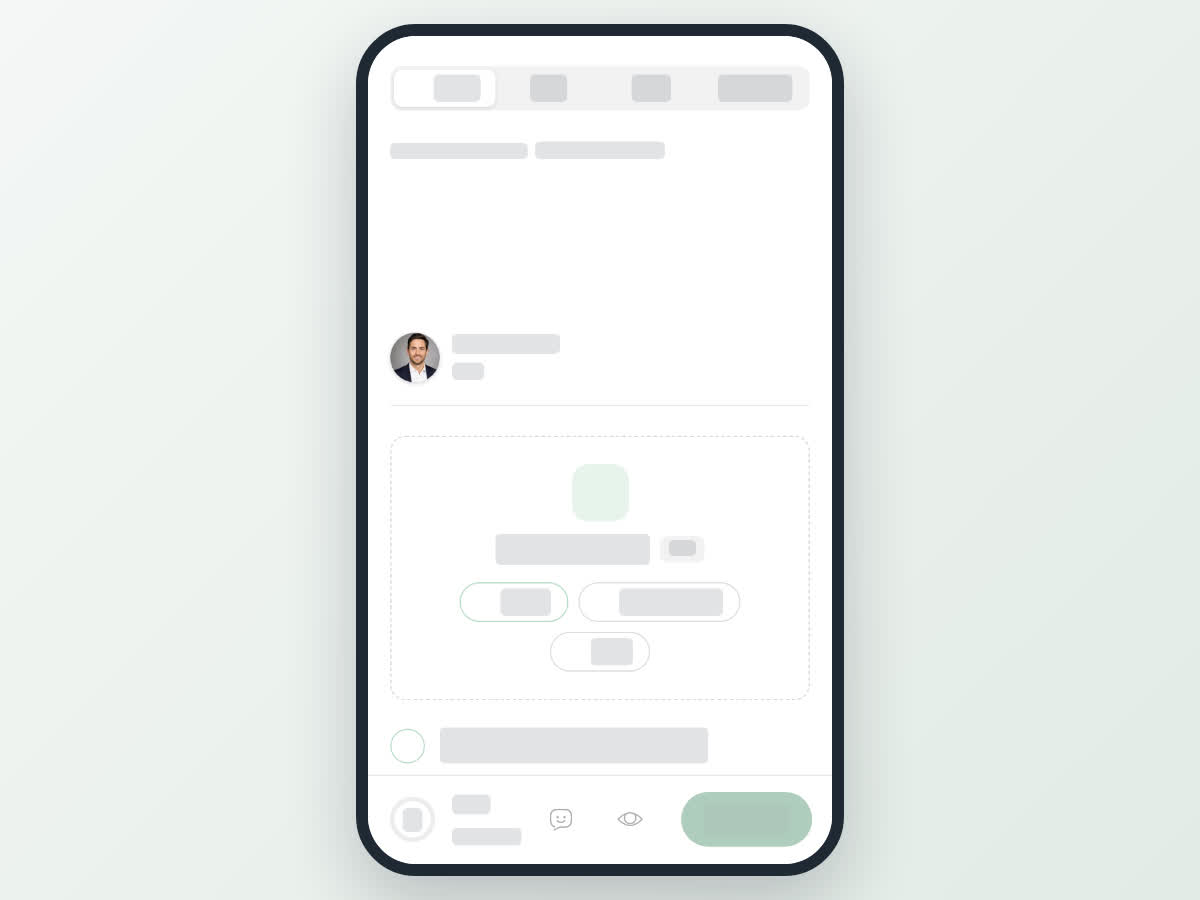
The form looks much like the finished post. From top to bottom:
- Post type tabs: Article, Story, Event, Document.
- The space line. Until you pick one it reads Choose a space · required to publish.
- Title, then the summary (Write an engaging summary to display when people share your post.).
- Your name with the estimated reading time.
- The cover, then the content (Start writing, or add a block).
- Publish to: Space, Topics and an optional Module.
The status, the checklist, the preview and the action buttons sit beside the form on a computer and in a bar at the bottom on a phone.
What a post needs
- Title: up to 200 characters.
- Summary: at least 50 characters, up to 300. One or two sentences that make people want to read on.
- Cover: under Add a cover image, choose Upload (an image at least 800px wide), Search photos (free photos from Unsplash) or Video (no longer than 10 minutes). Afterwards you can Replace it, Search again, switch to a Video, or remove it with the cross.
- Content: at least 300 characters in total, built from blocks such as Text or Media. See Add content blocks.
- Space: one of the spaces you belong to.
- Topics: 1 to 3, added with Add Topic.
- Module: optional. See Organise posts into modules.
The checklist tracks the six required items: Title, Summary, Cover image, Content, Space and Topics. The ring shows how many are done out of 6, and the line under the status says how many are left to fix, or Ready to submit when all six are done. An item that still needs work is marked Missing, or Too short for a summary under 50 characters or content under 300 characters. Select any item to jump straight to that part of the form.
On a computer
To start a new post:
- In the left menu, select Post in the Share what you know card. It opens a new article. To start another type, select the arrow next to Post and choose Article, Story, Event or Document.
- Or, under Create in the left menu, open Articles, Stories, Events or Documents and select Post. The form opens with that type.
- Or, on a space's manage page, select Write a post under Quick actions. The space is filled in for you.
The panel on the right of the form always shows the ring, the status, the checklist, the Preview switch and the buttons. A counter appears beside the title and summary as you type.
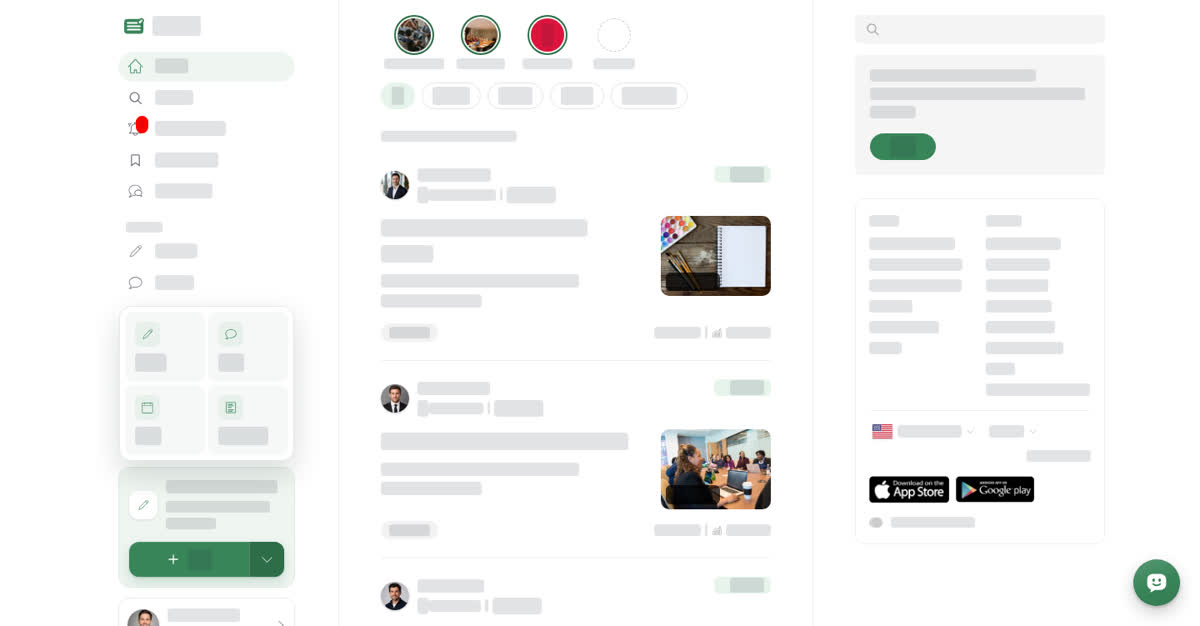
Write your post on a computer
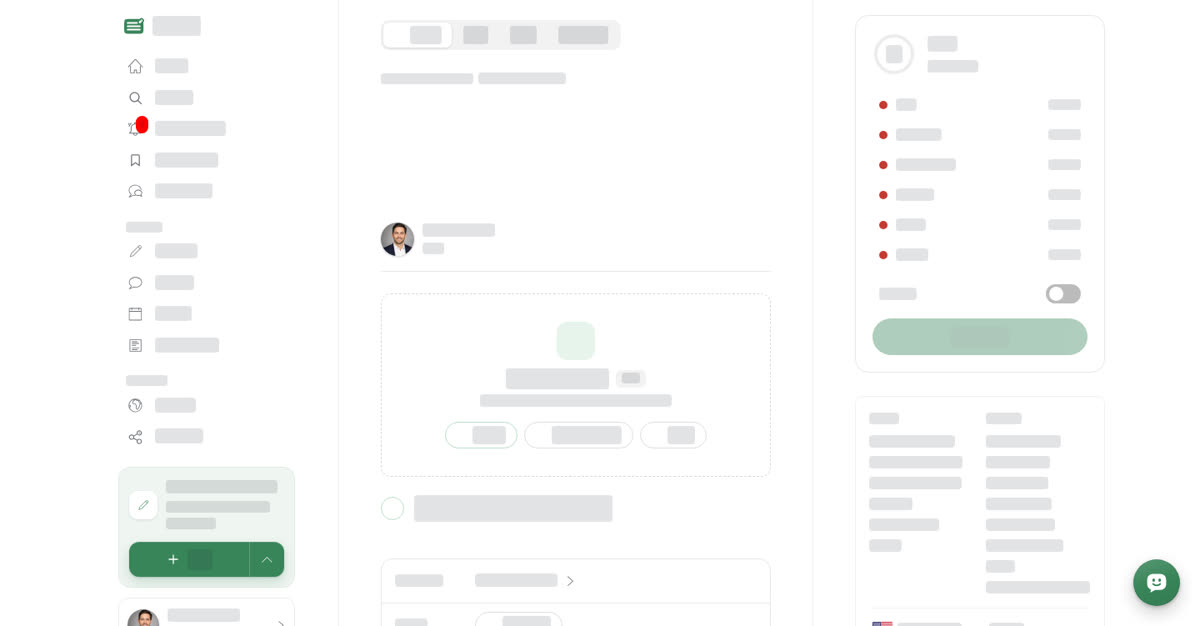
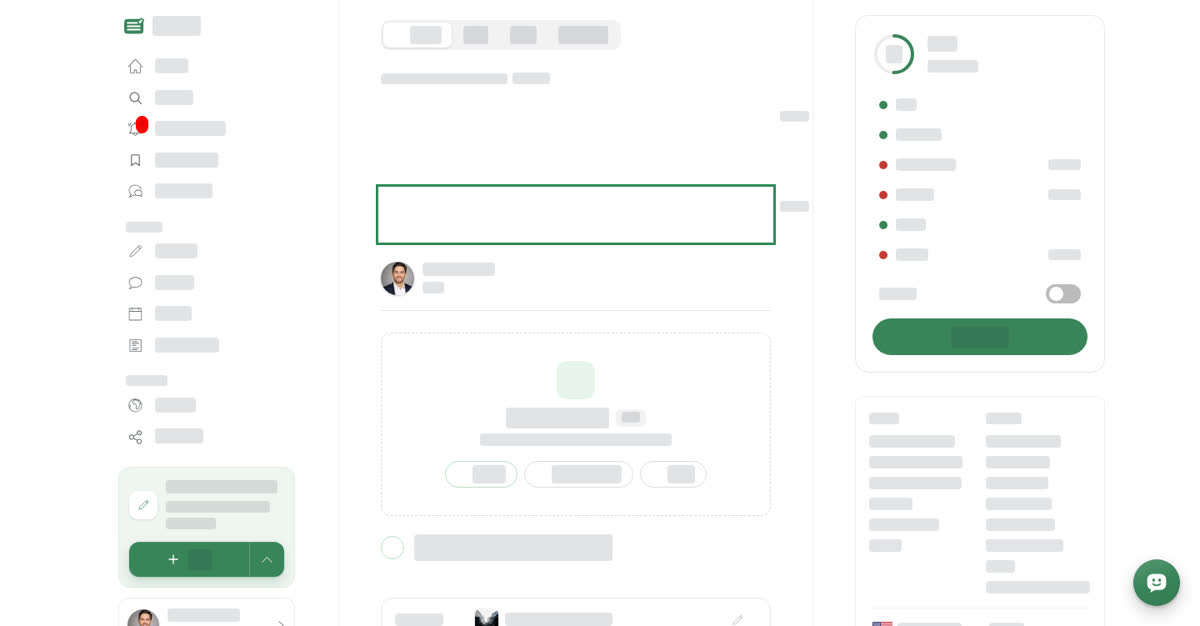
On your phone
These steps are the same in the Boogir app and on boogir.com in your phone's browser.
To start a new post:
- Tap + in the middle of the bottom bar and choose Post. It always opens a new article; switch the type with the Post type tabs at the top of the form.
- Or open Account and, under Content, tap Articles, Stories, Events or Documents, then tap New. The form opens with that type.
- Or, on a space's manage page, tap the Write a post chip. The space is filled in for you.
The bar at the bottom of the form holds the controls. Tap the ring to open the checklist, tap the eye to preview the post as readers will see it (tap it again to keep editing), and tap Save Draft to save.
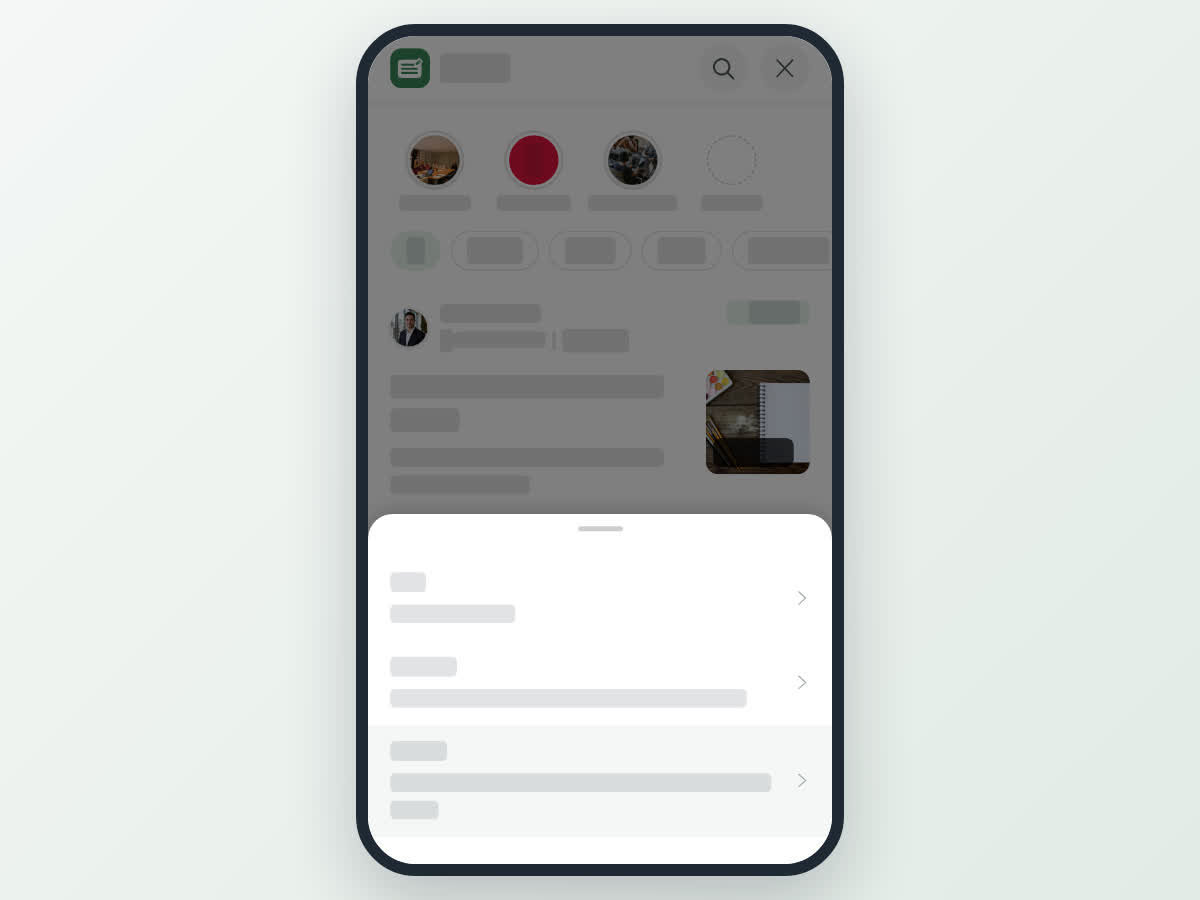
Write your post on your phone
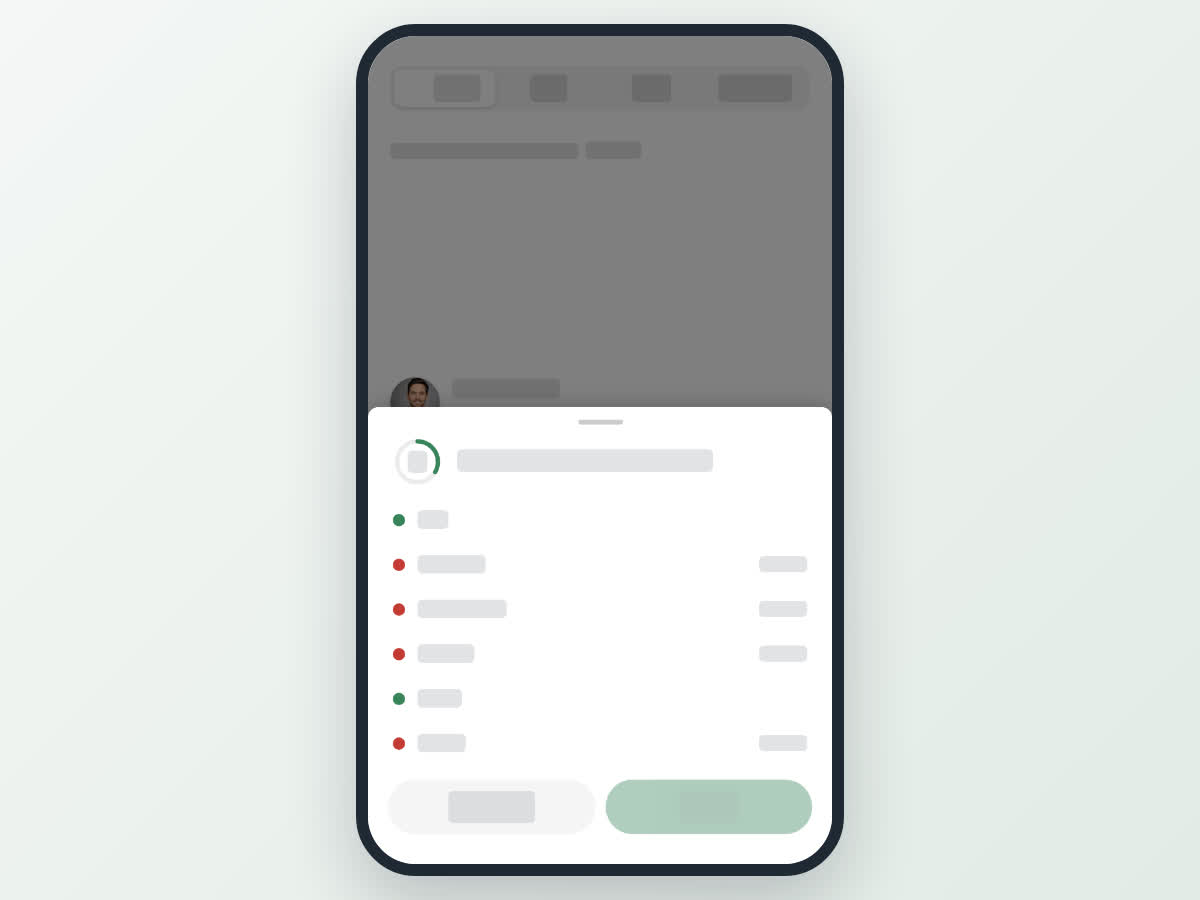
Save and submit
Save Draft runs the same checks as submitting. It needs a title, a summary, a cover, at least 300 characters of content, a space and 1 to 3 topics, and the button stays greyed out until you pick a space. If something is missing, a message appears under that field, for example You need to add a thumbnail for this post.
Once saved, the status reads Draft saved and the form switches to a read view of your draft. Select Submit for Review to send it to the space's reviewers. You'll see Submitted post for review.
What happens next
- The space's post reviewers get a notification that you submitted a post for review.
- If a reviewer approves it, you get a notification that they approved your post, and it becomes Published in the space. The first time a post is published, the space's subscribers are notified too.
- If a reviewer declines it, you get a notification, and the reason appears under the status as Reason: followed by their note. Edit the post, save it and submit it again.
Until the post is approved, opening it from your content list shows Public view for this post is available only after the post has been approved. For more, see Drafts, review and post statuses.