Add subscribers-only parts and earn
Lock part of an article, story or event so only subscribers can read it. Posts with a long subscribers-only section are marked Earning eligible and can earn credits as subscribers unlock them.
Guide · Tutorial · Writing John Smith1 day ago · 3 min read · 2 views
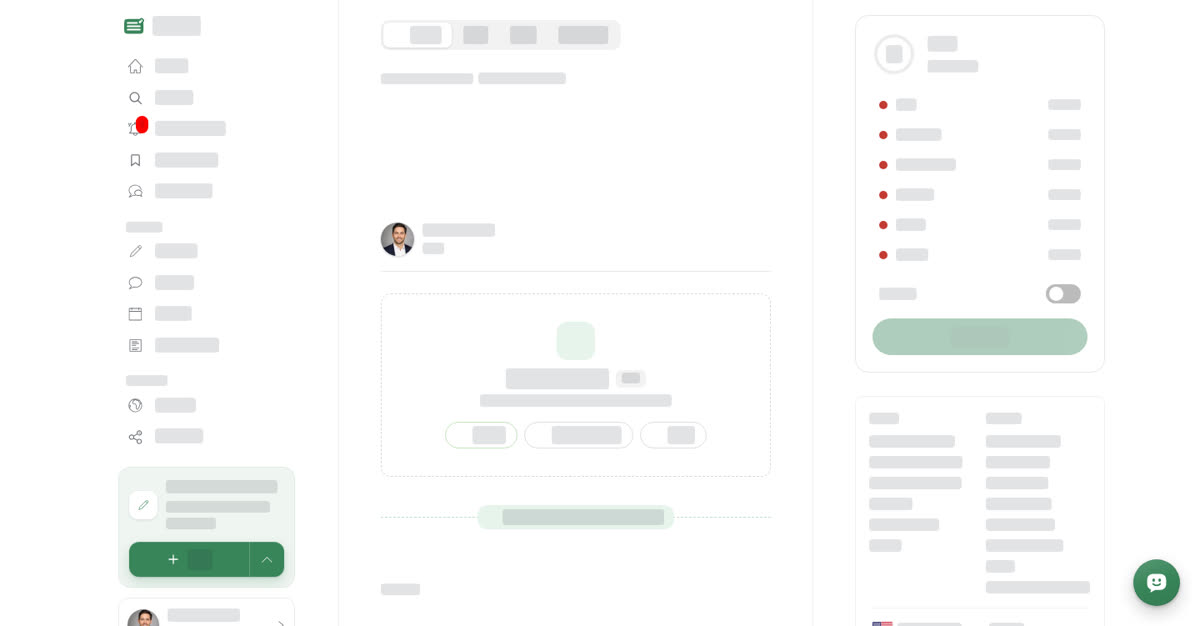
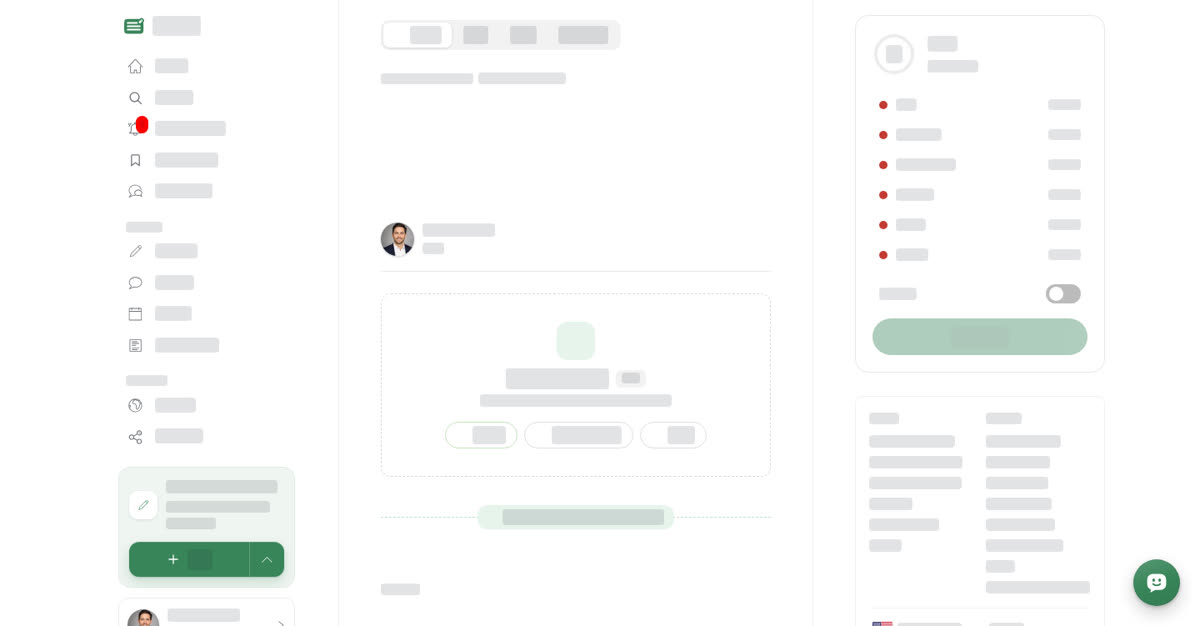
You can keep the start of a post open to everyone and lock the rest, or lock a section in the middle. Locked content is marked with Subscribers only blocks: one where the locked part starts, and optionally one where it ends.
- The first Subscribers only block (A part only subscribers can read) appears as the marker Subscribers only from here. Everything below it is locked.
- A second one inside a locked part becomes the marker End of the subscribers-only part, and the post is open again below it. Without an end marker, the lock runs to the end of the post.
- Markers behave like any other block: move them, delete them, or use Edit to switch a marker between a start marker and an end marker.
Subscribers-only parts are available in articles, stories and events. They are not available in documents.
On a computer
Lock part of a post on a computer
On your phone
These steps are the same in the Boogir app and on boogir.com in your phone's browser.
Lock part of a post on your phone
What readers see
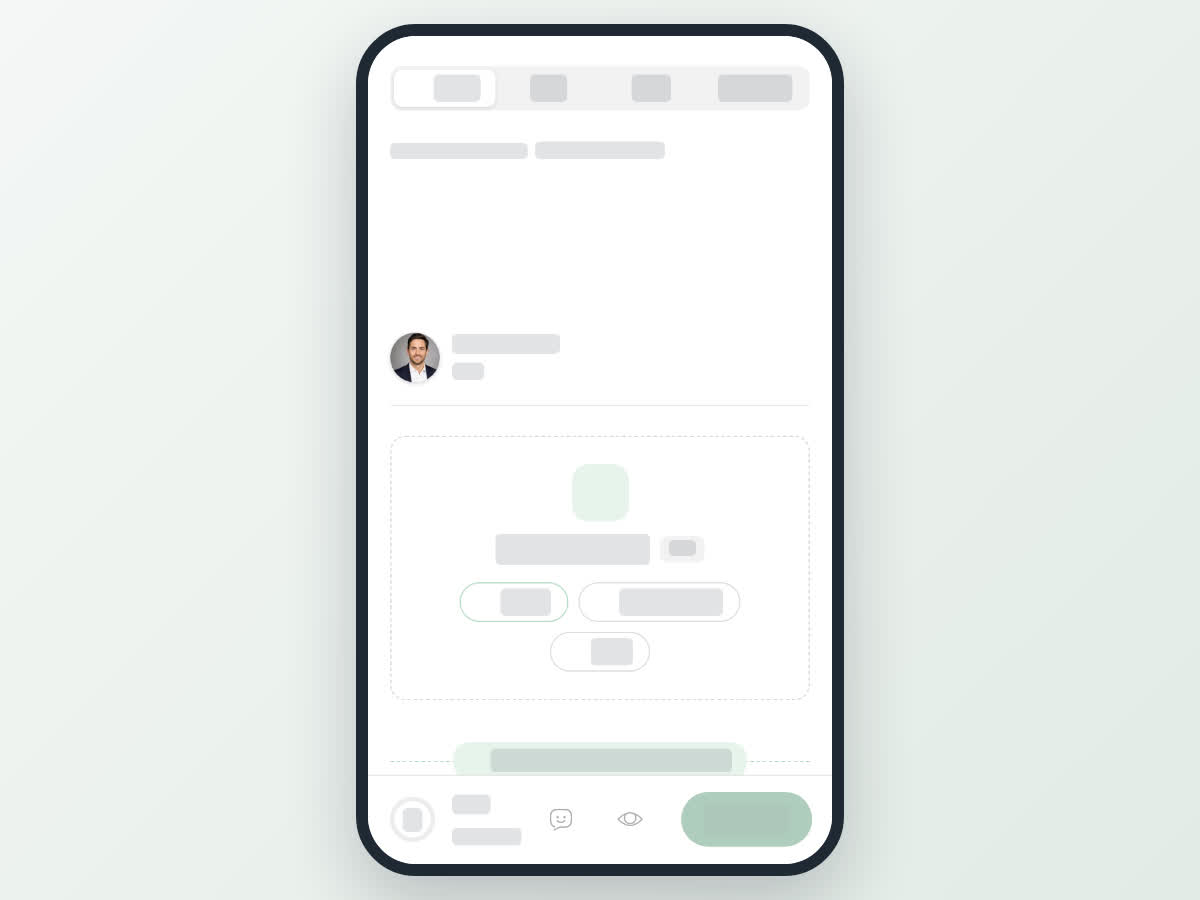
Readers who can't open the locked part see the post up to the first marker, then Keep reading with a subscription and This part is for subscribers. Subscribe to read it and all premium content., with a See plans button.
The locked part opens for you as the author, for the space's post reviewers, for Boogir's team, and for readers with an active Reader plan. Each post a Reader plan holder unlocks counts towards their posts for the month. Buying a Reader plan is coming soon. For the reader's side, see Subscribers-only content.
Earning eligible
When the subscribers-only parts of a post hold at least 1,000 characters in total, the line under your name in the post form shows Earning eligible next to the reading time. Shorter locked sections still lock, but they don't make the post eligible to earn.
Posts with a long premium section earn credits as subscribers unlock them. The credits show on the space's Earnings page, where an owner can cash them out. See How creators earn and Add payee details and cash out.