Edit or delete a post
Find your posts in My Content, open one with Manage, then edit it with the pencil and save it with Update Draft, or delete it from the menu. A post's space can't be changed once it is created.
Guide · Tutorial · Writing John Smith1 day ago · 3 min read · 2 views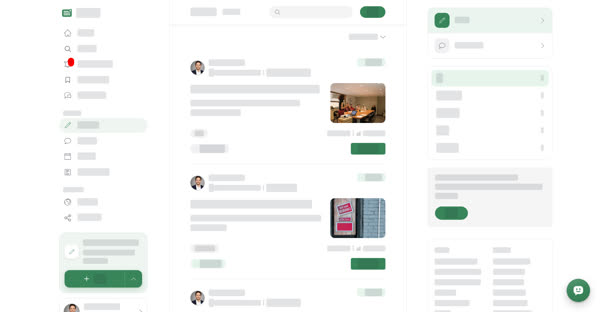
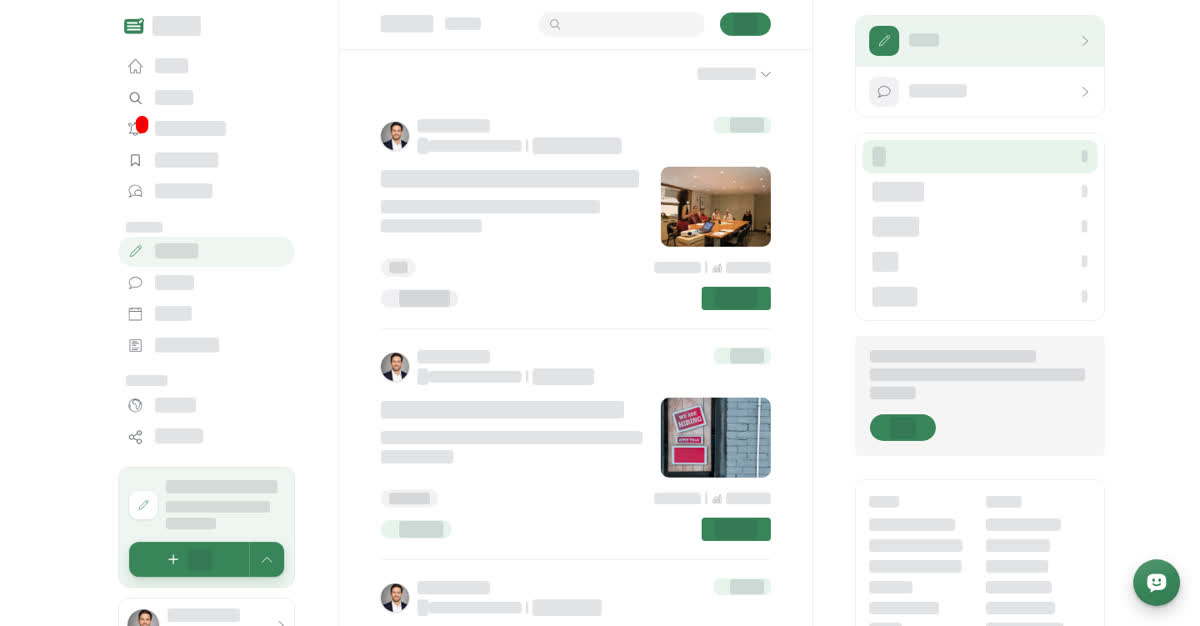
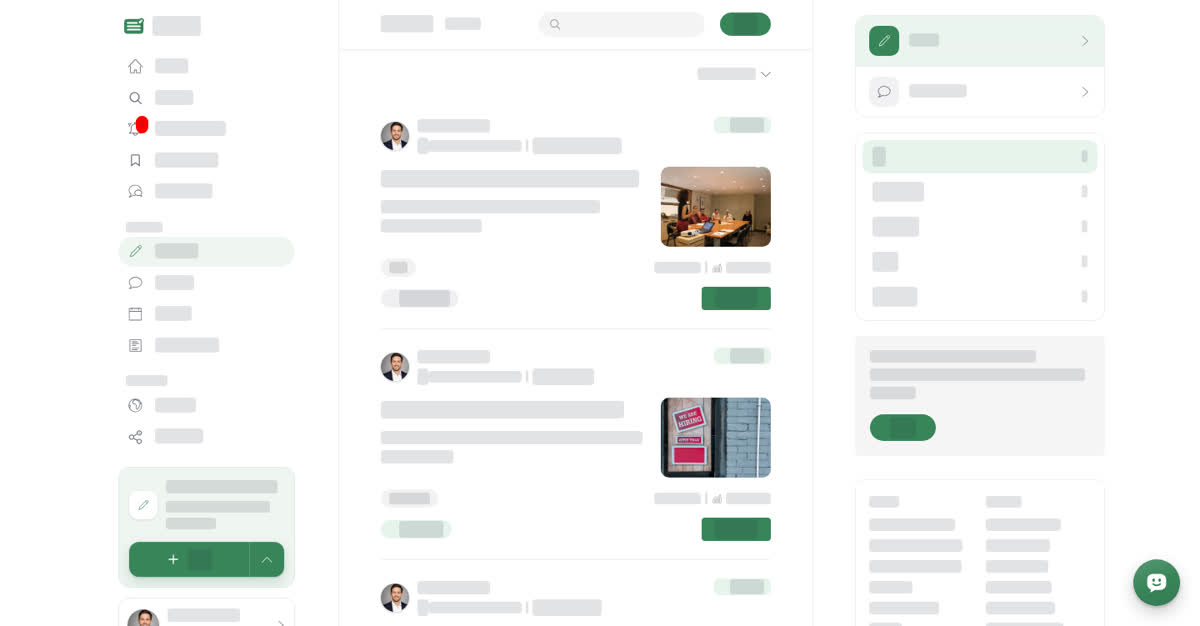
All your posts, whatever their status, are on your Articles, Stories, Events and Documents pages. Each page has a Posts tab and a Comments tab. On the Posts tab you can Search your posts by title, filter them by status, and sort them Newest first or Oldest first. Selecting a published post opens it as readers see it.
Every post has a Manage button that opens it in the post form, in a read view with its status. You can also open the menu on the post page itself and choose Update. From the post form you can:
- Edit the post with the pencil and save it with Update Draft. The status becomes Draft updated, and you then select Submit for Review so a reviewer can approve the new version. Close Edit stops without saving.
- Open the three-dot menu for Delete or Copy ID. Delete asks Are you sure you want to delete this?; confirm with Delete and the post disappears from your list and from the space. Copy ID copies the post's ID, which you can use to add the post to a module on the Post ID tab (see Organise posts into modules).
On a computer
Edit or delete a post on a computer
On your phone
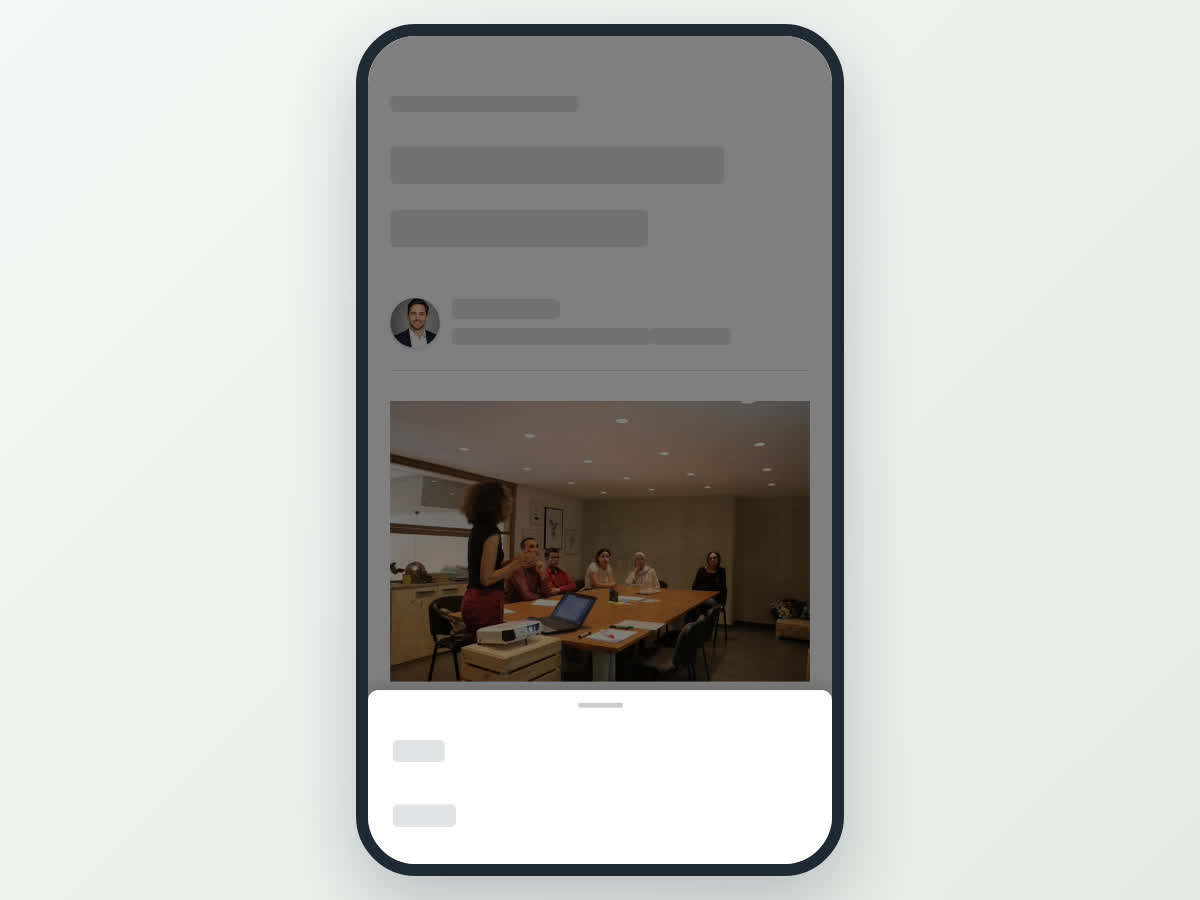
These steps are the same in the Boogir app and on boogir.com in your phone's browser. On a phone, the pencil, the three dots and the action buttons are all in the bar at the bottom of the post form.
Edit or delete a post on your phone

You can't move a post to another space
You choose the space when you create a post, and it can't be changed afterwards. When you edit an existing post, the space is shown but can't be picked again.
To publish the same content in a different space, start a new post in that space, copy your content across, and delete the old post if you no longer need it.