Write a story with parts and a verdict
A story tells an experience in chapters, such as a product you test over weeks. Add a story part for each stage with its own score, and a verdict that sums up the running score, pros and cons.
Guide · Tutorial · Writing John Smith1 day ago · 4 min read · 2 views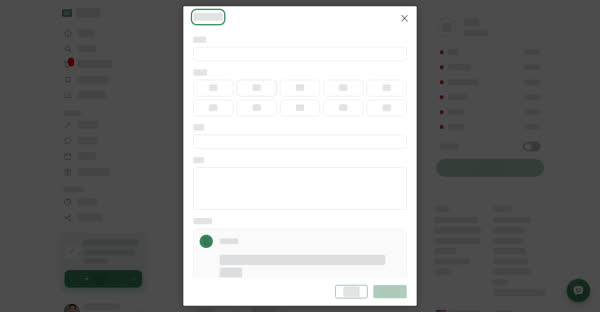
A Story is a post that grows over time. It suits long-term reviews and experiences: a phone after a month of use, a course week by week, a trip day by day. You write it in parts, give each part a score if you like, and add a verdict that tracks where you stand.
Stories have the usual blocks too (Text, Media, Guide, Embed, Callout, Button, Subscribers only). The two story blocks are Story part and Verdict.
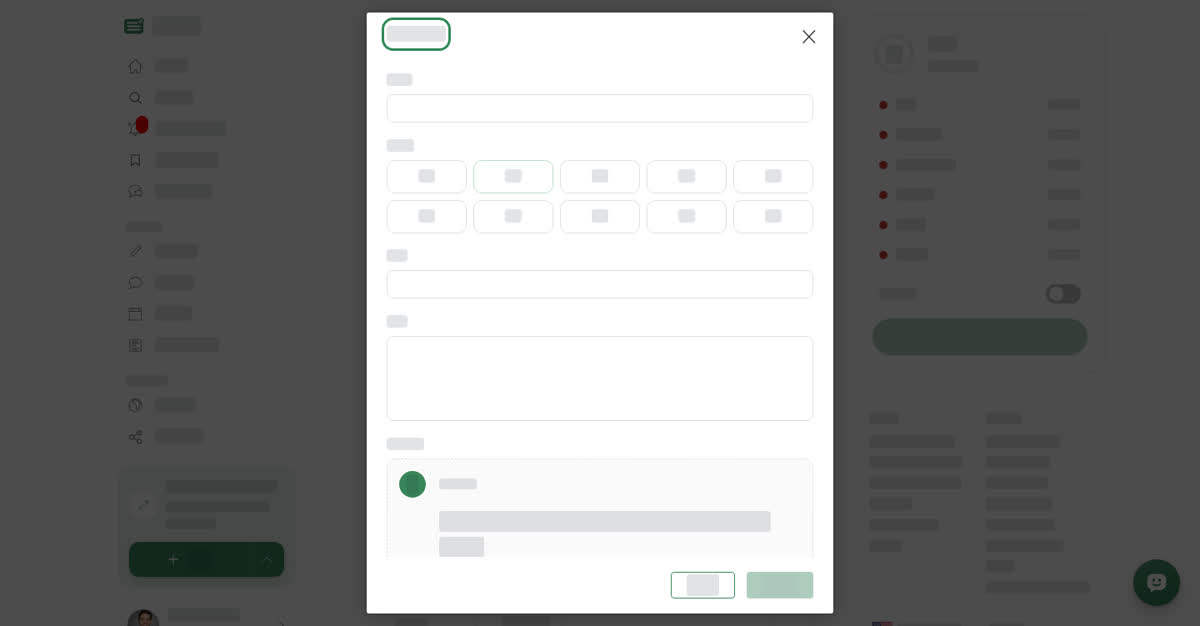
What goes in a story part
- Label: the stage, for example First look, Daily use or Two months in.
- Score: optional, from 0.5 to 5. Pick the chosen value again to clear it.
- Title and Text: what changed in this part and what you found. A part needs at least a title or some text.
Parts are numbered in order and joined by a line down the side, so readers can follow the story from start to finish. The newest part is marked Latest. When a part and the one before it both have a score, the part shows how much the score went up or down.
What goes in a verdict
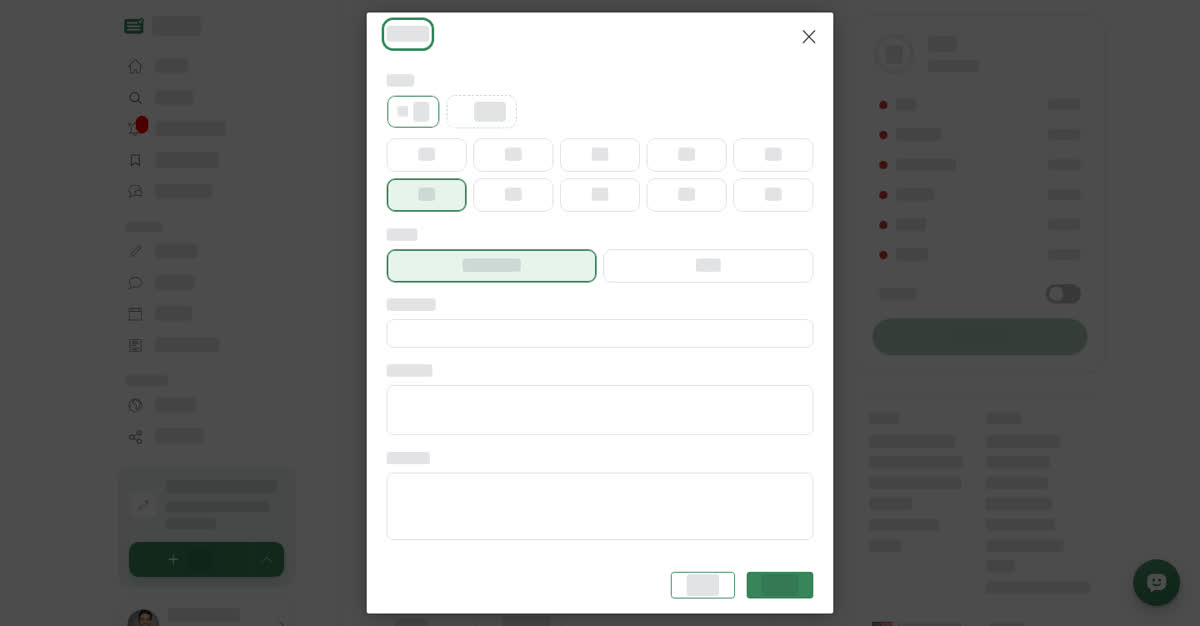
- Score: a score for each part. Part 1 is selected first; pick its score, then the button for the next part to add it. The bin removes the selected part's score.
- Still testing while the story continues, or Final when you have reached your conclusion.
- Reviewing (what you are reviewing, and how you use it) and Summary (your bottom line in a sentence or two).
- Holds up and Falls short, one point per line.
- Would I buy it?: Yes, Maybe or No. Pick it again to clear it.
Readers see the latest score, how it moved since the previous part, and the score after each part, with your summary, pros, cons and answer, and whether the review is Still testing or Final. Place the verdict at the top or the end of your story, wherever readers should see your conclusion.
On a computer
Add a story part and a verdict on a computer
On your phone
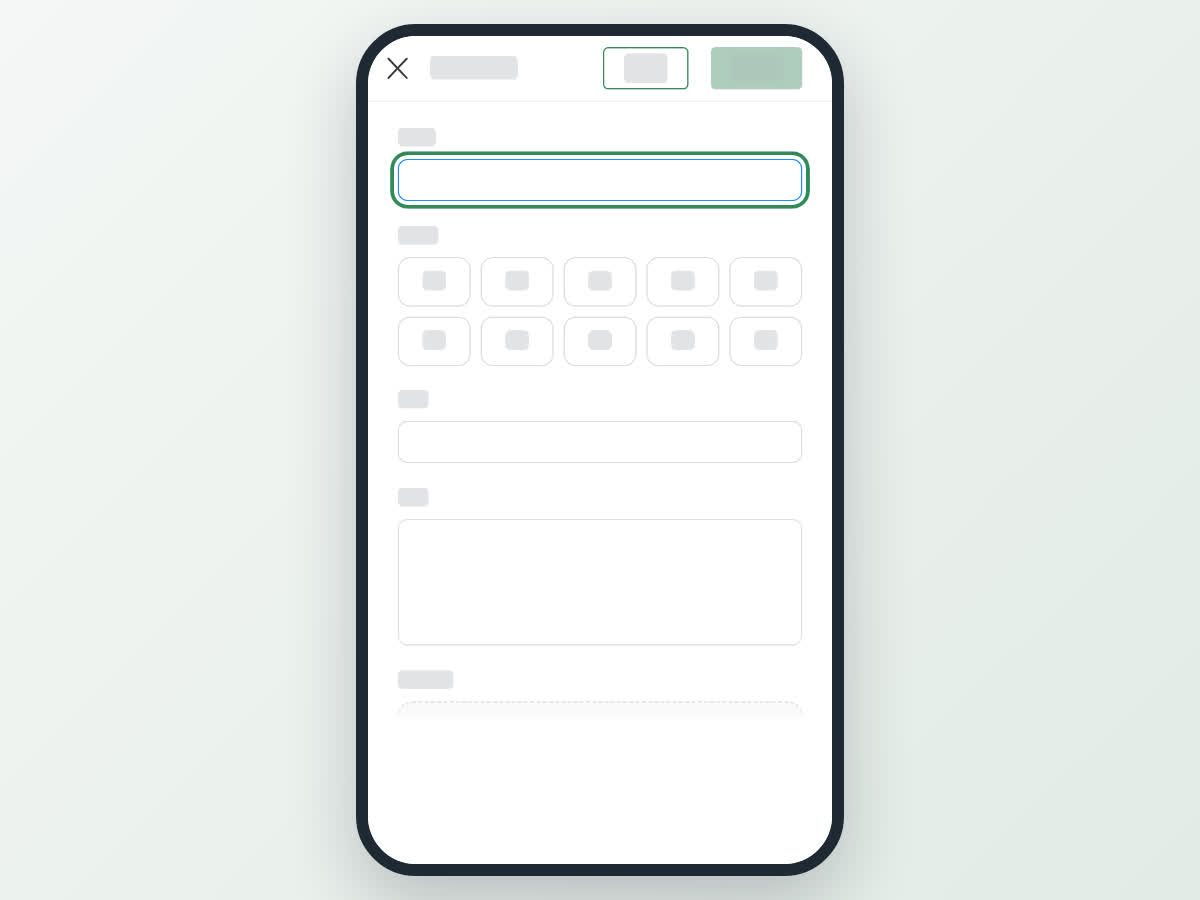
These steps are the same in the Boogir app and on boogir.com in your phone's browser.
Add a story part and a verdict on your phone
Adding parts after the story is published
To continue a published story, open it from your Stories page with Manage, select the pencil, add the new part and update the verdict. Then select Update Draft and Submit for Review.