Boost a post
When a space has an Audience plan, its published posts are shown first in search, on the home feed and beside similar posts, up to the plan's daily boost views. Turn boost on or off for each post.
Guide · Business John Smith1 day ago · 3 min read · 2 views
An Audience plan on a space puts the space's posts first in search, on the home feed and beside similar posts. The plan gives the space a number of boost views each day, and all the space's boosted posts share them. The count resets every day.
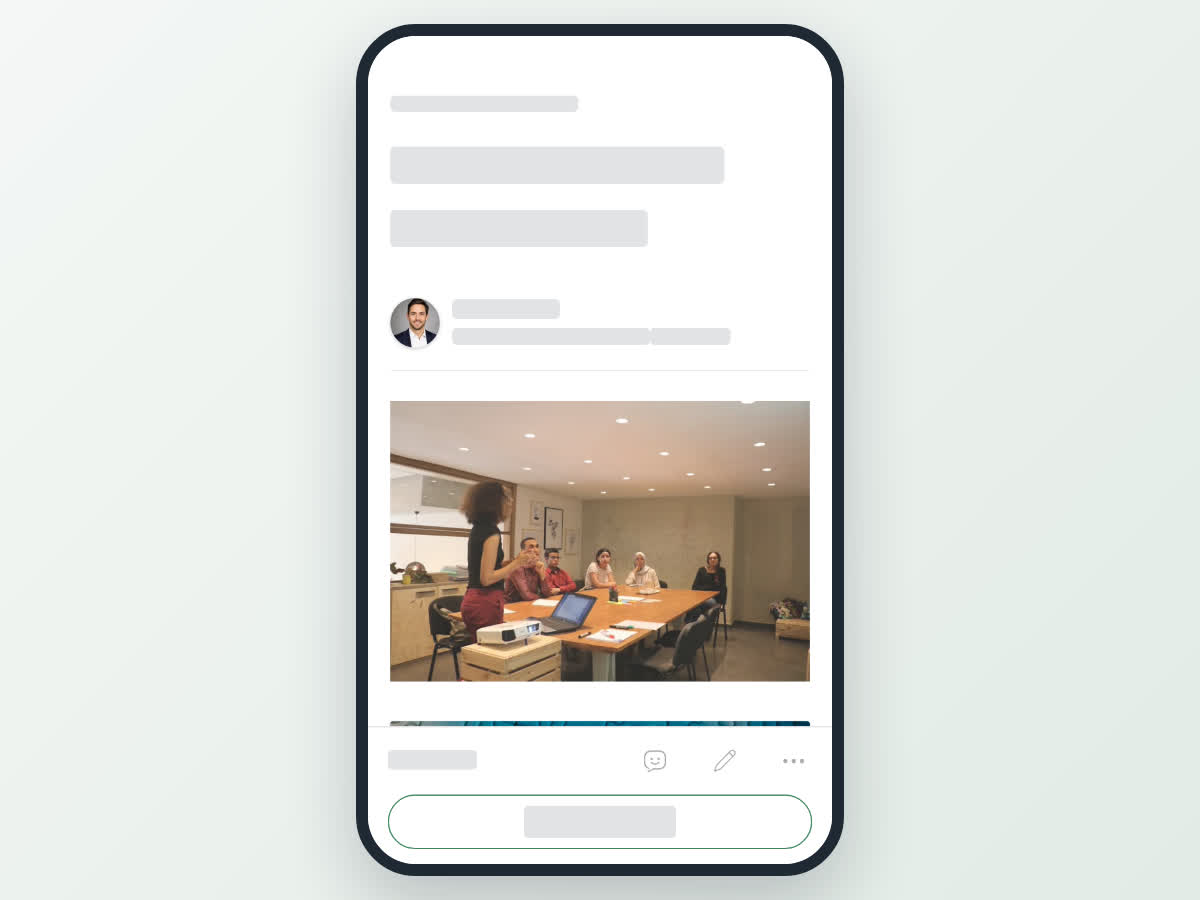
Each published post has a Boost panel where you can see how boosting is going and turn it on or off for that post. Use the Boost this post switch while the space's Audience plan is active. Boost is on by default, so new posts are boosted as soon as they are published. Boost views today shows how many of the space's daily boost views are used, out of the total, and Days left shows how long the plan still runs.
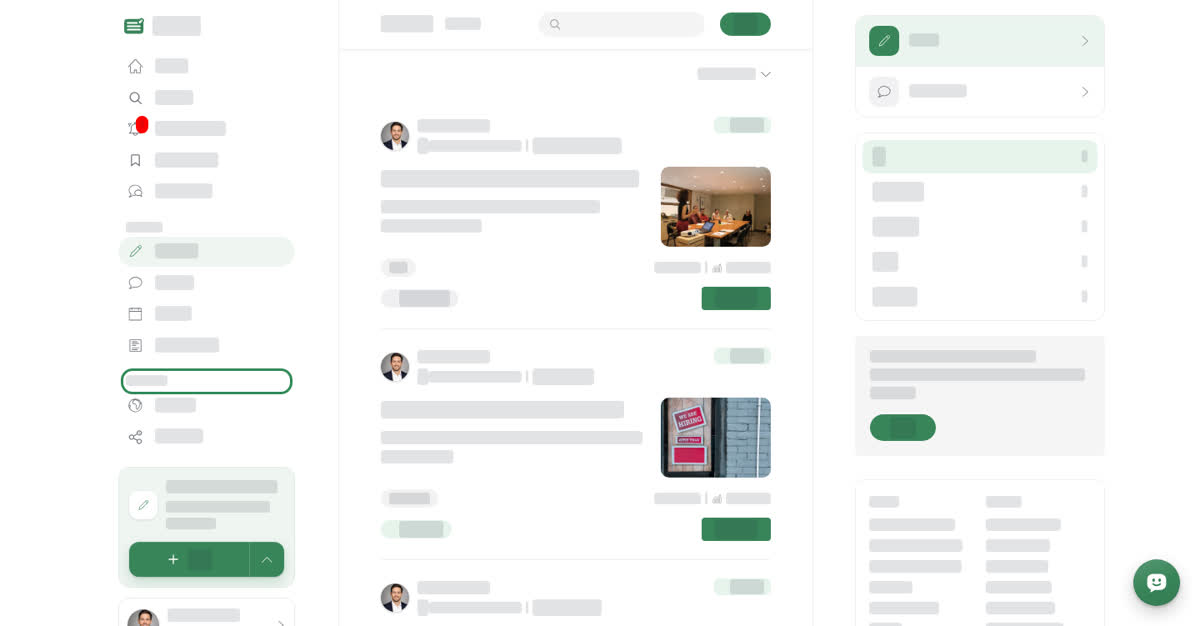
On a computer
Boost your post on a computer
On your phone
These steps are the same in the Boogir app and on boogir.com in your phone's browser.
Boost your post on your phone
What the Boost panel says
The label at the top of the panel tells you where the post stands:
- Boosted — This post is boosted. It is shown first while the space has boost views left today.
- Paused today — Boost paused for today. The space's boosted posts have used all of today's boost views, so the post ranks like a regular post until the count resets tomorrow.
- Boost off — Boost is off for this post. It ranks like a regular post and uses none of the space's boost views.
- Inactive — This space’s Audience plan has ended. The post is still published but ranks like a regular post. Renew the plan to boost it again.
- Not subscribed — Show this post to more readers. The space has no Audience plan.
Getting an Audience plan
Only the space's owners and managers can add or renew the plan:
- With no plan, or after it has ended, they see a Subscribe button in the Boost panel. It opens the Audience plan for that space on the subscription page.
- While the plan is active, they see Manage Subscription, which opens the space's Subscription tab.
When the space has no active plan, other members see Ask an owner or manager of this space to add an Audience plan. Plans are paid with wallet credits. See Plans and pricing and Subscribe, renew or stop a plan.