Run an event with updates and live video
Cover an event as it happens: post timed updates on a timeline and stream live video from your camera. Readers follow the timeline, watch live, and see the recording afterwards.
Guide · Tutorial · Writing John Smith1 day ago · 5 min read · 2 views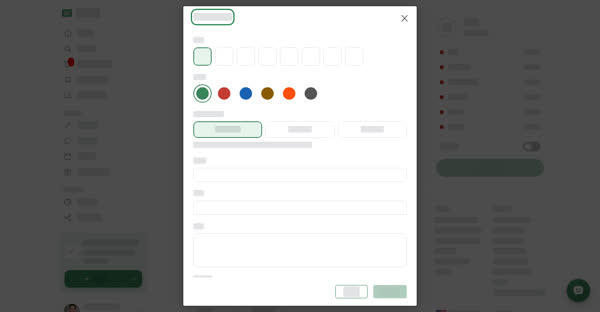
An Event post covers something as it unfolds: a launch, a conference, a match, breaking news. On top of the usual blocks, events have two of their own:
- Event update — A timed entry on the event timeline.
- Live video — Stream from your phone camera. You can also stream from a computer's camera in the browser.
What goes in an event update
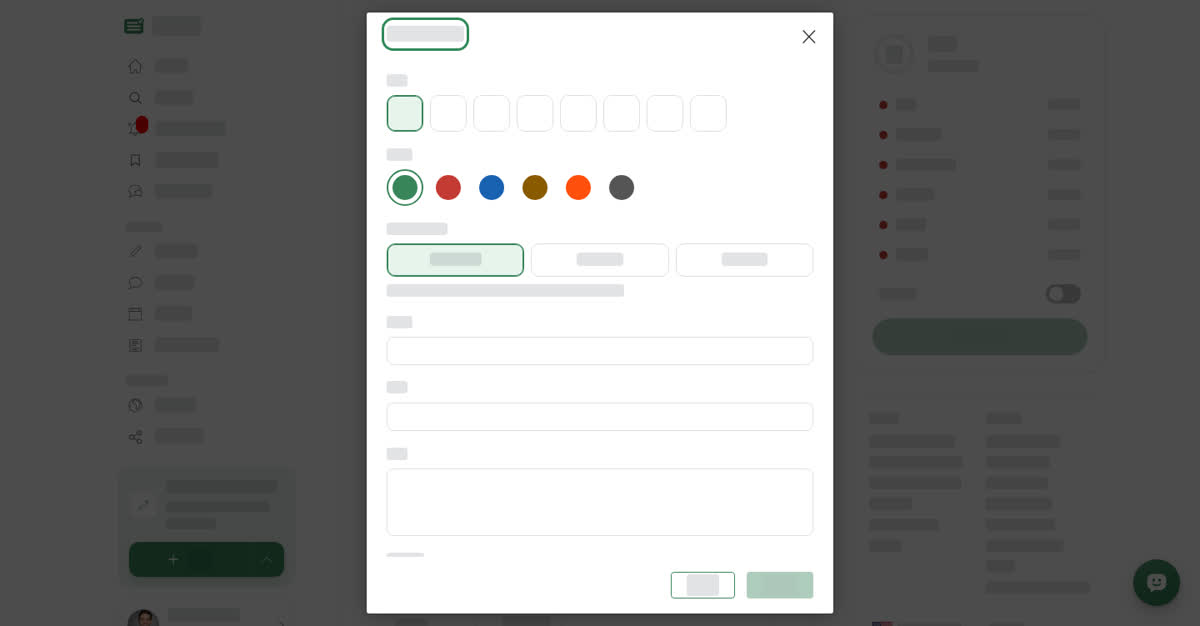
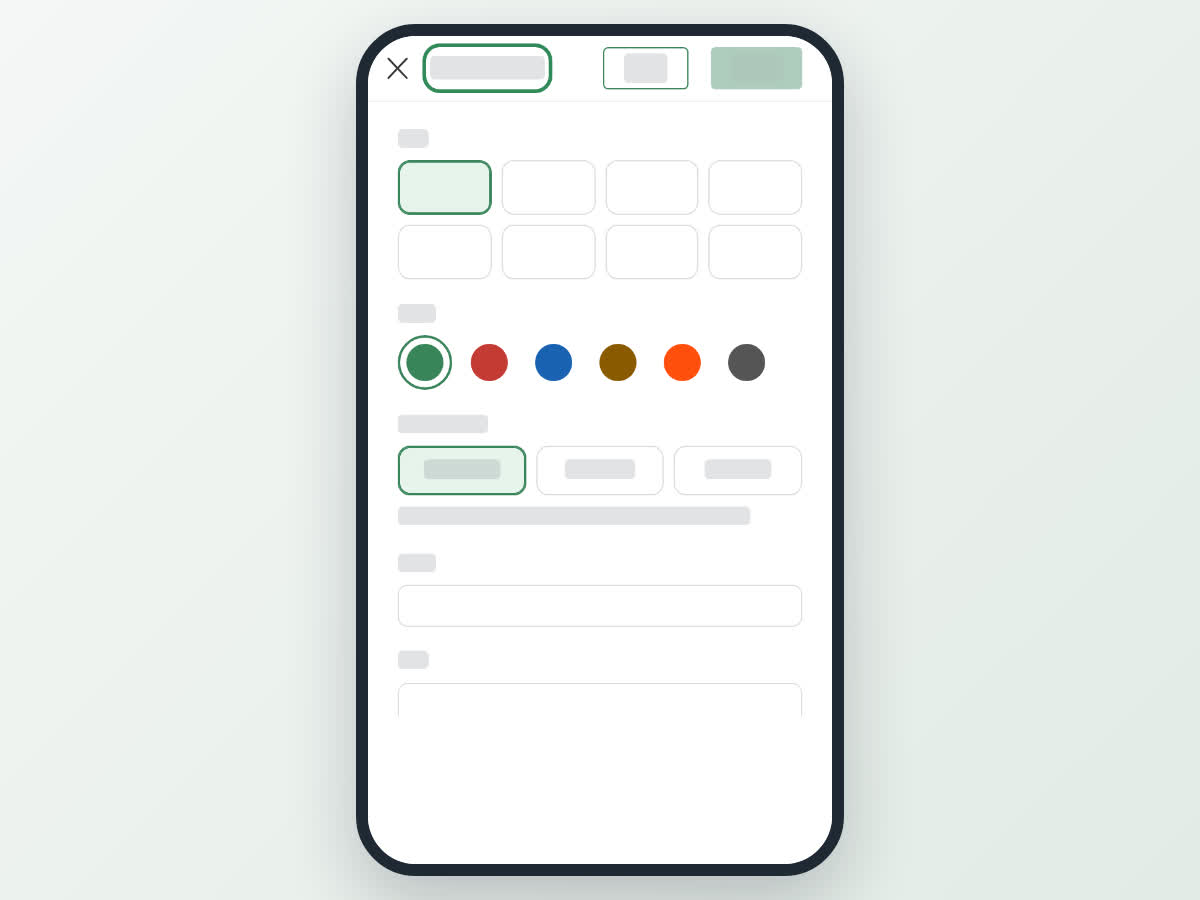
- Icon: Update, Breaking, Statement, Correction, Milestone, Resolved, Alert or Scheduled.
- Color: Green, Red, Blue, Amber, Orange or Gray.
- The timeline line: Start here for the first update, Continue for the ones in between, End here for the last one.
- Label, Title and Text: what happened, with the details readers need.
Each update is stamped with the time you added it. Readers see that time and how long ago it was. Updates between a Start here and an End here are joined by a line, so a run of updates reads as one timeline. Your first update starts on Start here; later ones start on Continue.
Put the newest update where readers will look first, usually at the top, and use Move up and Move down to keep the order right.
How live video works
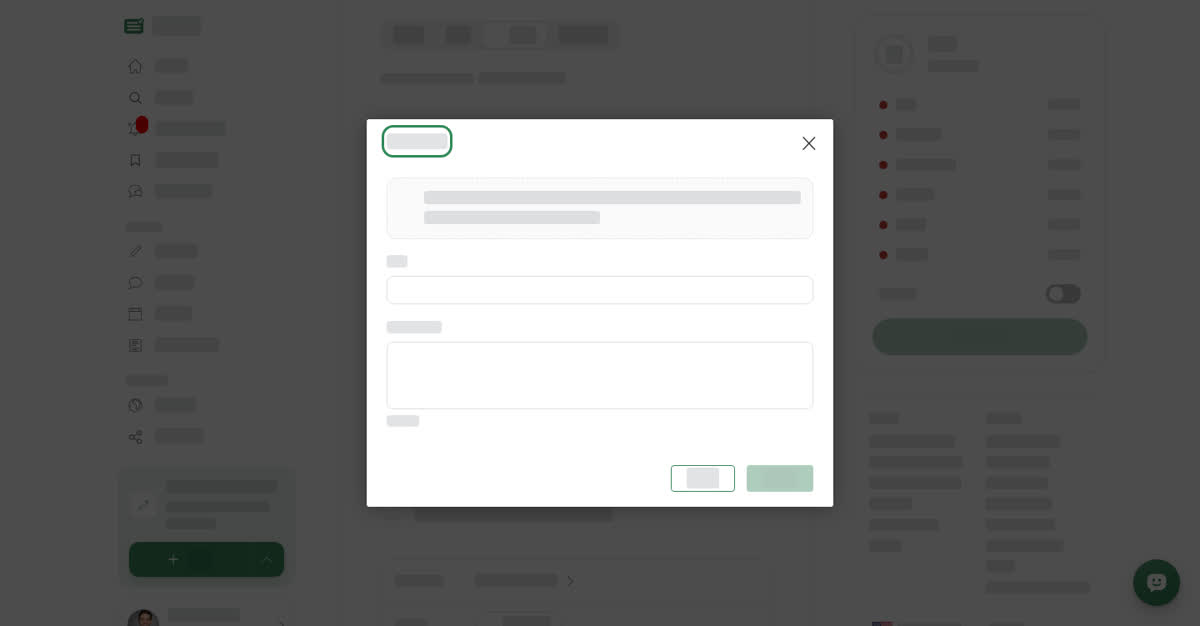
Add a Live video block with a Title and a Description of what is happening (up to 1,000 characters). Save the post and submit it for review, so readers can open it before you go live. Until you start, they see The live video starts soon.
When it's time, open the event for editing and select Go live in the block. Allow access to your camera and microphone when asked. While you're live you see the running time and how many people are watching. When you select End stream, the recording is processed and then replaces the live feed in the block. Select Update Draft to keep the recording in the post, then Submit for Review.
On a computer
To start, choose Event from the arrow next to Post in the left menu, or select the Event tab in the post form.
Add an update and go live on a computer
On your phone
These steps are the same in the Boogir app and on boogir.com in your phone's browser. A phone is a handy way to stream from where the event is happening.
To start, open Account, tap Events under Content, then tap New. Or tap + in the bottom bar, choose Post and tap the Event tab.
Add an update and go live on your phone
What viewers see
- Before you start: The live video starts soon.
- While you're live: the video with a Live badge and how many people are watching.
- After you end: the recording, once you have saved the post and it has been approved again. If the recording is still being prepared, the block shows The recording is being processed.
If your form shows The recording could not be saved after you end the stream, select Try again.