Choose a post type: article, story, event or document
Boogir has four post types. Each one suits a different kind of writing and adds its own blocks. Learn what each type is for, how to change it, and why documents need a Documents plan.
Guide · Writing John Smith1 day ago · 4 min read · 2 views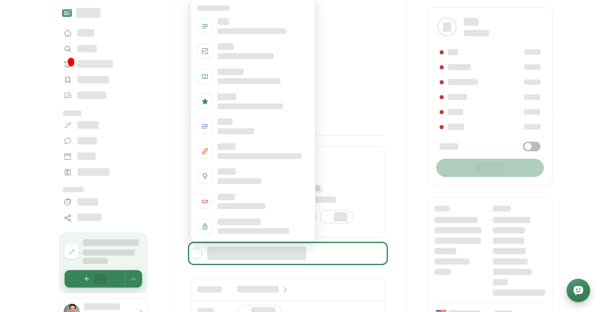
When you write a post, you pick one of four types with the Post type tabs at the top of the form: Article, Story, Event or Document. All four share the same basics: title, summary, cover, space and topics. The type changes which content blocks you can add and how readers see the post. It also decides where the post is listed: your Articles, Stories, Events and Documents pages, and the matching filters on the home feed and on space pages.
The four types
- Article — the everyday post: explanations, opinions, news, how-tos. It has the standard blocks (Text, Media, Guide, Embed, Callout, Button) plus Subscribers only.
- Story — a review or experience told in chapters over time. On top of the standard blocks it adds Story part (A chapter with its own score) and Verdict (Running score, pros and cons), plus Subscribers only.
- Event — something happening now or soon. It adds Live video (Stream from your phone camera) and Event update (A timed entry on the event timeline), plus Subscribers only.
- Document — guides, manuals and handbooks meant to be read like a library. It has the standard blocks only, with no Subscribers only. Readers get a document layout with On this page and, if the document is in a module, the module's contents.
On a computer
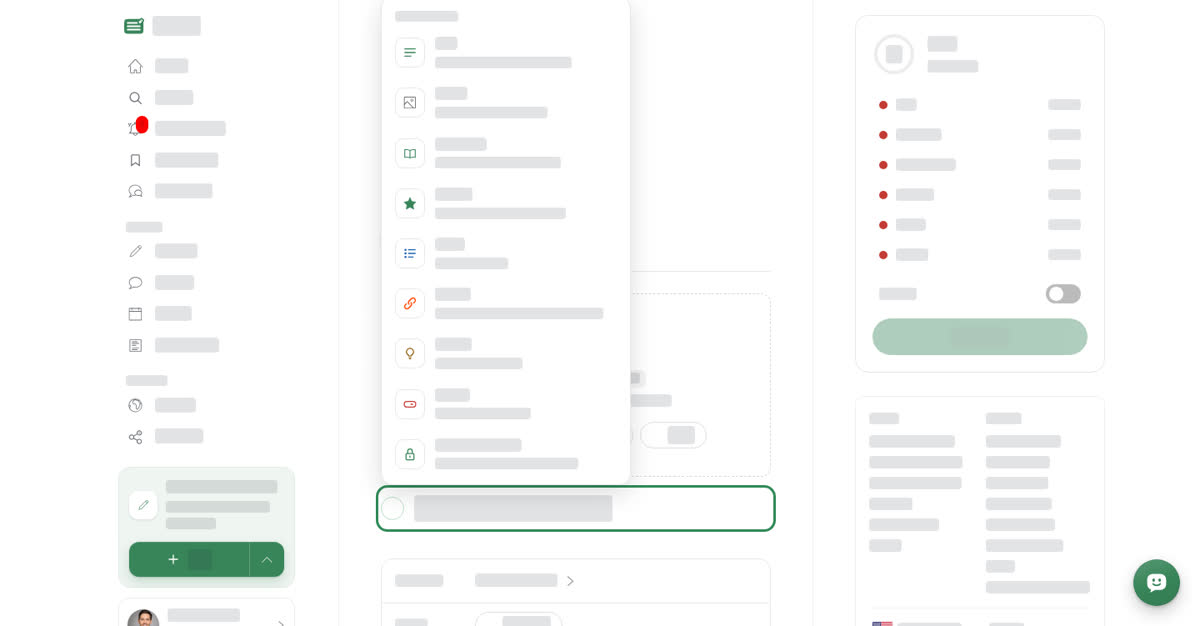
You can pick the type before the form opens: select the arrow next to Post in the left menu's Share what you know card, or select Post on your Articles, Stories, Events or Documents page. You can still change it in the form.
Choose or change the type on a computer
On your phone
These steps are the same in the Boogir app and on boogir.com in your phone's browser.
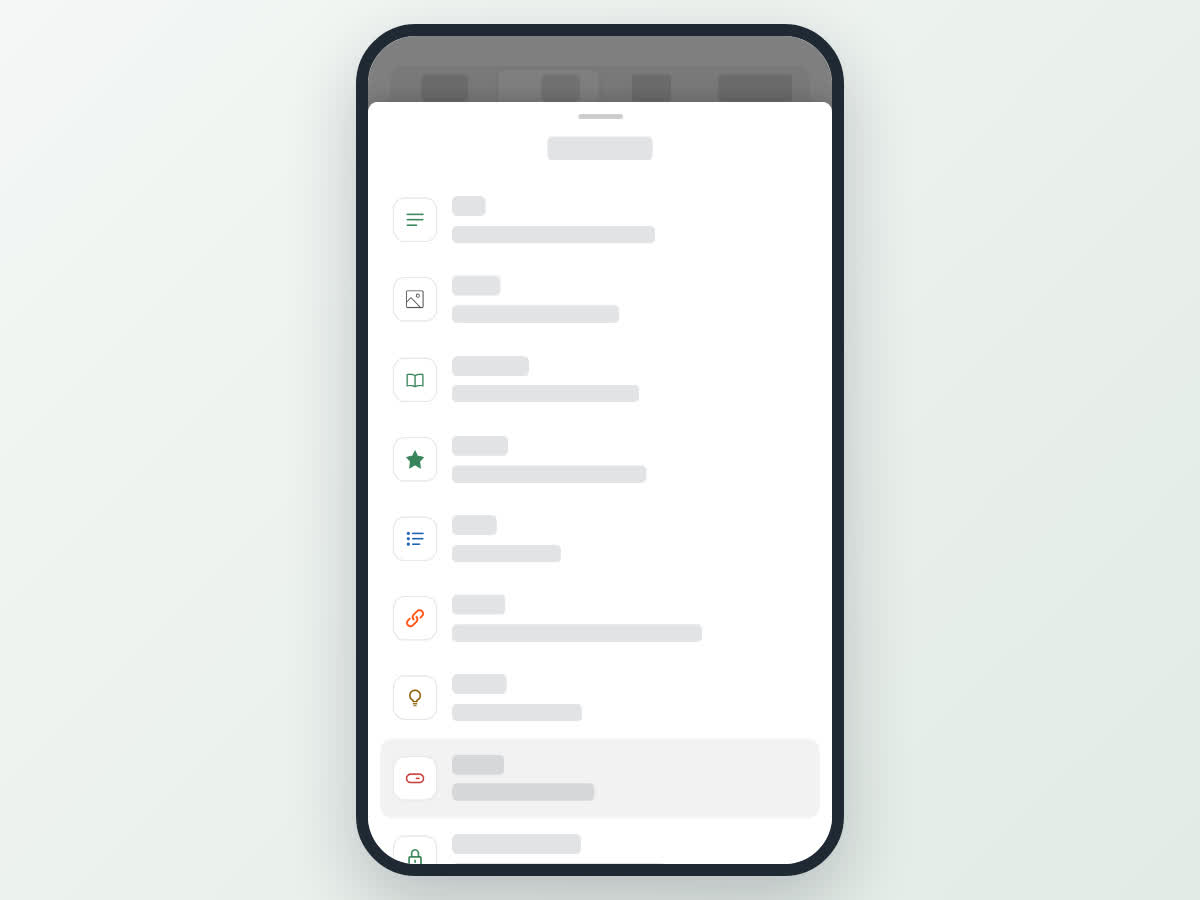
+ → Post always starts an article. To start with another type, open Account, tap Stories, Events or Documents under Content, then tap New. Or start an article and tap another tab at the top of the form.
Choose or change the type on your phone
Changing the type of an existing post
You can switch the type of a post at any time while editing it. Blocks you already added stay in the post, even ones that belong to the old type, such as a Story part in a post you switch to Article. You just can't add new ones of that kind. Check the content with the preview before you save.
Changing the type is an edit like any other. If the post was published, saving takes it out of Published and it needs to be submitted and approved again. See Drafts, review and post statuses.
Documents need a Documents plan
A space can only hold documents while it has an active Documents plan, and each plan allows a set number of documents. This applies both to new documents and to posts you switch to Document. When you save, you may see one of these messages:
- This space needs a Documents plan to post documents. The space has no active Documents plan.
- This space has used all the documents its plan allows. The plan's limit is reached.
An owner or manager of the space can subscribe to a Documents plan, or move to a bigger one, from the space's Subscription tab. See Plans and pricing and Subscribe, renew or stop a plan. To show the space itself as a library, see Turn your space into a document space.
Learn more about each type
- Add content blocks covers the blocks every type shares.
- Write a story with parts and a verdict covers stories.
- Run an event with updates and live video covers events.
- Add subscribers-only parts and earn covers locked sections in articles, stories and events.