Drafts, review and post statuses
Every post moves from draft to review to published. See what each status means, how to submit a post for review, what happens when it is declined, and why editing a published post sends it back to review.
Guide · Writing John Smith1 day ago · 4 min read · 2 views
A post on Boogir is only visible to readers once one of its space's reviewers has approved it. Until then it is yours alone. The status shows at the top of the post form, and on each post in your content lists.
The statuses
- Draft — a new post you haven't saved yet.
- Draft saved — saved, but not sent for review. Only you can see it.
- Draft updated — you saved changes to a post that had already been saved, submitted, published or declined. It needs to be submitted again.
- In review — waiting for a reviewer.
- Published — approved and live in the space.
- Declined — a reviewer turned it down. Their note shows under the status as Reason: followed by the text, when they gave one.
Opening a post from your list before it is published shows Public view for this post is available only after the post has been approved.
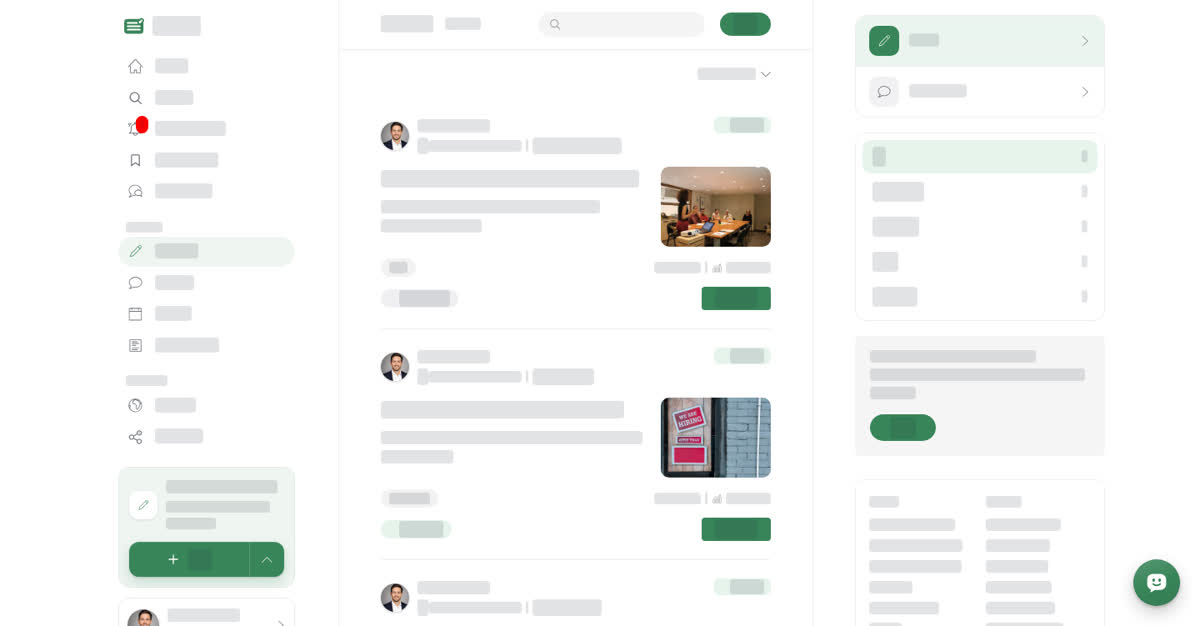
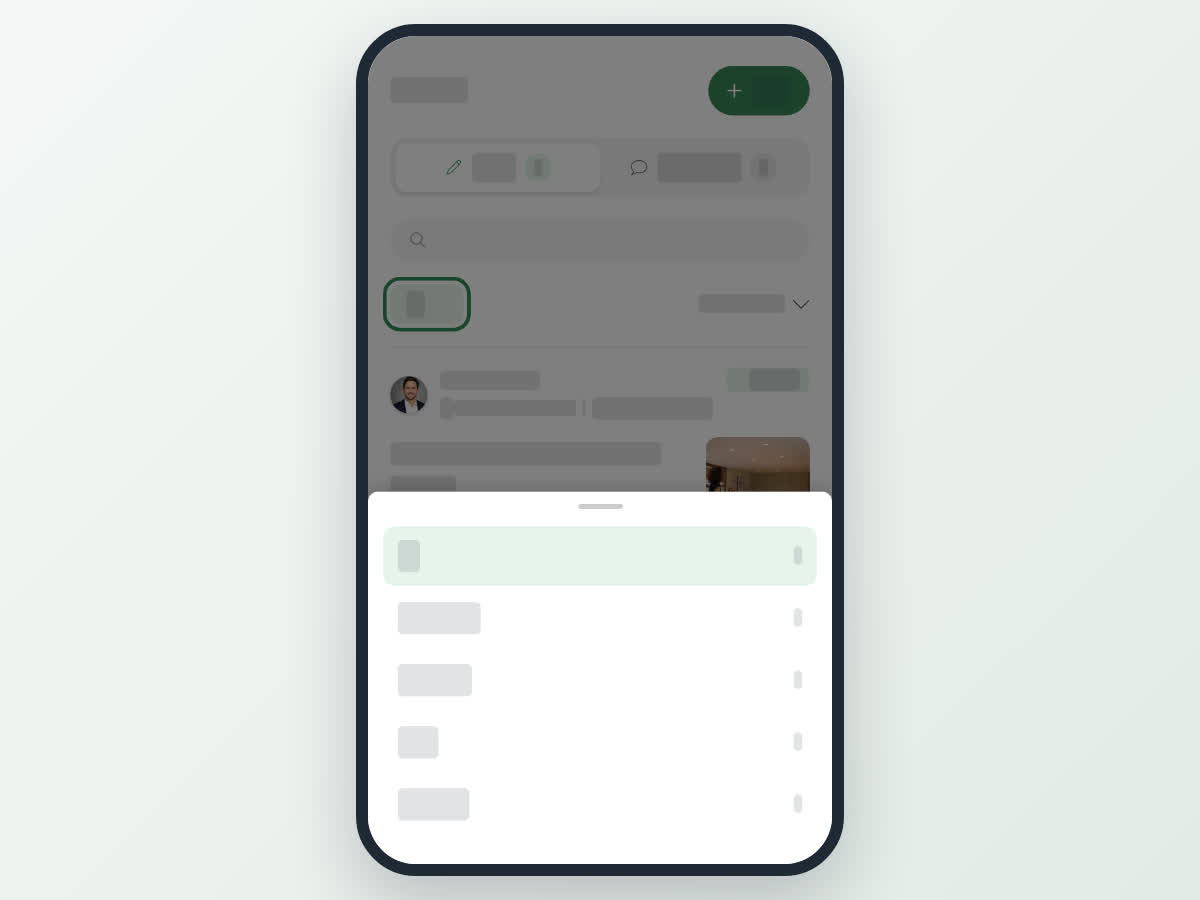
On your Articles, Stories, Events and Documents pages, the status filter has All, Published, In review, Draft and Declined, each with a count. Draft includes posts that are Draft updated.
Submit for Review appears while the status is Draft saved or Draft updated. Once you submit, the status changes to In review and the space's post reviewers get a notification that you submitted a post for review.
On a computer
Filter and submit on a computer
On your phone
These steps are the same in the Boogir app and on boogir.com in your phone's browser.
Filter and submit on your phone
Who reviews your post
Posts are reviewed by the space's Post reviewers. The space's owners and managers choose who they are, and new members become reviewers automatically. A reviewer opens your post, checks it against Boogir's community guidelines and the space's rules, and selects Publish or Decline. The steps for reviewers are in Review and approve posts in your space.
You get a notification either way: that the reviewer approved your post, or that they declined it. The first time a post is published, the space's subscribers are notified as well.
If your post is declined
- Open the post from your content page with Manage, or select the notification.
- Read the Reason: under the status.
- Select the pencil, make your changes and select Update Draft. The status becomes Draft updated.
- Select Submit for Review to send it back to the reviewers.
Editing a post that is in review or published
Any saved change to a post that is In review or Published sets it back to Draft updated. That includes small fixes, a new cover, a different module or a change of type.
- An In review post leaves the reviewers' queue. Submit it again when you're done.
- A Published post is no longer published. It has to be submitted for review and approved again. Documents that feed answers in Help Guides also drop out of those answers until they are approved again.
Switching Boost this post on or off is the one change that doesn't need a new review, because it isn't an edit of the post.