Add content blocks
Build the body of your post from blocks: text, images and video, numbered steps, embeds, callouts and buttons. Learn what each block does and how to edit, move and delete blocks.
Guide · Tutorial · Writing John Smith1 day ago · 4 min read · 2 views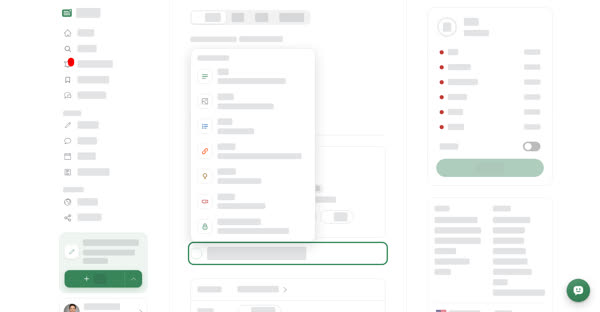
The content of a post is a list of blocks. Each block is one piece: a stretch of text, an image, a set of steps, an embedded video and so on. You add blocks one at a time, and you can edit, move or remove them whenever you like.
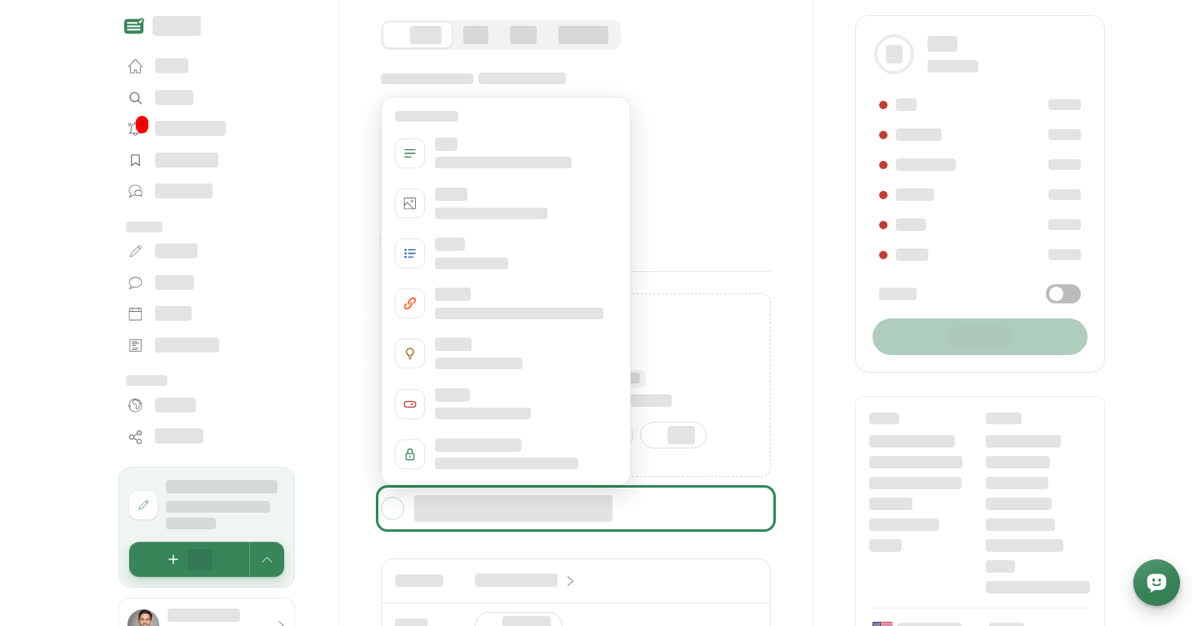
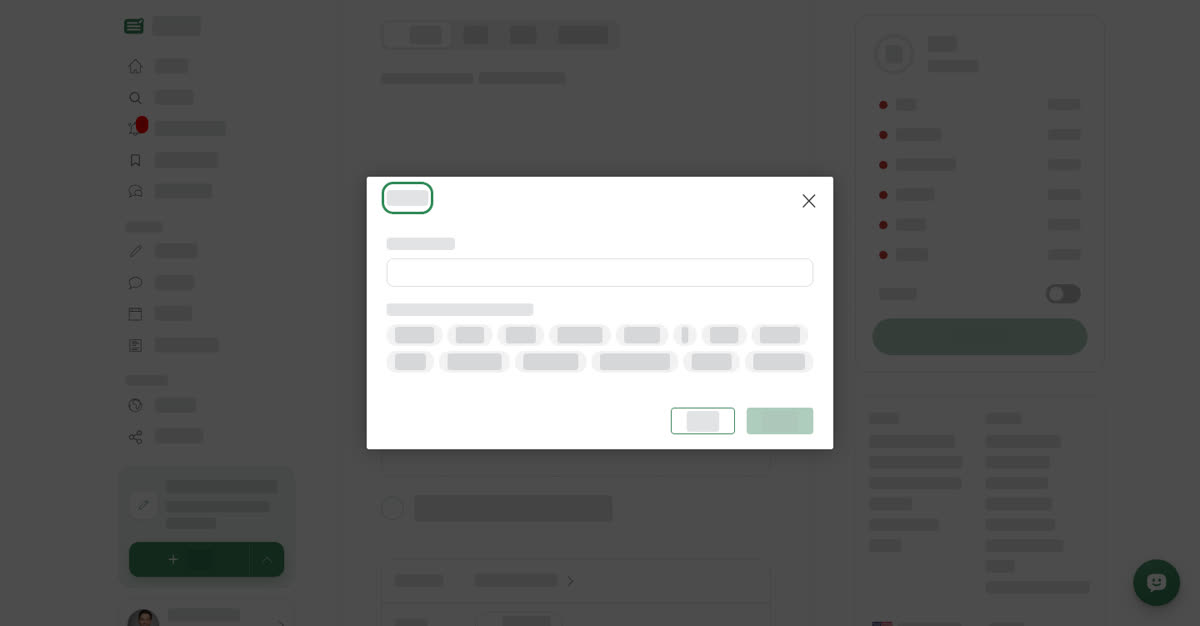
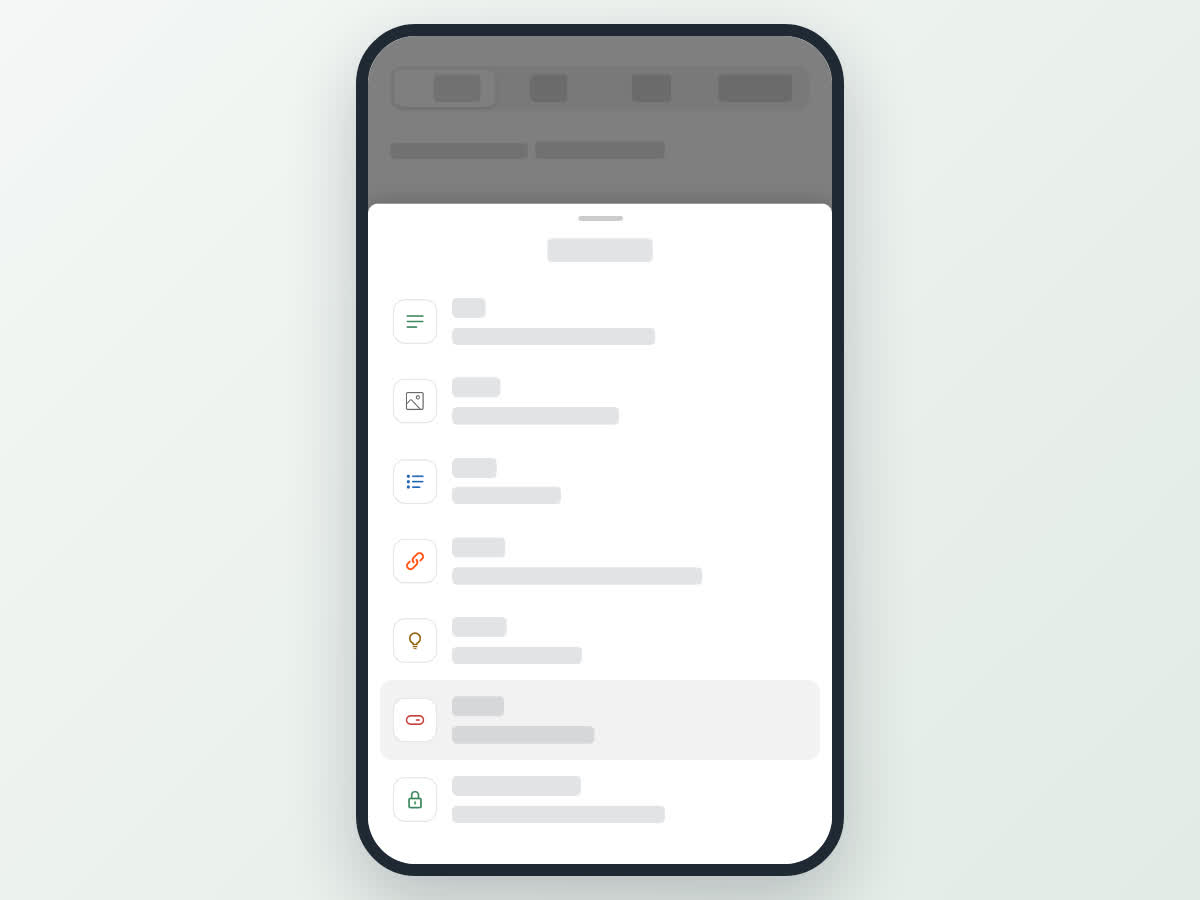
In an empty post, Start writing, or add a block opens the Add a block list. It shows every block your post type allows, each with a short description. Pick one and a window opens to fill it in. Create adds the block; when you edit an existing block, the button is Save instead.
Text
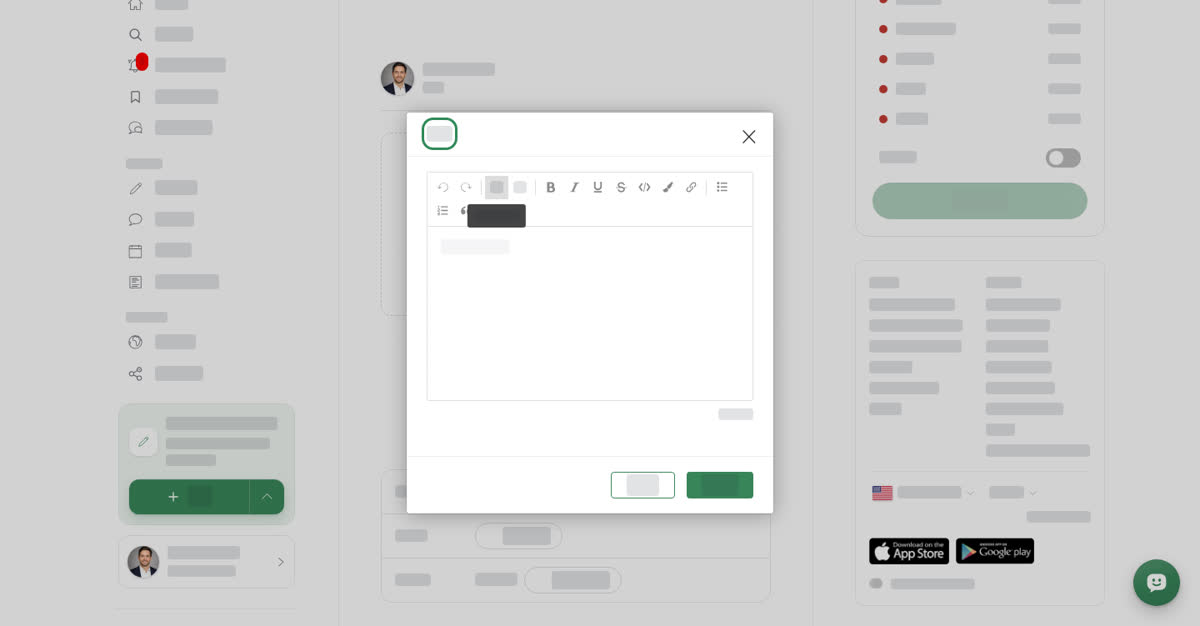
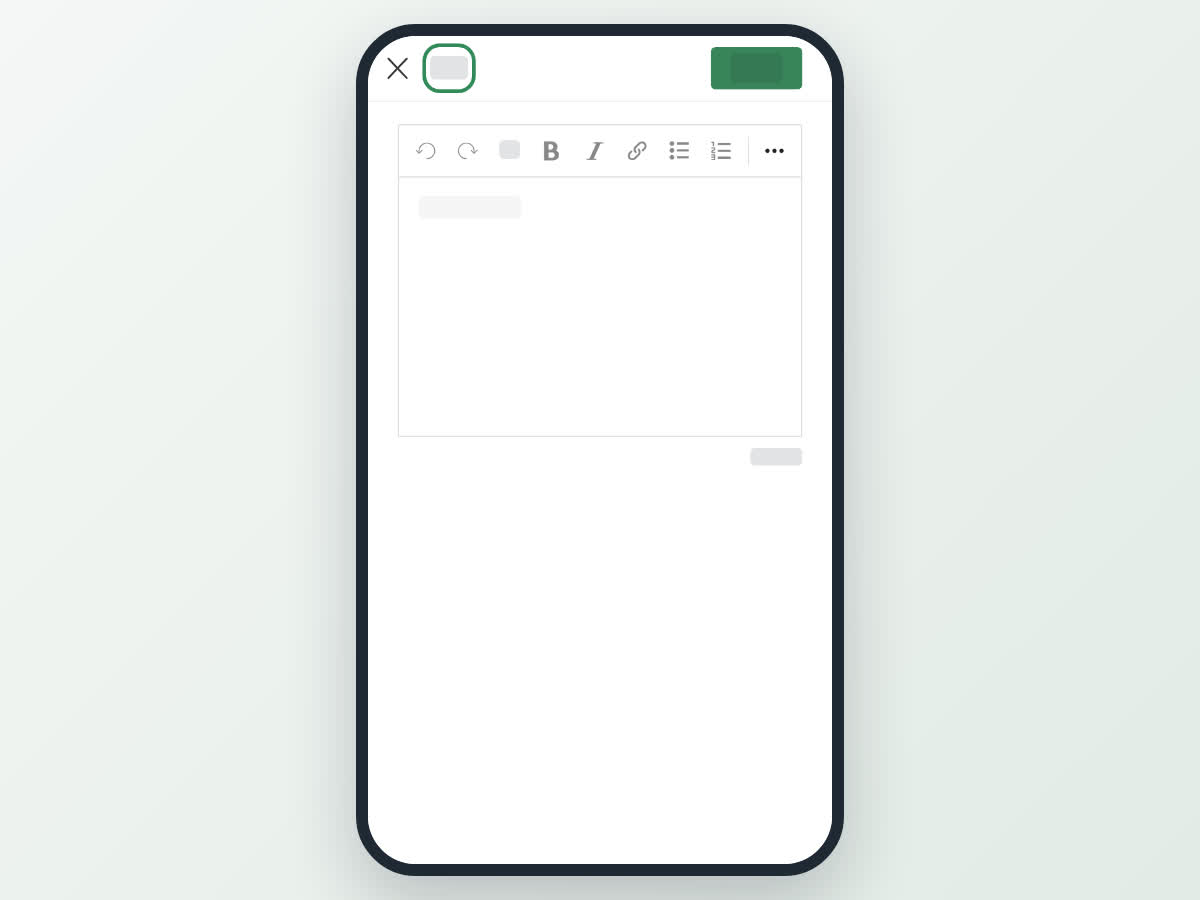
Headings, paragraphs and lists. Use it for your main writing. The toolbar has Heading 2, Heading 3, Bold, Italic, Underline, Strikethrough, Inline code, Highlight, Quote, Bulleted list, Numbered list, Code block, Divider, Link, Undo and Redo.
To add a link, select Link, fill in Link text and Link/URL, then select Add. You can use as many Text blocks as you like, which makes it easy to put images or callouts between paragraphs.
Media
Upload an image or video. Choose Image or Video, then pick a file.
- Images: JPG, PNG or WebP, at least 800px wide. Add Alt text (Describe the image for screen readers) and an optional Caption shown under the image.
- Videos: MP4, MOV, AVI, WMV or FLV, no longer than 10 minutes, with an optional Caption.
Guide
Numbered steps. Use it for any procedure. Give the guide a Title, then add Steps. Each step has a Title and an optional Description. Select Add step for the next one.
Embed
YouTube, Instagram, Spotify and more. Paste a link in Link to embed. Under Paste a link from one of these: the window lists the supported sites, and the matching one is ticked once your link is recognised:
- Video and social: YouTube, Vimeo, TikTok, Instagram, Threads, X, Reddit, Pinterest
- Audio: Spotify, SoundCloud, Apple Music, Apple Podcasts
- Code: CodePen, GitHub Gist
A Preview shows how it will look. Links from other sites show This link can't be embedded.
Callout and Button
Callout (Tip, note or warning) highlights a short message. Pick the Type (Tip, Note or Warning), add a Title and a Message. Keep it short, one or two sentences.
Button (A link readers can tap) adds a button that opens a web page. Enter the Button text and the Link, and check the Preview.
On a computer
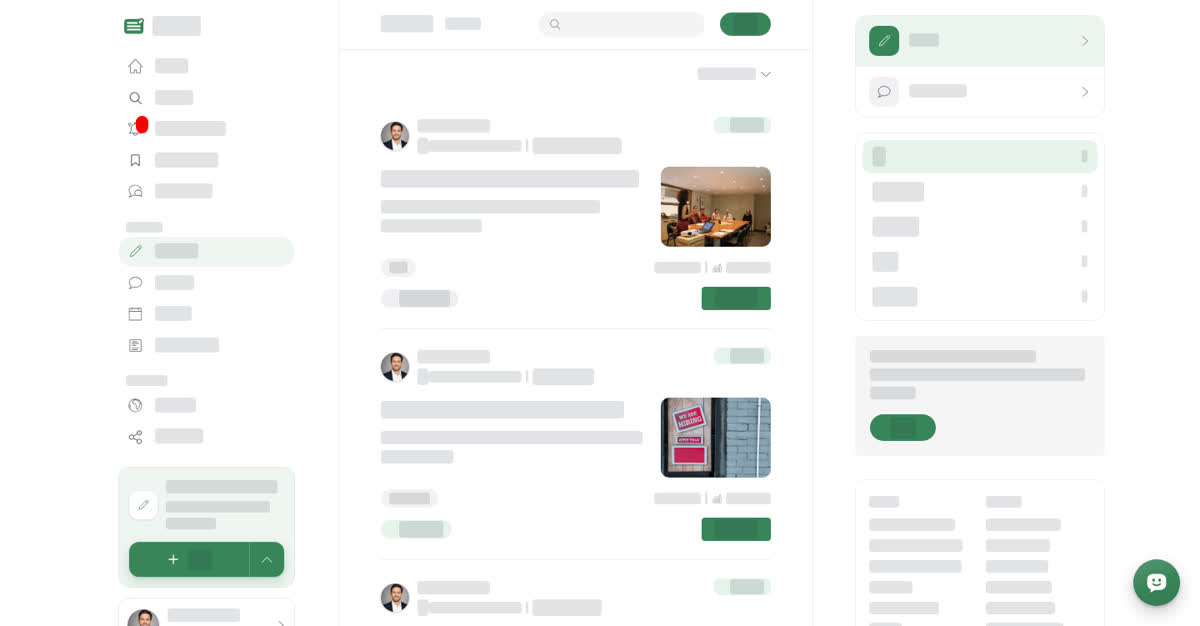
Add a block on a computer
Edit, move and delete blocks
Point at a block to show its toolbar:
- Edit reopens the block's window.
- The up and down arrows (Move up, Move down) shift the block one place.
- The bin (Delete) asks Delete? first. Select Delete again to remove the block, or Cancel.
- When there's more than one block, drag the grip handle at the left edge to move a block anywhere.
In a Guide block, a plus between steps inserts a new step at that spot.
On your phone
These steps are the same in the Boogir app and on boogir.com in your phone's browser.
Add a block on your phone
Edit, move and delete blocks
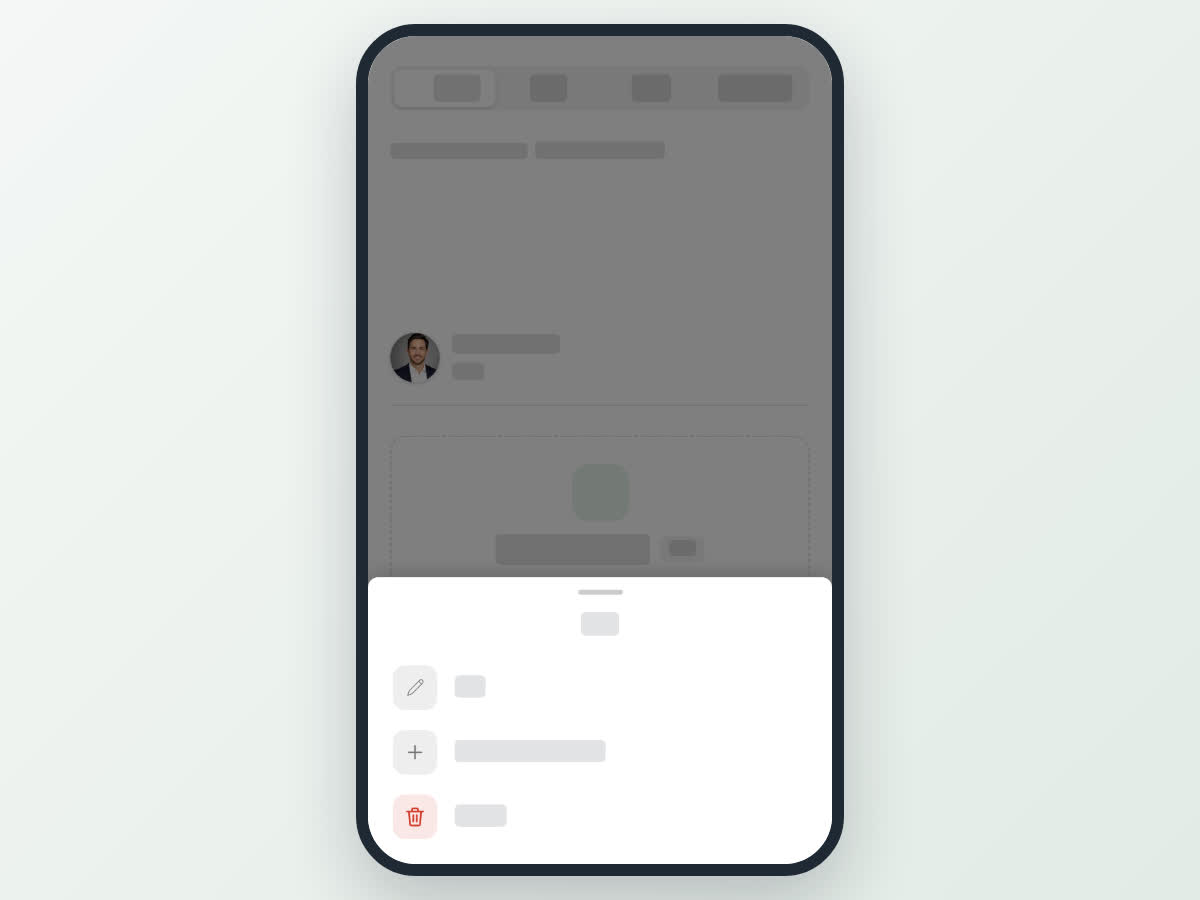
Tap a block to open a sheet named after its type, with:
- Edit to reopen the block's window.
- Add a block below to insert a new block right after it.
- Move up and Move down to shift it one place (the first block has no Move up, the last no Move down).
- Delete, which asks again with Delete and Cancel.
There is no dragging on a phone; use Move up and Move down to reorder.
Blocks for specific types
Some blocks only appear for certain post types:
- Story part and Verdict in stories. See Write a story with parts and a verdict.
- Live video and Event update in events. See Run an event with updates and live video.
- Subscribers only in articles, stories and events. See Add subscribers-only parts and earn.