Organise posts into modules
A module groups related posts into an ordered list with optional sections, like the chapters of a course or a manual. Create a module, add posts, then attach each post to it from the post form.
Guide · Tutorial · Writing John Smith1 day ago · 4 min read · 2 views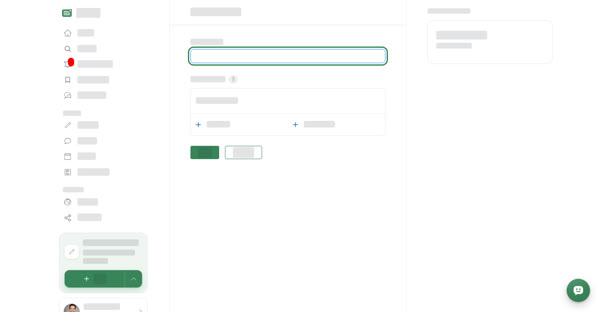
A module is an ordered list of posts with a name, such as Getting started or Week 1. You can split it into sections and indent posts under each other. Readers see the module on every post attached to it and can move through it in order.
Modules belong to you, not to a space. Only you see and edit your modules, and you can link up to 20 posts in each one.
Building the list
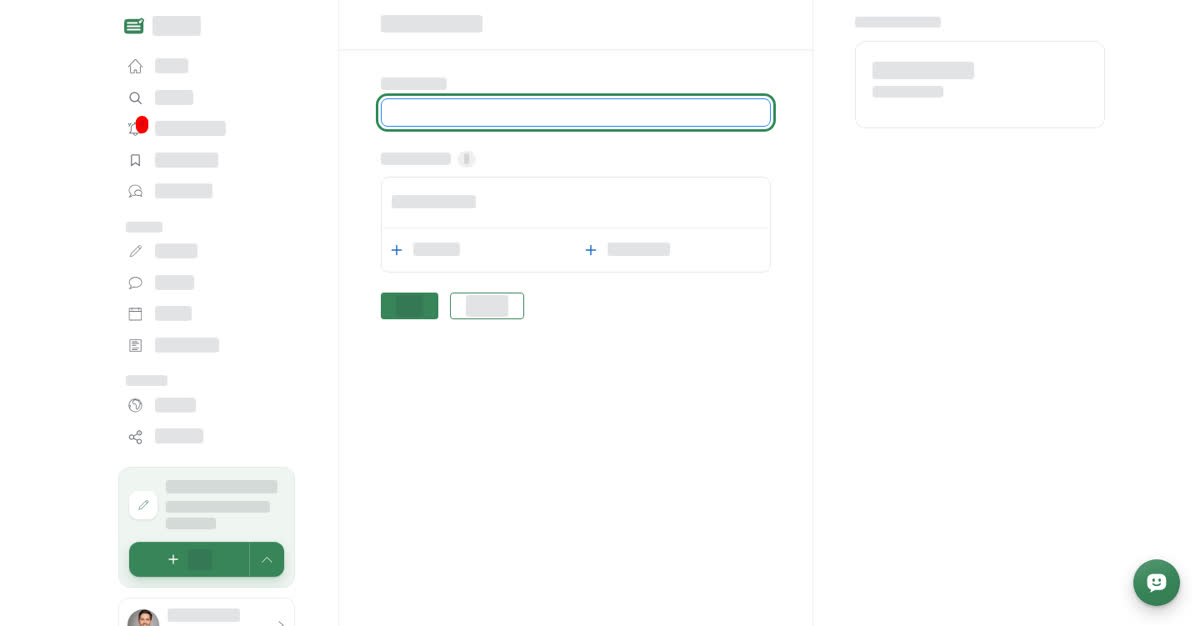
In the module form you give the module a Module name (up to 200 characters), then fill Linked articles:
- Add post opens a picker. On the Search tab, search your published posts and pick one. On the Post ID tab, paste the ID of any published post and select Add.
- Add section adds a Section label that groups the posts below it.
- The handle (Drag to reorder) moves rows.
- Each post's menu has Indent or Outdent, Open article to check it, and Remove.
- Save keeps your changes; Discard drops them.
Rules for the list:
- A module needs between 1 and 20 posts. If not, you'll see You need to add between 1 and 20 links.
- The Search tab lists only your own published posts. The Post ID tab takes any published post's ID. Use Copy ID in a post's menu to get one.
- You can't indent the first post under a section label.
- Empty section labels are dropped when you save.
On a computer
Create a module on a computer
On your phone
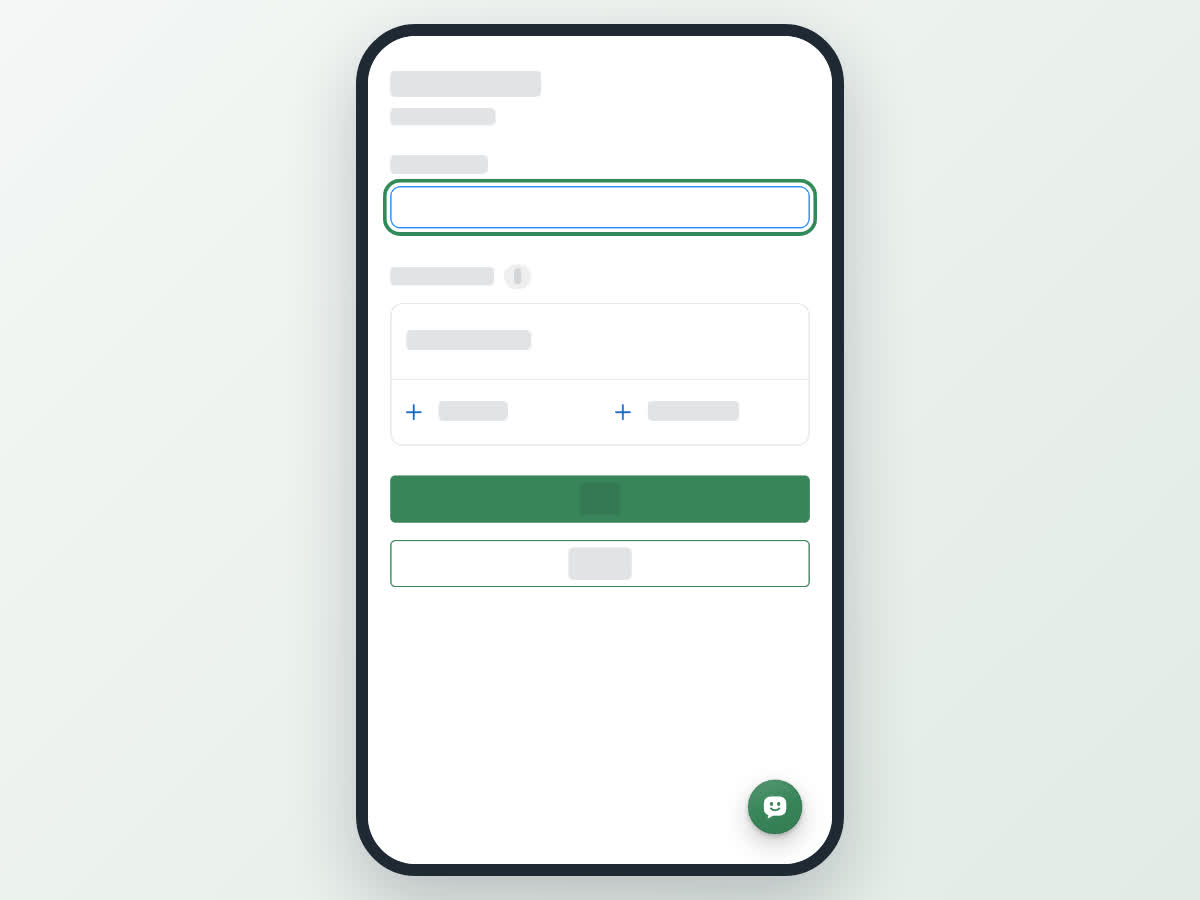
These steps are the same in the Boogir app and on boogir.com in your phone's browser. The phone form has no Reader preview; open a post that uses the module to see it as readers do.
Create a module on your phone
Attach a post to the module
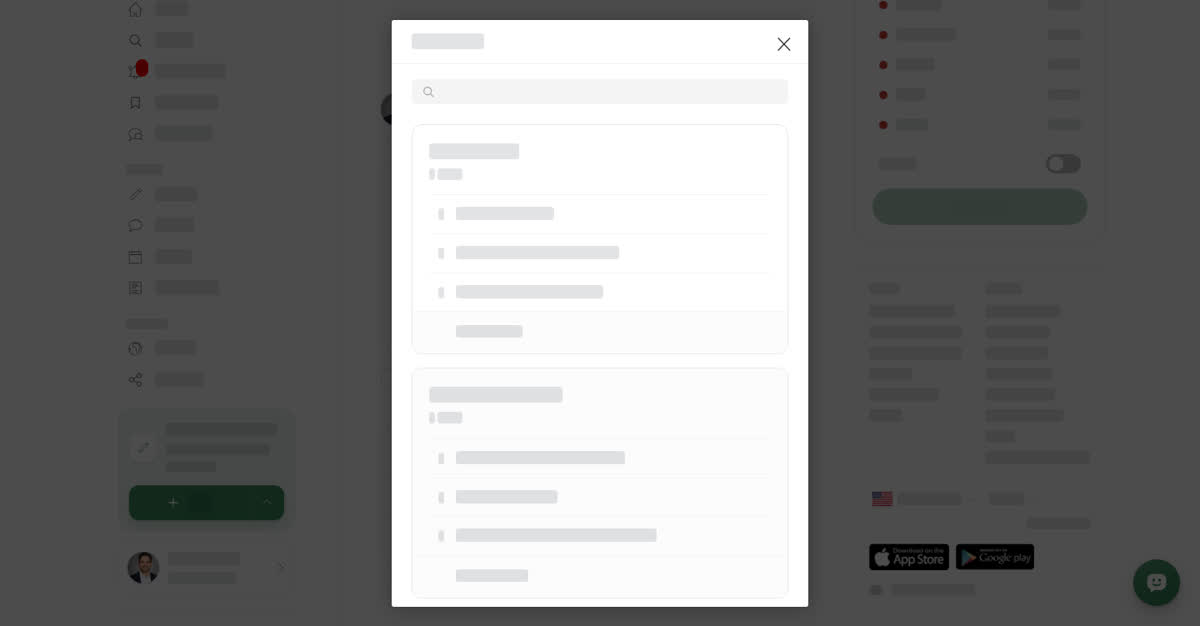
A post shows a module to readers only when the post's own Module field is set. In the post form, scroll to Publish to and, next to Module, select Add module. Search your modules and pick one. To change it, select the cross and pick again. Then save the post and submit it for review. This works the same on a computer and on a phone.
Keep modules up to date
On your Modules page you can search your modules. Select Manage on a module to open it, or use its three-dot menu (a sheet on a phone) for Update, Copy ID or Delete.
When you save a module, every post attached to it picks up the new name and list straight away, without another review. Deleting a module removes it from every post that was attached to it.
How readers see a module
- Articles, stories and events: a box under the cover shows the module name and the posts in it. Readers select a title to open that post.
- Documents: the module appears in a side panel with its sections, and the open document is marked Reading. The top of the document shows its place, for example 2 of 8 in followed by the module name, along with Progress in module. At the bottom, Previous and Next in lead through the module. On phones, Contents opens the list.
For the reader's side, see Read document spaces and modules.