Create a space
Every post on Boogir is published in a space. Create one for a topic, team, product or company in under a minute, and you become its owner.
Guide · Tutorial · Business John Smith1 day ago · 3 min read · 167 views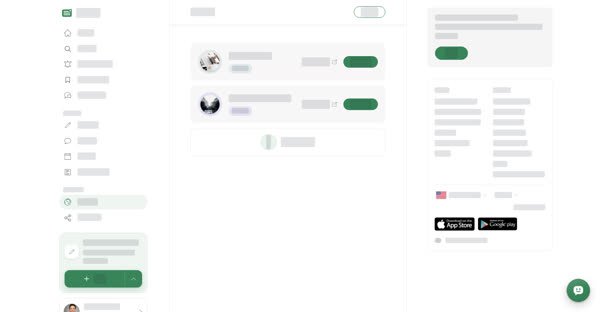
A space is where posts are published on Boogir. Every article, story, event and document belongs to one space, and readers can subscribe to a space to see its new posts in their Following feed.
A space can be about a topic, or it can represent a group, team, product, service or company. You can create as many spaces as you need, and the person who creates a space becomes its Owner.
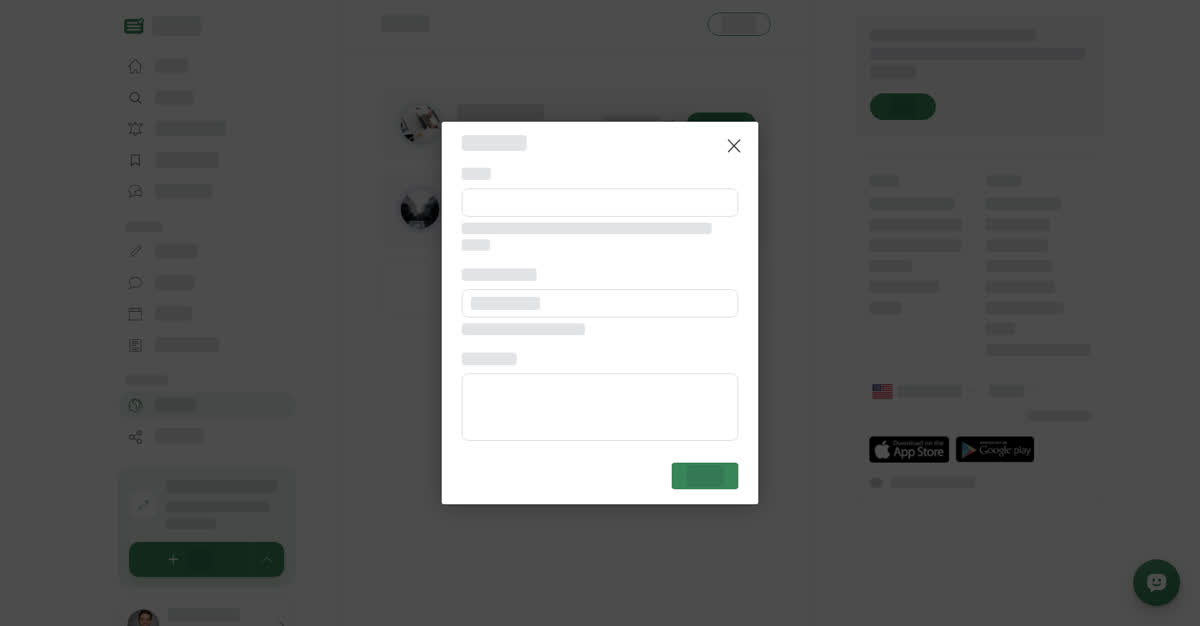
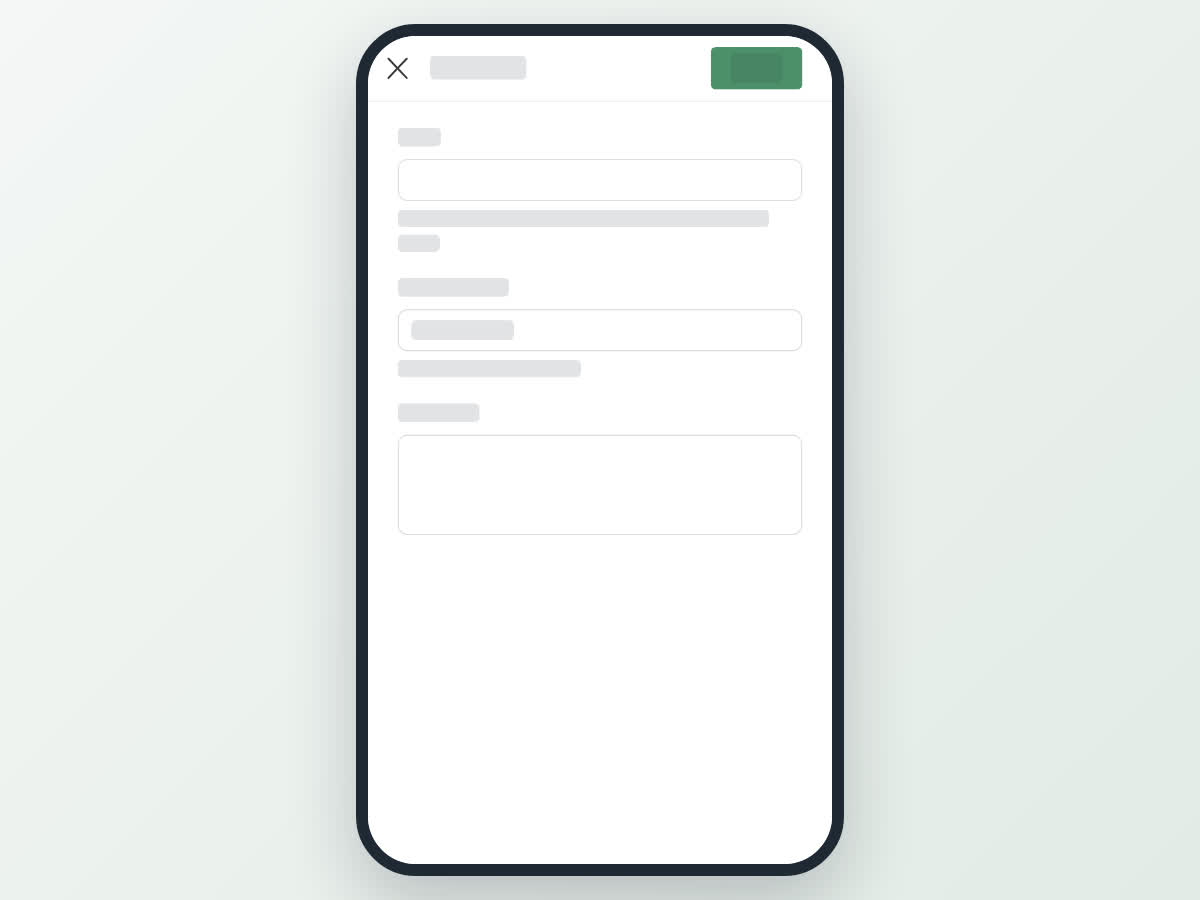
A new space needs three things:
- Name — up to 100 characters. It can be a topic or anything you want to write about.
- Country/Region — the main location of the space's content. Choose Global if it is not tied to one country or region.
- Description — 20 to 700 characters. It is shown on the space's public page.
On a computer
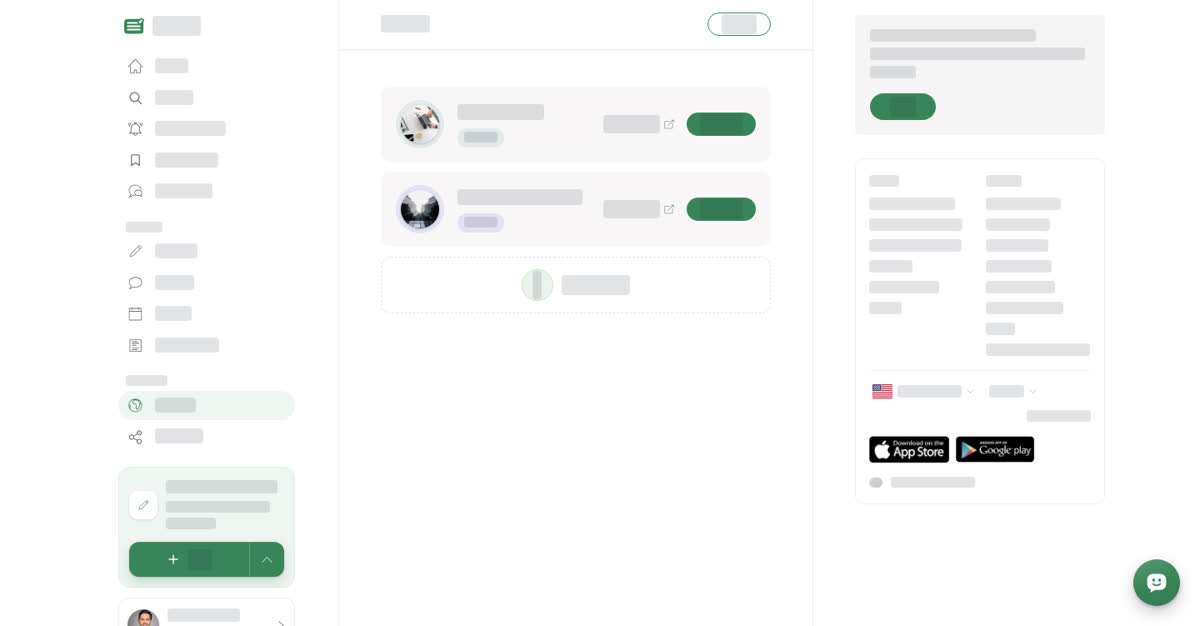
Create your space
On your phone
These steps are the same in the Boogir app and on boogir.com in your phone's browser.
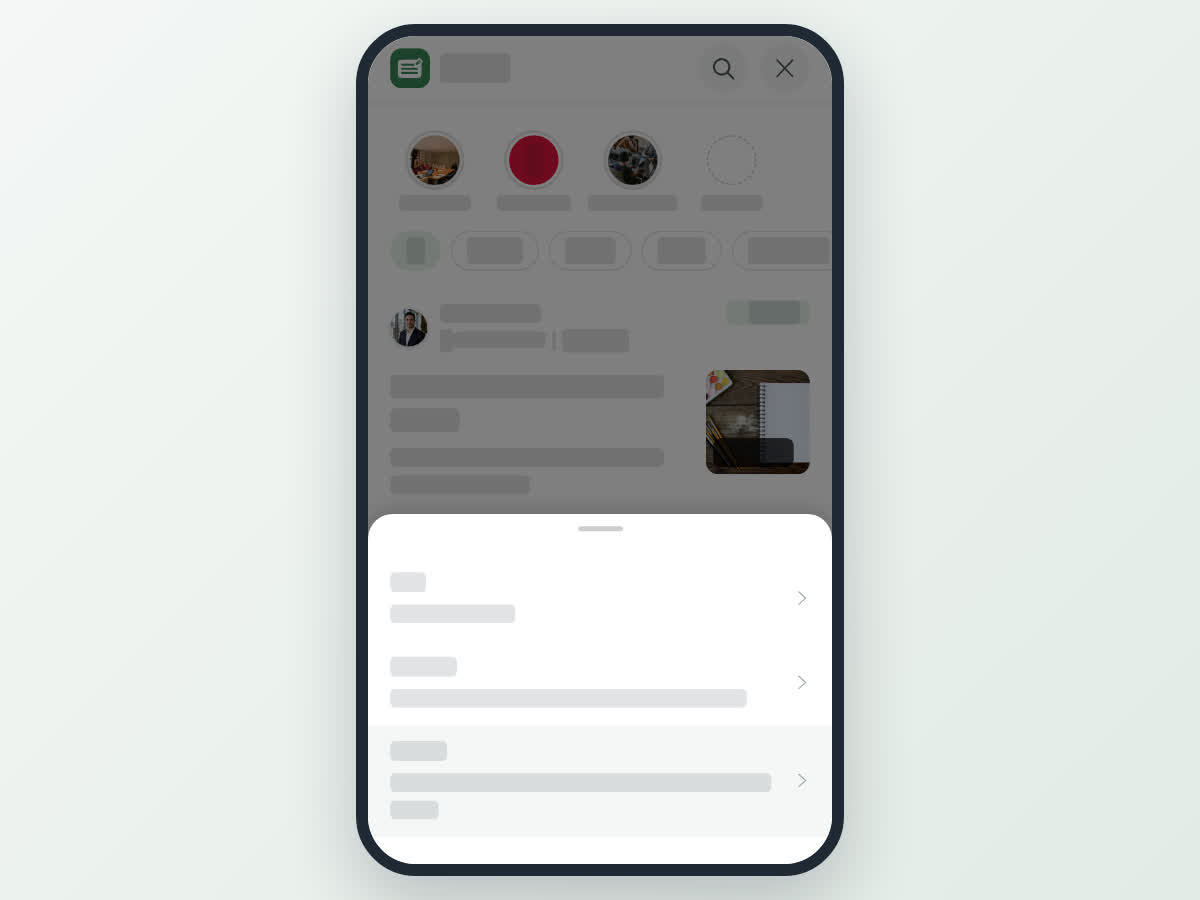
Create your space

What happens after you create a space
- You are the space's Owner, so you can change its settings, add members and buy plans for it.
- You are subscribed to the space automatically, and you are its first post reviewer.
- Each row on your Spaces page has Public View, which opens the page readers see, and Manage, which opens the space's manage page.
The new space has no photo or cover yet. Open Manage, then the Settings tab, to add them. See Change your space's name, photos and settings.
Another way to get to your spaces
When you write a post and have no space yet, the space picker in the post form shows Create new. It takes you to your Spaces page, where you can create one.
Next steps
- Learn your way around the manage page in Manage your space.
- Invite your team in Add members, set roles and choose post reviewers.
- Publish your first post in the space. Posts go to the space's reviewers before they are published; see Review and approve posts in your space.