Turn your space into a document space
With a Documents plan, your space can show its documents as a searchable library: guides, manuals and handbooks, with the newest one ready to read first.
Guide · Tutorial · Business John Smith1 day ago · 4 min read · 2 views
Document view turns a space's public page into a library of guides, manuals and handbooks. Instead of the usual post feed, readers see your documents in a list they can search and open, with the newest one featured at the top.
To use it, the space needs an active Documents plan. The same plan is what lets members post Document posts in the space.
Documents plans
A Documents plan is bought for one space, by an owner or manager of that space. It is paid from your wallet credits, monthly or yearly. Each level allows a number of documents in the space:
- Basic — 10 documents
- Plus — 50 documents
- Premium — 200 documents
Prices are shown on the Subscription page in your chosen currency.
On a computer
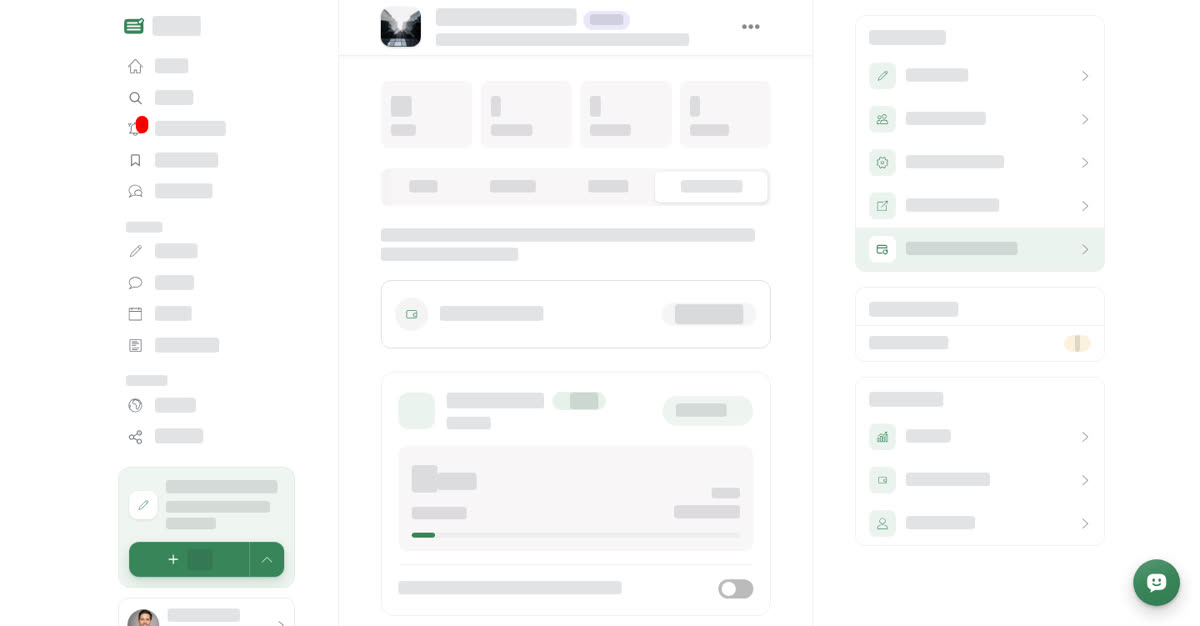
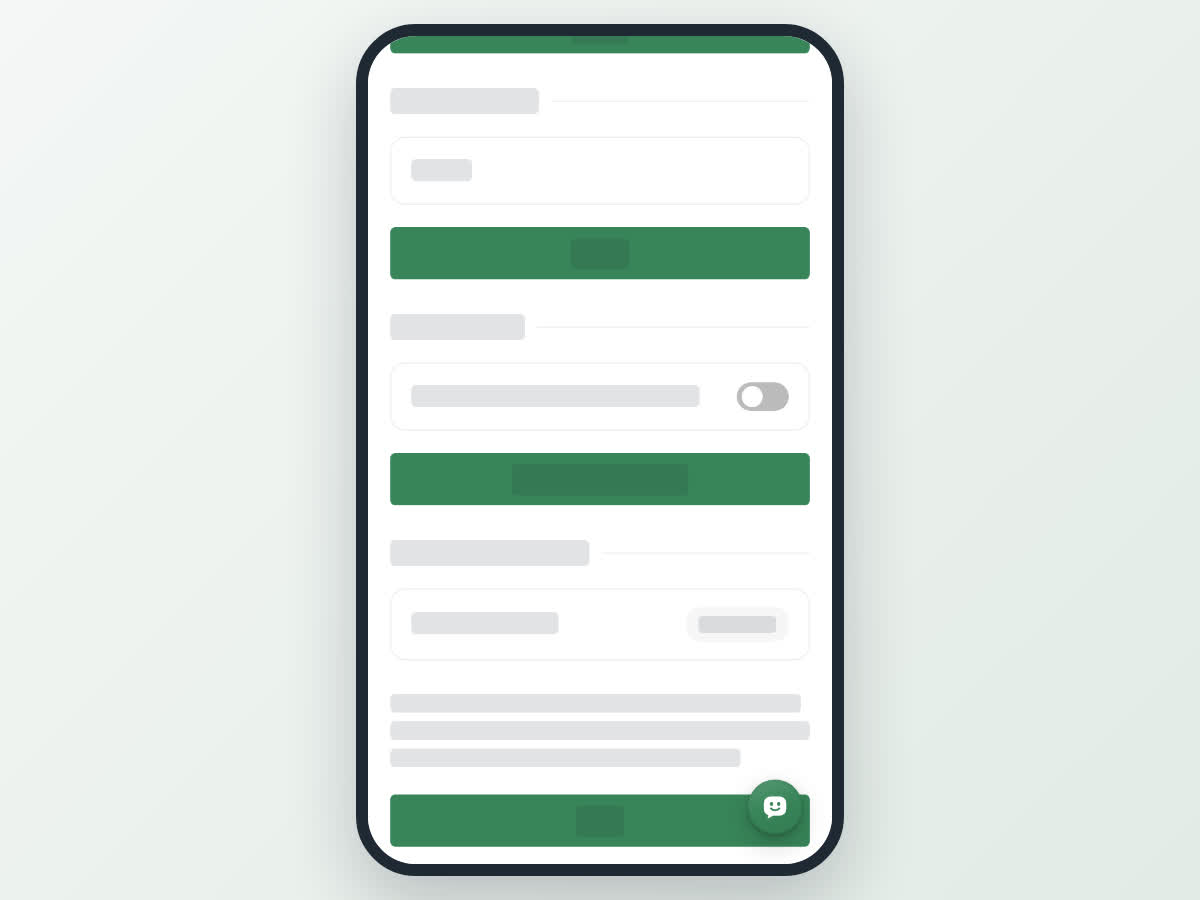
Get a Documents plan and turn on document view
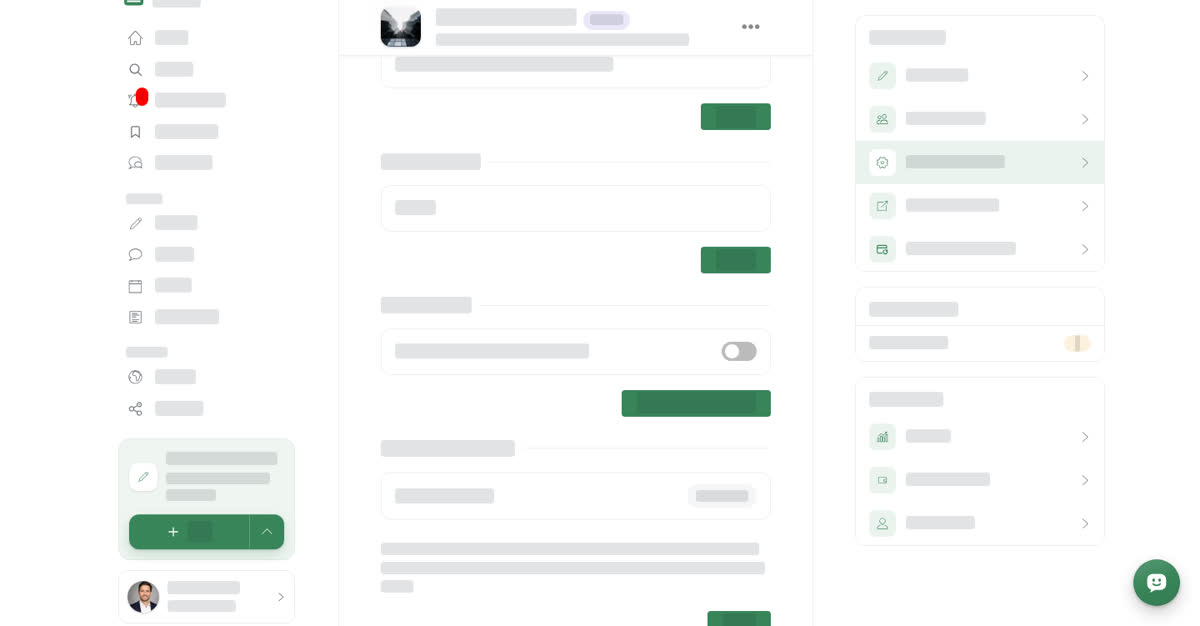
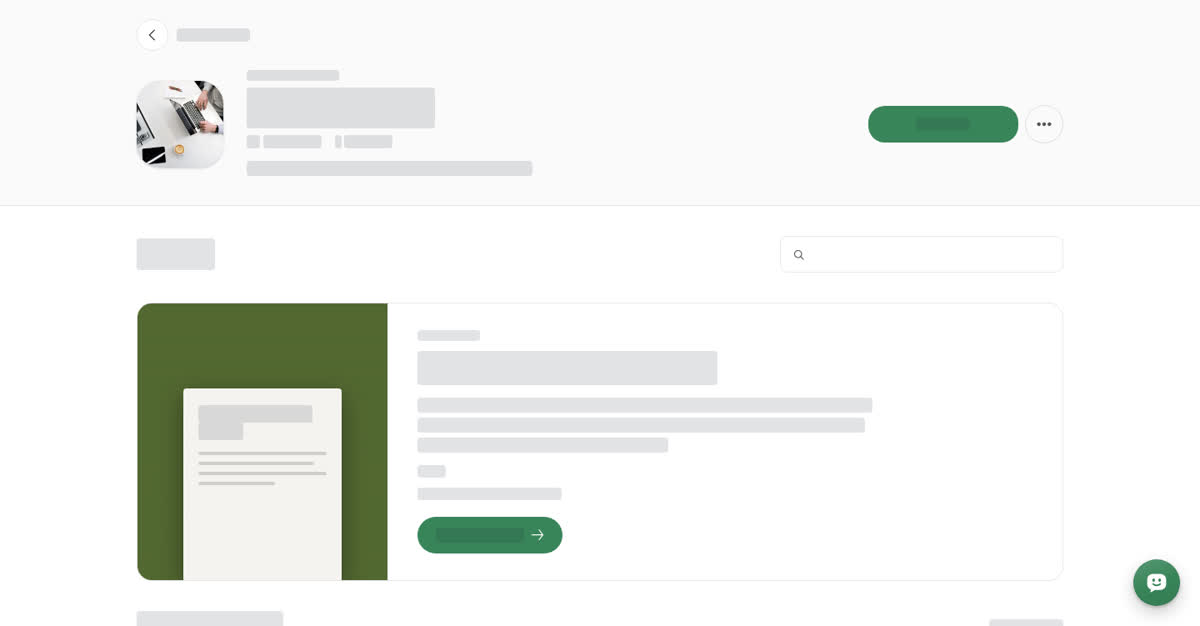
On a computer the page is labelled Document space and has a Back to Home link, a Library heading with a search box, a Read document button on the Start here card, and the latest documents as cards.
On your phone
These steps are the same in the Boogir app and on boogir.com in your phone's browser.
Get a Documents plan and turn on document view
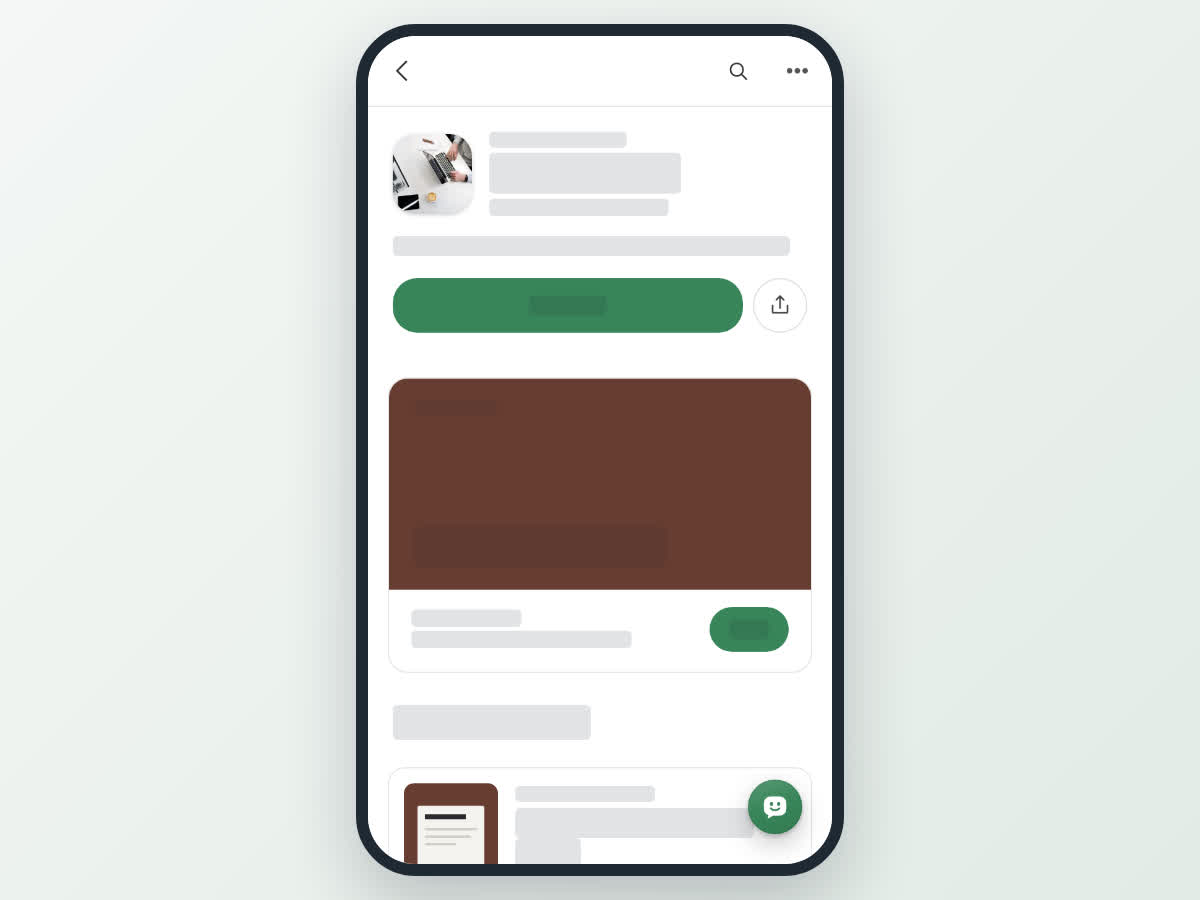
On a phone the document space has its own top bar with a back button, a search icon and ⋯. A Share button sits next to Subscribe, the Start here document has a Read button, and the latest documents are a list.
What readers see
With document view on, the space's page shows:
- A header with the space's photo, name, number of documents and followers, description, Subscribe button and ⋯ menu.
- A search that finds documents by title.
- Start here — the newest document, ready to open.
- Latest documents — the other documents, showing the module name when the document is in a module, its topics, date, reading time and views.
Only published Document posts appear. Articles, stories and events stay in the space but are not listed in the library. If there are none yet, readers see No documents.
Posting documents
To add a document, write a post in the space and pick Document in the post type tabs at the top of the post form. It goes through review like any other post and appears in the library once it is published.
Every Document post in the space counts toward the plan, including drafts and posts in review. Declined documents don't count. When the limit is reached, saving a new document (or changing another post to a Document) shows "This space has used all the documents its plan allows." Without a plan you'll see "This space needs a Documents plan to post documents."
When the plan ends
The Documents plan card on the Subscription tab shows how many documents are used, the end date and an auto-renew switch (Renew the plan automatically when it ends.). With auto-renew on, the plan renews from the wallet when it ends. If the wallet is running low, you get a notification before the renewal, and another if auto-renew stops because there isn't enough credit.
If the plan ends, the space goes back to its normal page. Your documents stay published as posts, and document view comes back when the space has an active plan again.