Your space's public page
What visitors see on your space's public page, how they subscribe and choose alerts, and what the more options menu offers, including Message and Report.
Guide · Business John Smith1 day ago · 3 min read · 2 views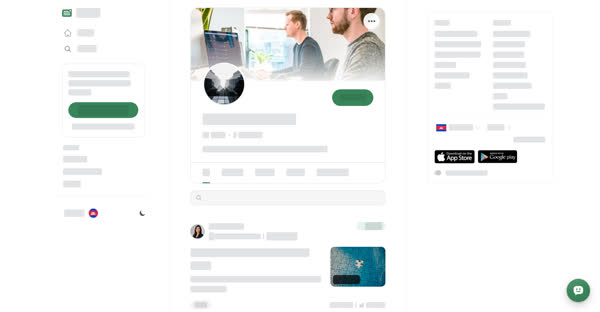
Every space has a public page that anyone can open, signed in or not. It is where readers discover the space, browse its published posts and subscribe.
To see your own space as visitors do, select Public View on your Spaces page, or View public space on the manage page.
What's on the page
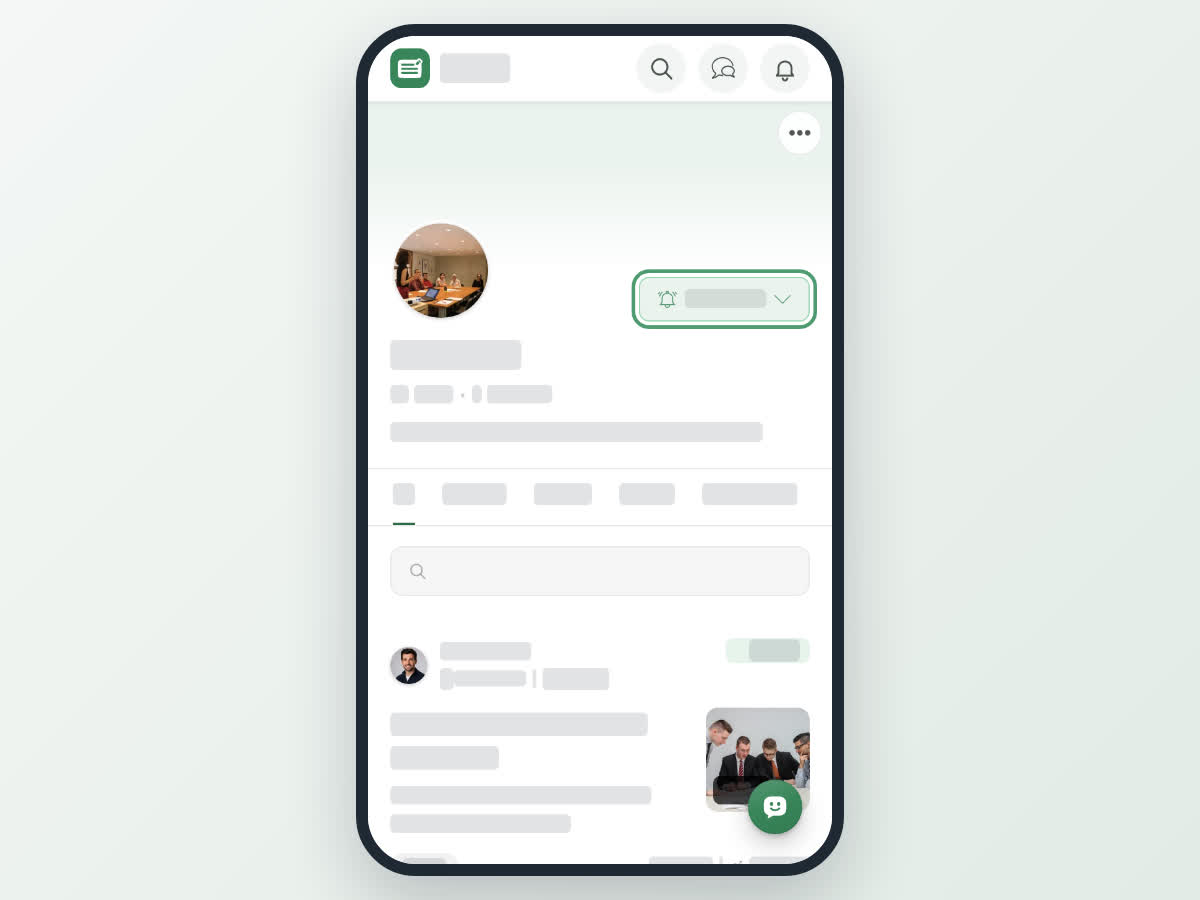
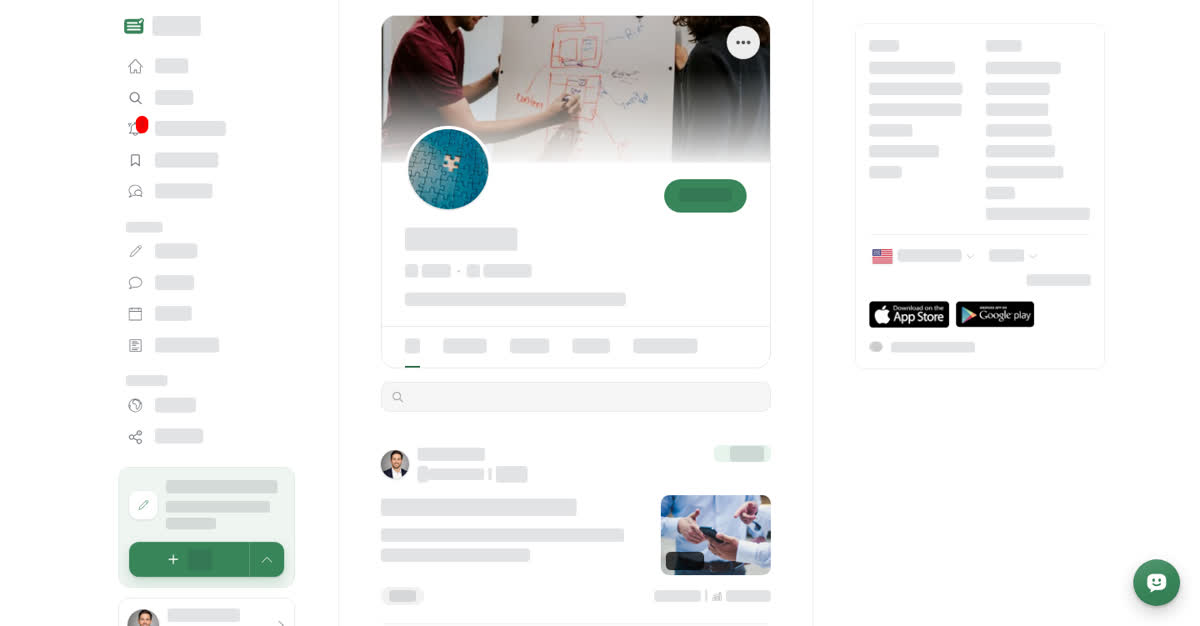
- The cover and profile photo, the space's name, and a blue tick if the space has an active blue tick plan.
- The number of posts and followers, and the space's description.
- A Subscribe button and a ⋯ menu.
- Tabs for post types, such as All, Articles and Documents. Owners and managers choose which tabs show and in what order under Settings → Tabs; the first one opens by default.
- Search posts, to find posts in the space by title.
Only Published posts appear. Drafts and posts in review are visible only on the manage page. If the space has document view on, the page looks different; see Turn your space into a document space.
Alerts for new posts
Once you subscribe, the space's new posts show in your Following feed on the home page, and the button changes to Subscribed with a bell. Select it to choose what you are notified about:
- All new posts — articles, stories, events and documents.
- Only these types — tick the types you want.
- Off — stay subscribed and see posts in Following, without alerts.
On a computer
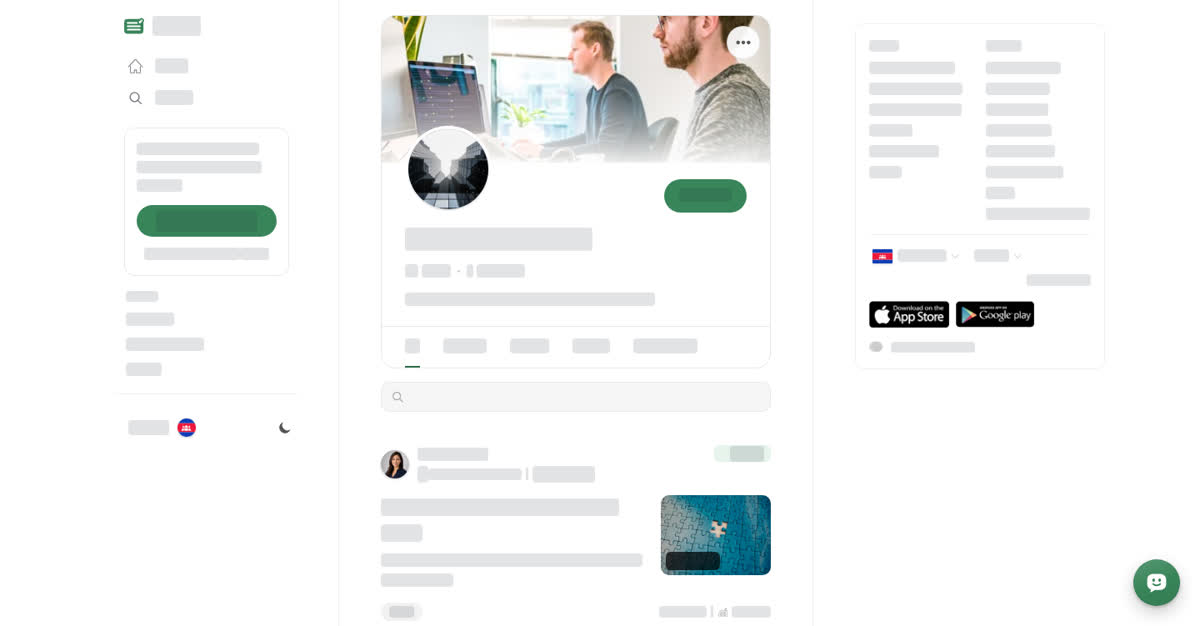
Subscribe and choose your alerts
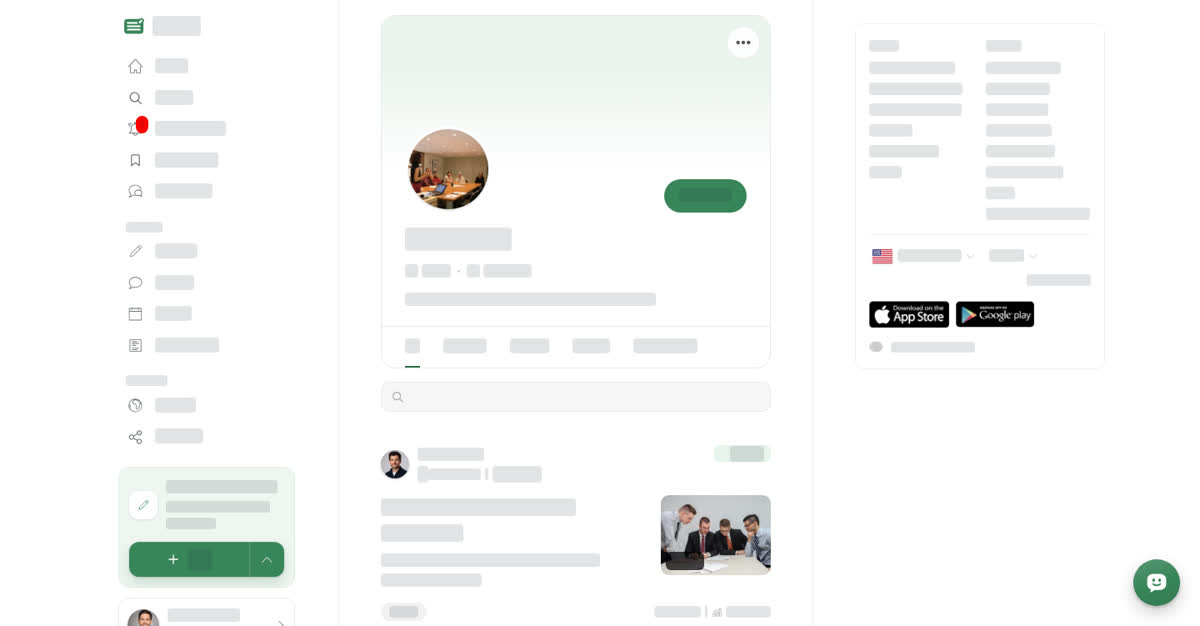
On your phone
These steps are the same in the Boogir app and on boogir.com in your phone's browser.
Subscribe and choose your alerts
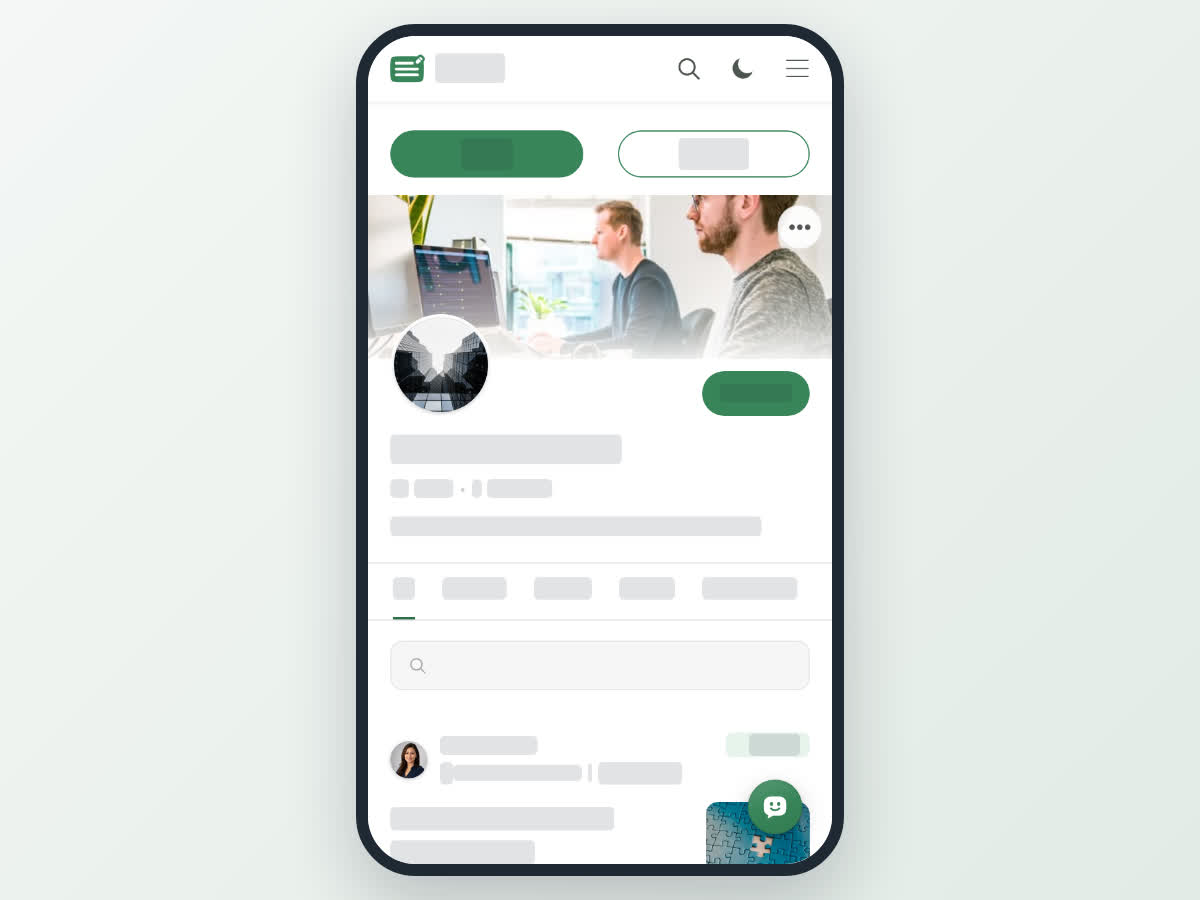
The more options menu
Select ⋯ on the space's page (on a phone, tap it):
- Message — start a conversation with the space in Boogir's messenger. It shows only when the space has a Talkou Business ID.
- Send in message — share the space into one of your chats.
- Subscribe or Unsubscribe.
- Turn On Notification or Turn Off Notification — while you are subscribed.
- Report — tell Boogir about a space that breaks the rules.
If you are signed out, choosing an option asks you to log in first.
Let people message your space
If you own or manage the space, add the Talkou Business ID of your business account on Talkou under Settings → Details. Messages from visitors then reach that business account. See Change your space's name, photos and settings.
Report a space
Select ⋯ → Report, choose the reason, add details under Tell us a bit more if you want to (it's optional), then select Submit report. Boogir reviews every report and acts when it breaks the policies.
On a phone the report form opens full screen, and Submit report is at the top right.