Change your space's name, photos and settings
Update your space's name, profile photo, cover, country, description, Talkou Business ID, post tabs and signature color from the Settings tab.
Guide · Tutorial · Business John Smith1 day ago · 4 min read · 2 views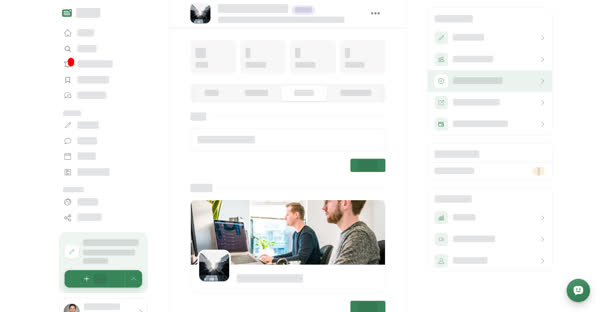
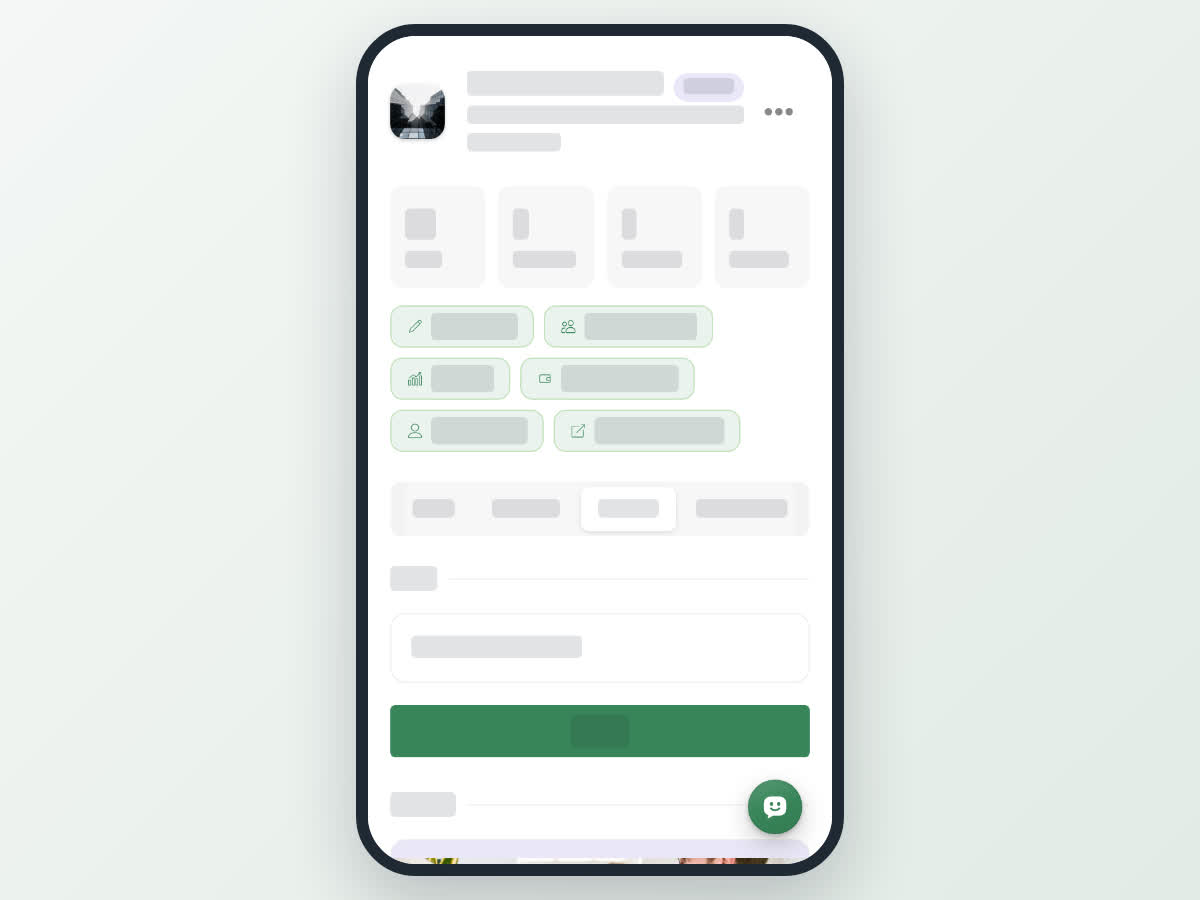
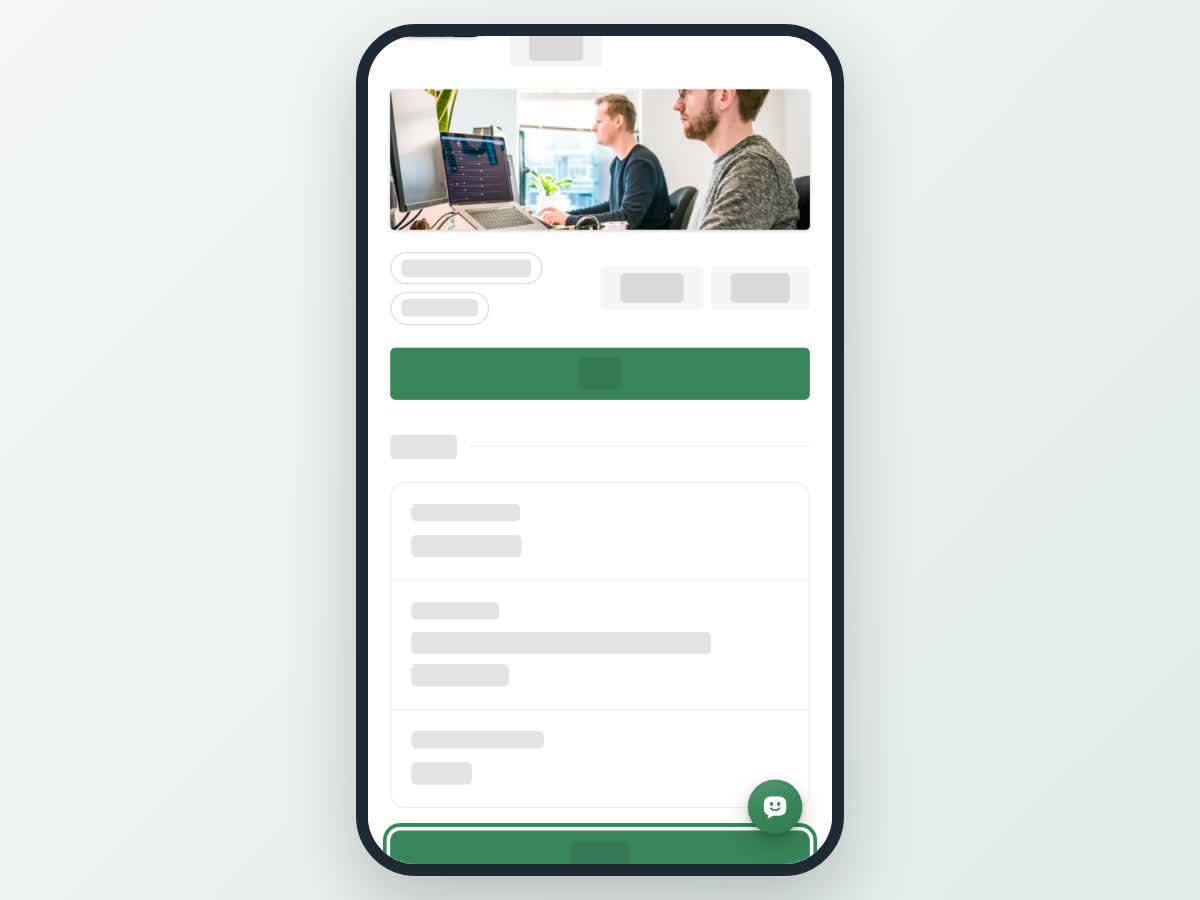
A space's settings live on the Settings tab of its manage page. Every member can see the settings, but only owners and managers see the Update buttons. Each section is edited on its own: select Update, make your change, then save it.
The sections are:
- Name — a unique name of up to 100 characters that represents your topic, group, team, product, service or company. Saving it notifies the space's members.
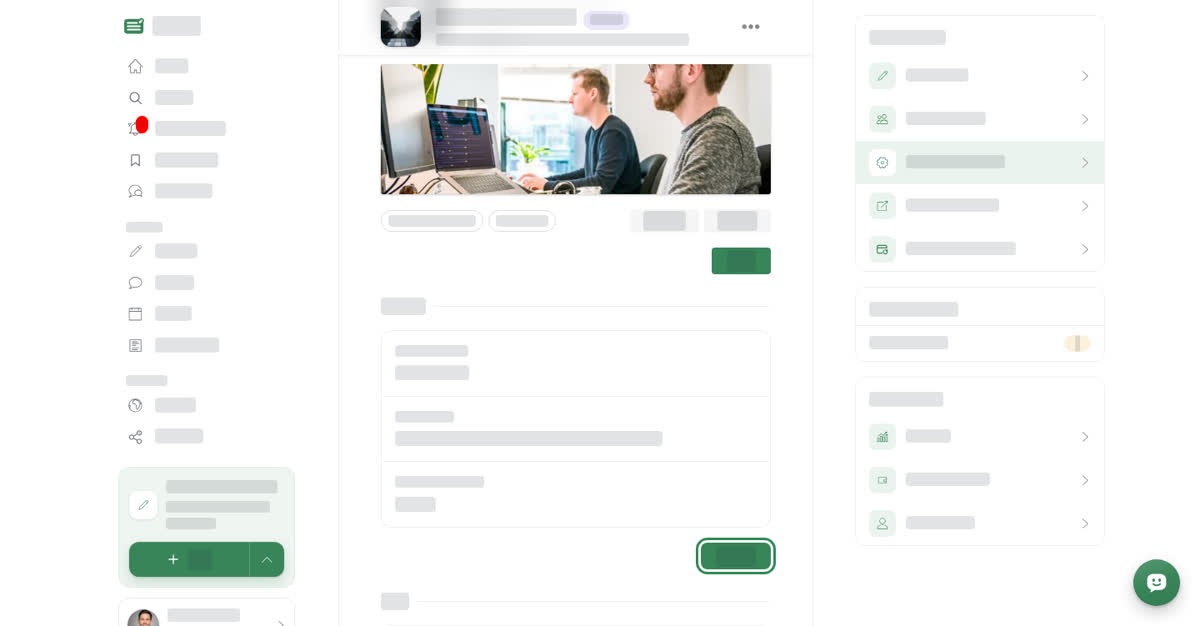
- Photos — the Profile Photo (at least 450px wide and 450px tall) and the Cover Photo (800px wide or more and 2:1 or wider). Photos are saved as soon as they upload; select Done when you are finished.
- Details — Country/Region (where most of your audience and contributors are), About Space (the description on the public page, 20 to 1,500 characters) and Talkou Business ID.
- Tabs — the post type tabs visitors see on your public page, and their order.
- Signature color — the accent color of the space.
- Document view and Blue Tick Verification.
On a computer
Select Spaces under MANAGE in the left menu, Manage on the space, then the Settings tab (or Edit space settings under Quick actions).
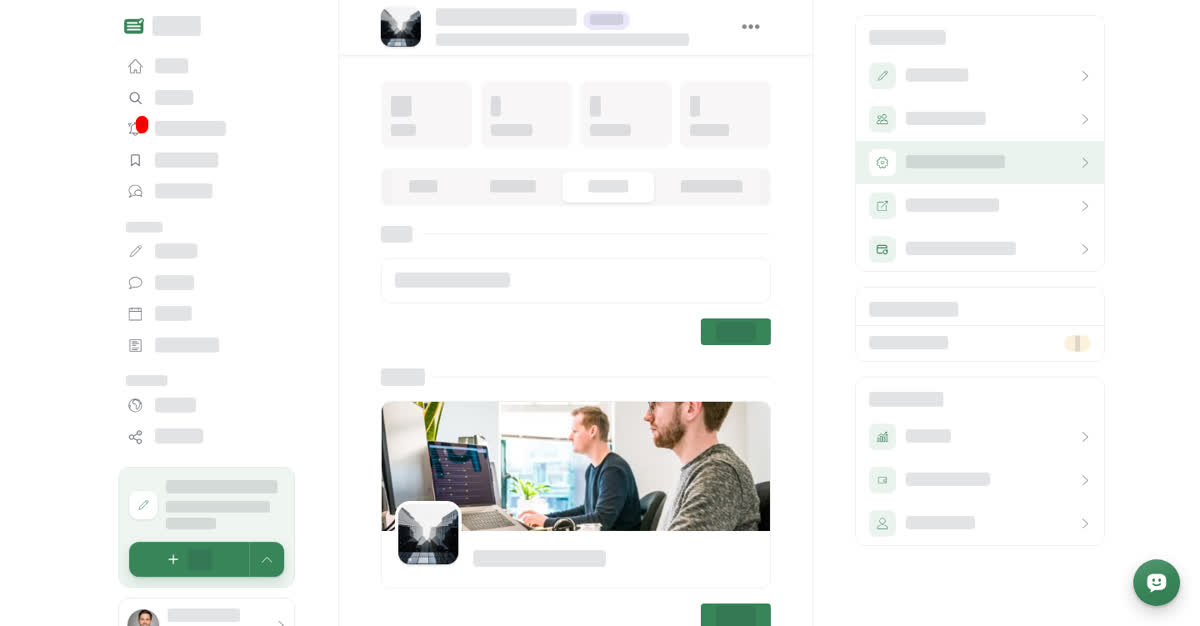
Edit a section
On your phone
These steps are the same in the Boogir app and on boogir.com in your phone's browser. Open the space's manage page (Account → Spaces → Manage) and tap the Settings tab.
Edit a section
Rename your space
Photos
- Profile Photo — select Upload, pick an image at least 450px wide and 450px tall, adjust it in the photo editor and save it. It appears on the space's page and in lists.
- Cover Photo — the cover must be 800px wide or more and 2:1 or wider. Once a cover is set you can Change or Remove it.
Talkou Business ID
The Talkou Business ID (up to 100 characters) links the space to a business account on Talkou. When people need to contact the space, they send a message to that business account. Once it is set, a Message option appears in the space's ⋯ menu. See Your space's public page.
If you move the space to a country or region where another space already has the same name, saving shows "This space name has already been taken."
Tabs
The tabs visitors see on your space's public page, in order. The first one opens by default.
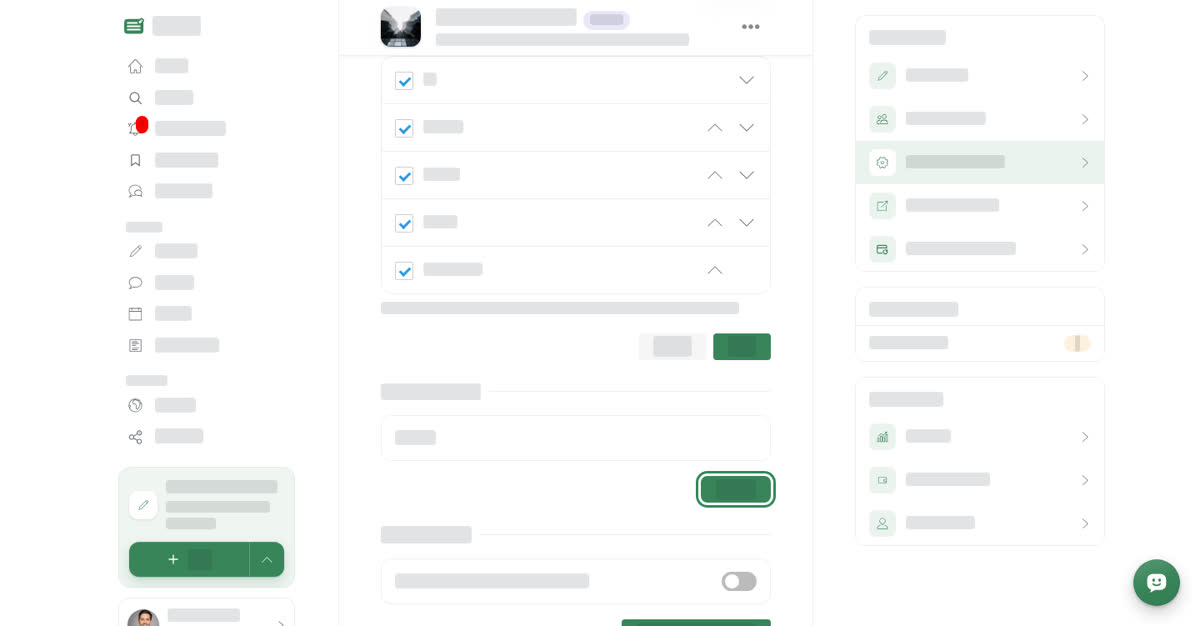
Under Tabs, select Update, then tick the tabs you want to show (All, Articles, Stories, Events, Documents) and use the up and down arrows to change the order. At least one post type must stay ticked. Select Save.
Signature color
The accent color of the space, used on its cover and in your spaces list. Under Signature color, select Update, pick one of the swatches or enter a hex code such as #388559, then select Save. Until you set one, it shows Not set.
Document view and blue tick
- Document view turns the space's public page into a document library. It needs a Documents plan. See Turn your space into a document space.
- Blue Tick Verification shows Space verification as Verified or Not verified. Before the blue tick can go on a space, Boogir confirms the space is real and that you represent it. Once Boogir has verified it, select Verify here, then subscribe to the blue tick plan on the Subscription tab. If Boogir hasn't verified the space yet, you'll see "Boogir has not verified this space yet. Contact Boogir to get verified."