Spaces

Add members, set roles and choose post reviewers

Invite people to your space by phone number or email, give each one a role, and decide who reviews and approves the posts submitted to the space.

Guide · Tutorial · BusinessJohn SmithJohn Smith1 day ago · 4 min read · 2 views

Members are the people who belong to a space. Owners and managers add them, set their roles and choose which members review new posts. Everything is on the Members tab of the space's manage page: open your Spaces page, select Manage on the space, then Members, or use Invite members.

You find people by the phone number or email address on their Boogir account. They join straight away, without having to accept, and get a notification that you added them.

Roles

  • Owner — can do everything in the space, including giving the Owner role to others, cash outs and payee details.
  • Manager — can change the space's settings, add and remove members, choose post reviewers and buy plans for the space. Managers can't change or remove owners.
  • Member — belongs to the space and can open its manage page.
  • Moderator — a role you can give to a member. Today it has the same permissions as Member.

You can only give a role up to your own: managers can give Manager, Moderator or Member, and only owners can make someone an Owner.

Post reviewers

Posts submitted to a space are published only after a reviewer approves them. The Post reviewers section, below the members list, shows who those people are.

  • Only reviewers are notified of posts to review and can approve or decline them.
  • New members become reviewers automatically, and the person who created the space is its first reviewer.
  • Owners and managers who are not on the list don't get the Review button.

On a computer

Add a member
01
Open the Members tabOn the space's manage page, open Members, or select Invite members under Quick actions. The list under Manage Users shows everyone in the space and their role.
02
Select the plus buttonSelect + next to Manage Users. The Add member dialog opens.
03
Find the personEnter the phone number or email address on their Boogir account, then select Search.
04
Choose a roleCheck that the right person is shown (select Change to search again), then pick a Role. Member is selected by default.
05
Select AddThe person joins the space straight away.
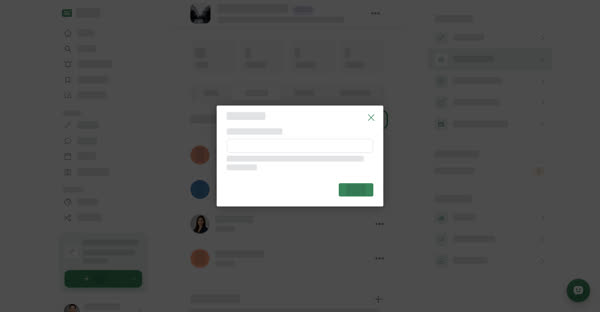
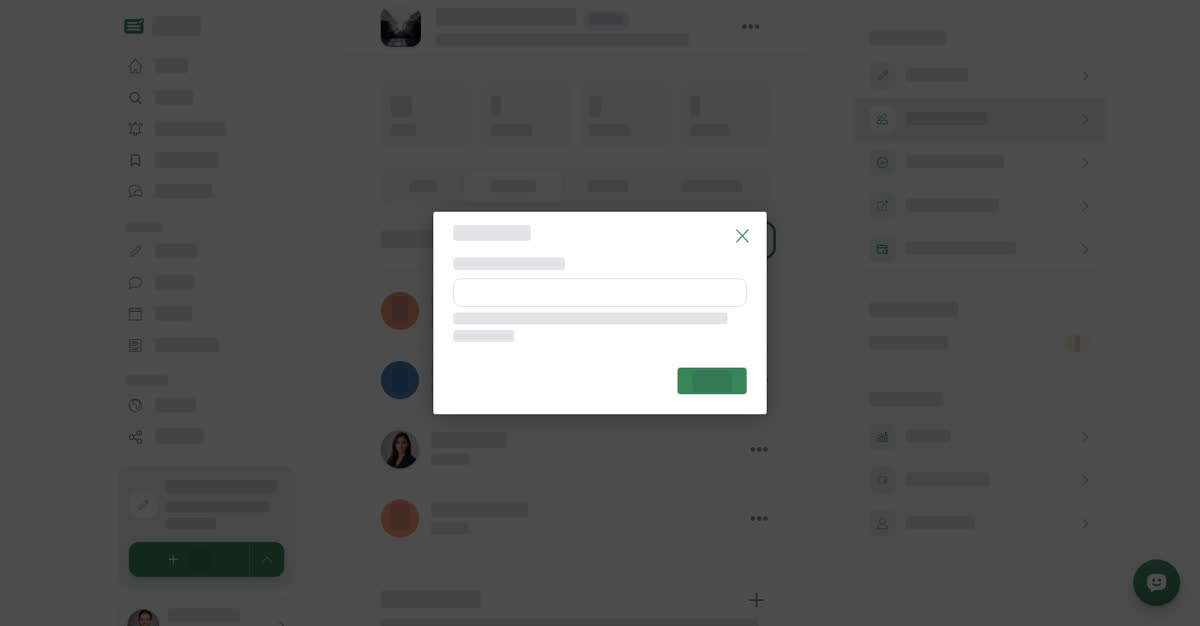
The Add member dialog with a Phone number or email field and a Search button
Look people up by the phone number or email on their account

Change a role or remove a member

01
Open the member's menuOn the Members tab, select ⋯ on the member's row.
02
Change the roleSelect Update, pick the new Role and select Save. The member is notified that their role changed.
03
Or remove the memberSelect Remove and confirm. The person leaves the space and its reviewer list, and is notified that they were removed.
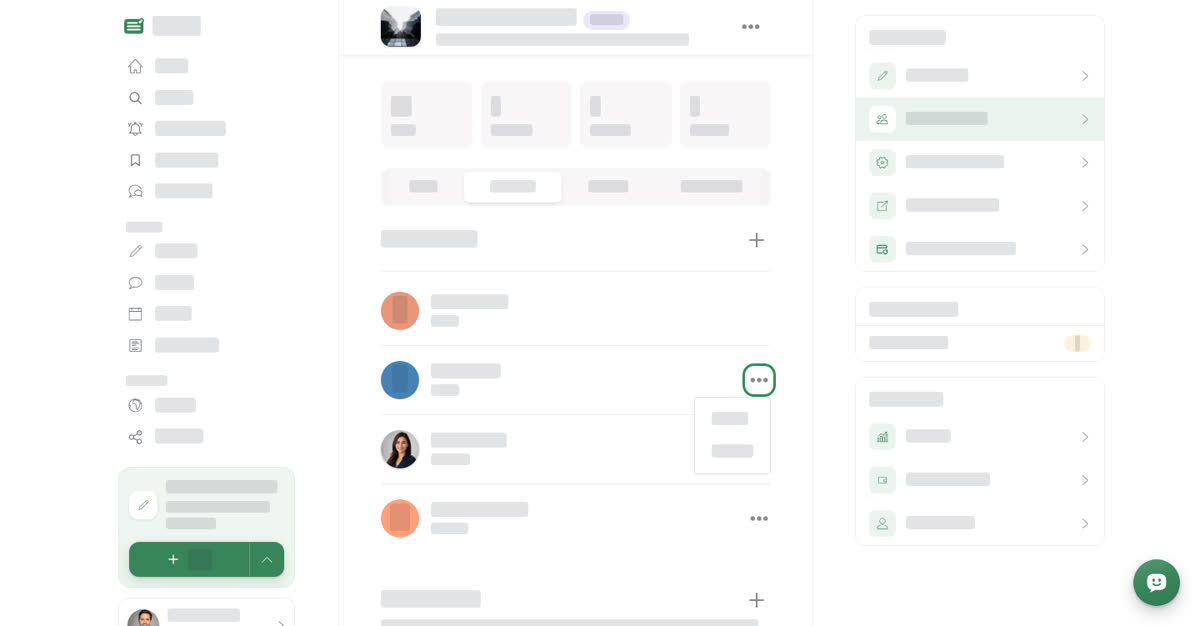
The Members tab with the Manage Users list, each member's role, a ⋯ menu open showing Update and Remove, and the Post reviewers section below

Choose who reviews posts

01
Add a reviewerSelect + next to Post reviewers. In the Add reviewers dialog, select Add next to each member you want. If it says "Every member is already a reviewer.", everyone is on the list.
02
Remove a reviewerSelect ✕ next to the person in the Post reviewers list. They stay a member of the space but stop receiving posts to review.
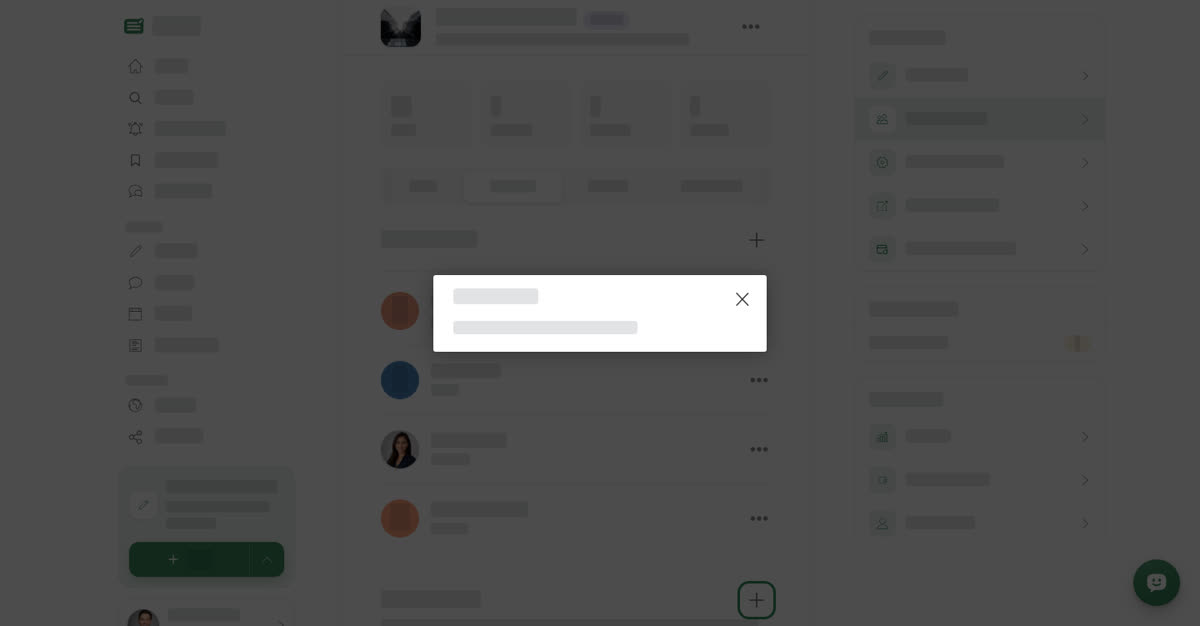
The Add reviewers dialog listing members who are not reviewers yet, each with an Add button

On your phone

These steps are the same in the Boogir app and on boogir.com in your phone's browser. The Add member and Add reviewers screens open full screen; tap ✕ at the top left to close them.

Add a member

01
Open the Members tabOn the space's manage page, tap Invite members in the row of shortcuts, or tap the Members tab.
02
Tap the plus buttonTap + next to Manage Users. Add member opens full screen.
03
Find the personEnter the phone number or email address on their Boogir account, then tap Search.
04
Choose a role and addCheck that the right person is shown (tap Change to search again), pick a Role, then tap Add.

Change roles and reviewers

01
Change a role or remove a memberTap ⋯ on the member's row, then Update or Remove.
02
Add a reviewerScroll down to Post reviewers, tap +, then tap Add next to each member you want.
03
Remove a reviewerTap ✕ next to the person in the Post reviewers list.
The Members tab on a phone, with the Manage Users list and a ⋯ menu open on a member's row showing Update and Remove
Tap ⋯ on a member's row to change their role or remove them
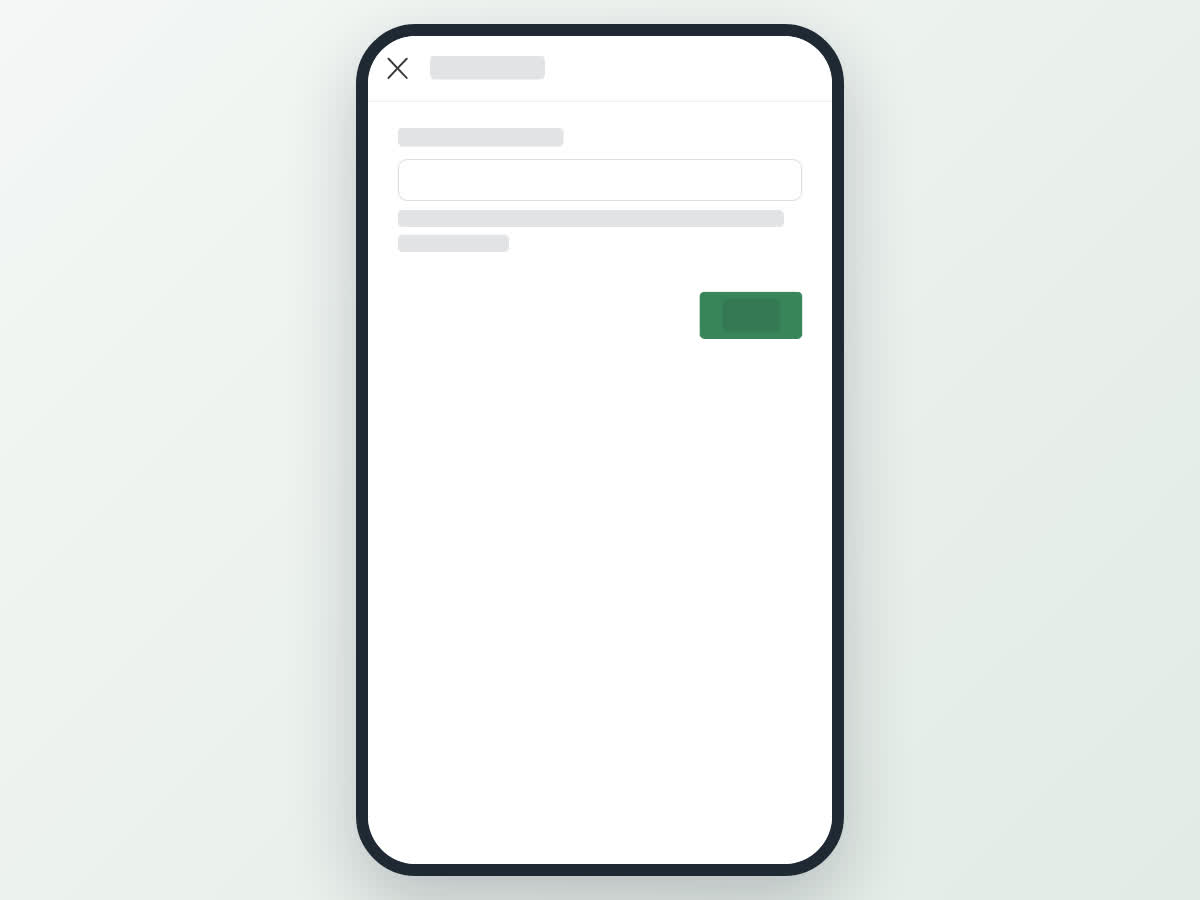
The Add member screen on a phone, full screen, with a Phone number or email field and a Search button

Only owners and managers see the + buttons and the member menus. To learn how reviewers approve posts, see Review and approve posts in your space.

2 views
0
Share
Send in message
Report
Copy ID