Your profile and account details
Change your photo, name and About text, set your language and country, and choose light or dark mode, on a computer and on your phone.
Guide Chanras Sun10 hours ago · 1 min read · 1 view
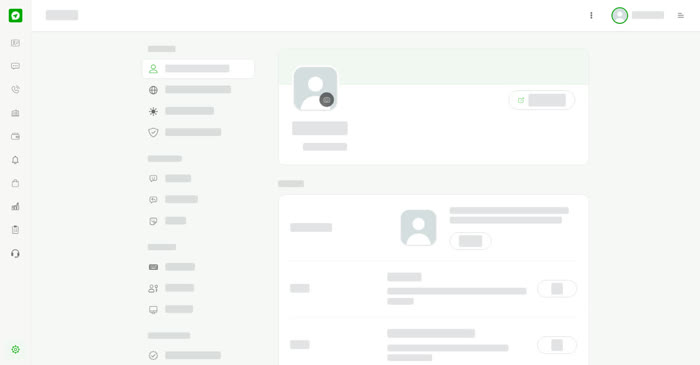
Open Settings & Privacy. On a computer, select the cog at the bottom of the left menu. On your phone, tap More in the bottom bar. The settings menu groups everything into Account, Messaging, Security, Subscription, Privacy & Visibility and Help & Resources, with Sign Out at the end.
Personal Information
- Profile photo – your photo appears on your profile. It must be at least 450px wide and 450px tall. Select Change.
- Name – how your name is displayed. Select Edit.
- About – a short introduction that tells people what your account is about.
- Date of birth – your year of birth confirms it is you when no PIN is set. It is private.
- Gender identity – never shown to other users or shared with companies.
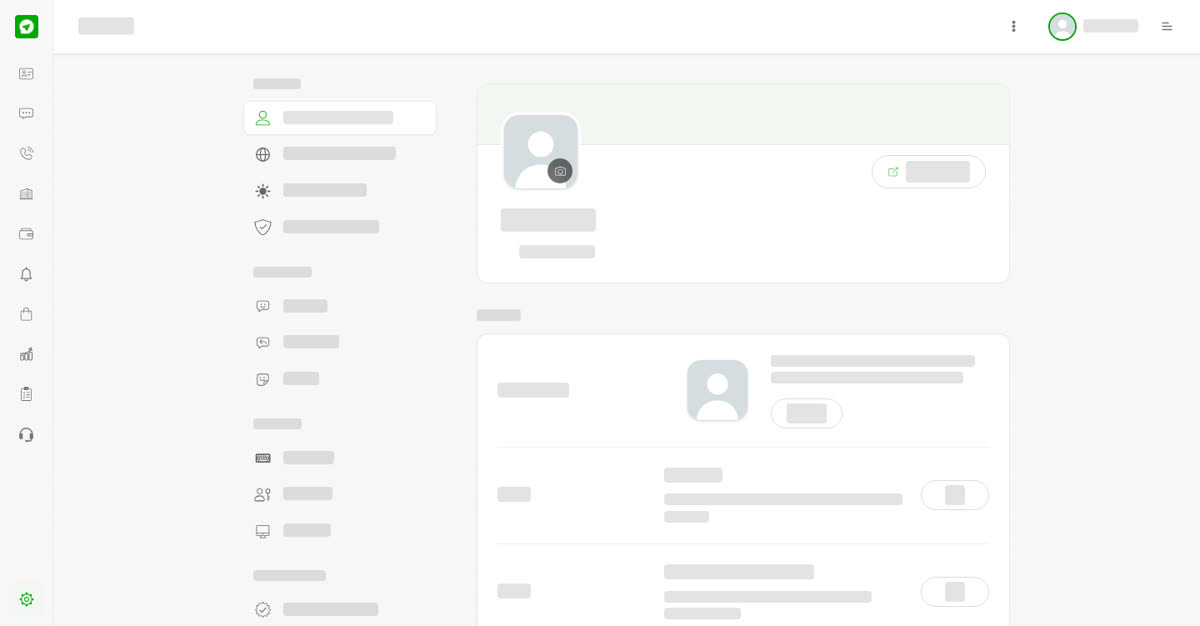
Personal Information.
Language and Region
Choose the Language Talkou uses for your account on both web and mobile, and the Country/Region your account is based in. Select Edit beside each.
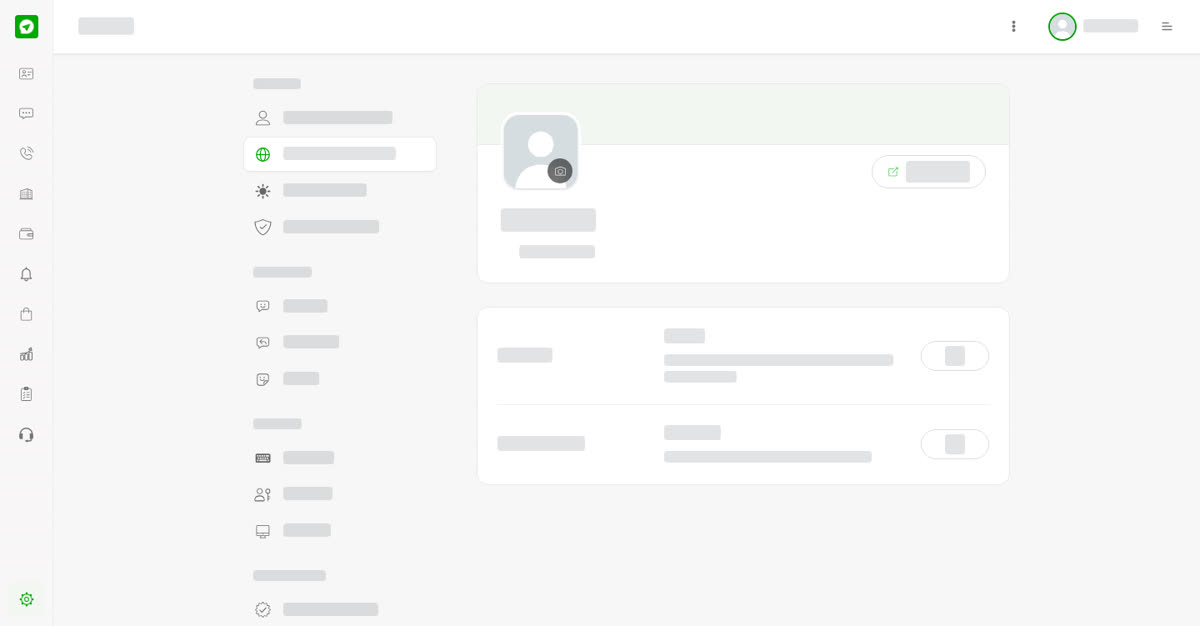
Language and Region.
Display Settings
- Dark mode – choose Automatic, Light or Dark. Automatic follows whatever your device is set to.
- Help button – show or hide the floating help button in the corner of the screen.
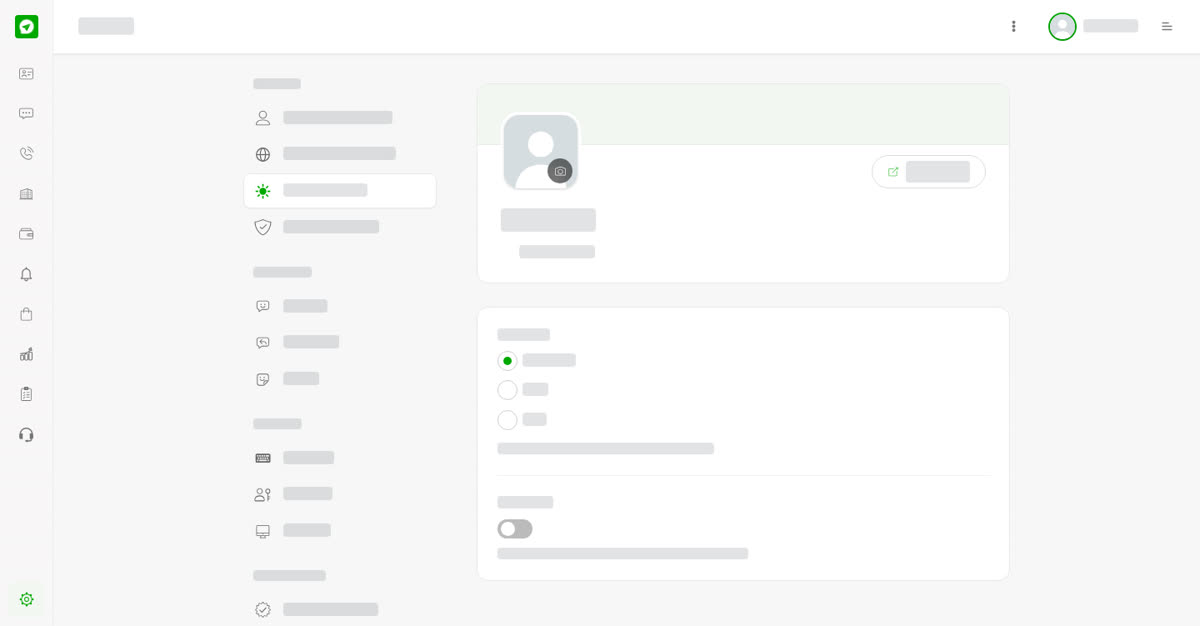
Display Settings.
On your phone
Tap More, then choose a setting. Each opens as its own screen and the back arrow returns you to the menu.
Settings on a phone.
Personal Information on a phone.
0
Share
Send in message
Report
Copy ID