Read guide spaces and modules
Some spaces are set up as a library of guides and manuals. Learn how to browse and search a guide space, start reading, move through a module, and track your progress.
Guide · Tutorial Chanras Sun4 days ago · 4 min read · 3 views
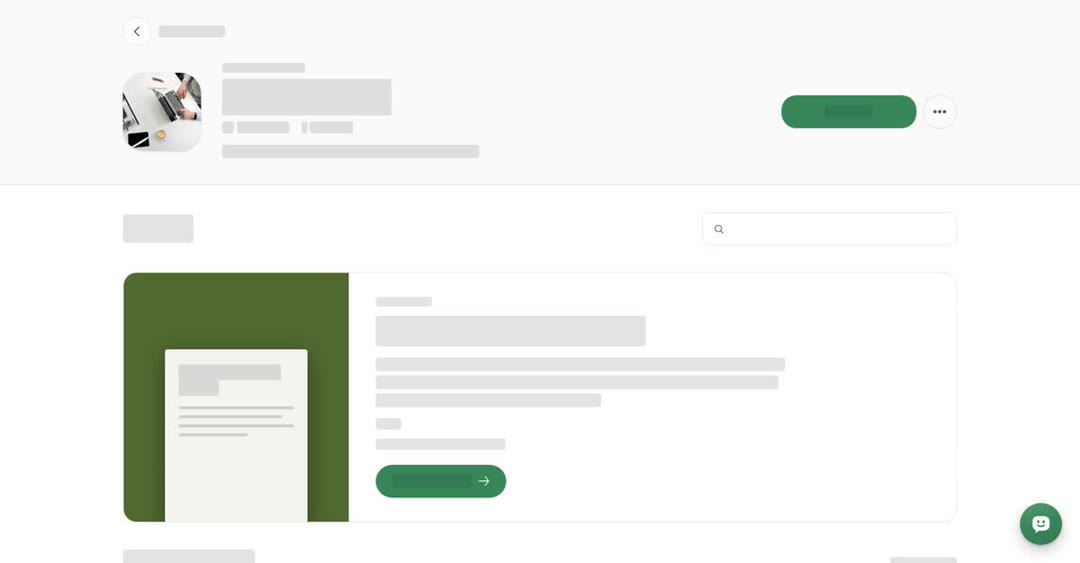
A guide space is a space that publishes guides, manuals and handbooks instead of a news-style feed. You can tell it apart by the Guide space label above its name. Inside, guides are often grouped into modules: ordered reading lists, sometimes split into sections, that take you from one guide to the next.
You do not need an account to read a guide space.
The Library
Opening the space shows its library:
- Start here — a large card for the most recently updated guide.
- Latest guides — every other guide, most recently updated first. Each one shows the module it belongs to, its title, its topics, the date, how long it takes to read and how many views it has.
More guides load as you scroll. A space with nothing published yet shows No guides. Search looks for your words in guide titles in this space only.
On a computer
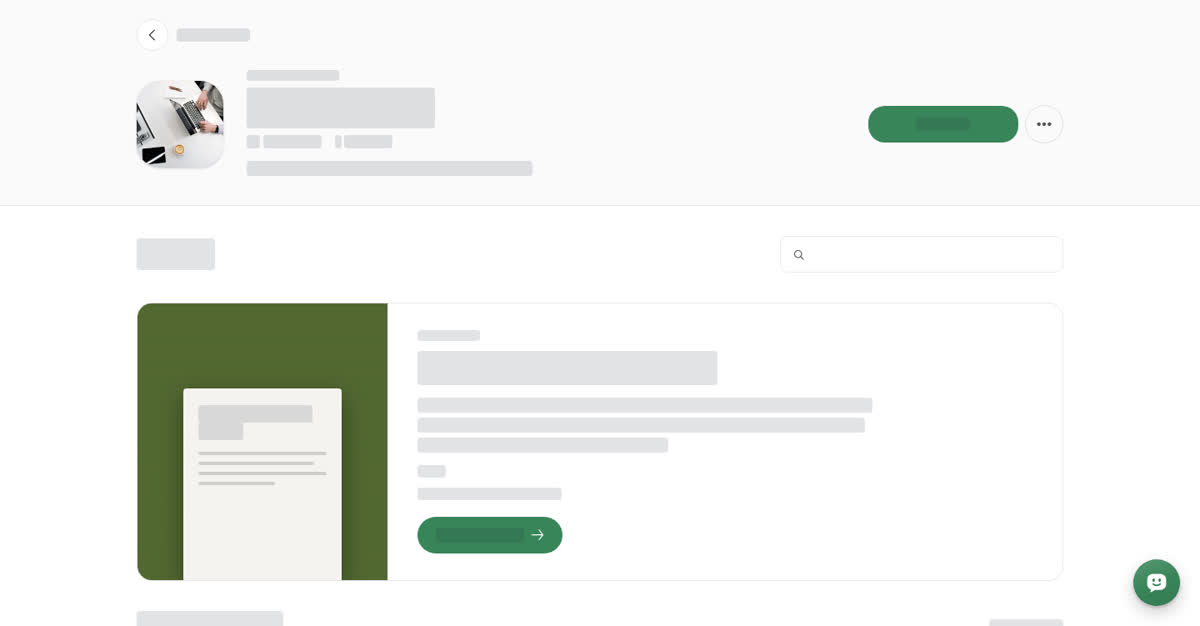
Browse and search a guide space
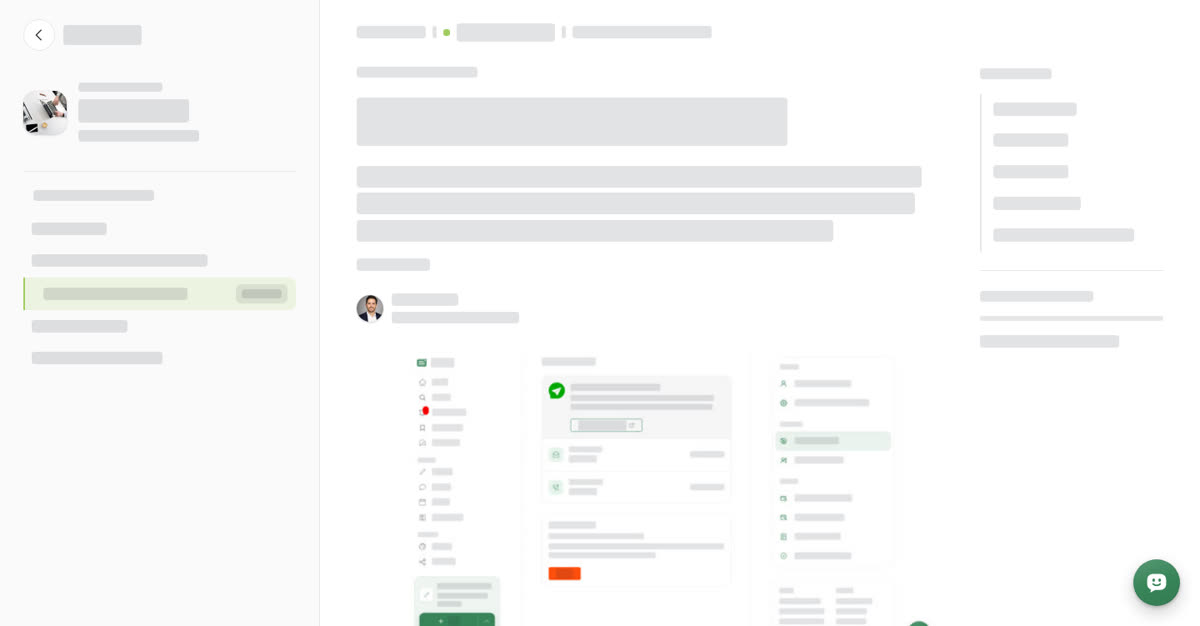
A guide opens in a reader with three columns.
Left column
- Back to Library returns to the space.
- The space card shows the space name and how many guides and followers it has.
- If the guide is part of a module, the module's name appears with its contents below. Sections can be opened and closed, and the number next to a section is how many guides it holds. The guide you are on is highlighted and marked Reading. Select any title to jump to it.
Middle column
- A breadcrumb at the top shows the space, the module and your place in it, for example 2 of 5 in Getting started.
- Then the title, summary, topics, author and the guide itself.
- At the end, Previous and Next in buttons take you through the module in order. Under them you find the usual post buttons and the comments.
Right column
- On this page lists the guide's headings. Select one to jump to that part.
- Progress in module shows a bar and how many guides of the module you have read.
On your phone
These steps are the same in the Boogir app and on boogir.com in your phone's browser. The space and its guides fill the whole screen, without the usual bars.
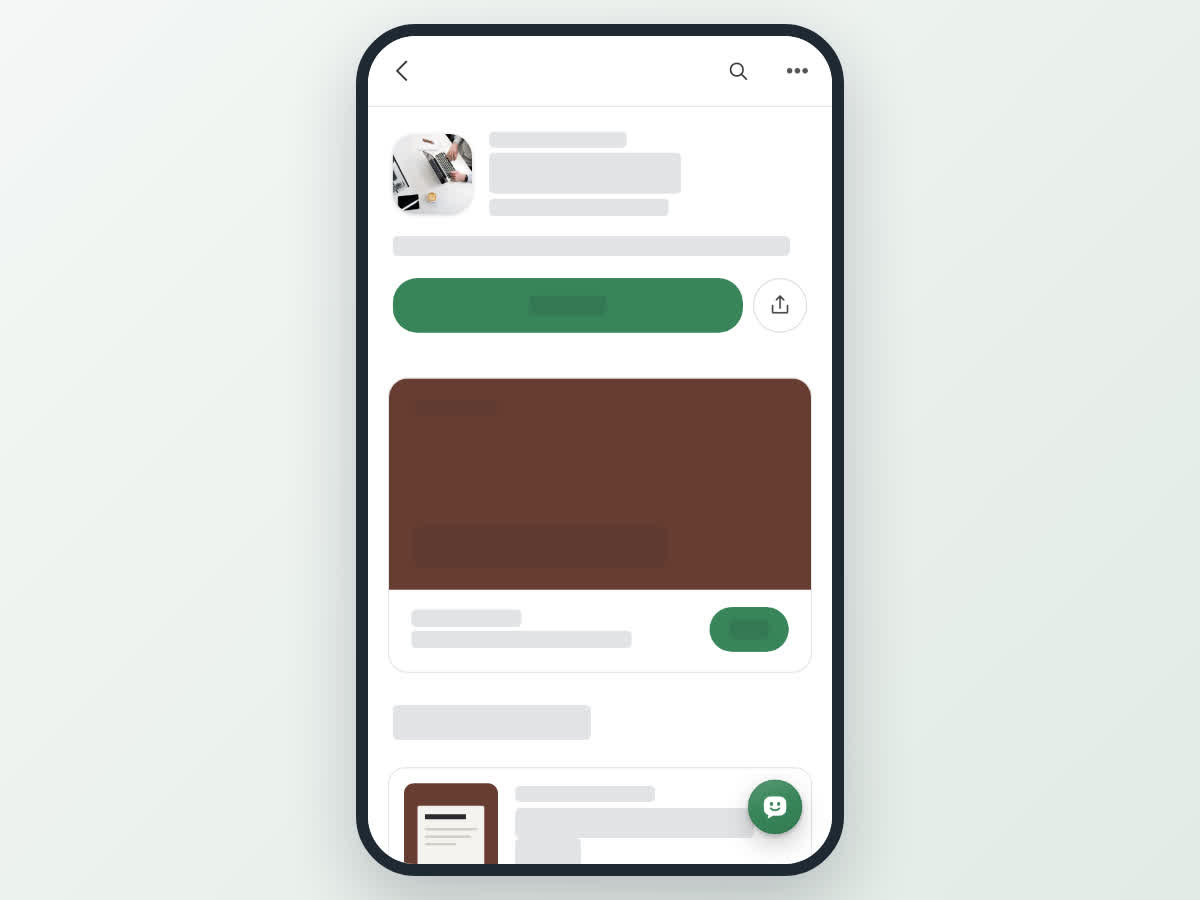
Browse and search a guide space on your phone
In a guide:
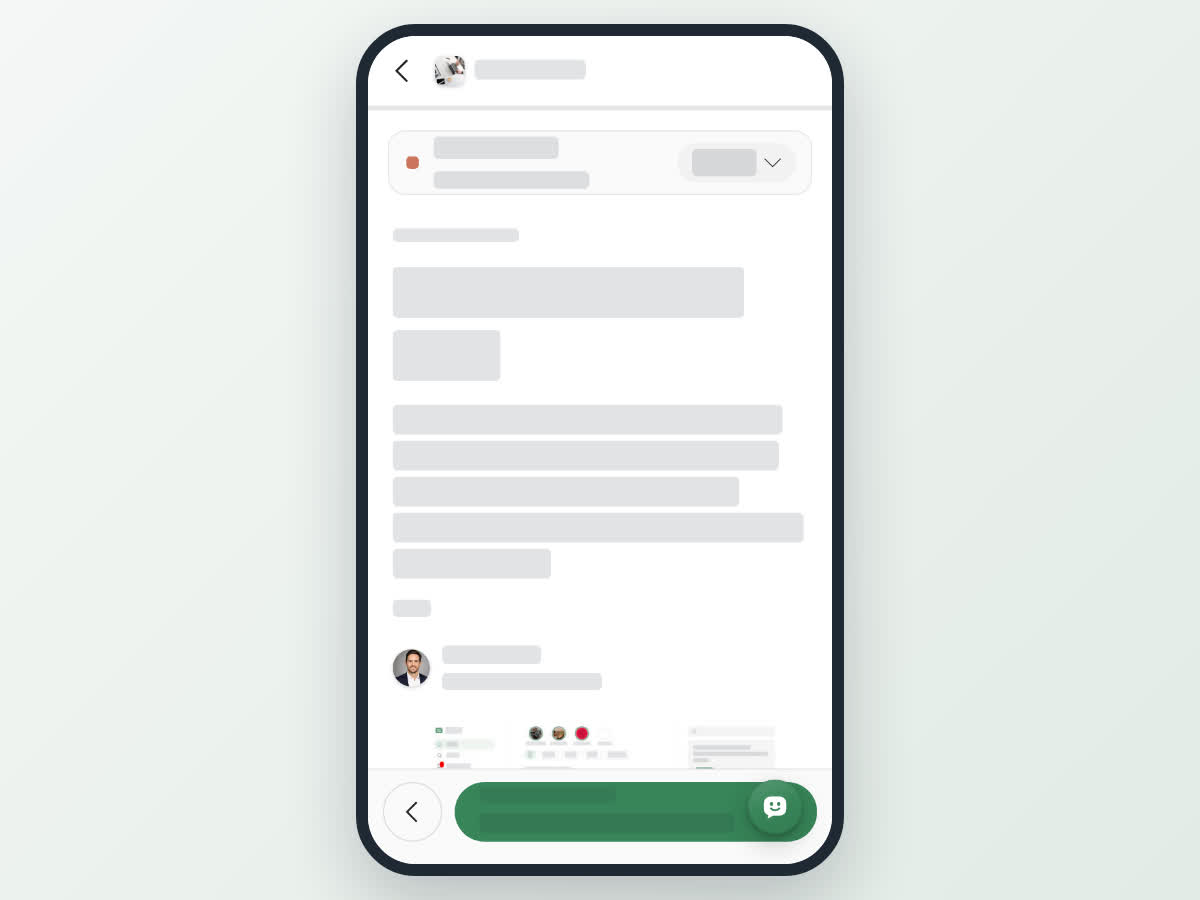
- The bar at the top has a back arrow and the space name. A thin line under it shows your progress in the module.
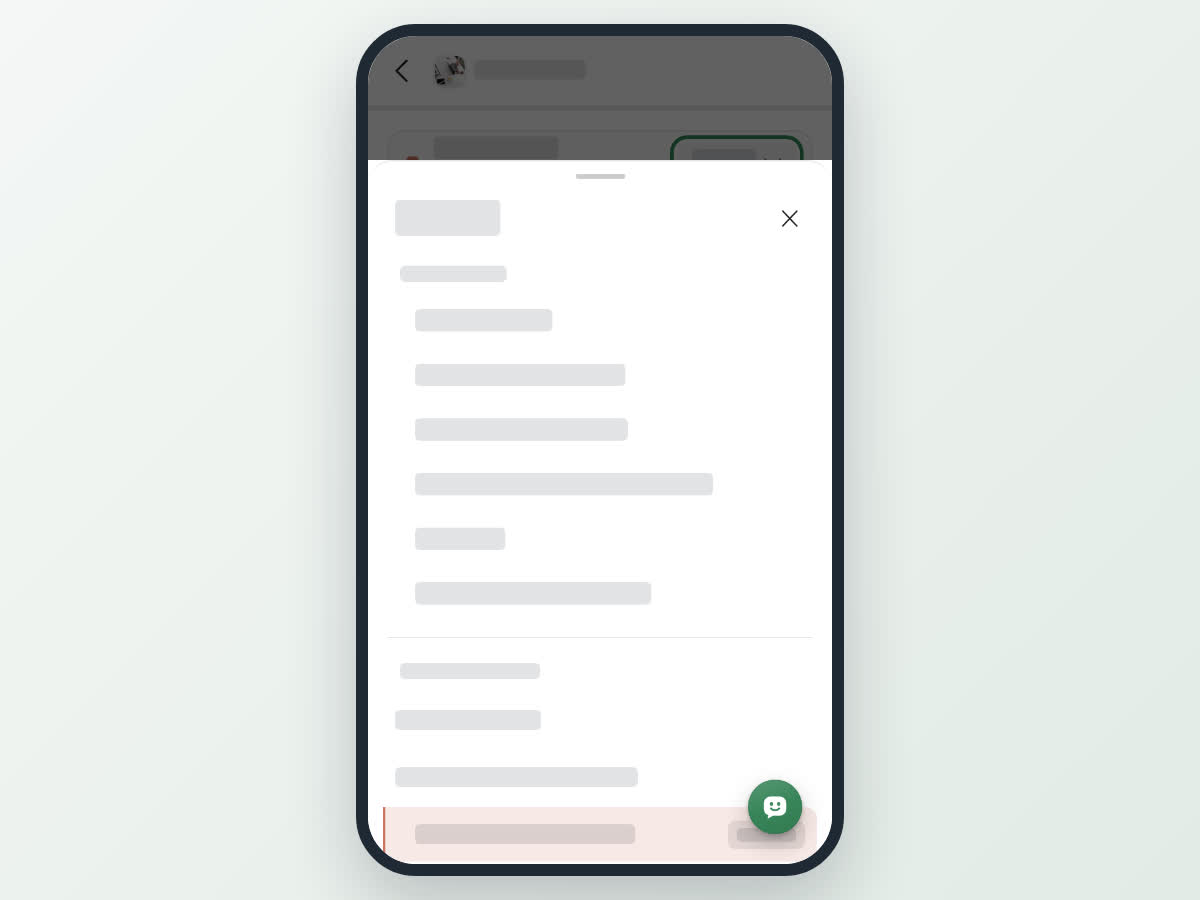
- The module card below it shows the module name and your place in it. Tap Contents on it to open a sheet with On this page and the full module contents. Tap any heading or guide to go there.
- At the bottom of the screen, the left arrow goes to the previous guide. The wide button shows the next one under Next in. On the last guide of a module, that button opens Contents instead.
How reading progress works
A guide counts as read once you reach its end. Progress in module then goes up by one, for example 3 of 5.
Progress is kept in the browser or app you read in. It does not follow you to another device, and clearing your browser data resets it.