Read, vote, share and save posts
Learn what the buttons on a post do: vote a post up or down, jump to comments, share it to other apps, save it to Bookmarks, and use the ⋯ menu to send it in a message, report it or copy its ID.
Guide · Tutorial Chanras Sun4 days ago · 4 min read · 3 views
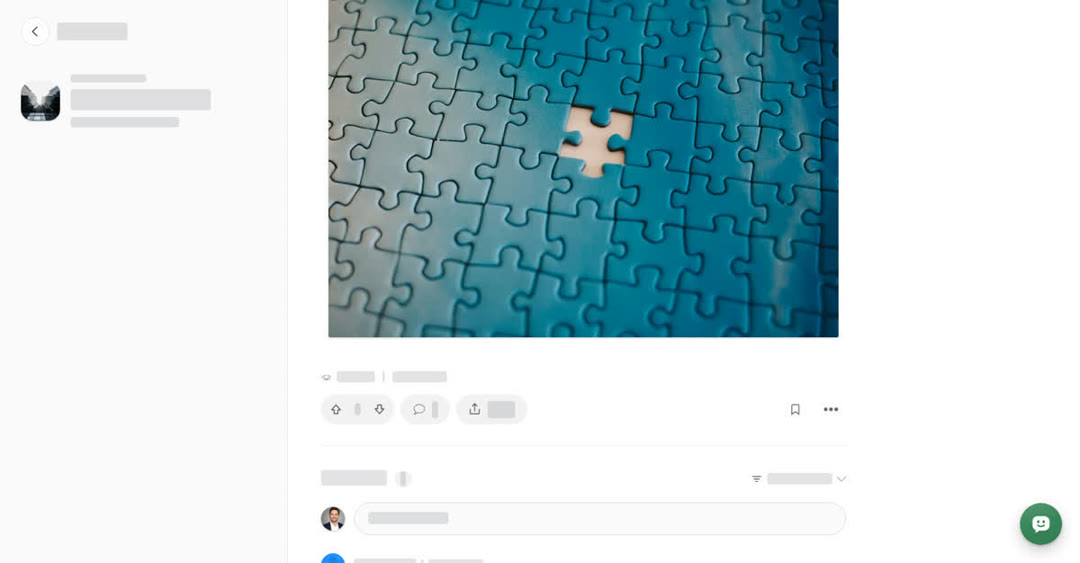
Every post on Boogir opens on its own page. At the top you see the author, when the post was published and how long it takes to read. Below the post you find a row of buttons for voting, commenting, sharing and saving.
You can read posts without an account. To vote, save, comment or use the ⋯ menu, you need to sign in first. If you are not signed in, Boogir asks you to log in when you use one of these buttons.
The buttons below a post
- Upvote and Downvote — the up and down arrows. The number between them is the post's score: upvotes minus downvotes. Use an arrow again to take your vote back, or use the other arrow to change it.
- Comment — jumps to the comments under the post. When a post has comments, the button shows how many.
- Share — opens the share options.
- Save — the bookmark icon. It turns colored and Boogir shows Saved post. Use it again to remove the post from your Bookmarks.
Above the buttons you also see how many views and comments the post has. The same bookmark icon and a ⋯ menu also sit to the right of the author's name at the top of the post.
The ⋯ menu
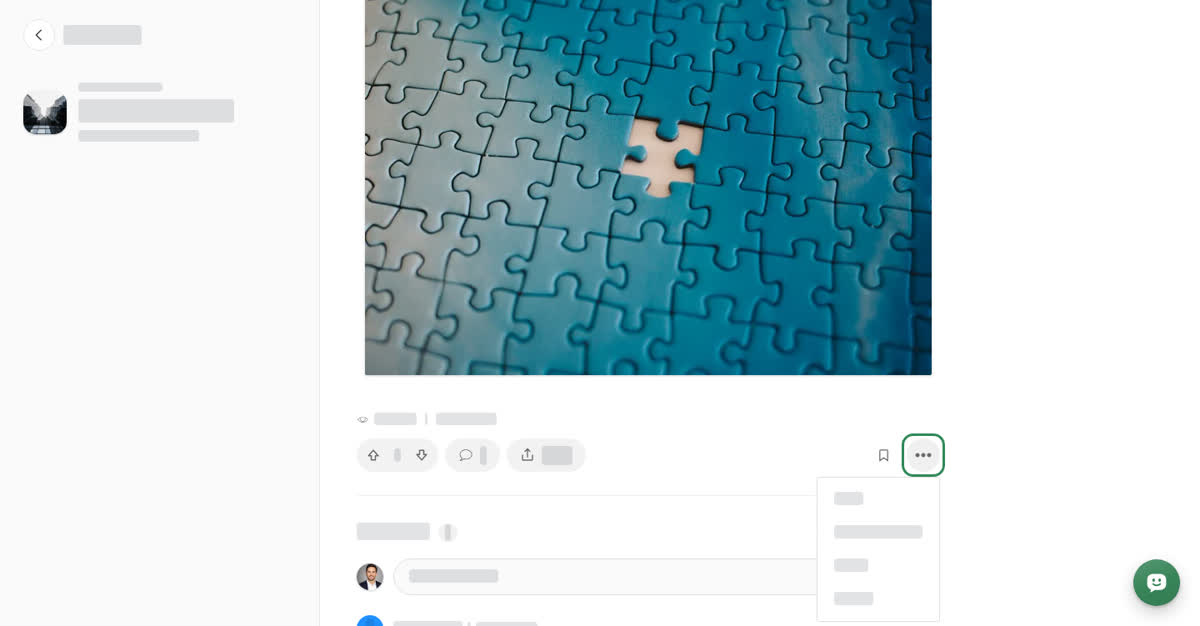
- Share — the same as the Share button.
- Send in message — opens your messages so you can send the post into one of your chats. Choose the chat, and the post is shared there as a card.
- Report — tell Boogir the post breaks the rules. Pick a reason under Why are you reporting this?, add details if you like under Tell us a bit more, then choose Submit report.
- Copy ID — copies the post's ID. You need a post ID, for example, when you add a post to a module by its ID.
- Update — only shown on your own posts. It opens the post in the editor.
On a computer
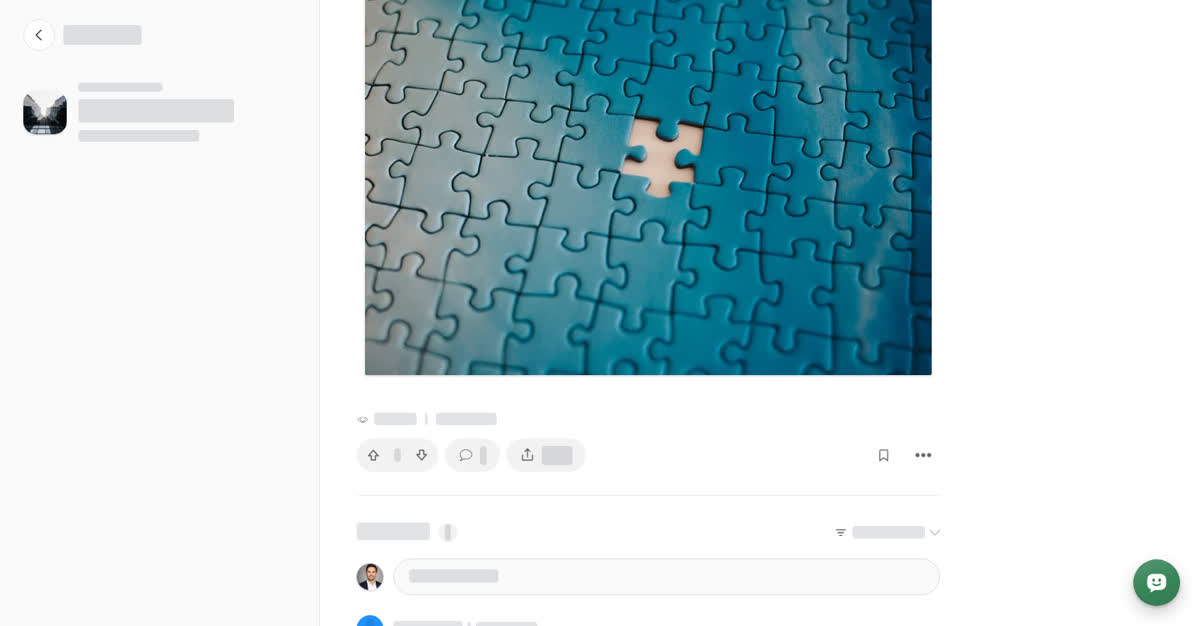
On a computer the row of buttons below the post ends with its own ⋯ button, so you can open the menu there or next to the author's name.
Share a post on a computer

A column on the right follows you as you scroll. It can show On this page, a list of the post's headings that you can select to jump to a section, similar posts, and Recent comments. To see more posts from the same space, select Open on the space card at the end of the post.
On your phone
These steps are the same in the Boogir app and on boogir.com in your phone's browser. The buttons below the post are the same, but there is no ⋯ at the end of that row: use the ⋯ next to the author's name at the top of the post.

Share a post on your phone

There is no column on the right. Instead, a bar at the bottom of the screen shows Comments with the latest comment; tap it to see the most recent comments. To see more posts from the same space, tap the space card at the end of the post.
More on the post page
To read more from the same writer, select the author's name at the top of the post to open their profile.