Notifications
See what Boogir notifies you about, how to open your notifications, filter them to unread ones, and mark them all as read. Also covers turning on notifications in the Boogir app.
Guide Chanras Sun4 days ago · 3 min read · 4 views
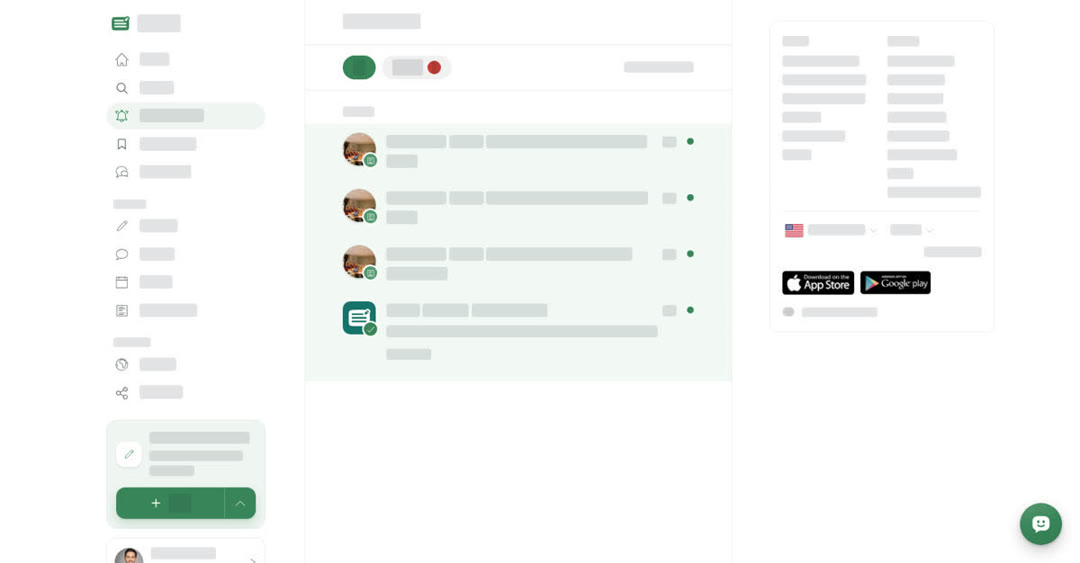
Notifications tell you when something happens that concerns you: a space you follow publishes a post, one of your posts is approved, someone adds you to a space, and more. They all collect on one page, the Notifications page. You need to be signed in to see notifications.
Read and filter notifications
- Notifications are grouped under Today, Yesterday and Earlier, newest first. Each one shows how long ago it arrived.
- Unread notifications are highlighted and have a dot on the right.
- Open a notification to go to the page it is about. It is marked as read at the same time.
- Choose Unread to see only the ones you have not opened yet. The number on the chip is how many there are. Choose All to see everything again.
- Choose Mark all as read to clear every unread mark at once.
If you have none, the page shows No notification.
On a computer
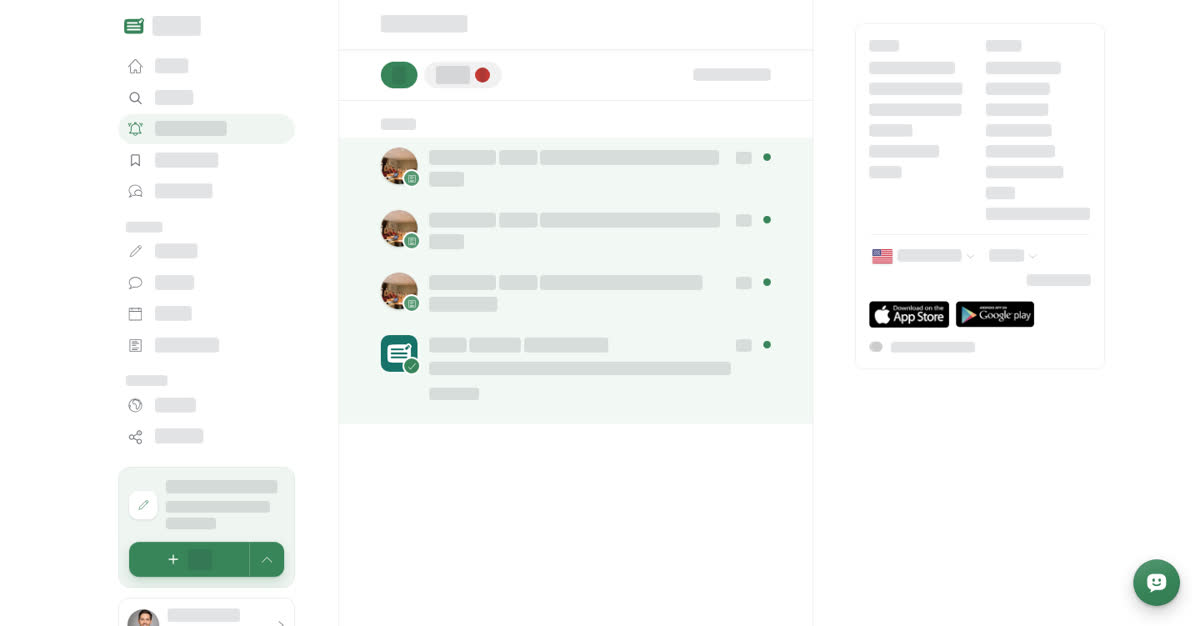
Select Notifications in the left menu. A number next to it shows how many are new.
On your phone
These steps are the same in the Boogir app and on boogir.com in your phone's browser.
Open your notifications on your phone
01
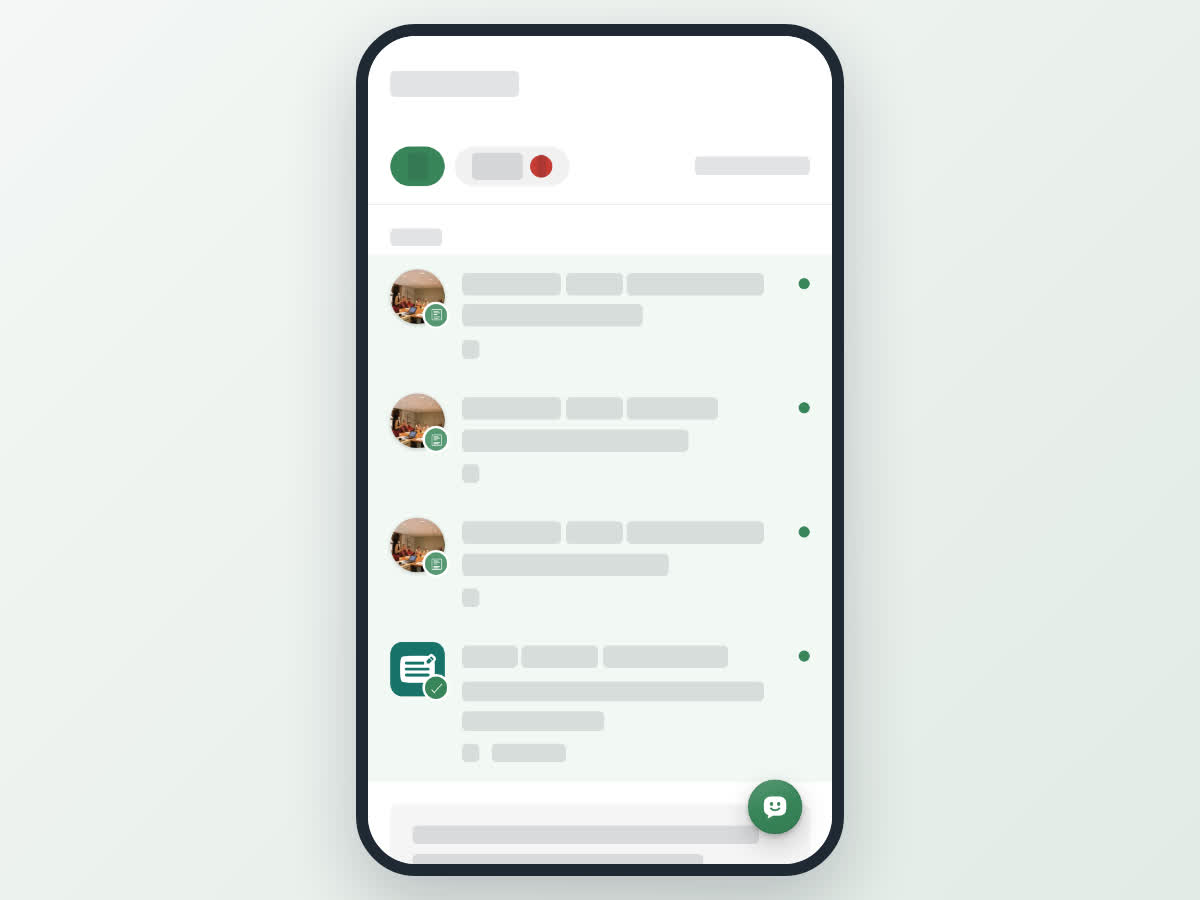
Tap the bellThe bell icon is at the top right of the screen. A number on it shows how many notifications are new.
02
Read or filterTap a notification to open it, or tap Unread to see only the new ones. Tap Mark all as read to clear them all.
What you are notified about
Spaces you subscribe to
- A new post in a space you subscribe to, when its alerts are on. When a space publishes several posts close together, they arrive as one notification, such as posted 3 new posts. Opening it takes you to the space. To change which posts notify you, see Subscribe to spaces and choose alerts.
Your posts
- approved your post — your post is published. Several approvals on the same day are combined, for example approved 3 of your posts. Choose Show all to list them one by one.
- declined your post — choose Edit post to open it in the editor, fix it and submit it again.
- removed your post after reviewing reports — Boogir took a post down after people reported it. The same applies to a comment, to content in your space, or to your profile.
Spaces you belong to
- added you to the space, removed you from the space and changed your role in — changes to your membership.
- submitted a post for review in — sent to the post reviewers of a space when a member submits a post. Opening it takes you to the space's management page.
- Changes to a space's name, and whether a requested name change was approved or declined.
Credits and plans
- A warning when your wallet is low on credits for the next plan renewal, and a notice when auto-renew stopped because there were not enough credits.
PreviousSubscribe to spaces and choose alertsNext in Reading and followingSave posts and comments to Bookmarks
4 views
0
Share
Send in message
Report
Copy ID