Create your account and sign in
Boogir uses your Talkou account. Learn how to register and sign in with Account Link, a QR code, a passcode or a passkey, what the common messages mean, and how to sign out.
Guide · Tutorial John Smith2 days ago · 5 min read · 2 views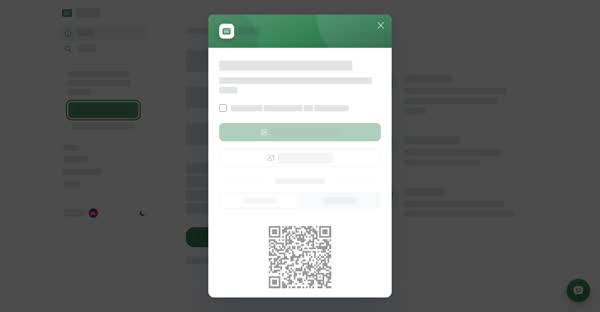
You sign in to Boogir with a Talkou account. There is no separate Boogir password. The first time you use Boogir you register, which links your Talkou account to Boogir. After that you simply log in.
If you do not have a Talkou account yet, create one in the Talkou app or at talkou.com first. Signing in is quickest when Talkou is installed and signed in on your phone.
Ways to log in
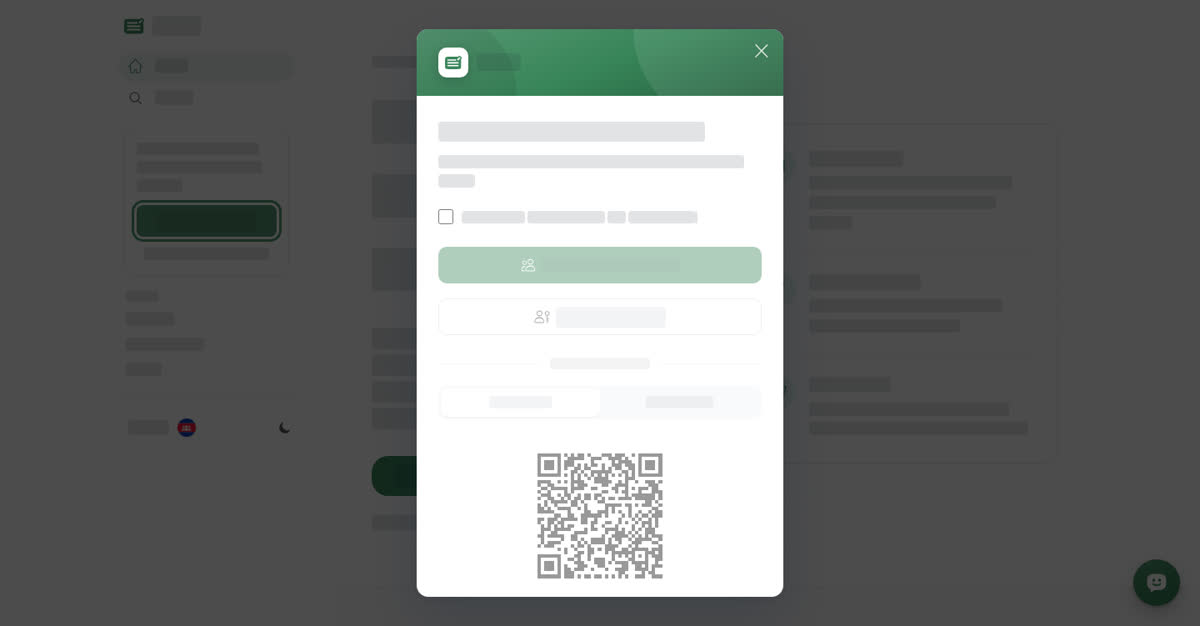
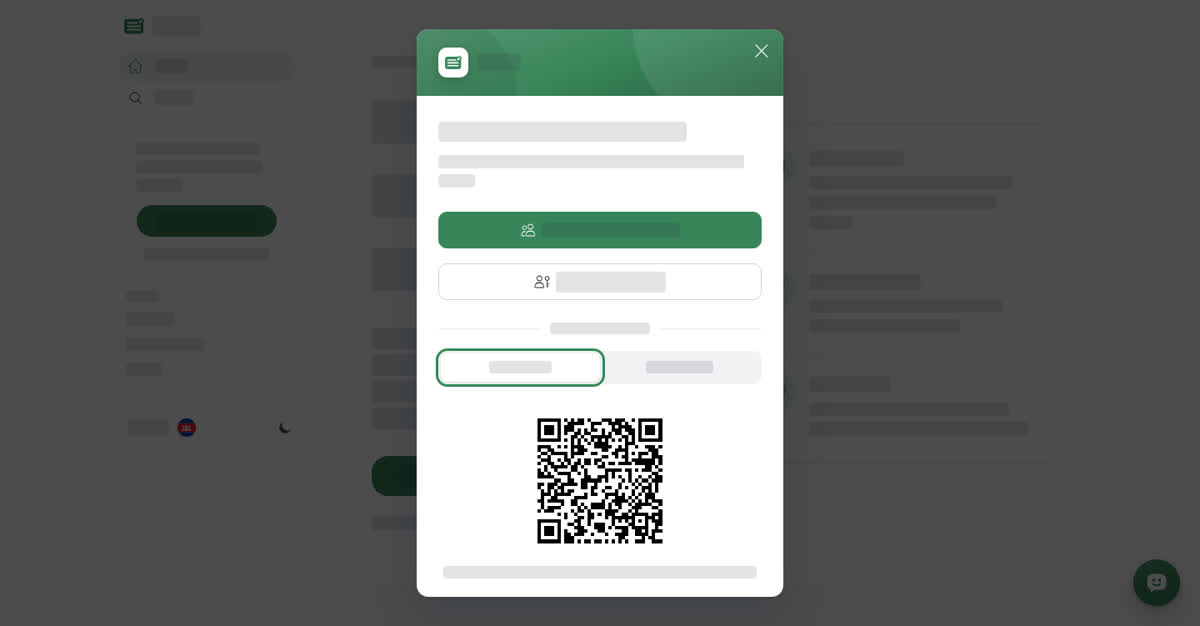
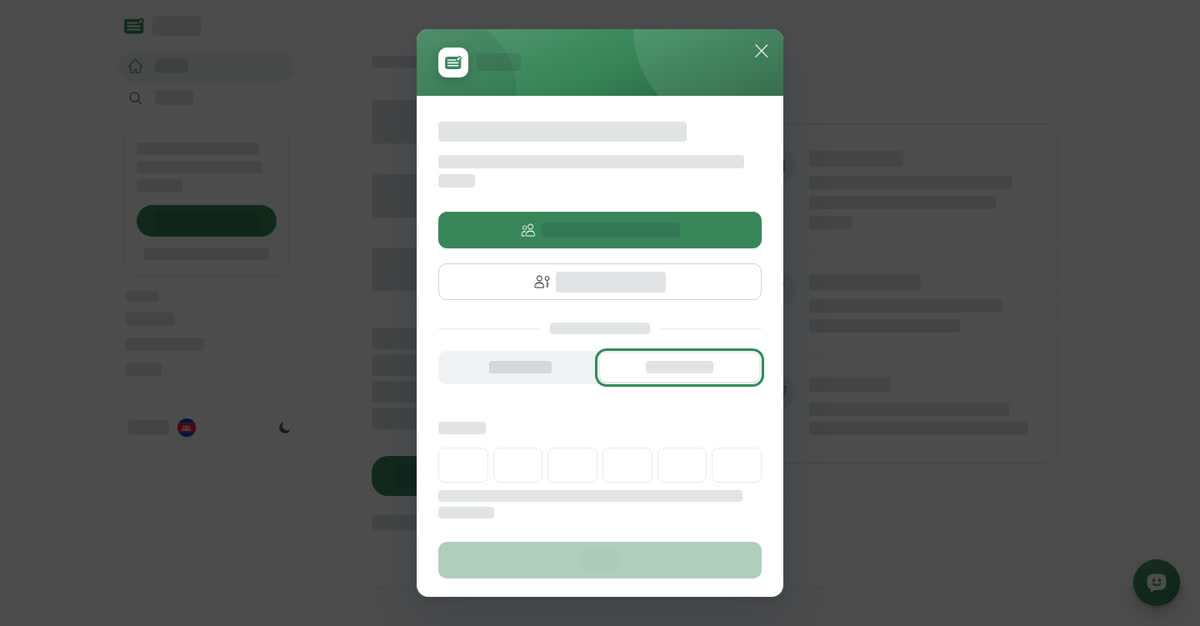
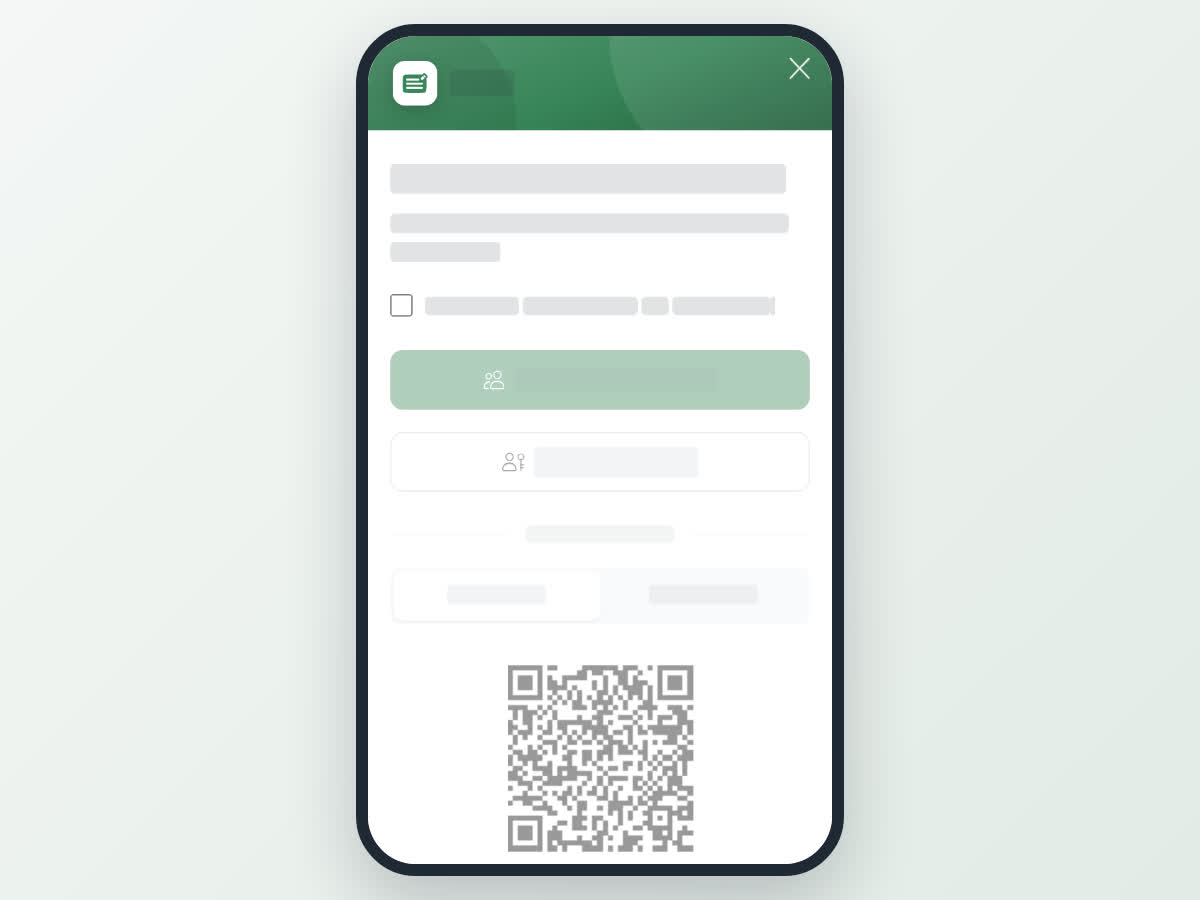
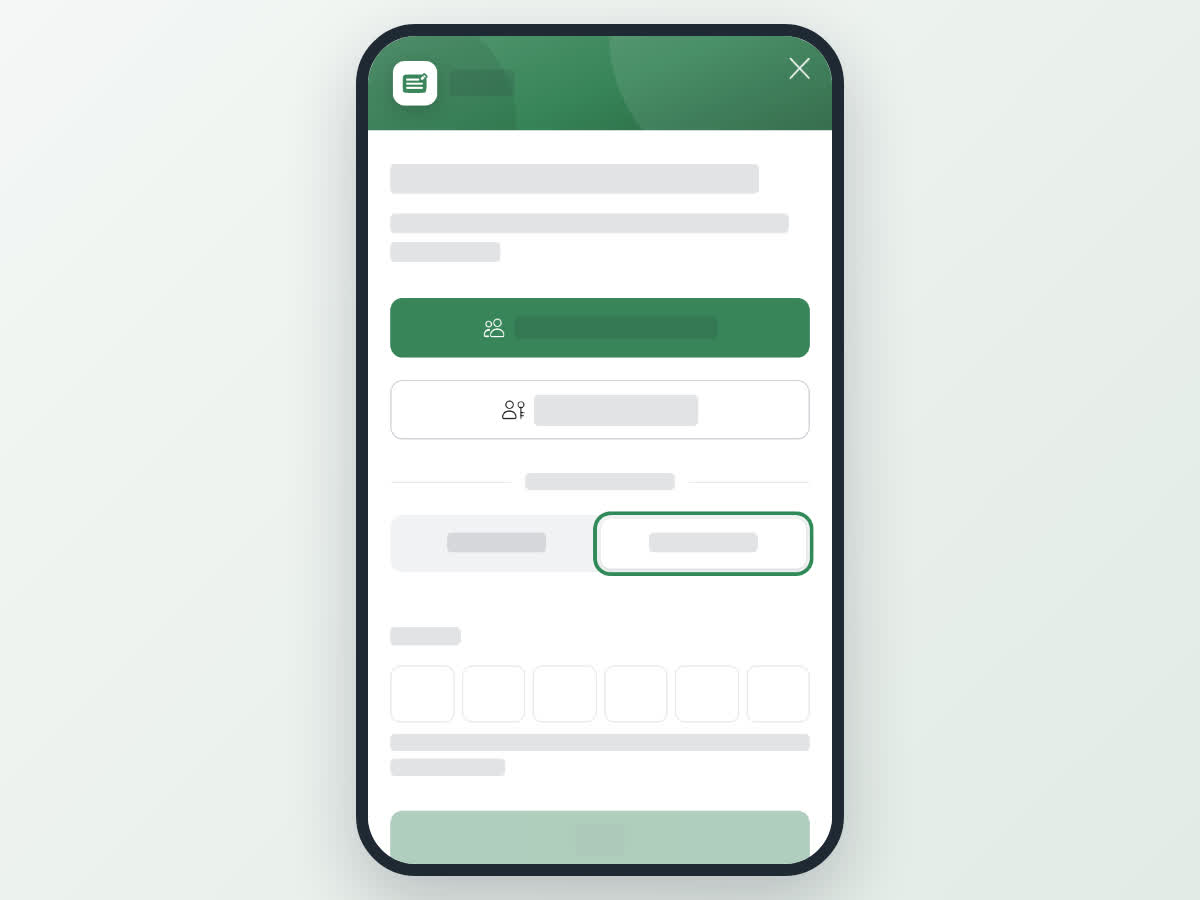
The window Log in with your Talkou account (or Register with your Talkou account the first time) offers the same options everywhere:
- Log in with Account Link – opens Talkou on this device so you can approve the sign-in. This is the fastest if you already use Talkou on this device.
- Log in with passkey – signs you in with your face, fingerprint or screen lock. It only appears when your device supports passkeys, and it only works after you have set up a passkey (see below).
- Use QR code – under or use another device. Scan the QR code and approve it in the Talkou mobile or web app.
- Use passcode – generate a passcode in the Talkou mobile app or web app, type it into the Passcode field, then select Log In.
When you register, tick I agree to the User Agreement and Privacy Policy first. The sign-in options stay greyed out until you do. When Talkou confirms, the window closes and you are signed in.
About passkeys
A passkey signs you in with your face, fingerprint or screen lock, so you do not need Talkou at hand each time. Set one up on each device you use; the steps are below for a computer and a phone.
Your passkeys are listed under Your passkeys with the date each was Last used. Deleting a passkey here stops it working on Boogir, but it stays on the device that holds it until you remove it there too.
On a computer
Create your account or log in
Set up a passkey
Select your name at the bottom of the left menu (User & Settings), then Manage Passkeys. Under Add a passkey for this device, select Set up a passkey and confirm on your device.
Sign out
Select User & Settings at the bottom of the left menu, then Sign Out. You are signed out straight away.
On your phone
On boogir.com in your phone's browser, the sign-in window fills the screen. The options and steps inside it are the same as on a computer. To close it without signing in, tap the X at the top.
Create your account or log in
Set up a passkey
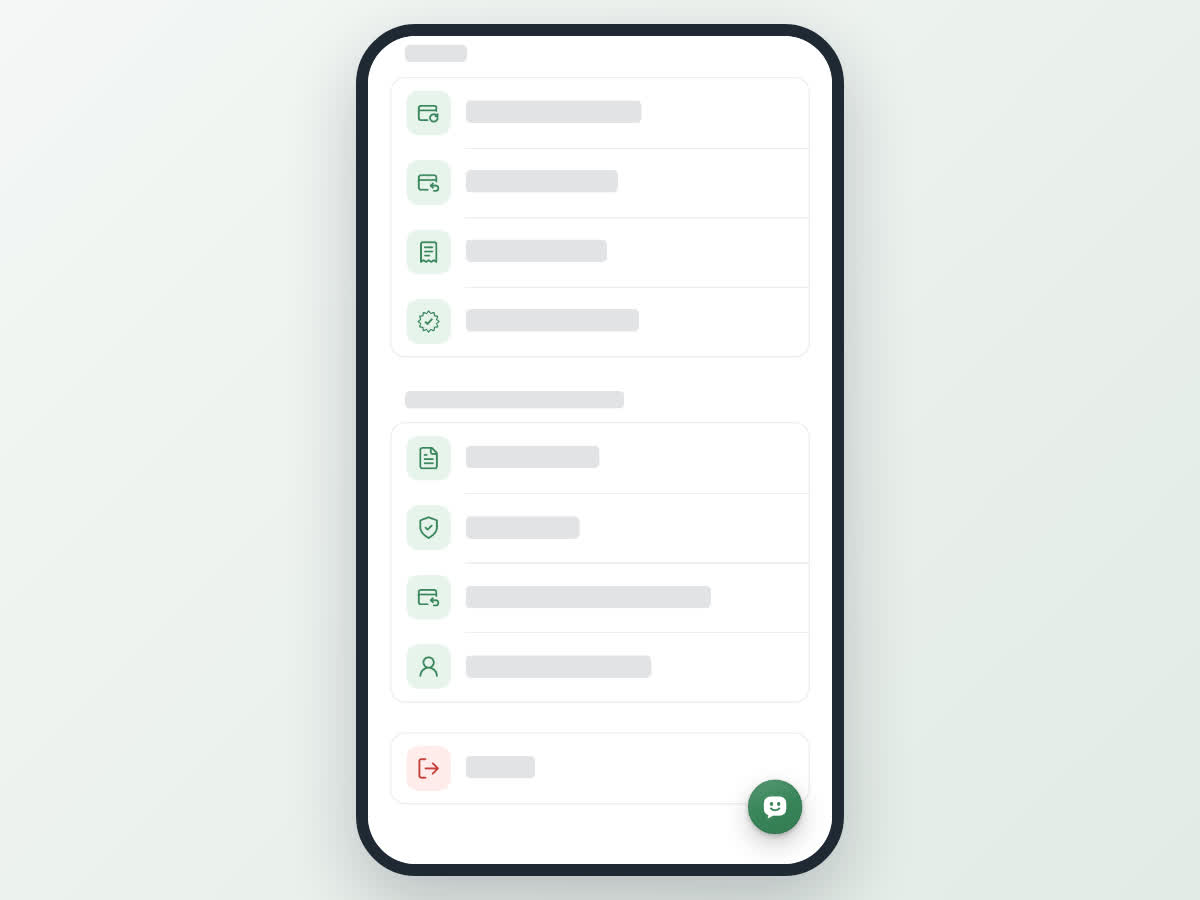
Tap Account in the bottom bar, then Manage Passkeys. Under Add a passkey for this device, tap Set up a passkey and confirm with your face, fingerprint or screen lock.
Sign out
Tap Account in the bottom bar, scroll to the bottom and tap Sign Out. Confirm when asked Are you sure you want to sign out?
Common messages
- You haven't registered for this platform yet. You need to create a new account instead of logging in. Select Create a new account at the bottom of the window.
- You have already registered for this platform. You need to log in instead of registering. Select Log In at the bottom of the window.
- Your passcode is invalid. The passcode was mistyped or is no longer valid. Generate a new one in Talkou and try again.
- Verify you are human – Boogir sometimes asks for a quick check when it sees unusual activity. Select the three pictures in the order shown in the image. For a stronger Human verification, you confirm with your phone instead: choose Open Talkou to confirm in Talkou, or Text message to send one text that Boogir prepares for you. In the app this option is called Send a text message instead.