Search posts, spaces and people
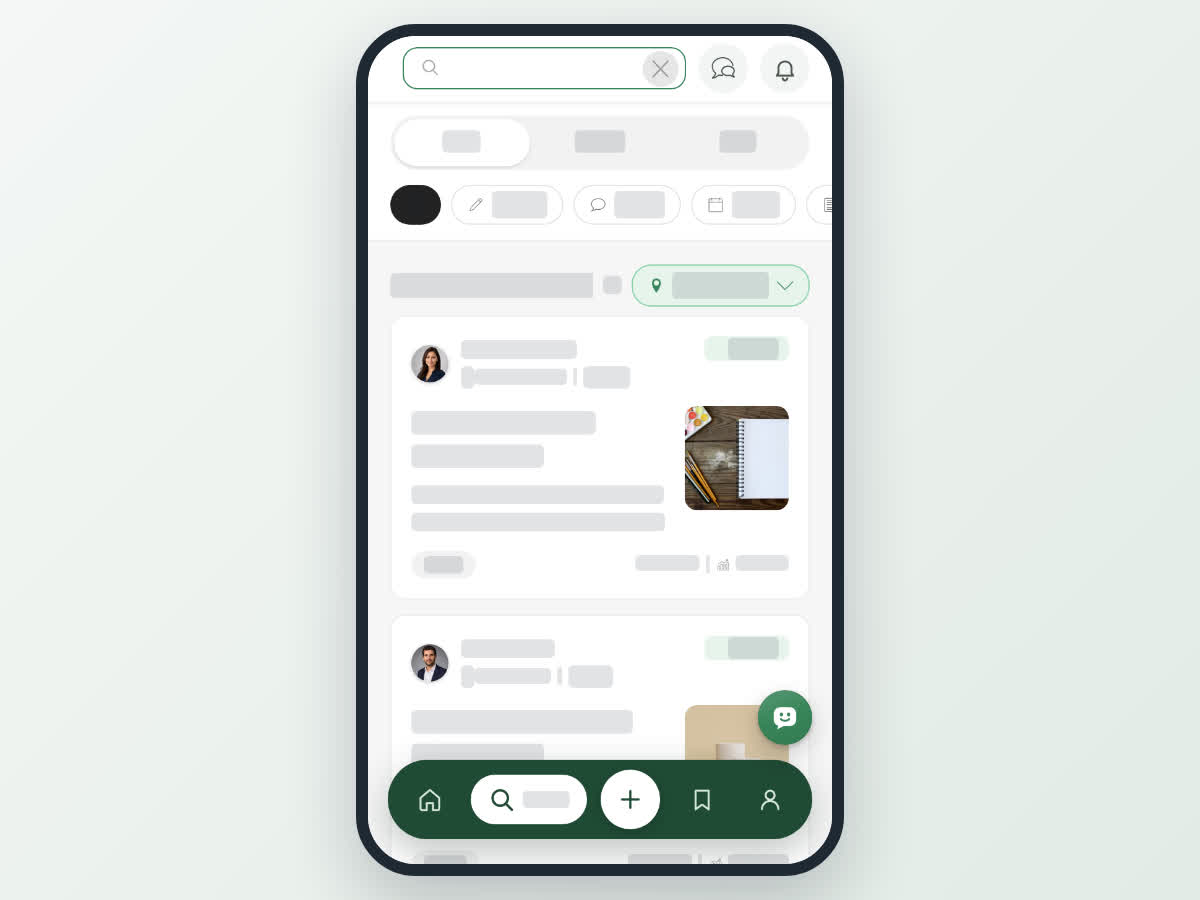
Use Search to find posts, spaces and people on Boogir. Switch between the Post, Space and User tabs, filter posts by type and by country or region, and browse Trending posts.
Guide · Tutorial John Smith2 days ago · 3 min read · 3 views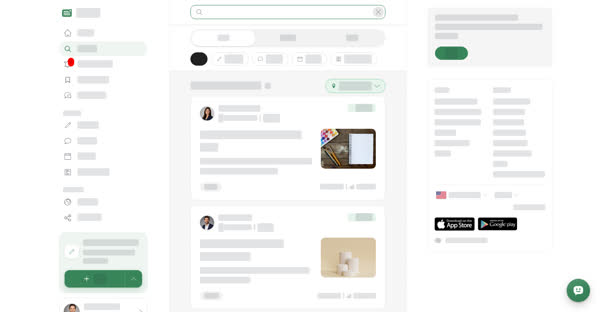
Search finds three kinds of results: posts, spaces and people. You can search without signing in.
The results page
- Post – matching posts. The chips All, Articles, Stories, Events and Documents filter by post type.
- Space – matching spaces, with their number of posts. Open a space to read it and select Subscribe to follow it.
- User – matching people. Open a profile to see what they have published.
The heading shows Results for your search and how many results were found. If nothing matches, you see No search results for the keyword followed by your search. Try a shorter or more general word, another tab, or a wider region.
Filter by country or region
The Country/Region filter sits to the right of the results heading. Select it, then pick a country or region from the list. You can type in the list to find one quickly. Choose Global to see results from everywhere again.
Your choice applies straight away to the current search and stays in place for the next searches you run, until you change it or reload the page.
Trending
When you open Search without typing anything, you see Trending: a list of popular posts to browse. Scroll down to load more.
Suggestions and your history
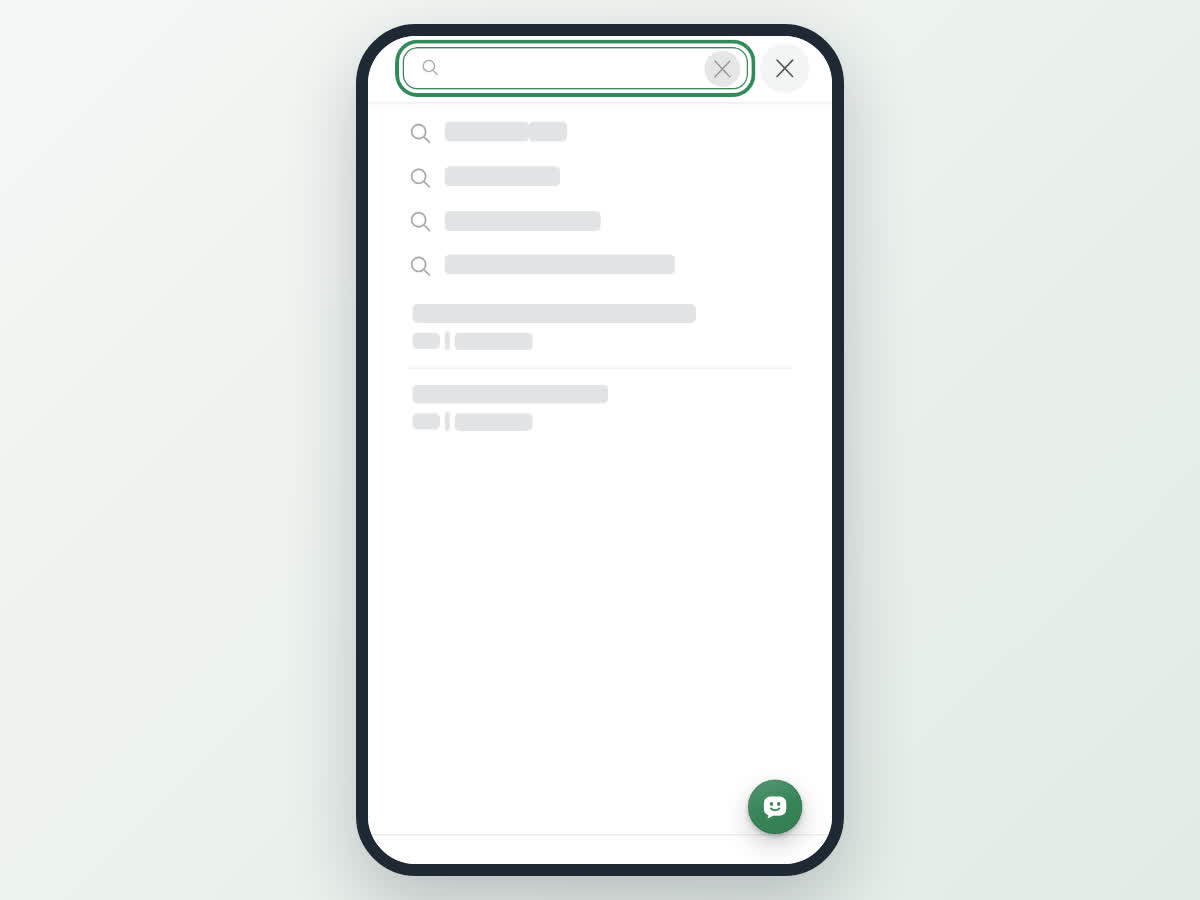
When you select the search box, a panel opens with:
- Search for what you have typed so far.
- Suggested searches that match your words.
- When you are signed in, the posts you viewed recently, so you can get back to them quickly. If you have not viewed any posts yet, it shows No history.
Select any line to open it.
On a computer
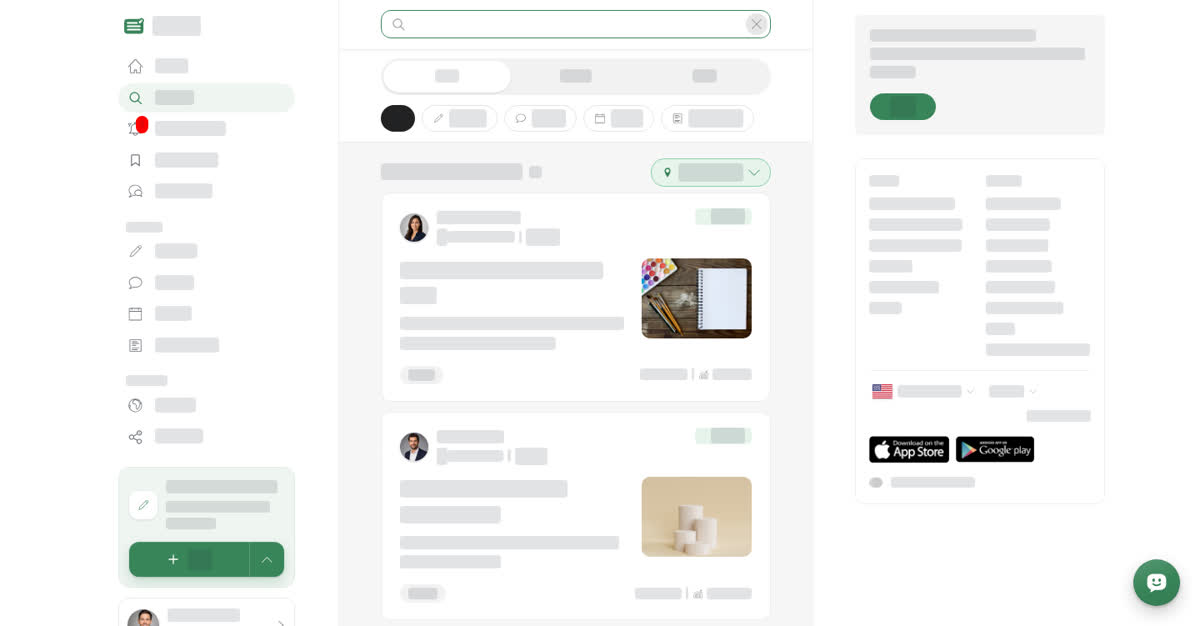
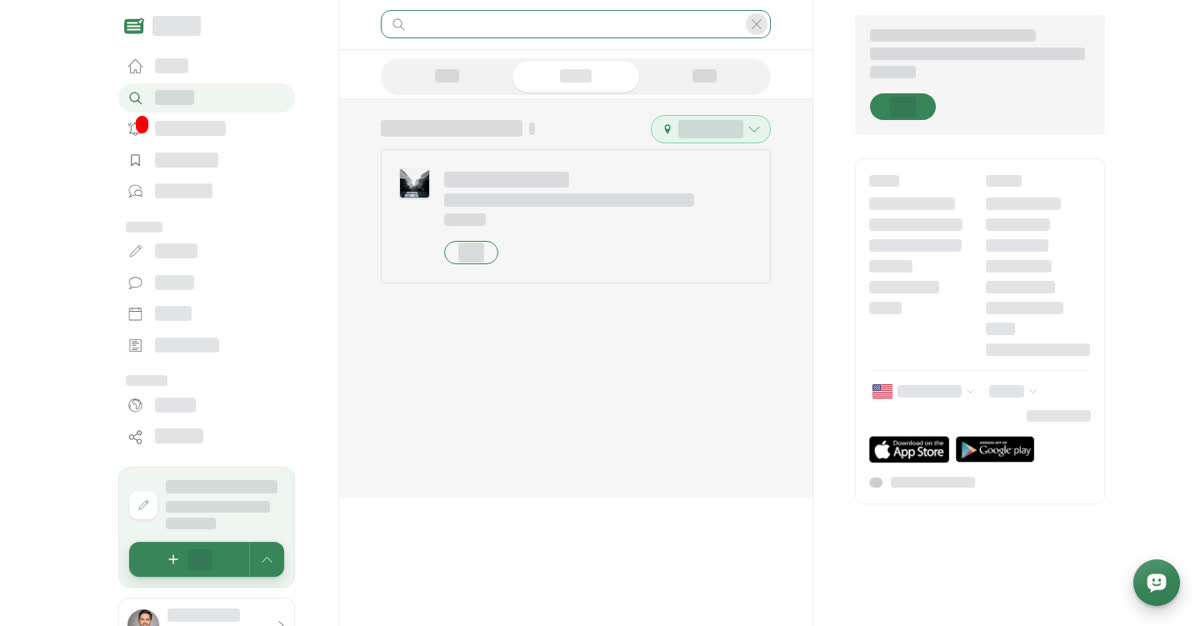
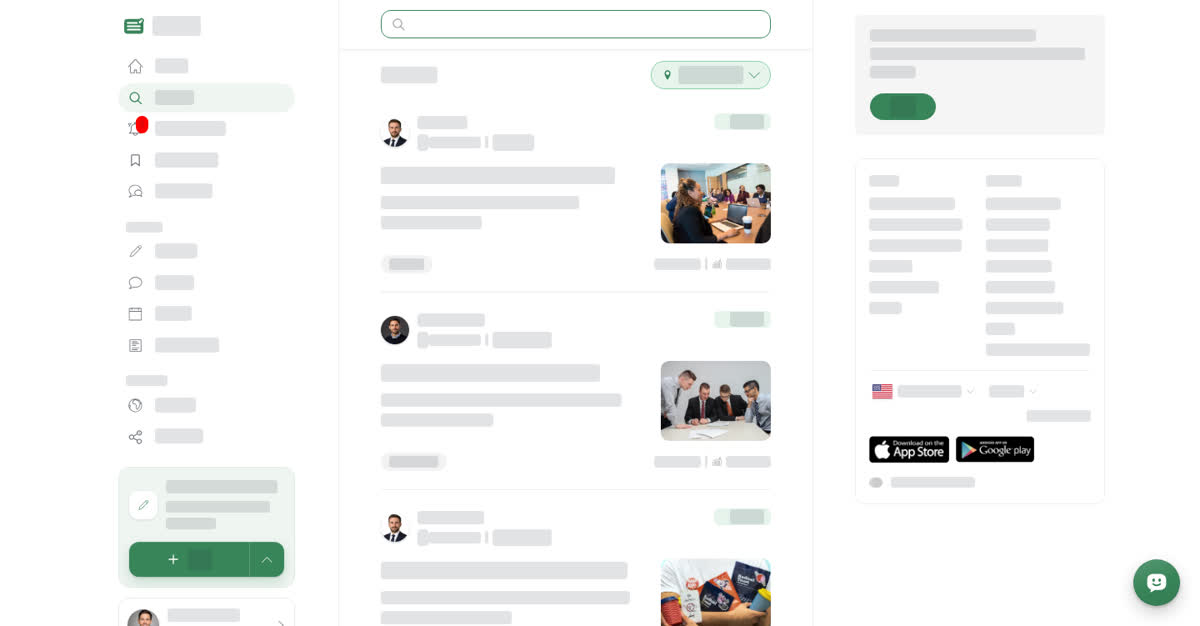
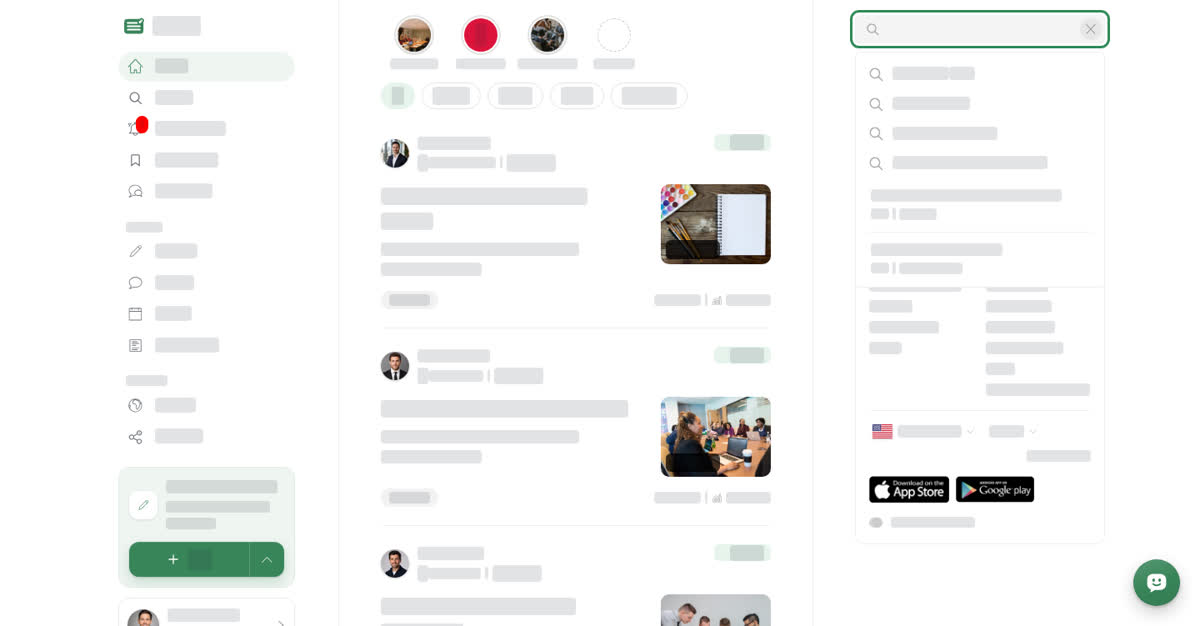
Select Search in the left menu, or type into the Search Boogir box on the right of the Home page. On the Search page the box stays at the top while you scroll, and suggestions open in a list under it.
Search on a computer
On your phone
These steps are the same in the Boogir app and on boogir.com in your phone's browser.
Tap Search in the bottom bar, or the search button at the top of the screen. The top bar turns into the Search Boogir box. There is no search box on the Home page itself.
Search on your phone