Find your way around Boogir
A tour of Boogir: your Home feed and its filters, the desktop left menu, the phone bottom bar and app tabs, the User & Settings menu, dark mode and the floating message button.
Guide John Smith2 days ago · 5 min read · 2 views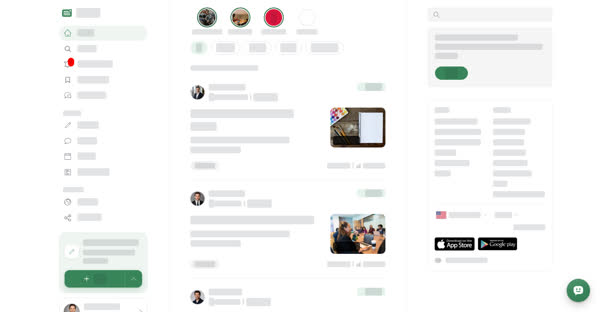
Boogir looks a little different on a computer and on a phone, but the same pages are there on each. This guide explains the pages you use most, then shows where to find them on a computer and on your phone.
Your Home page
When you are signed in, Home shows new posts from the spaces you subscribe to.
- A strip of your spaces runs across the top. Spaces with new posts are highlighted. Select or tap one to open it, or select Find more to search for more spaces.
- Filter chips let you show All posts, or only Articles, Stories, Events or Documents.
- Posts you have not seen yet are grouped under New since your last visit, and older ones under Earlier.
If you have not subscribed to any spaces yet, you see Subscribe to spaces to see their new posts here. Open a space and select Subscribe to fill your feed.
When you are signed out, Home shows the Boogir welcome page instead.
Dark mode
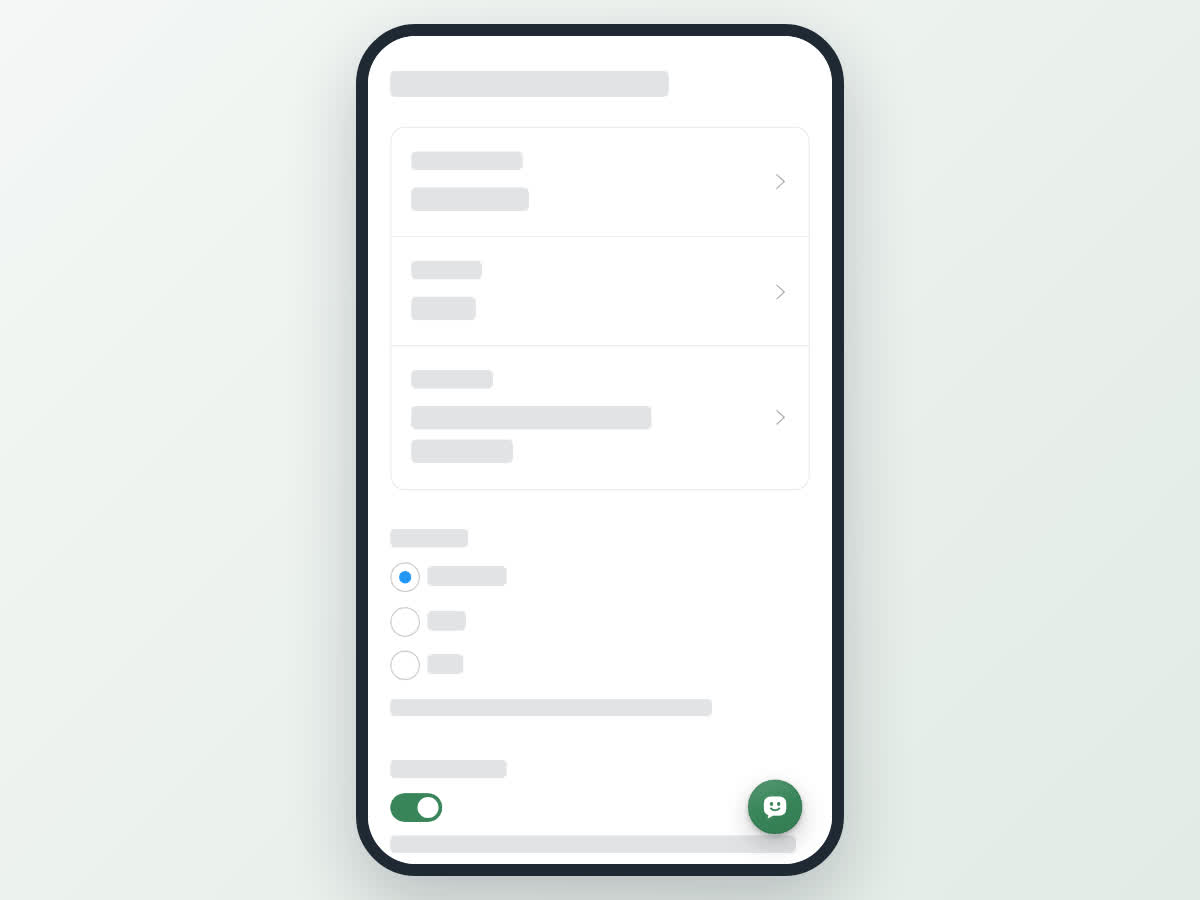
Boogir can show light text on a dark background. In Region, Language & Display, choose Dark mode: Automatic, Light or Dark. Automatic follows whatever your device is set to.
The floating message button
A round message button floats in the corner of the screen. It opens the messenger with three tabs:
- Help Guides – ask a question and get answers from these help guides.
- Support – message our team.
- Messages – your conversations.
If the floating button gets in the way, turn off Message button in Region, Language & Display. You can still open the messenger from Messages in the left menu on a computer, or from the messages button at the top of the screen on your phone.
On a computer
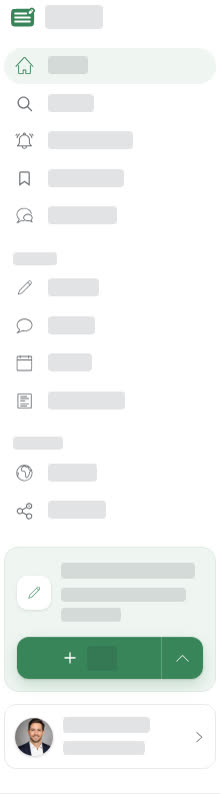
The left menu
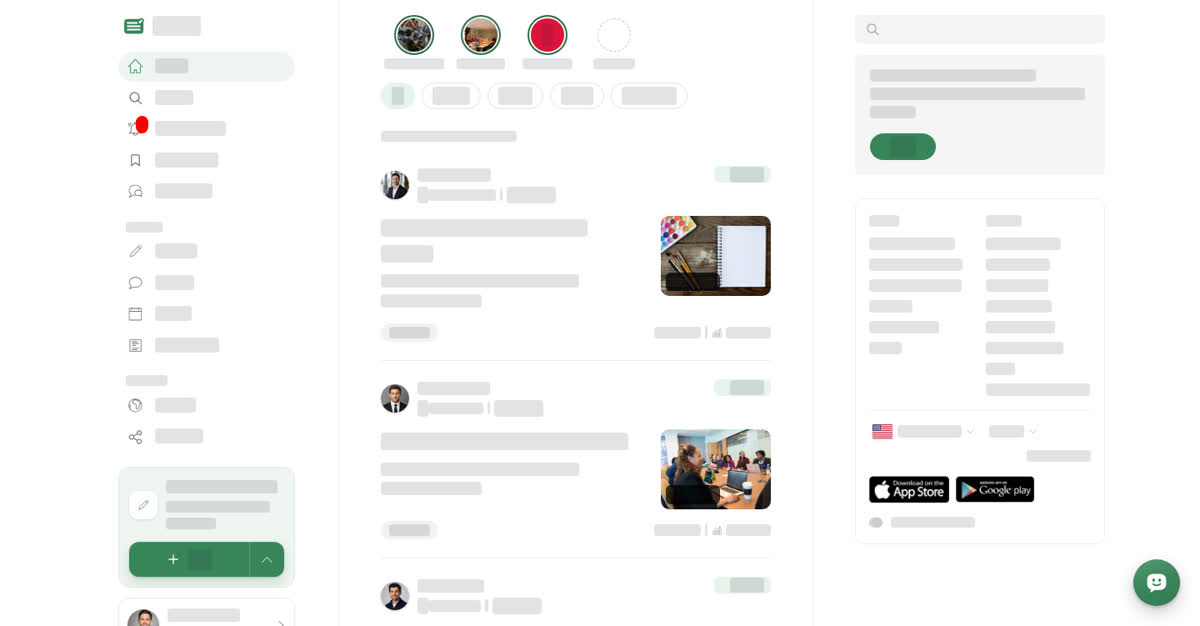
The left menu holds everything you use often:
- Home, Search, Notifications and Bookmarks. Notifications shows a count of unread notifications.
- Messages opens the messenger.
- Under Create: Articles, Stories, Events and Documents list the posts you have written of each type.
- Under Manage: Spaces and Modules list the spaces and modules you run.
- The Share what you know card has a Post button to start a new post. Select the arrow next to it (Choose what to post) to pick Article, Story, Event or Document first.
- Your name and photo at the bottom open the User & Settings menu.
On a narrow window the menu folds down to icons only. Widen the window to see the names again.
When you are signed out, the menu shows Search, a Create an account button with Already a member? Log in, links to Welcome, Getting Started and Pricing, a region selector and a dark mode switch.
The User & Settings menu
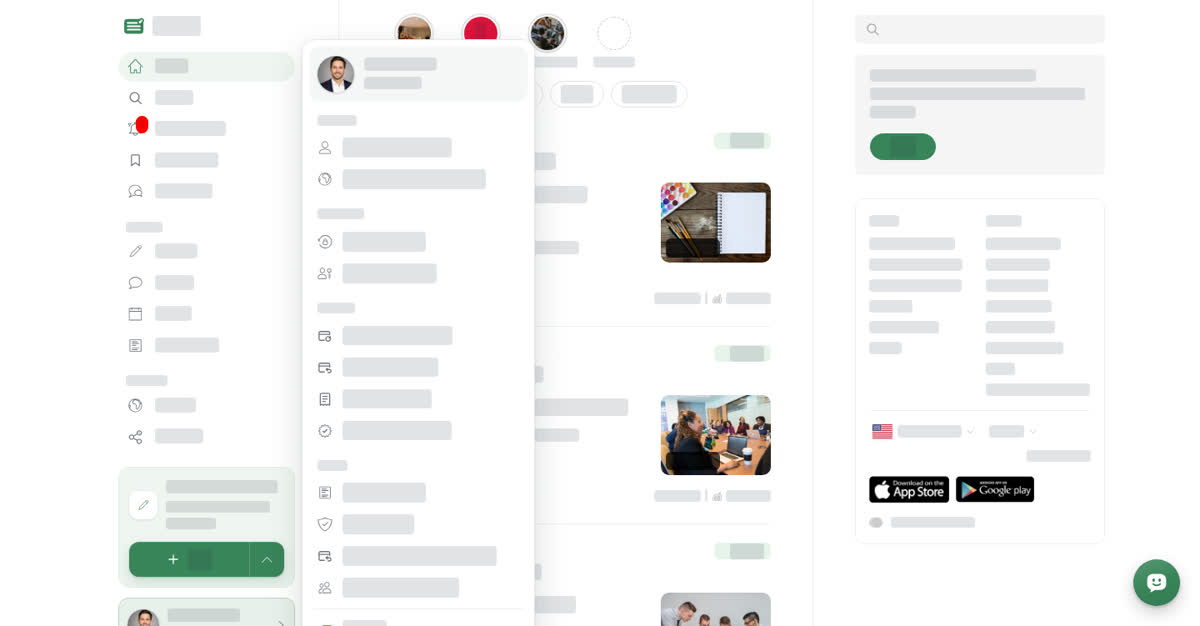
Select your name at the bottom of the left menu to open User & Settings:
- View profile – your public profile page.
- Profile: Personal Information and Region, Language & Display.
- Security: Security & Login and Manage Passkeys.
- Billing: Manage Subscription, Payment & Refund, Invoice & Receipt and Blue Tick Verification.
- Legal: User Agreement, Privacy Policy, Payments and Refunds Policy and Community Guidelines.
- Sign Out.
Dark mode and display settings
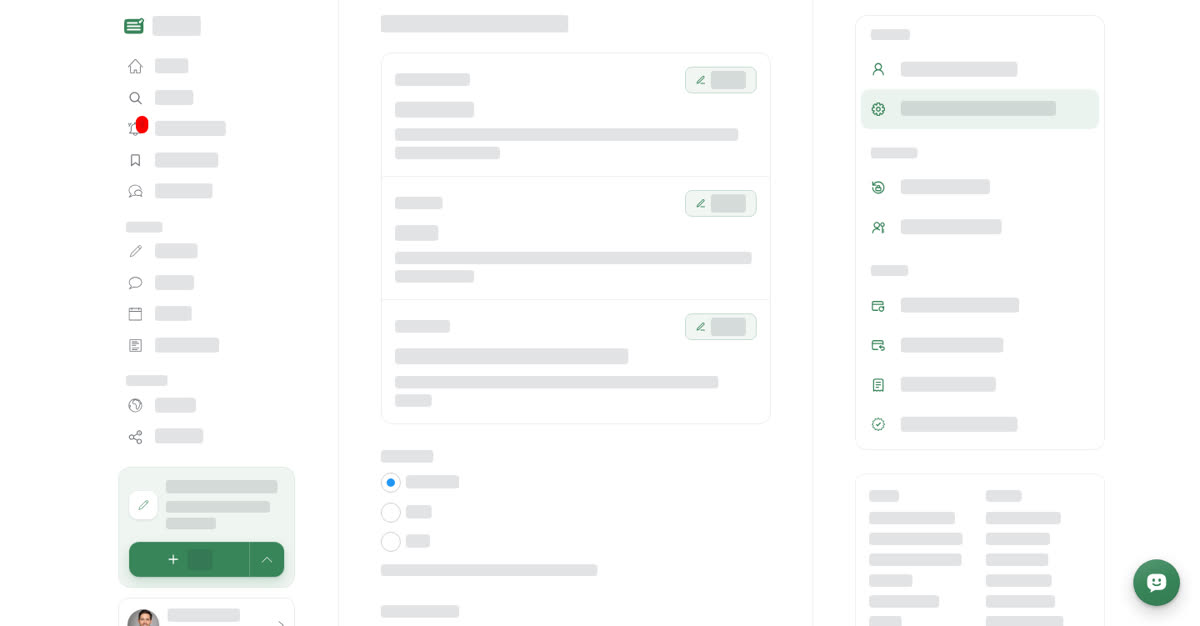
Select User & Settings, then Region, Language & Display. When you are signed out, use the dark mode switch at the bottom of the left menu instead.
On your phone
These steps are the same in the Boogir app and on boogir.com in your phone's browser.
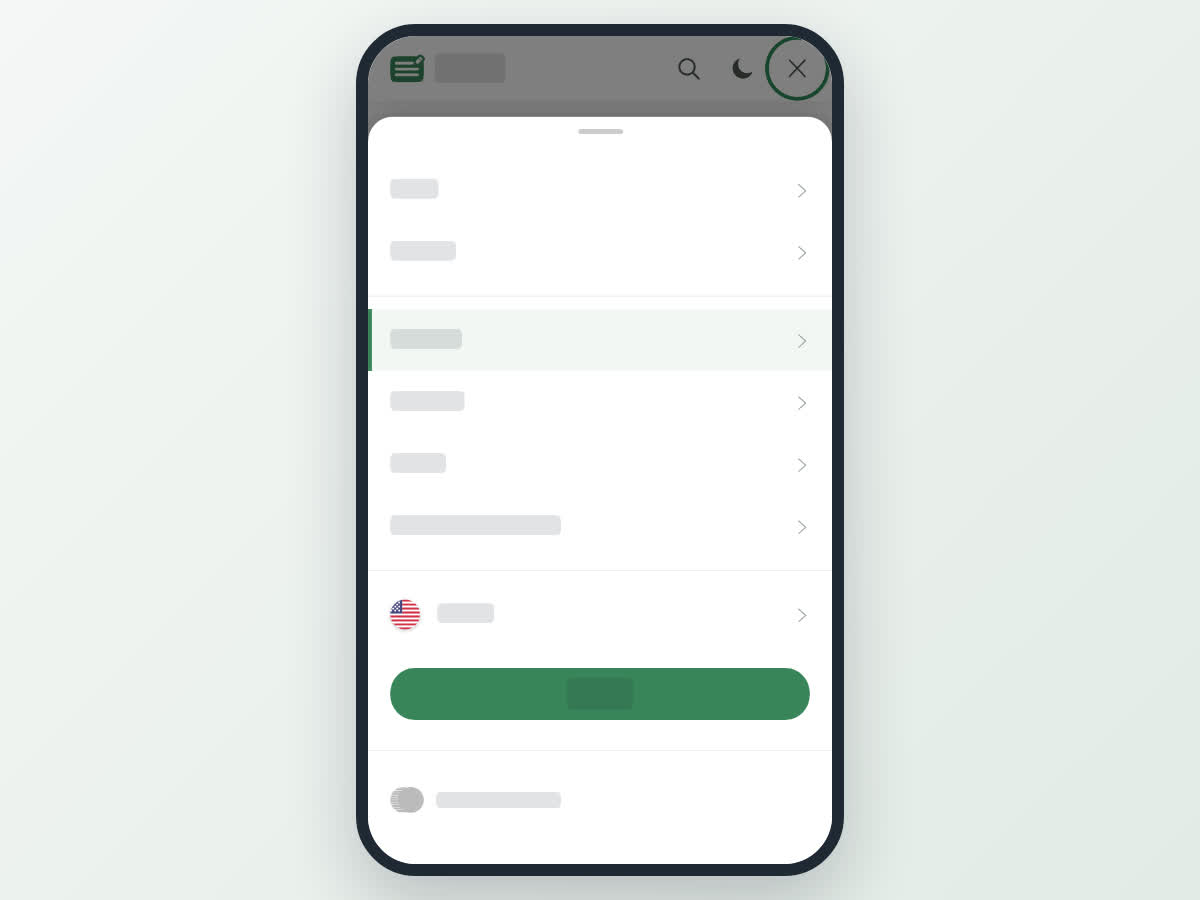
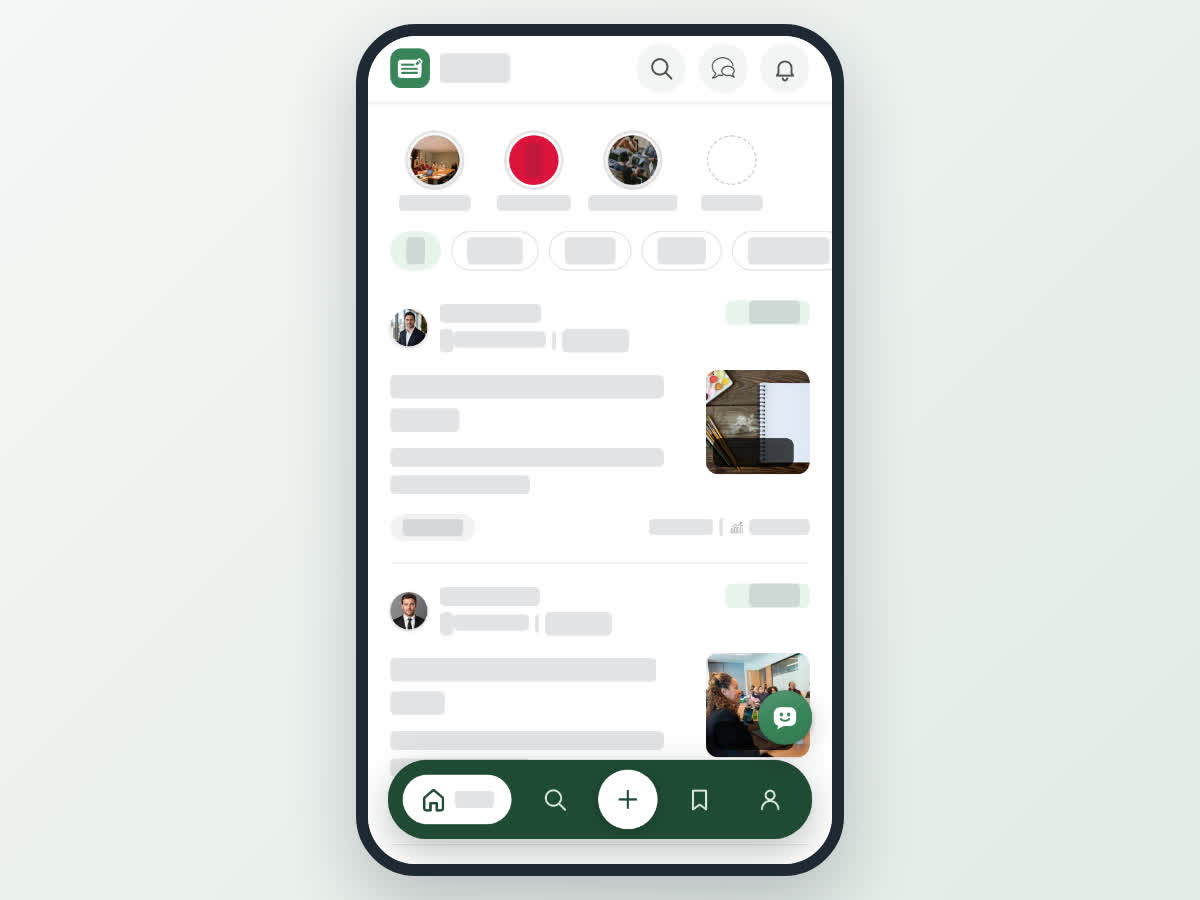
At the top of the screen are the Boogir logo, a search button, the messages button and the notifications bell. The bell shows a count of unread notifications. Tap the logo to go back to Home.
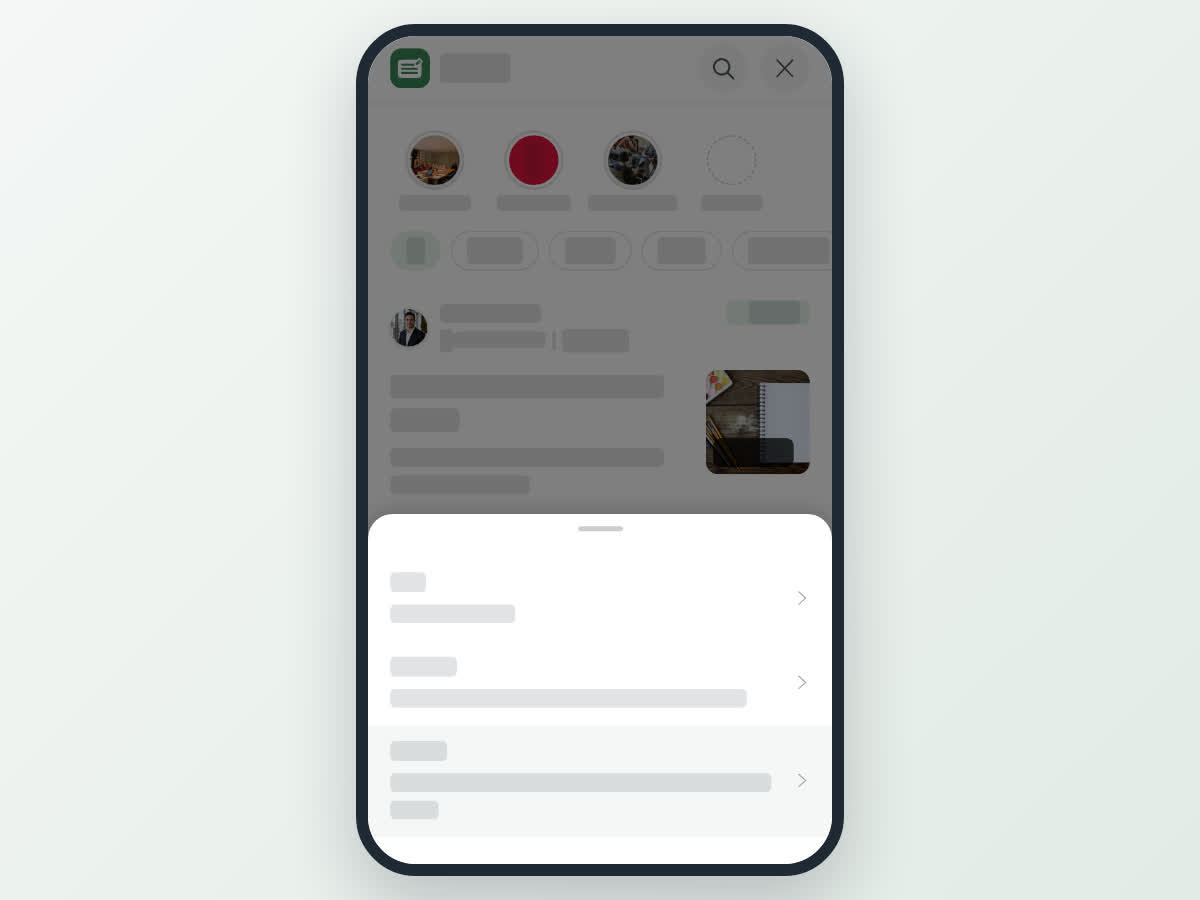
At the bottom is a bar with Home, Search, a + button, Bookmarks and Account. Only the page you are on shows its name.
Get around on your phone
The Account page
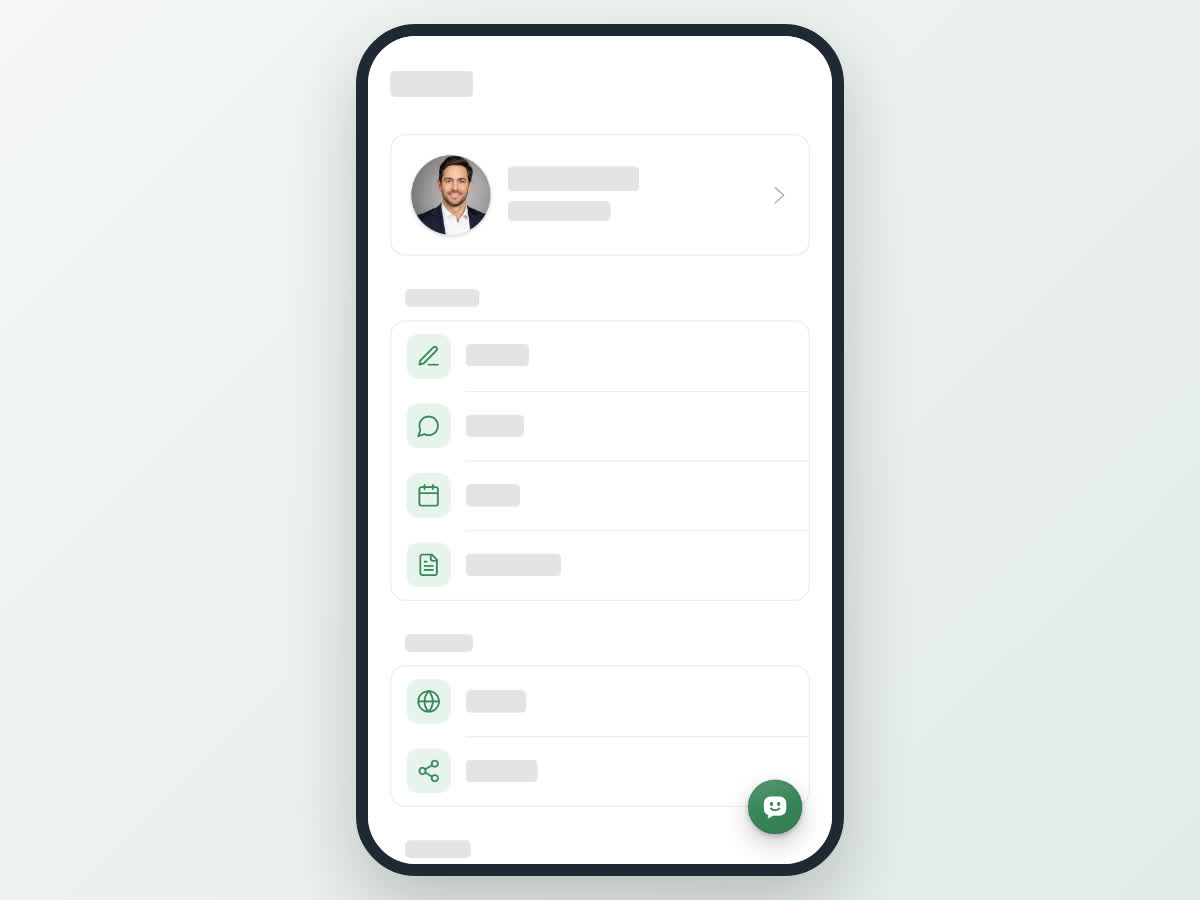
Account holds the same settings as the User & Settings menu on a computer, plus the lists you find in the computer's left menu:
- Your name and photo at the top open your public profile.
- Content: Articles, Stories, Events and Documents you have written.
- Manage: Spaces and Modules you run.
- Profile, Security and Billing, the same as on a computer.
- Help Center & Resources: User Agreement, Privacy Policy, Payments and Refunds Policy and Community Guidelines.
- Sign Out at the bottom.
Dark mode and display settings
Tap Account, then Region, Language & Display.