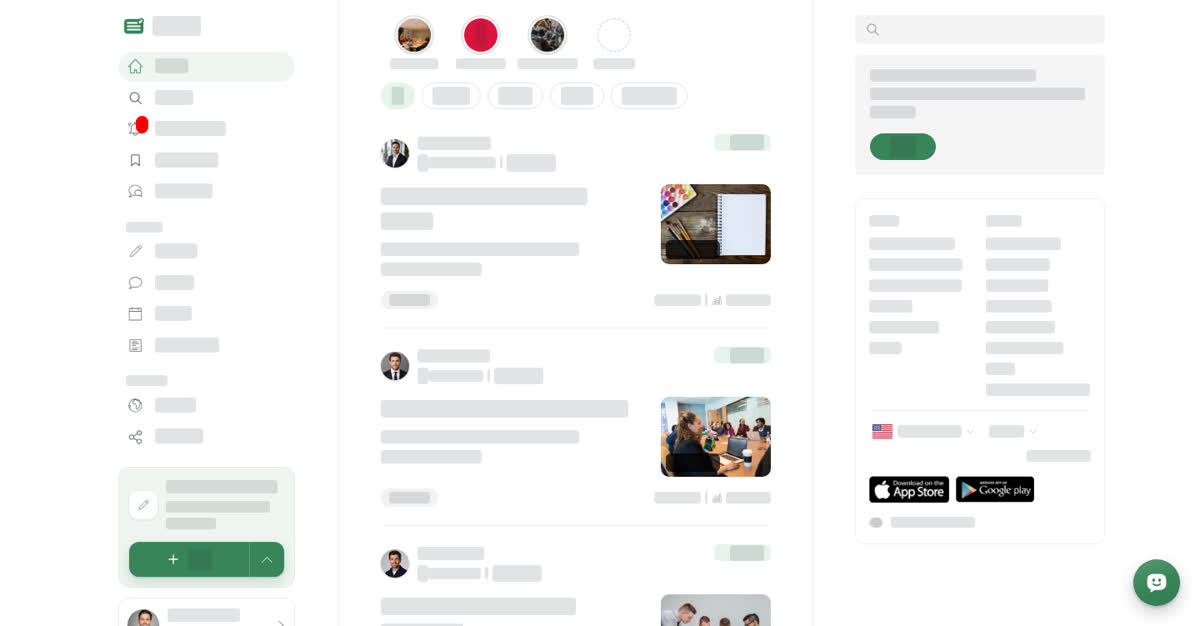
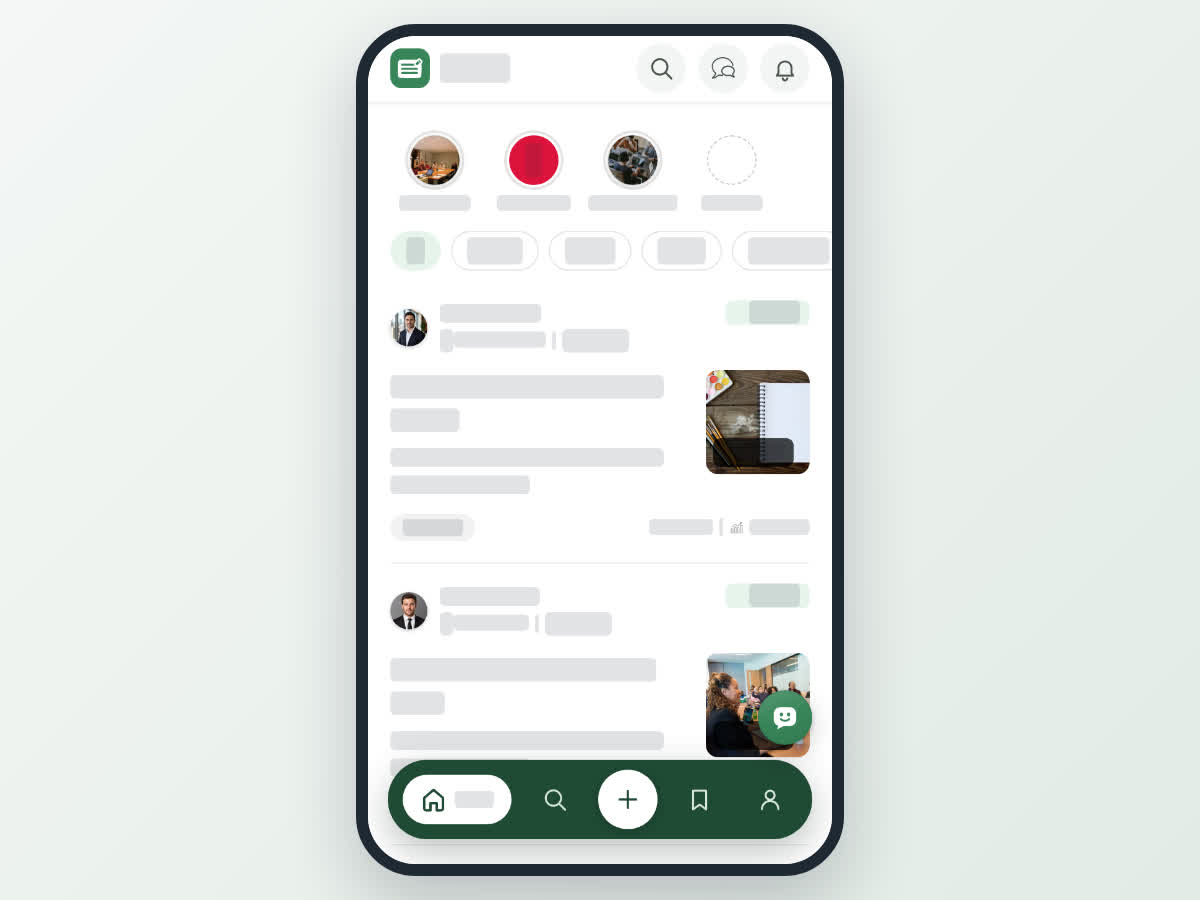
Subscribe to spaces and choose alerts
Subscribe to a space to see its new posts on your Home page, then choose which posts notify you: all new posts, only some post types, or none. You can unsubscribe at any time.
Guide · Tutorial Chanras Sun4 days ago · 4 min read · 4 views
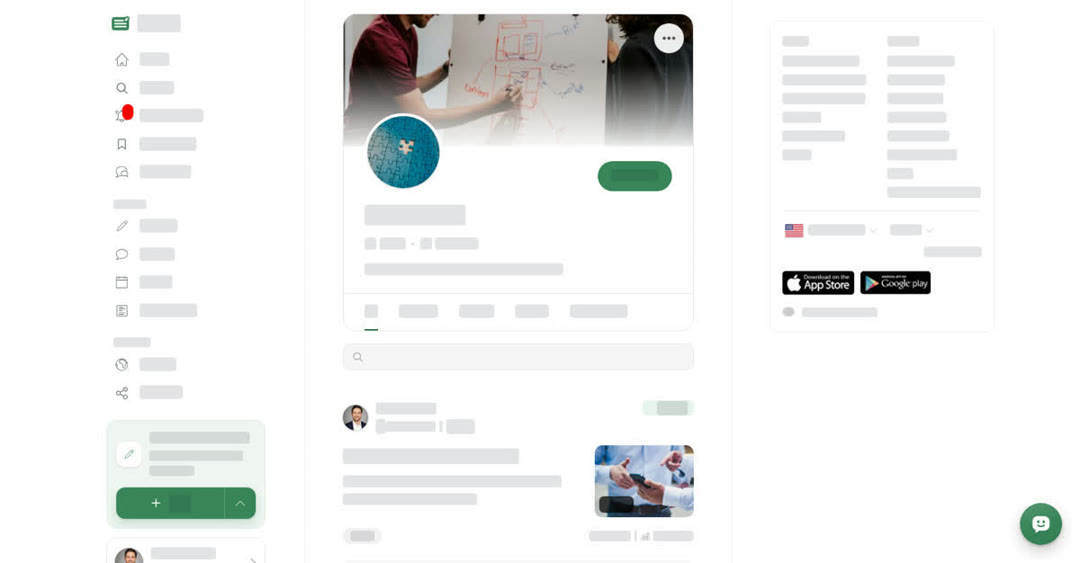
A space is where a person, team or business publishes posts on one topic. When you subscribe to a space, its new posts appear on your Home page, and by default Boogir also notifies you when it publishes something new.
You need to be signed in to subscribe.
Your alert options
Once you are subscribed, the Subscribed button opens Notify me about. Pick one option:
- All new posts — get an alert for every new article, story, event and guide. This is the setting when you first subscribe.
- Only these types — then tick the types you want: Articles, Stories, Events and Guides. Pick at least one.
- Off — stay subscribed and keep seeing the posts on your Home page, but get no alerts.
The button shows your choice. With a bell it means alerts are on. If you picked only some types, the button names them, for example Articles, Events.
Several posts close together arrive as one alert. If a space publishes again within six hours, Boogir adds the new post to the alert you already have instead of sending another one.
The ⋯ menu on a space page
- Turn Off Notification or Turn On Notification — switch alerts off or back on, without changing anything else.
- Unsubscribe — stop following the space.
- Send in message — share the space in one of your chats.
- Report — report the space.
- Message — shown when the space has a Talkou Business ID, so you can contact it.
On a computer
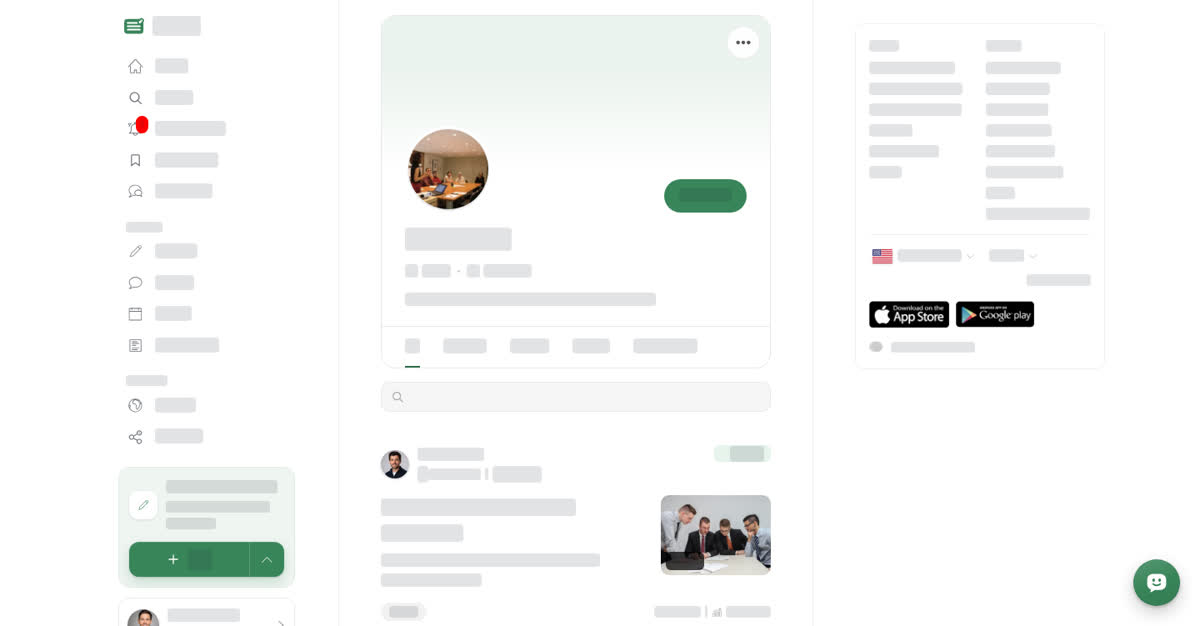
Subscribe to a space
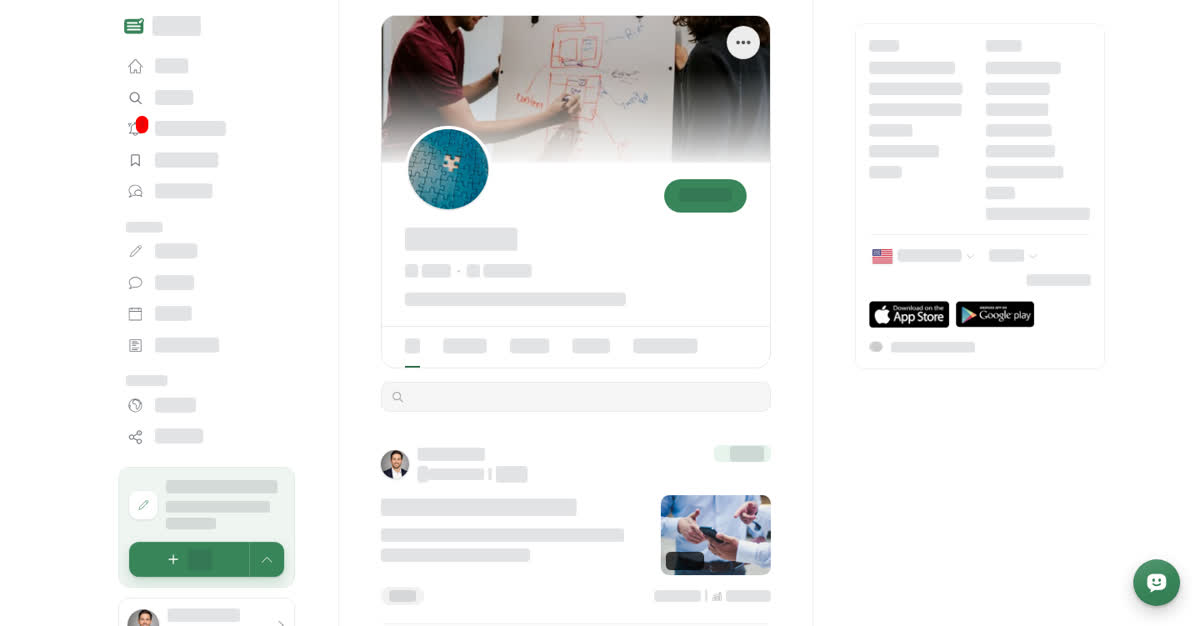
To change your alerts, select Subscribed. Notify me about opens under the button, and your choice is saved as soon as you select it. To stop following the space, select Unsubscribe at the bottom of that menu.
On your phone
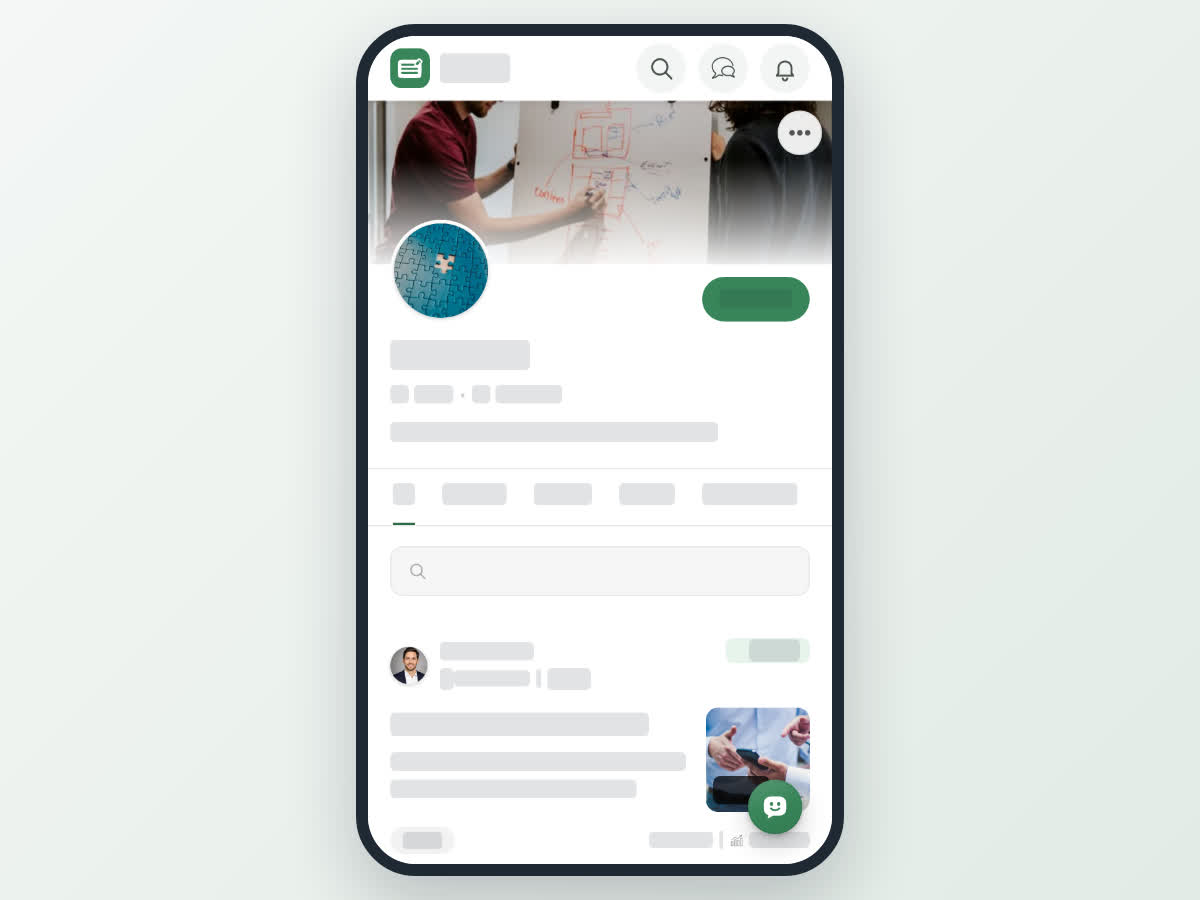
These steps are the same in the Boogir app and on boogir.com in your phone's browser.
Subscribe to a space on your phone
Choose your alerts on your phone
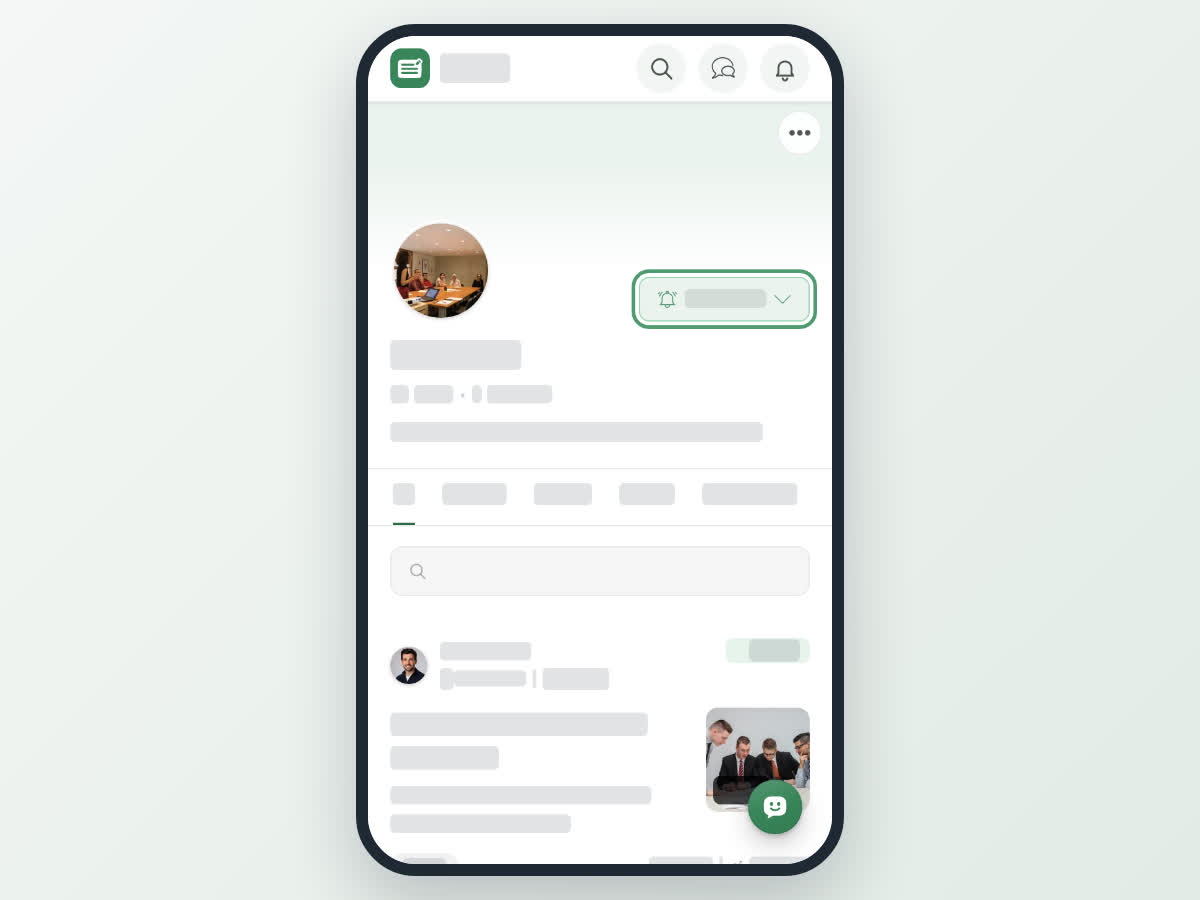
To stop following the space, tap Subscribed and then Unsubscribe at the bottom of the sheet, or choose Unsubscribe from the ⋯ menu.
Your Home page feed
When you are signed in, the Home page shows new posts from the spaces you subscribe to.
- The row of spaces at the top lists your subscriptions. A space with new posts is highlighted. Open one to see it, or choose Find more to search for more spaces.
- The filter chips — All, Articles, Stories, Events and Guides — narrow the feed to one type of post.
- New since your last visit marks the posts you have not seen yet. Older posts follow under Earlier.
If you have not subscribed to any space yet, or the spaces you follow have published nothing new, Home shows Trending now instead: the posts people are reading most at the moment. The card above them explains why they are there, and its Find spaces button opens search on the Spaces tab.