Comment and reply
Join the conversation under a post: write a comment, reply to someone, attach a photo, link or post, sort the comments, and edit, delete, save or report a comment.
Guide · Tutorial Chanras Sun4 days ago · 4 min read · 4 views
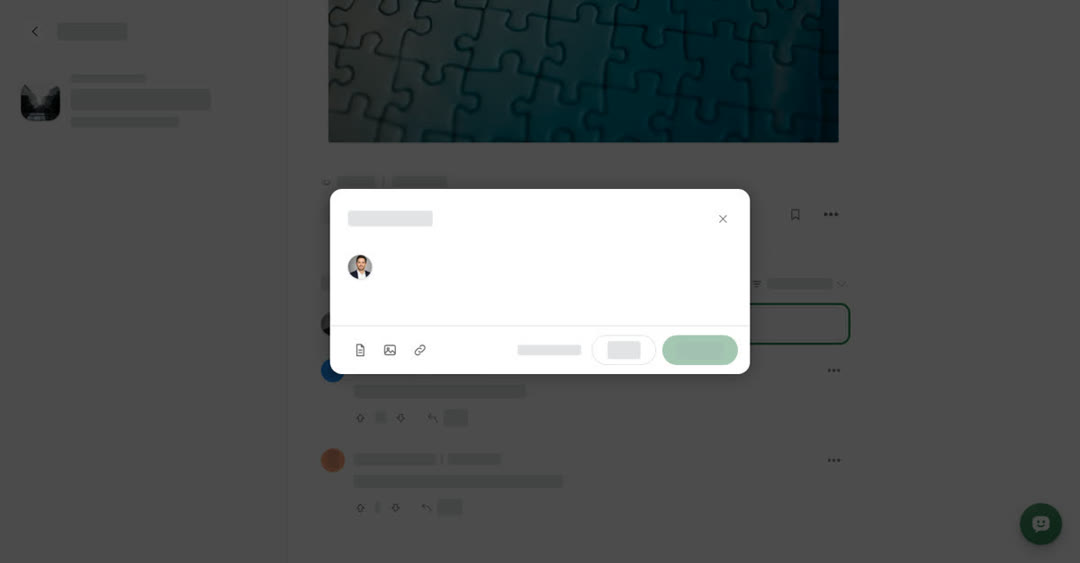
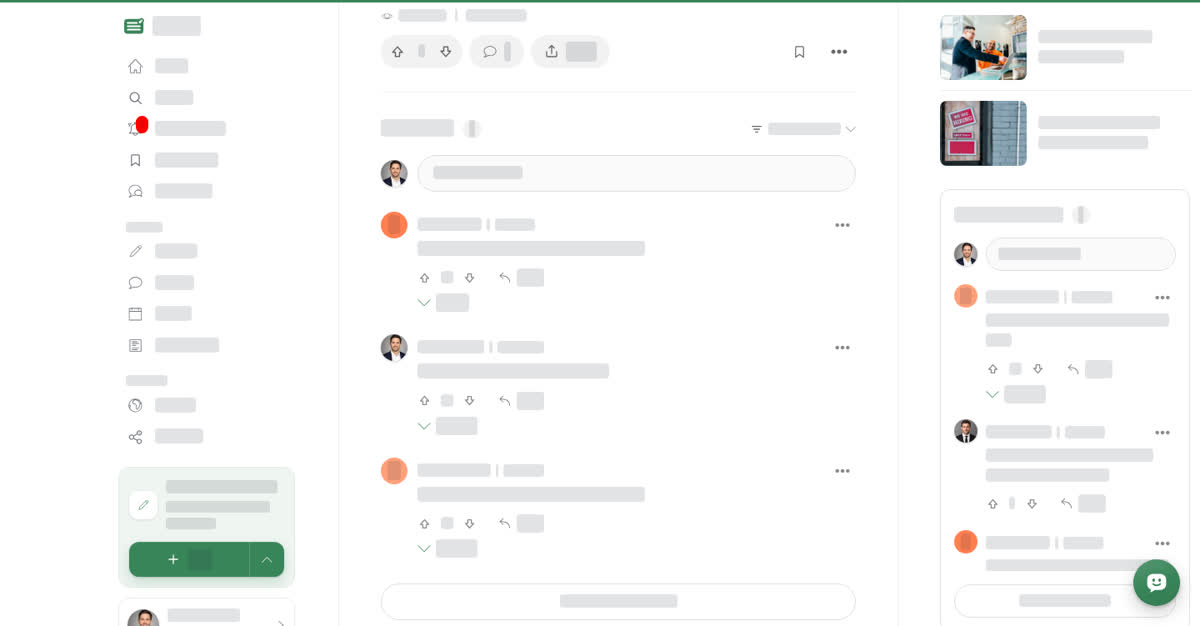
Comments sit at the end of every published post, under the heading Comments. The number next to the heading is how many comments the post has. To jump straight there, use Comment in the row of buttons below the post.
Anyone can read comments. To write, reply, vote or use a comment's menu, sign in first.
A comment can carry one attachment: Post attaches a Boogir post, Photo uploads an image, and Link adds a web link with its text.
Replies
Under each comment you see the Upvote and Downvote arrows with the comment's score, and Reply. When a comment has replies, a button such as 2 replies appears under it. Use it to show the replies, and again to hide them. You can reply to a reply too, so a conversation can go several levels deep.
Comments from the writer of the post carry an Author label next to the name.
Sort the comments
The sort menu sits to the right of the Comments heading. Choose one of:
- Top comments — the default.
- Newest first — the latest comments at the top.
- Oldest first — the conversation in the order it happened.
When there are more comments than fit, use Show more comments at the end of the list to load the next ones.
The comment menu
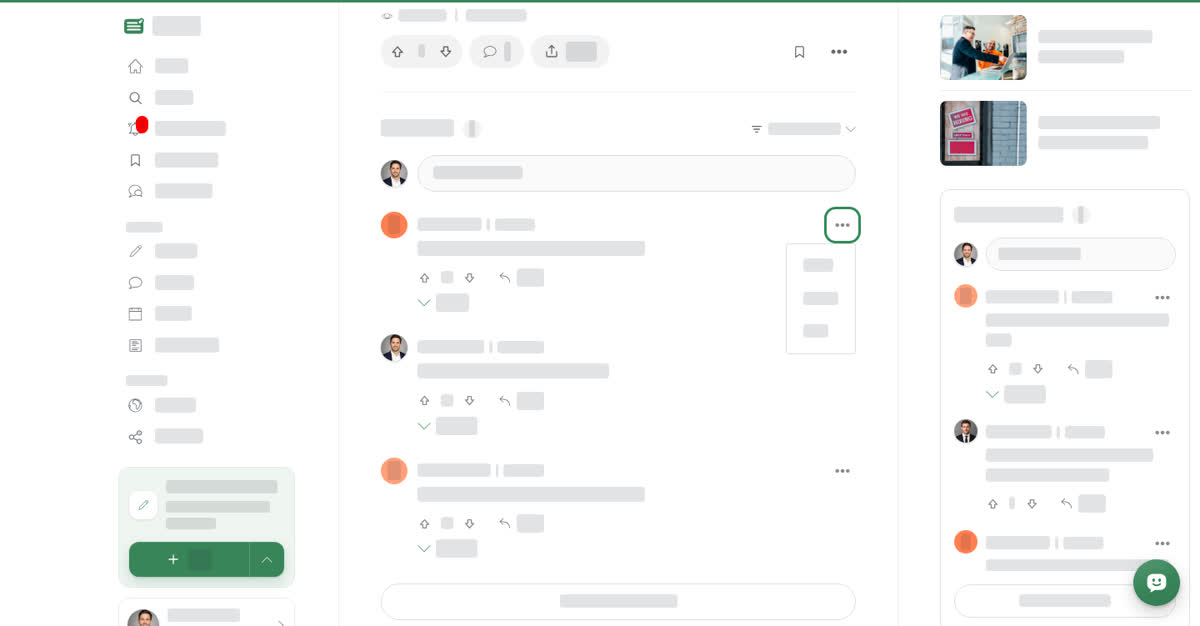
The ⋯ next to a comment has:
- Share — share a link that opens the post at this comment.
- Report — report the comment. Pick a reason, add details if you like, then choose Submit report.
- Save — keep the comment in your Bookmarks. Boogir shows Saved comment.
On your own comments, the menu also has:
- Update — opens the Update comment window. Change the text or attachment and choose Update.
- Delete — Boogir asks Are you sure you want to delete this? Choose Delete to remove the comment.
On a computer
Write a comment

To reply, select Reply under a comment. The Reply window opens and shows the comment you are replying to at the top. Write your reply and select Reply.
The column on the right of the post also shows the latest comments under Recent comments.
On your phone
These steps are the same in the Boogir app and on boogir.com in your phone's browser.
While you read a post, a bar at the bottom of the screen shows Comments, the number of comments and the latest one. Tap it to open Recent comments without leaving your place in the post. At the end of that sheet, tap Show more comments to load more, or View all comments to jump to the full list at the end of the post.

Write a comment on your phone
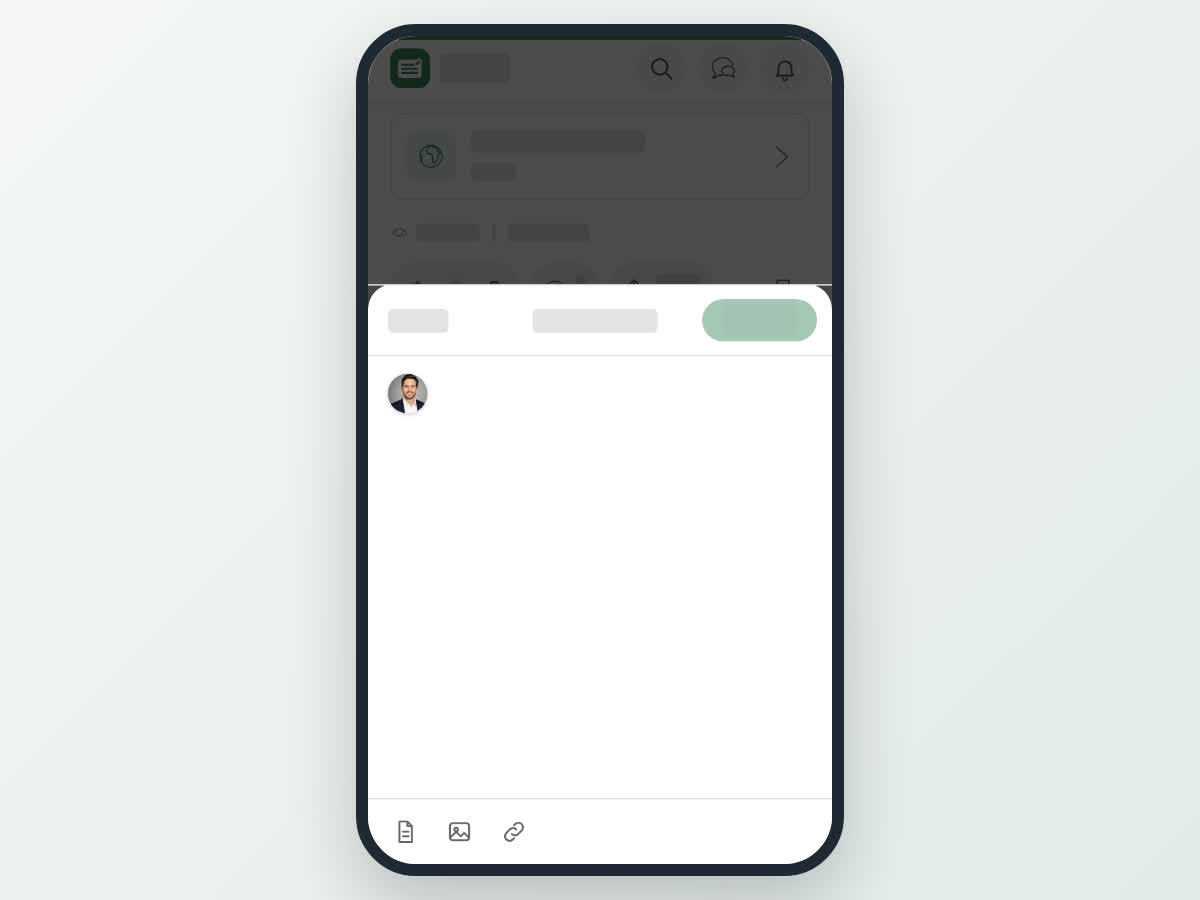
To reply, tap Reply under a comment. The reply box fills the screen and shows the comment you are answering at the top. Tap Reply at the top right to send it.