Ask a question or contact support
Get help without leaving the page: ask a question in Help Guides and get an answer drawn from these help guides, open Help Docs to browse every guide, or message the Boogir team from the Support tab.
Guide Chanras Sun4 days ago · 4 min read · 3 views
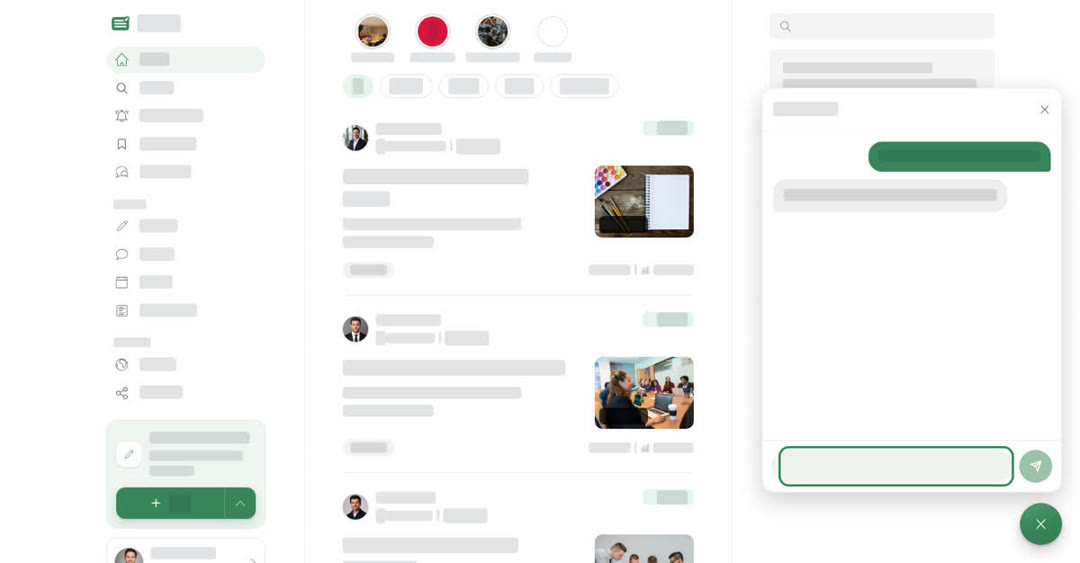
There are three ways to get help on Boogir, and all of them start from the round message button in the corner of the page:
- Help Guides — type a question and get a short answer based on the Boogir help guides.
- Help Docs — open the full set of help guides.
- Support — send a message to the Boogir team.
Open the message button, then choose one of them from its menu. See Send messages and share posts for more about the messenger itself.
About the answers
Answers in Help Guides come only from the published Boogir help guides, the same guides you are reading now. The assistant does not look at your account, so it cannot see your posts, payments or settings. If the guides do not cover your question, the answer says so; in that case use Support to ask the team. You can ask in any language, and the answer comes back in the language you used.
You can ask in Help Guides even when you are signed out. If you send a lot of questions in a short time, you see Too many attempts. Try again later. Wait a while and ask again.
To browse all guides instead, choose Help Docs in the message button's menu. It opens the Boogir help space, where guides are grouped by topic.
On a computer
The round message button is in the bottom right corner of every page. Select it, then choose Help Guides, Help Docs or Support. Help Docs and the guides linked under an answer open in a new tab.
Ask a question
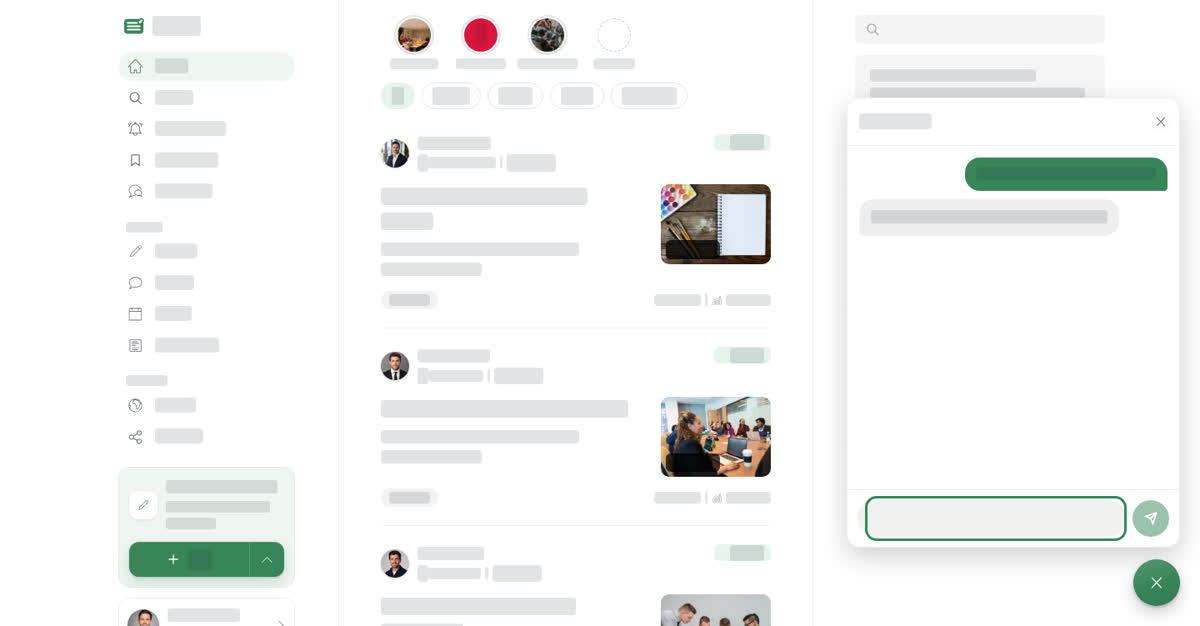
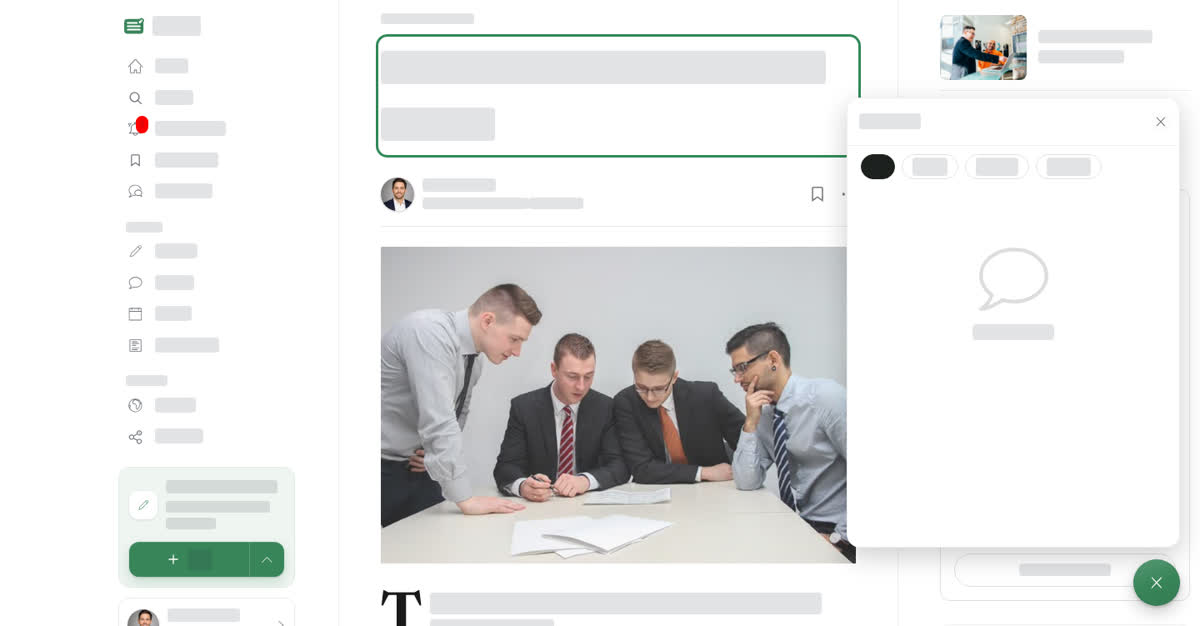
Message the Boogir team
On your phone
These steps are the same in the Boogir app and on boogir.com in your phone's browser.
The round message button is in the bottom corner of the screen. Tap it, then tap Help Guides, Help Docs or Support. The messenger fills the screen; tap the ✕ at the top to close it.
Ask a question on your phone
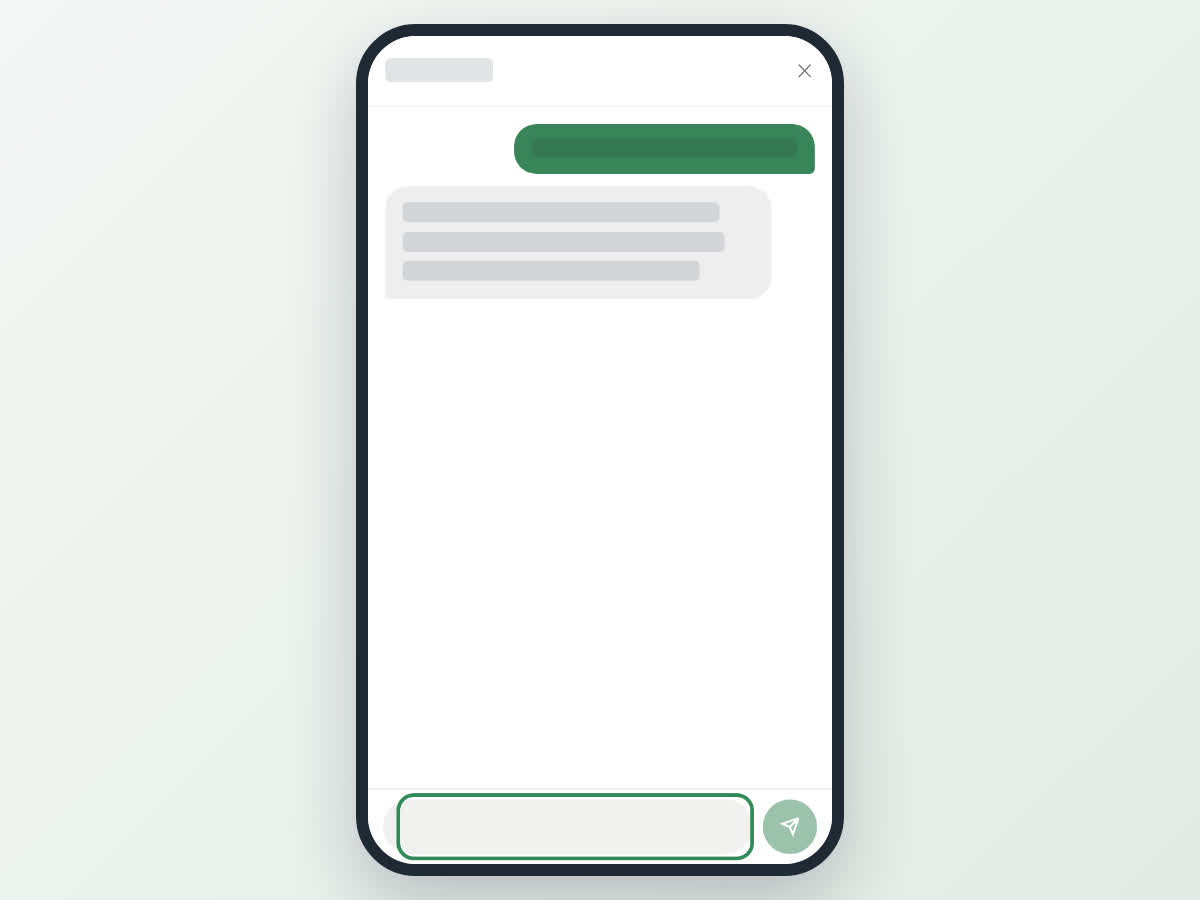
Message the Boogir team on your phone
When you are signed out
You need an account to contact the team. If you open Support while signed out, you see Log in to contact support with Log In and Register buttons. Sign in, then open Support again. Help Guides and Help Docs work without signing in.
If you cannot sign in at all, see Create your account and sign in for the common sign-in messages and what they mean.