Send messages and share posts
Use the Boogir messenger to chat with people and spaces, sort your conversations, attach posts, links, files, images and video, share posts with Send in message, and learn when a Messaging plan is needed.
Guide · Tutorial Chanras Sun4 days ago · 6 min read · 2 views
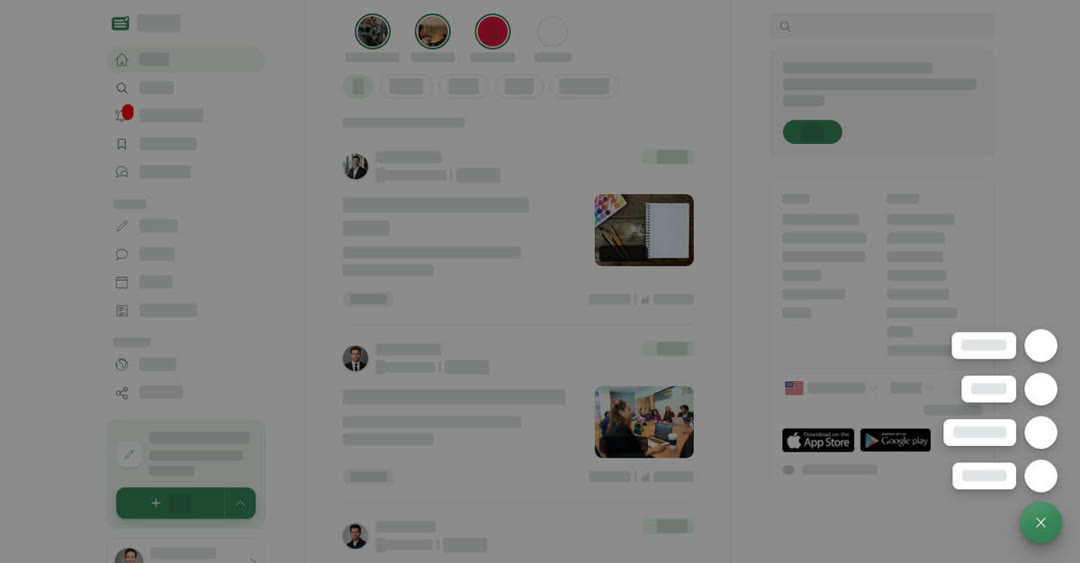
Boogir has a built-in messenger, so you can talk to other readers, writers and spaces without leaving the page you are on. Messages run on Talkou, the same account you sign in with, so your conversations are also there when you open Talkou.
You need to be signed in to send and read messages. If you are signed out, the Messages tab shows Log in to see your messages with Log In and Register buttons.
The messenger has three tabs: Help Guides, Support and Messages. This guide is about Messages. See Ask a question or contact support for the other two.
Your conversation list
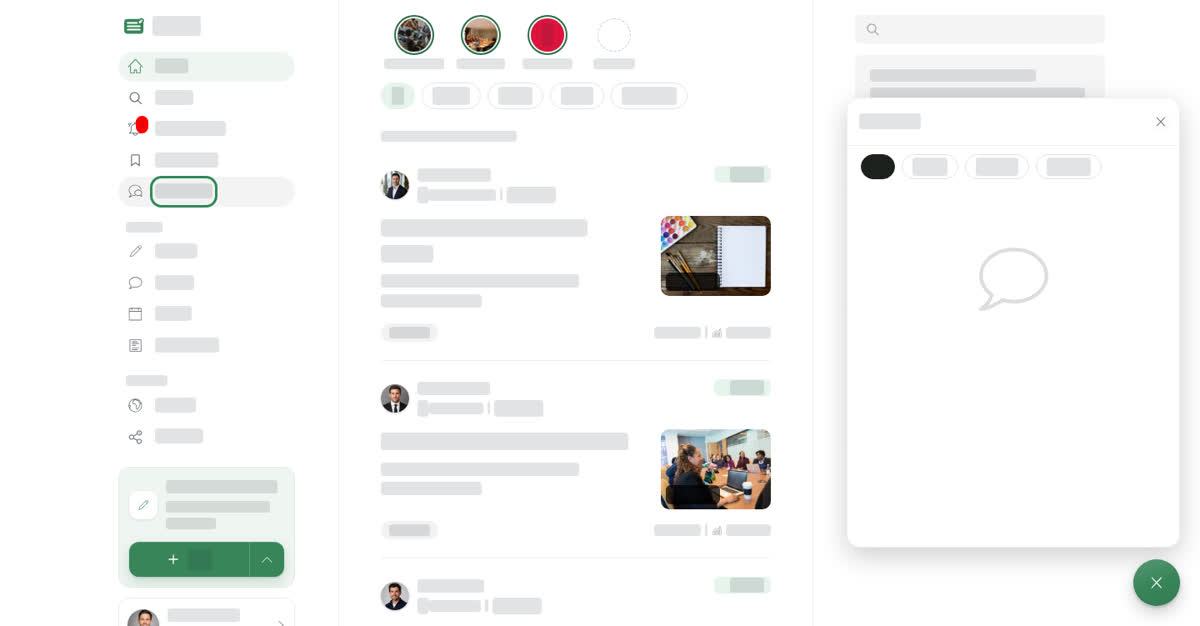
The Messages tab lists your conversations, newest first. Use Search by name to find one, and the chips under it to filter: All, Unread, Personal (people) or Business (spaces and business accounts).
Each conversation has its own menu. Use it to:
- Mark as Read or Mark as Unread.
- Move it out of your main list with Archive, Spam, Other or, for a chat with a person, Block.
- Bring it back with Active, Unarchive or Unblock.
Your main list is Active. The other lists are Archived, Spam, Blocked and Other. When you are looking at one of them, a bar such as You are viewing archived messages. appears at the top; choose Go to Active Messages to return.
Attachments and limits
- Add Image — one or more images, each at least 600px wide.
- Add Video — a video no longer than 5 minutes.
- Add Document — a file up to 5 MB.
- Add Link — paste a link to show a preview of it in your message.
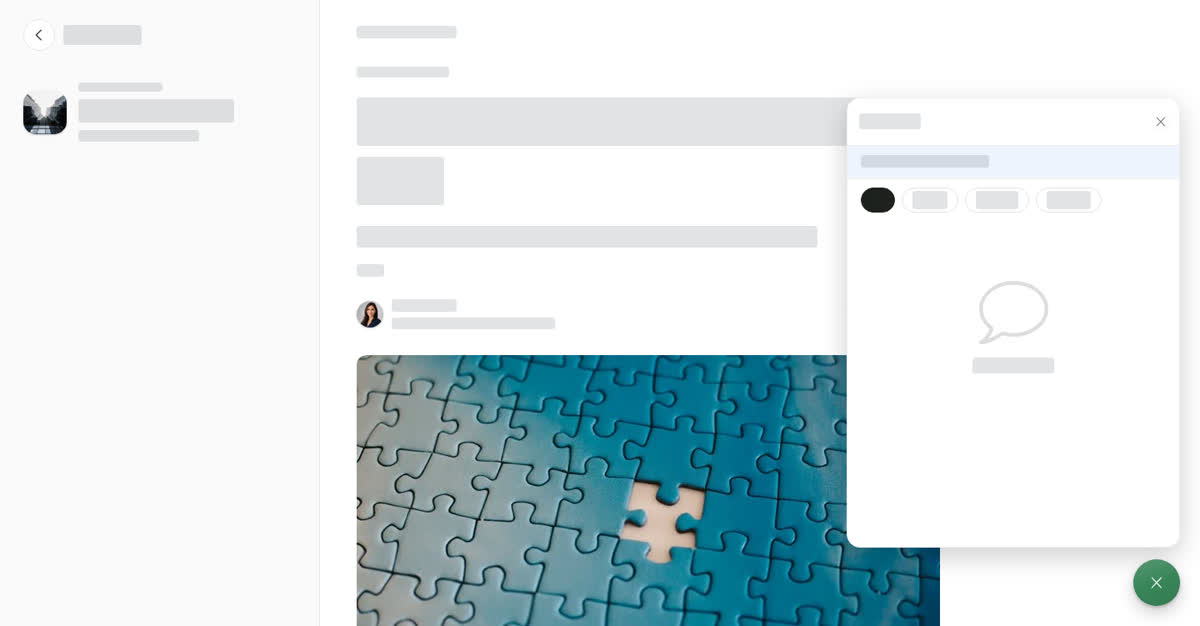
- Attach Post — share a post into the chat.
From the conversation's own menu you can also Search the chat, Clear Chat or Delete Chat. In a chat with a person you can choose to clear or delete it just for you (Clear for me, Delete for me) or for both of you (Clear for everyone, Delete for everyone). This can't be undone.
On a computer
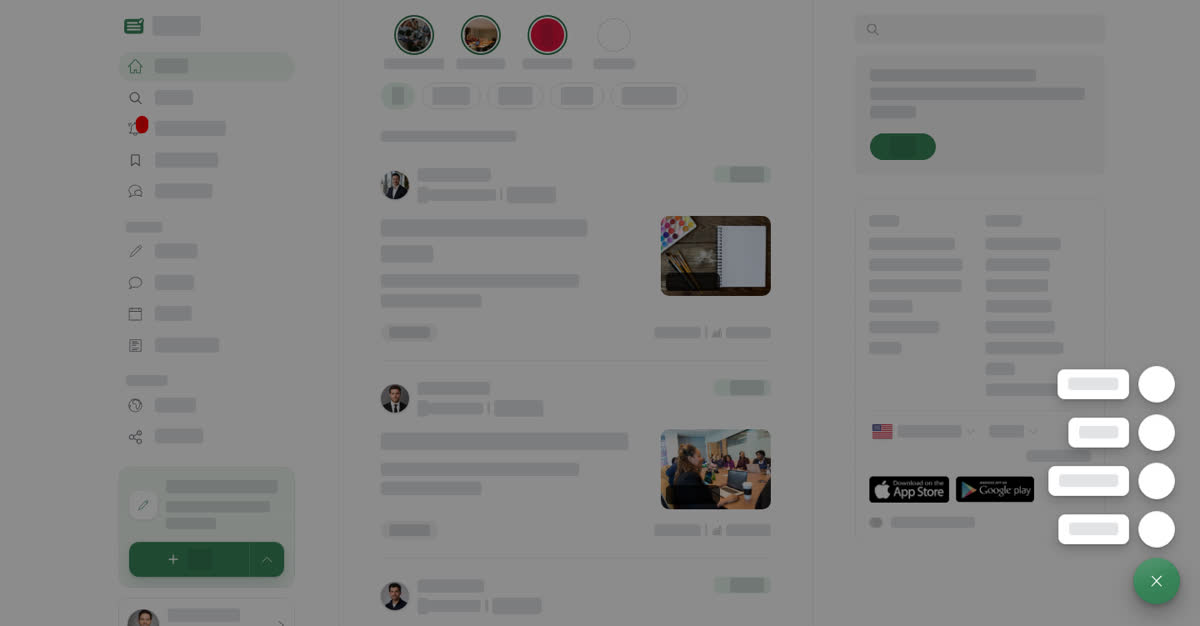
A round message button sits in the bottom right corner of every page. Select it to open a small menu:
- Help Docs — opens the Boogir help guides in a new tab.
- Help Guides — ask a question and get an answer from the help guides.
- Support — message the Boogir team.
- Messages — your conversations.
You can also select Messages in the left menu. The messenger opens as a panel over the page; select the ✕ at the top to close it.
Send a message
Share a post, space or profile in a message
On your phone
These steps are the same in the Boogir app and on boogir.com in your phone's browser.
Tap the messages icon (the speech bubbles) in the top bar, between search and the bell, to open the messenger. You can also tap the round message button in the bottom corner and then Messages. On a phone the messenger fills the screen, and the round button is hidden while it is open. Tap the ✕ at the top to close it, or the back arrow to leave a conversation and return to your list.
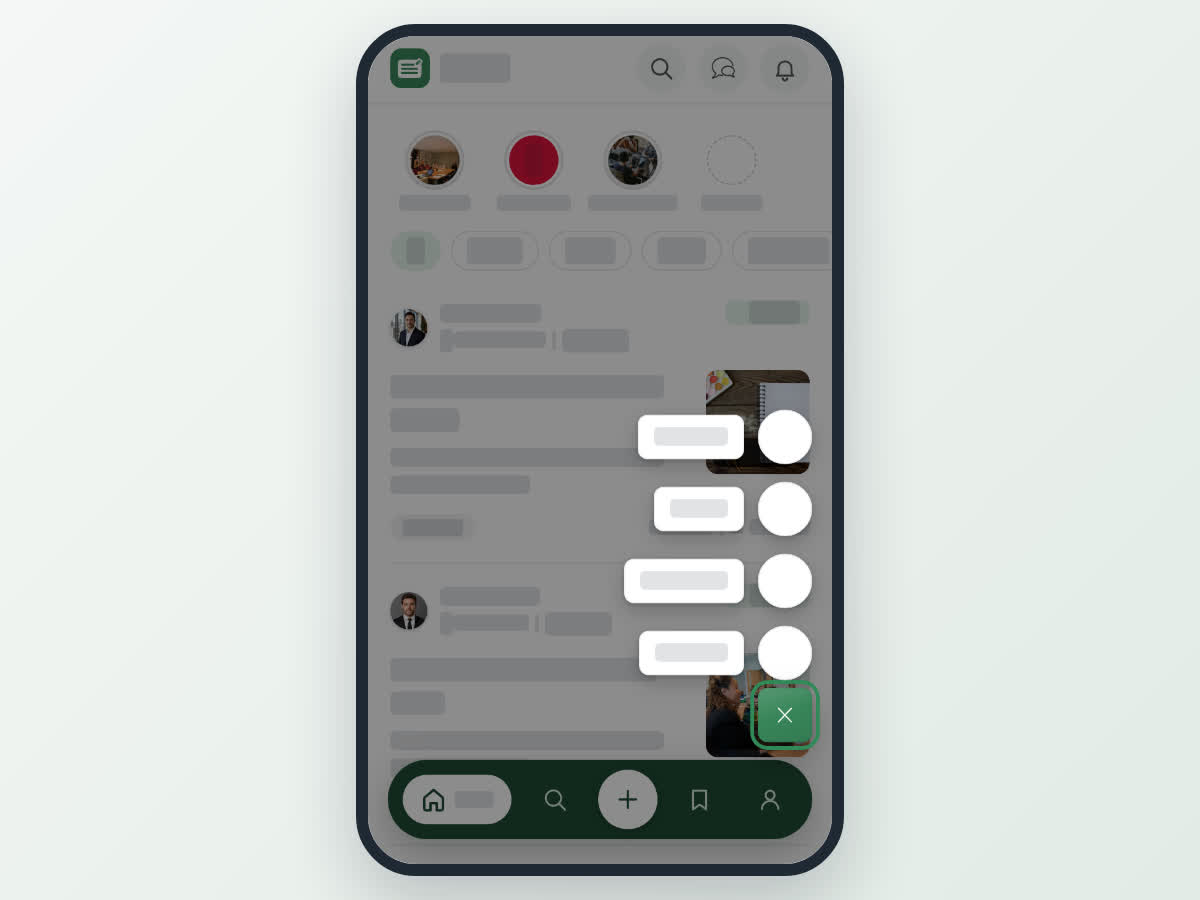
Send a message on your phone
Share a post, space or profile on your phone
Start a new conversation
To message someone you have not talked to before, open their profile or space, open the ⋯ menu and choose Message. On a space, Message is only shown when the space has a Talkou Business ID set. When a person or space has a Talkou Business ID, your message goes to that business account on Talkou, which opens in a new tab on a computer.
Starting a conversation with a new contact needs a Messaging plan. Each new contact uses one message from your monthly quota, and replies in existing conversations are free. If you have no plan, Boogir shows Message with a Messaging plan with a See plans button. If you have used up this month's quota, you see This month’s messages are used up; choose a bigger plan or wait for your messages to refill.
You can check how many you have left under Messages left this month in Manage Subscription. See Plans and pricing for the plan sizes.
Hide the message button
If you prefer not to see the round message button, turn off Message button in Region, Language & Display (see Change region, language and display). On a computer you can still open Messages from the left menu, and on a phone from the messages icon in the top bar.