Create an account and log in
Register with Talkou, log in with Account Link, a passkey, a QR code or a passcode, and sign out.
Guide Chanras Sun11 hours ago · 2 min read · 1 view
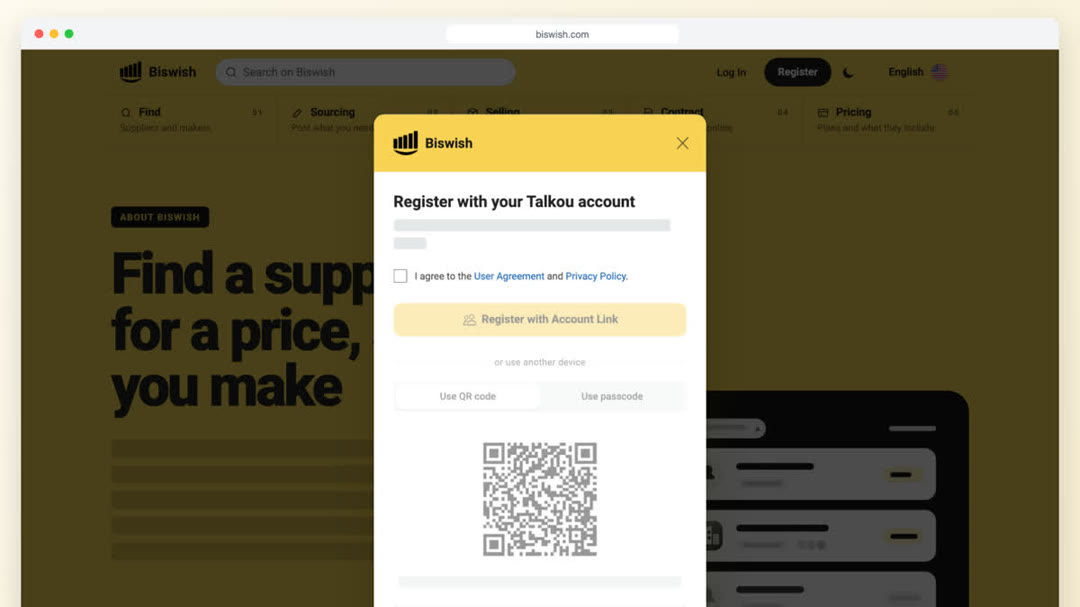
Biswish signs you in with Talkou, the messaging account shared by all our platforms. There is no separate Biswish password.
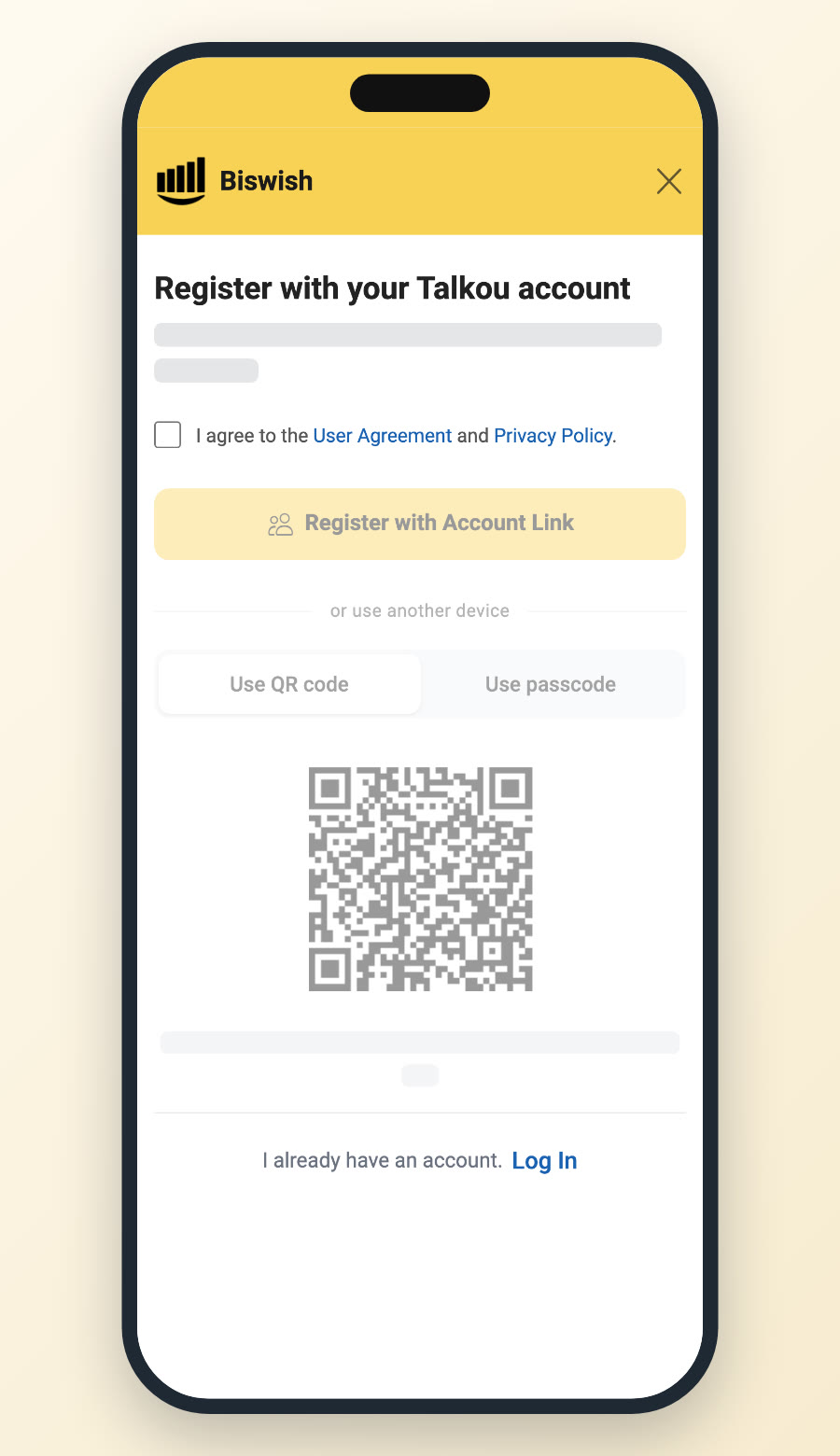
To register, choose Register with Account Link, Use QR code or Use passcode. A passkey is set up after you have an account.
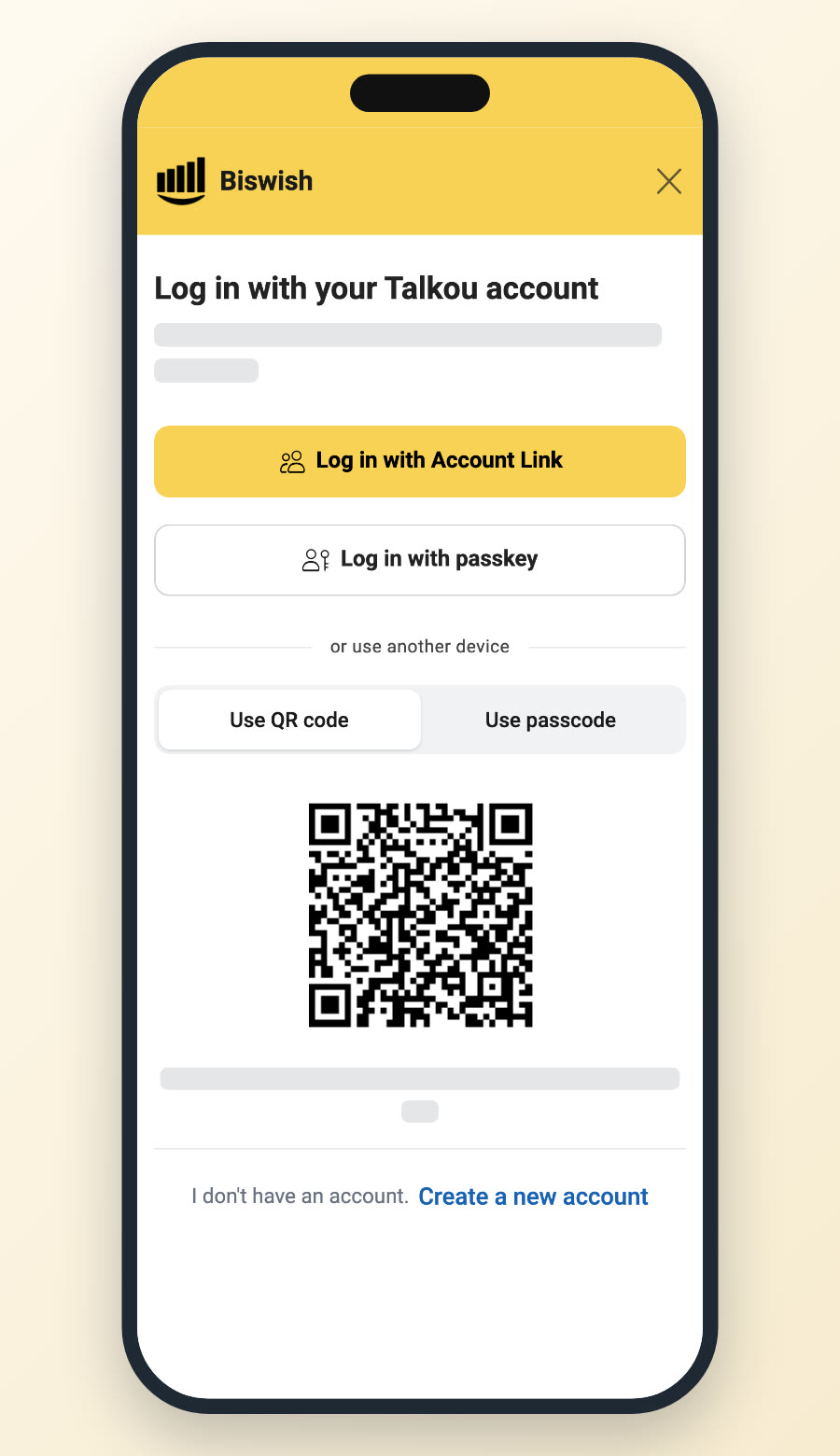
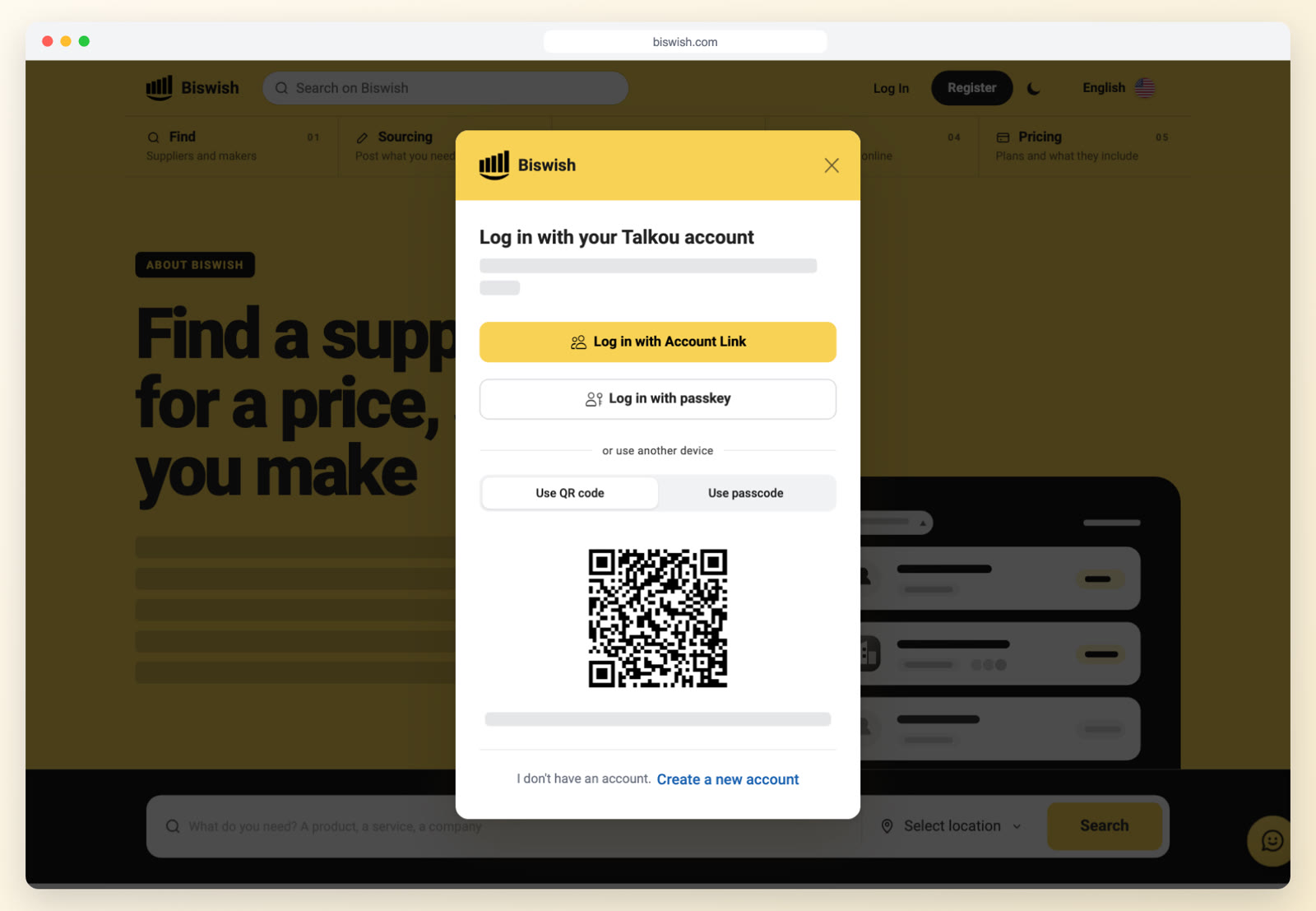
You can log in four ways: Account Link (fastest when Talkou is on the same device), a passkey (face, fingerprint or screen lock), a QR code, or a passcode made in Talkou.
On a computer
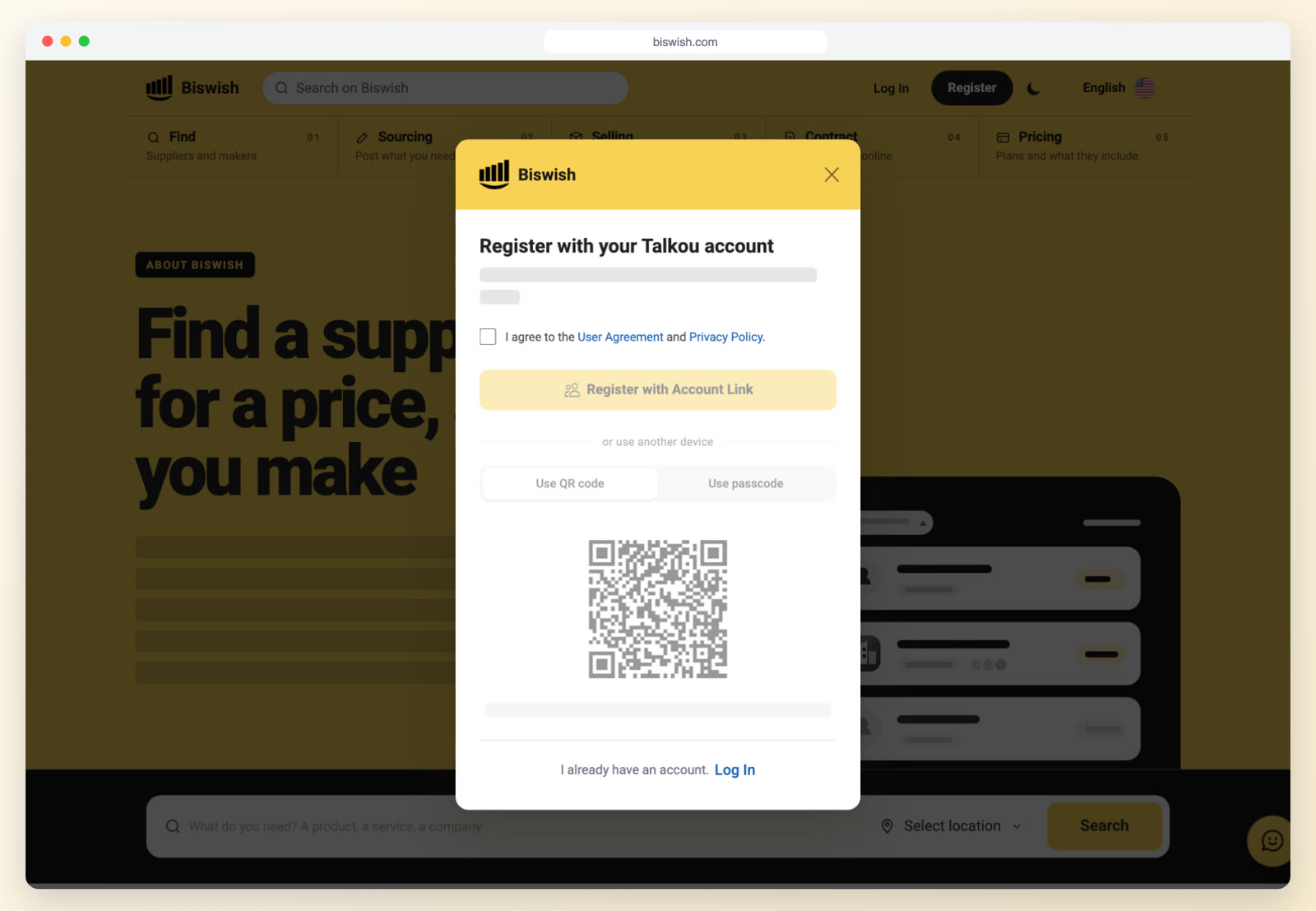
Select Register or Log In at the top right. To register, tick the agreement to the User Agreement and Privacy Policy first; the buttons stay off until you do. The QR code is shown straight away: scan it and approve it in the Talkou app on your phone, or in Talkou on the web.
On your phone
Select Log In or Register. On a phone, Log in with Account Link is the simplest: it opens Talkou on the same phone, you approve, and you come back signed in. In the app, the welcome screen also has the country, the language and the dark mode switch.