Search for jobs
Search by keyword, then narrow the results with filters for category, location, employment type, workplace, experience and salary.
Guide Chanras Sun6 hours ago · 2 min read · 3 views
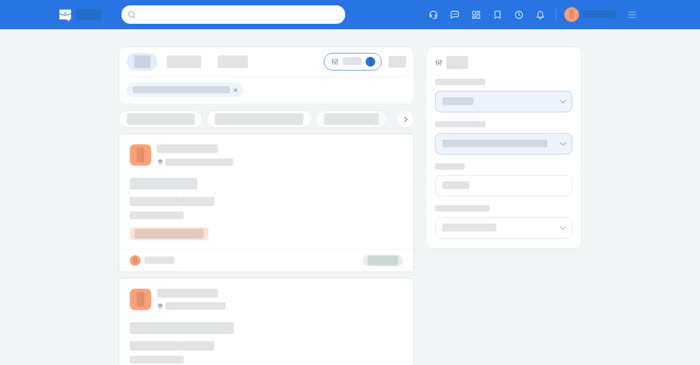
The search page is the same list in three tabs: Jobs, Employers and Agencies. On the Jobs tab, typing a word searches job titles. On Employers and Agencies it searches the company or agency name. With an empty box and no filters, the page shows a selection of open posts in that region; apply a filter or run a search to see the full results and the count.
Filters
- Country/Region and Select location, with Use my current location to fill it from the browser.
- Category, Employment Type, Experience Level and Workplace — on-site, remote or hybrid.
- Salary Type and Salary Range, and Post date to keep only recent posts.
Every filter you apply appears as a chip above the results; select the cross on a chip to drop it. The result count is shown above the list, and the page keeps the filters in the address, so a search can be shared.
On a computer
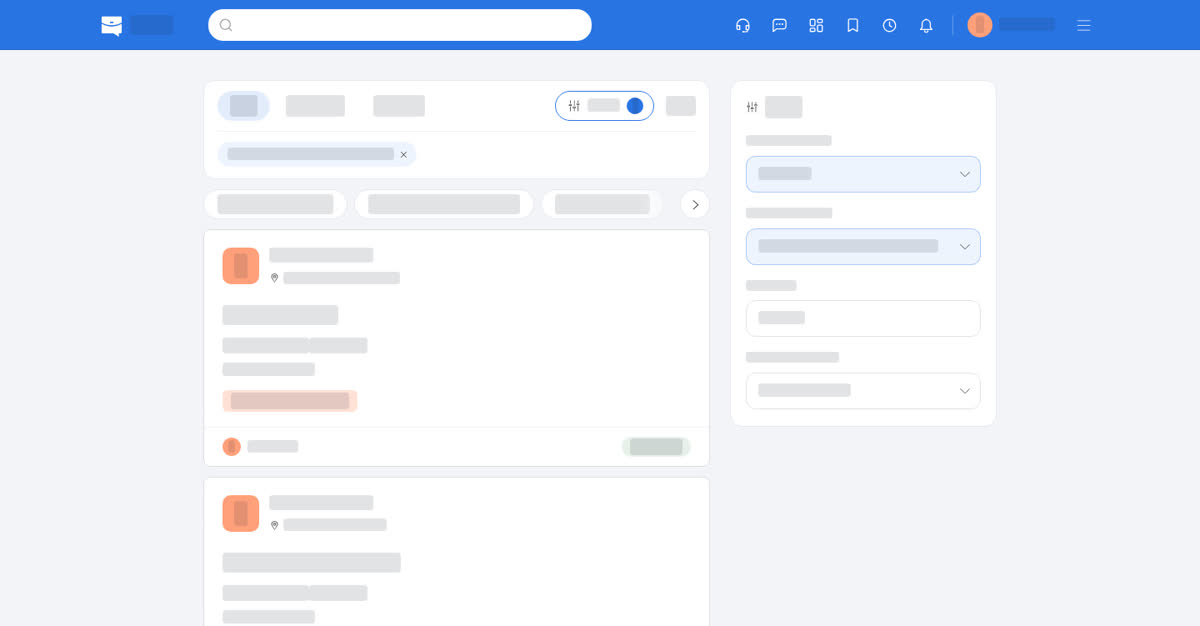
Open the search box in the top bar, or the Search shortcut on your home page. A panel on the right holds the main filters. Filters above the results opens all of them, including experience, workplace, salary and post date.
On your phone
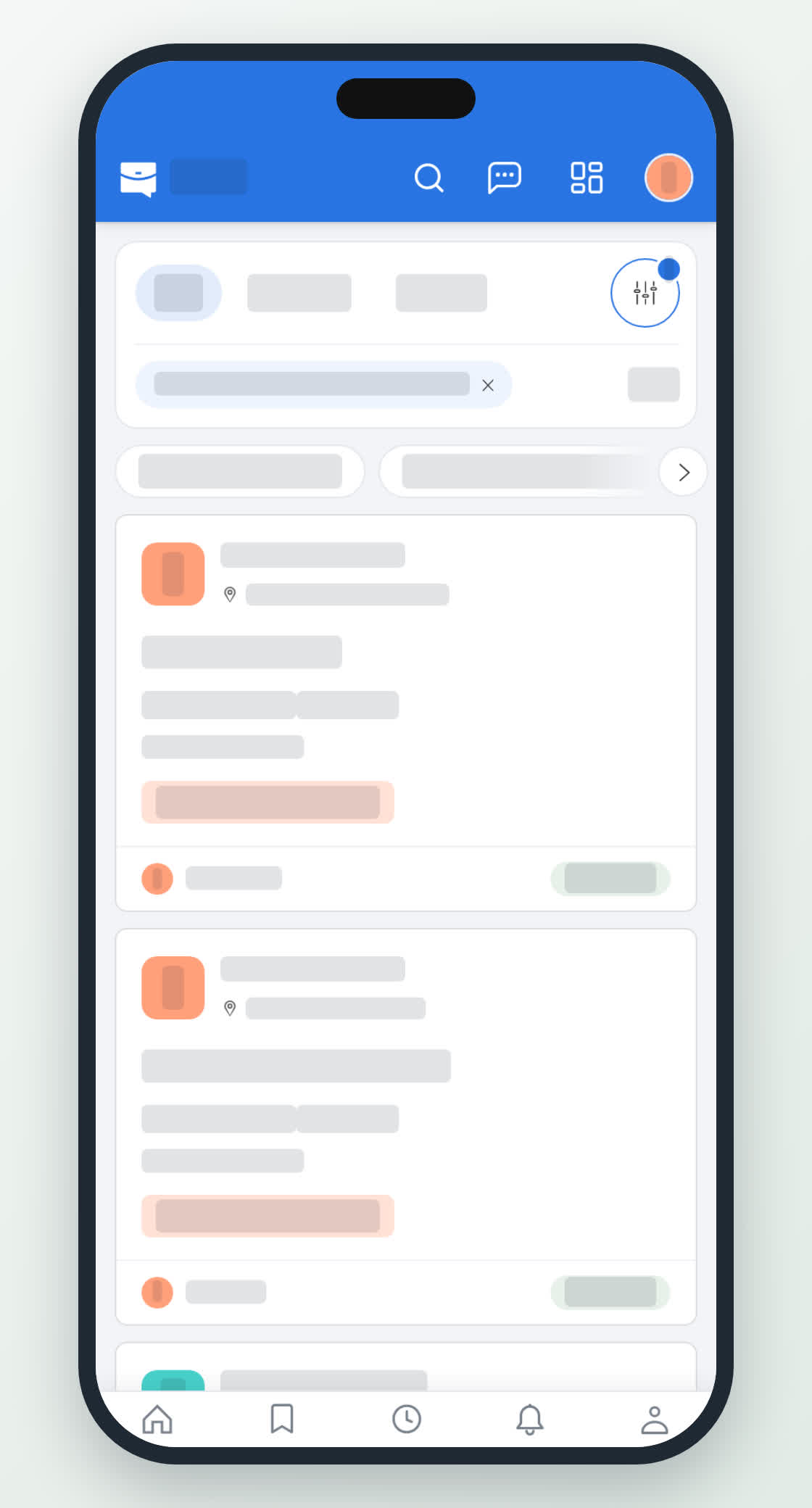
The search box is in the header, and the Search shortcut on the home screen opens the search page. Filters opens a sheet from the bottom instead of a side panel: choose the values, then Done; Reset clears them all. The applied filters stay as chips under the search box.
Job cards show the company, the location, the salary, the employment type, the post date and, where it applies, an Urgent badge or the days left before the deadline.