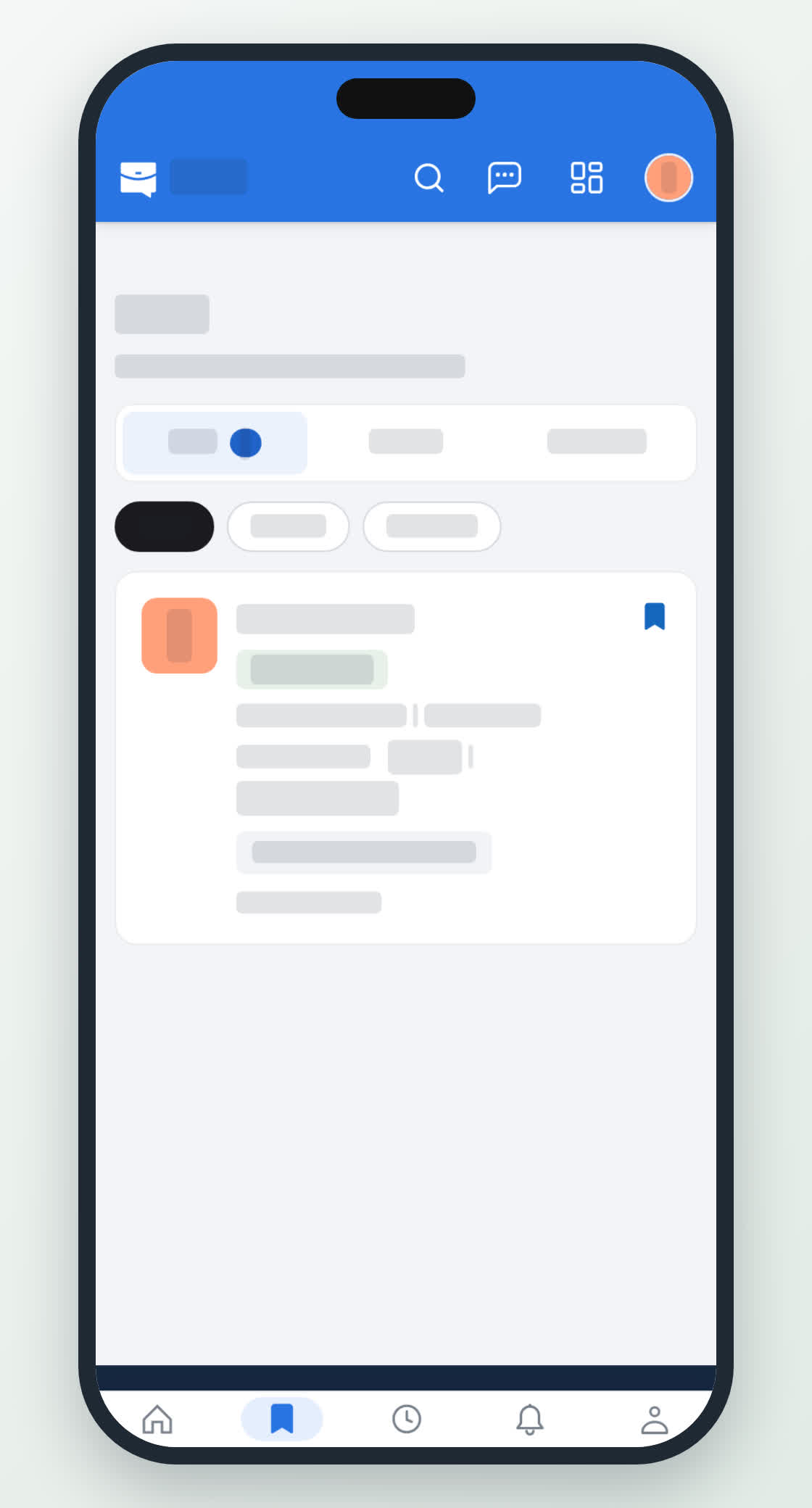
Save jobs, profiles and recruiters
Keep what you find in one list, sorted by the date you saved it, and clear it out when it is no longer useful.
Guide Chanras Sun6 hours ago · 1 min read · 1 view
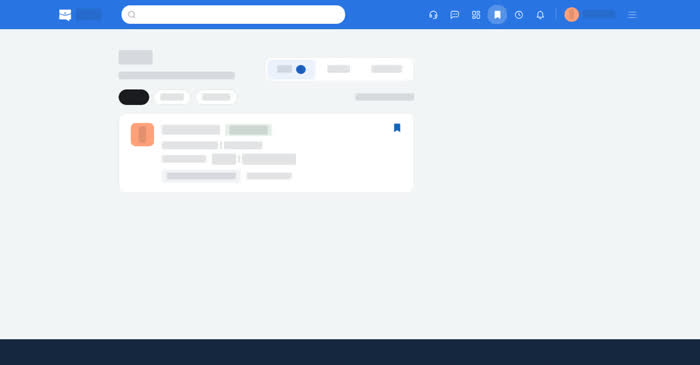
Saved is your own shortlist. It has three tabs — Jobs, Profiles and Recruiters — sorted with the newest saved first. Each card shows the date of the job or profile itself.
On a computer
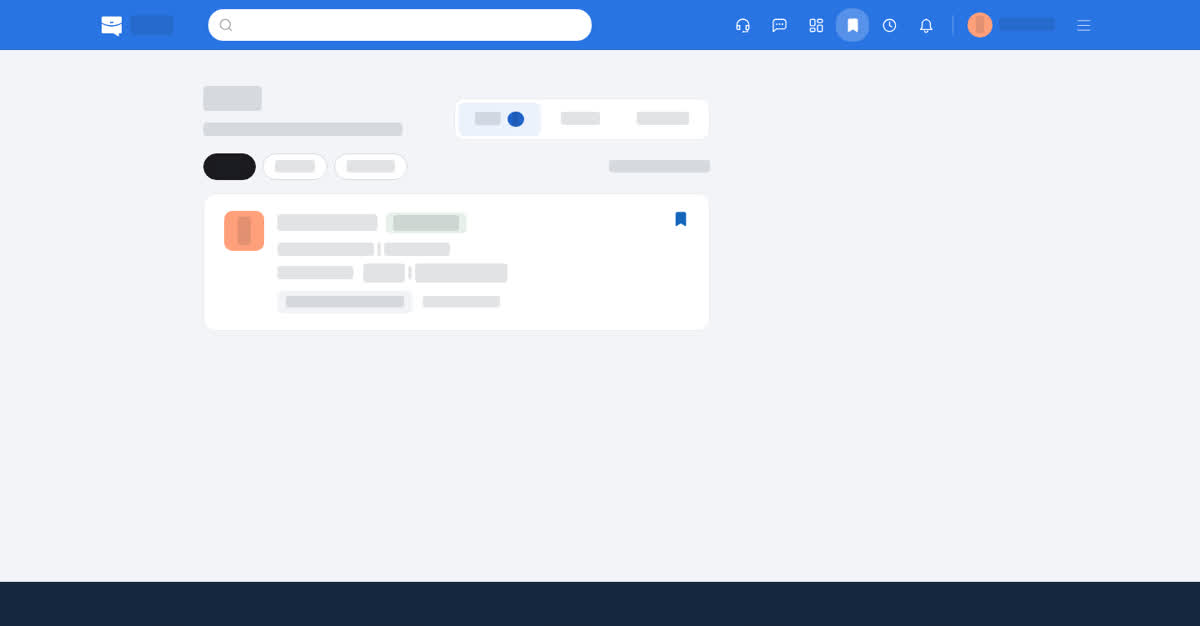
Select Save on a job page, a profile or a recruiter page, then open Saved in the top bar to see all three tabs. Each entry keeps a link back to the page it came from and a control to remove it. Share on the page opens a dialog where you can copy the link or send it to another app; on profile and recruiter pages it is in the … menu.
On your phone
Saves in the app and Saved in the phone browser are on the bottom bar. The same three tabs sit behind the title, with the count of saved jobs on the Jobs tab, and each card opens the job, profile or recruiter it points to. Removing an entry takes one tap on the card's own control.