Manage your chats
Search, edit, clear, archive or block, and what each choice does.
Guide Chanras Sun11 hours ago · 2 min read · 1 view
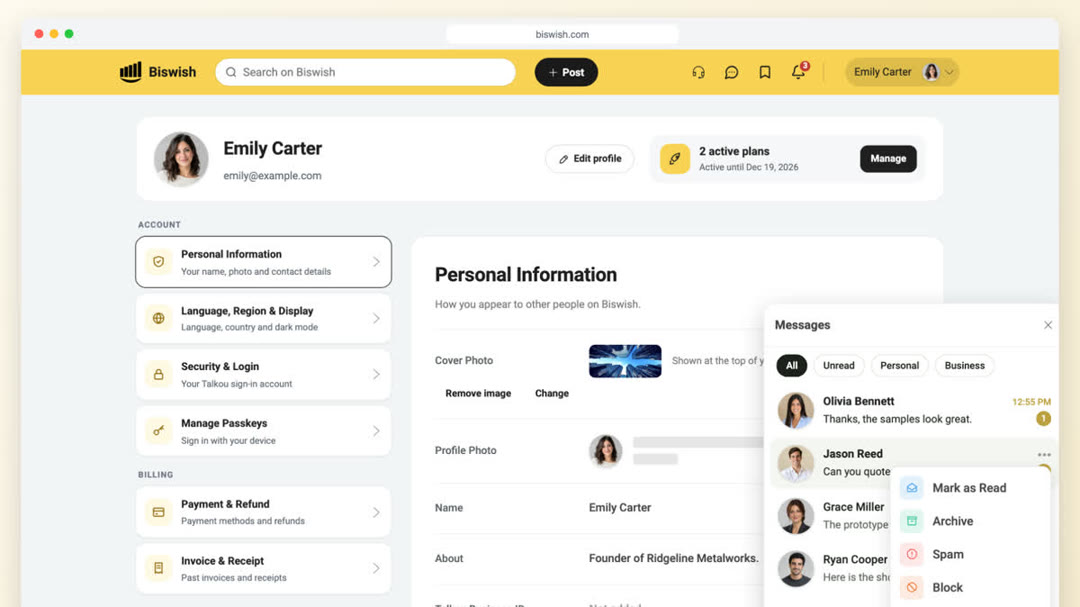
Each chat has two menus: one on its row in the list, and one inside the chat. Each message has a menu too.
On a row in the list
- Mark as Read or Mark as Unread
- Archive, Spam or Other – move the chat out of the inbox. Open Talkou to see these chats again.
- Block – stop a person from writing to you. It is for people only; move a business to Spam.
Inside a chat
- Search – find words in the chat
- Add to Prospects – follow up with a person
- Clear Chat – remove the messages and keep the chat
- Delete Chat – remove the chat from your list
- Block or Unblock
With a person, clearing and deleting ask whether it is for you only or for everyone.
On a message
On a message you received you can Reply, Like it, or mark it as read or unread. On a message you sent you can Edit or Delete it.
On a computer
Move the pointer over a chat in the list and select … to open its menu. Open a chat for its own … menu.
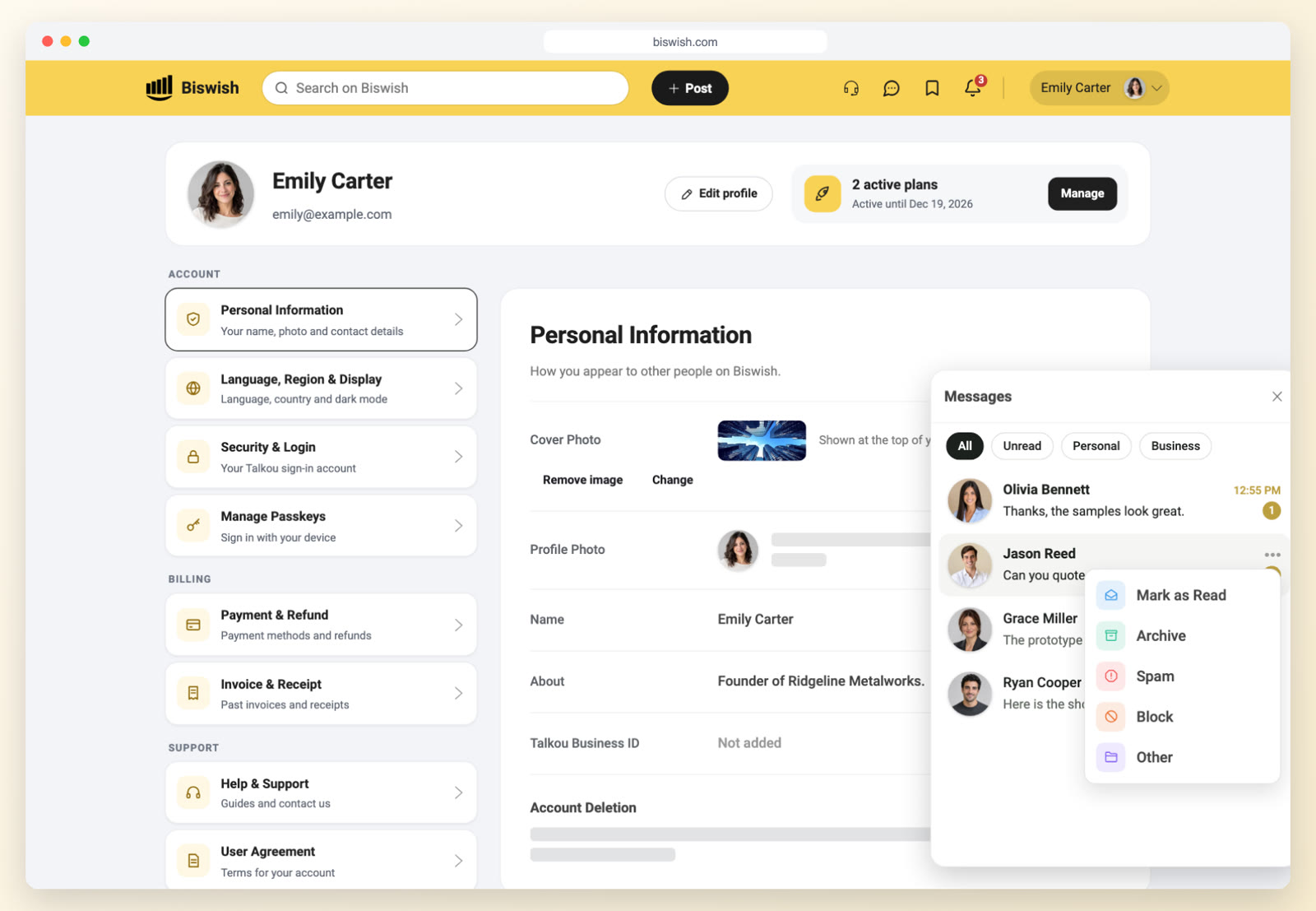
The menu of a chat in the list.
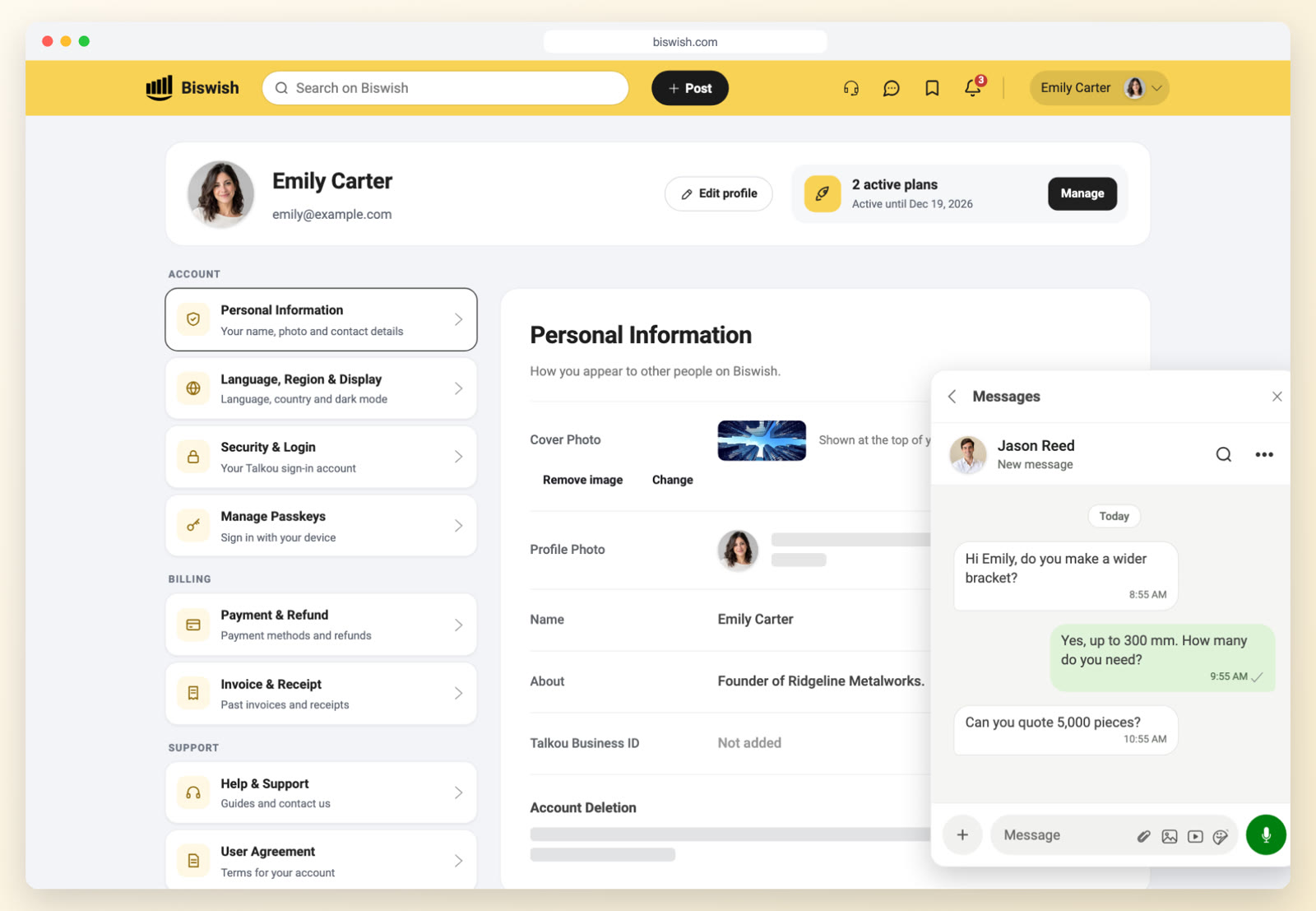
An open chat.
On your phone
Press and hold a chat in the list to open its menu, and press and hold a message for the message menu.
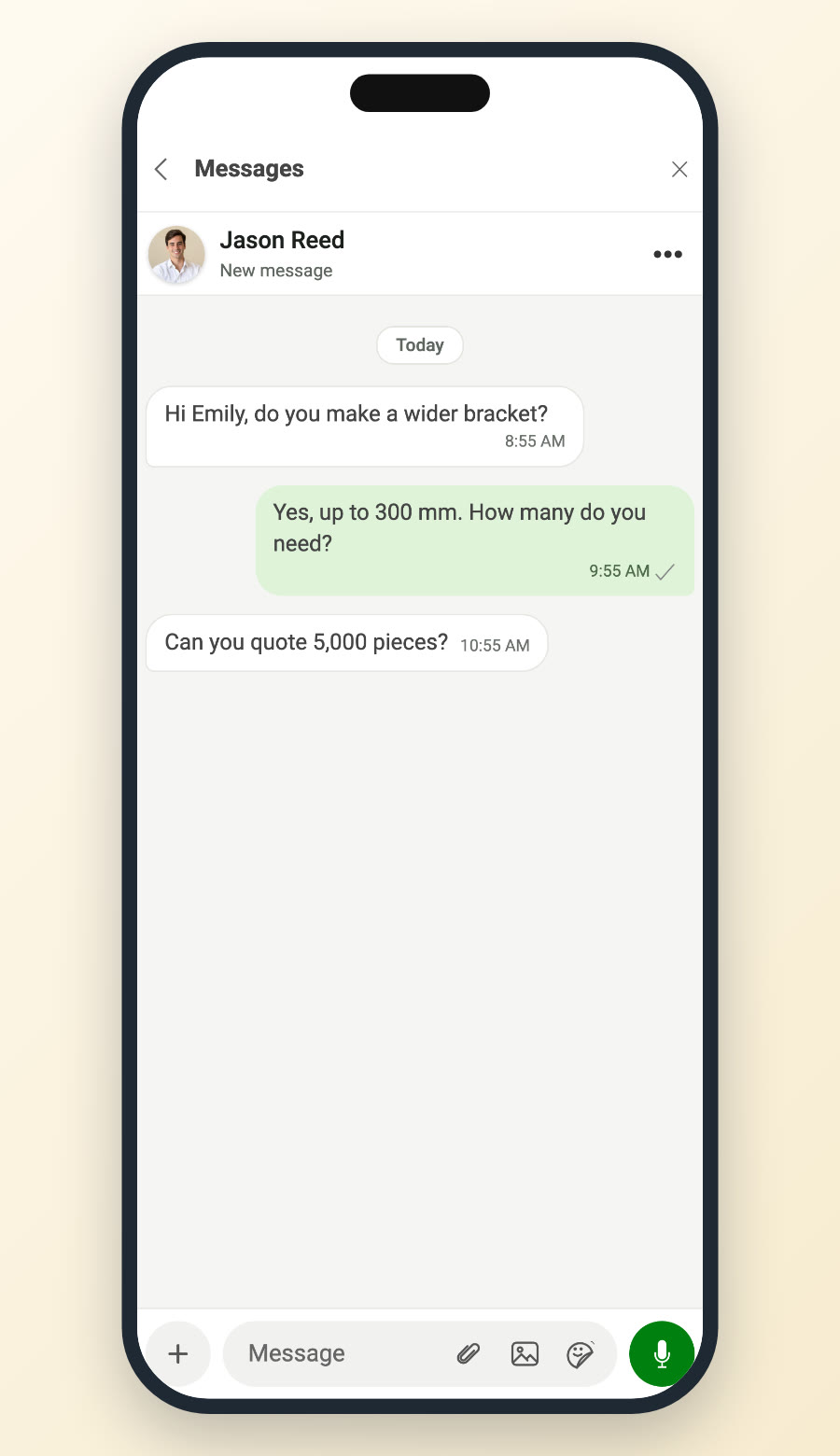
An open chat on a phone.
Keep a tidy inbox
01
Archive finished chatsThey leave the inbox but are not deleted.
02
Mark as UnreadCome back to a chat later.
03
Block or spamStop unwanted messages.
04
Report the pageReport a post, company or person from the … menu on its page.
0
Share
Send in message
Report
Copy ID