Change region, language and display
Set your country or region and the language Boogir uses, choose which tabs visitors see on your profile, switch between light and dark mode, and show or hide the floating message button.
Guide · Tutorial Chanras Sun4 days ago · 3 min read · 2 views
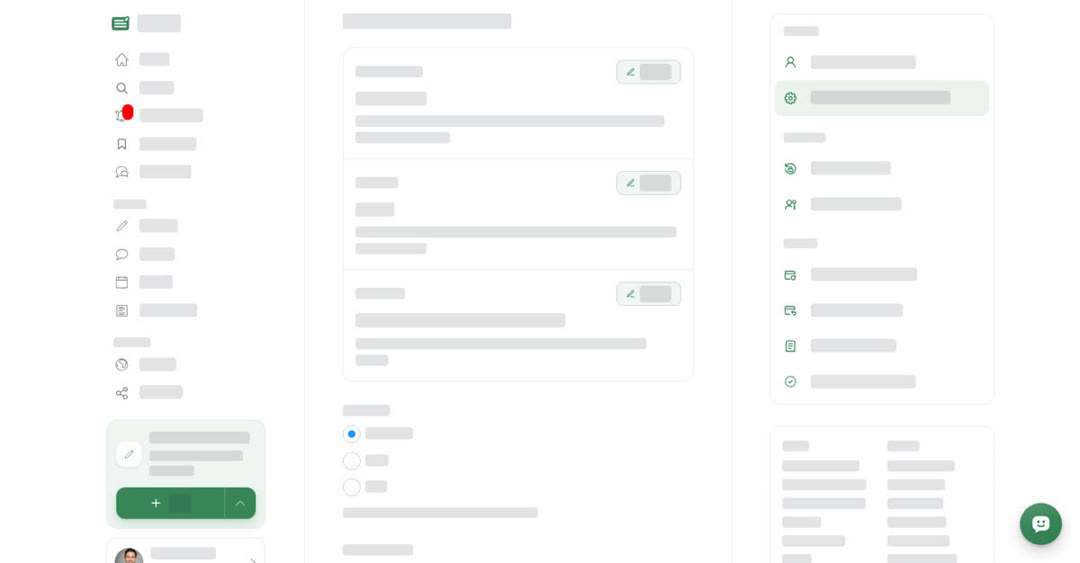
Region, Language & Display holds the settings that change how Boogir looks and feels for you.
- Country/Region — the country for your account. Boogir personalizes your experience based on it.
- Language — the language of Boogir's own menus, buttons and messages. It applies to your account on all platforms: the website on a computer and phone, and the iPhone and Android app. Posts stay in the language their writers used.
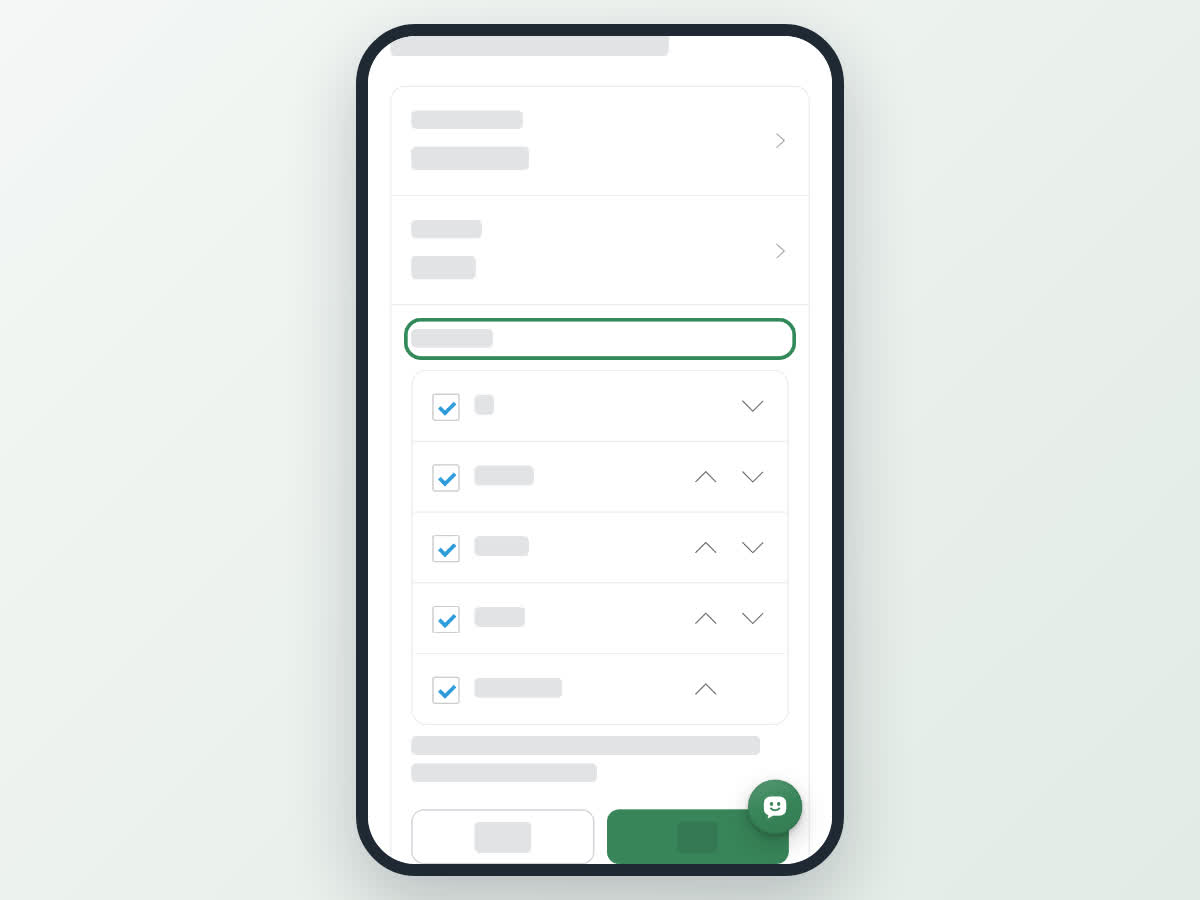
- Profile tabs — the tabs visitors see on your profile, in order. The first one opens by default. At least one post type must stay ticked.
- Dark mode — Automatic, Light or Dark. Automatic follows whatever your device is set to.
- Message button — show or hide the floating message button in the corner of the screen.
The first three are saved to your account. Dark mode and Message button change straight away and are remembered on the device and browser you set them on, so you can pick a different look elsewhere.
On a computer
Select User & Settings at the bottom of the left menu, then Region, Language & Display under Profile. For Country/Region, Language and Profile tabs, select Update, make your change, then Save (or Cancel).
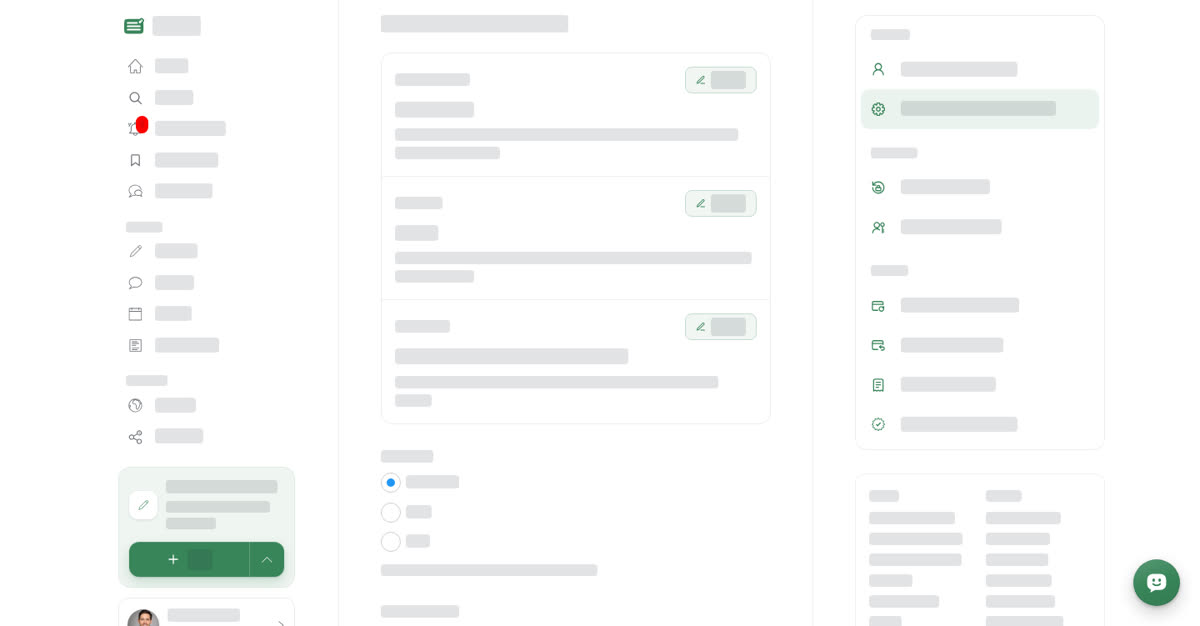
Change your language
For Profile tabs, select Update. Tick the tabs you want to show and untick the ones to hide. Use the up and down arrows on each row to change the order, then select Save.
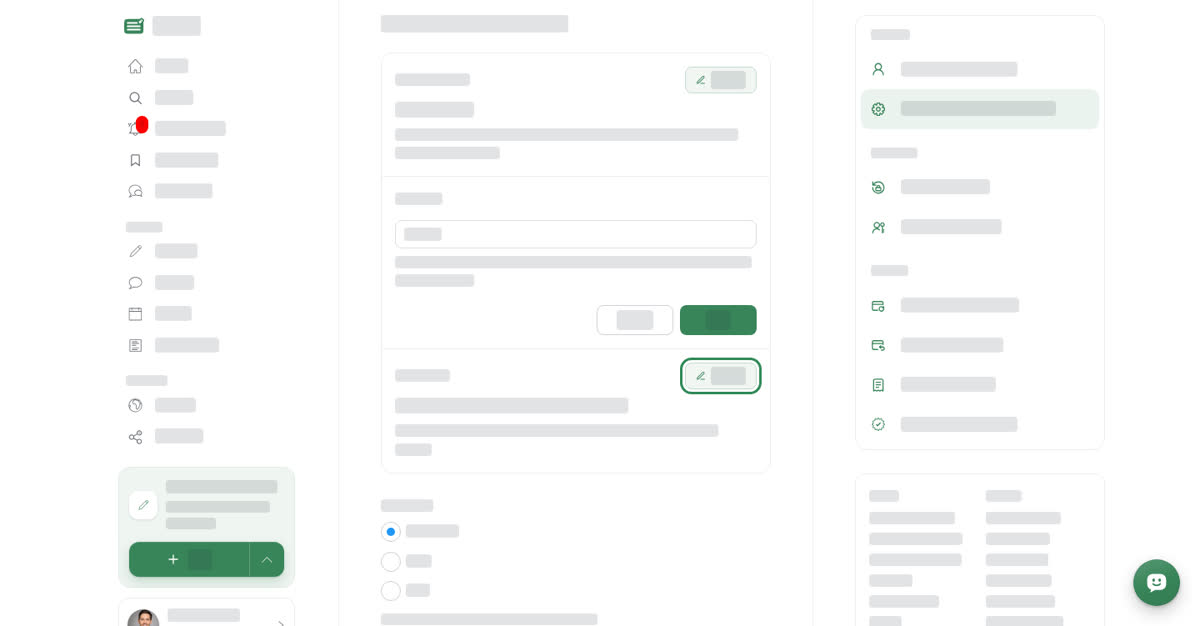
When you are signed out, the left menu also has a toggle for switching between light and dark. With the message button hidden, you can still open your conversations from Messages in the left menu.
On your phone
These steps are the same in the Boogir app and on boogir.com in your phone's browser.
Change your settings
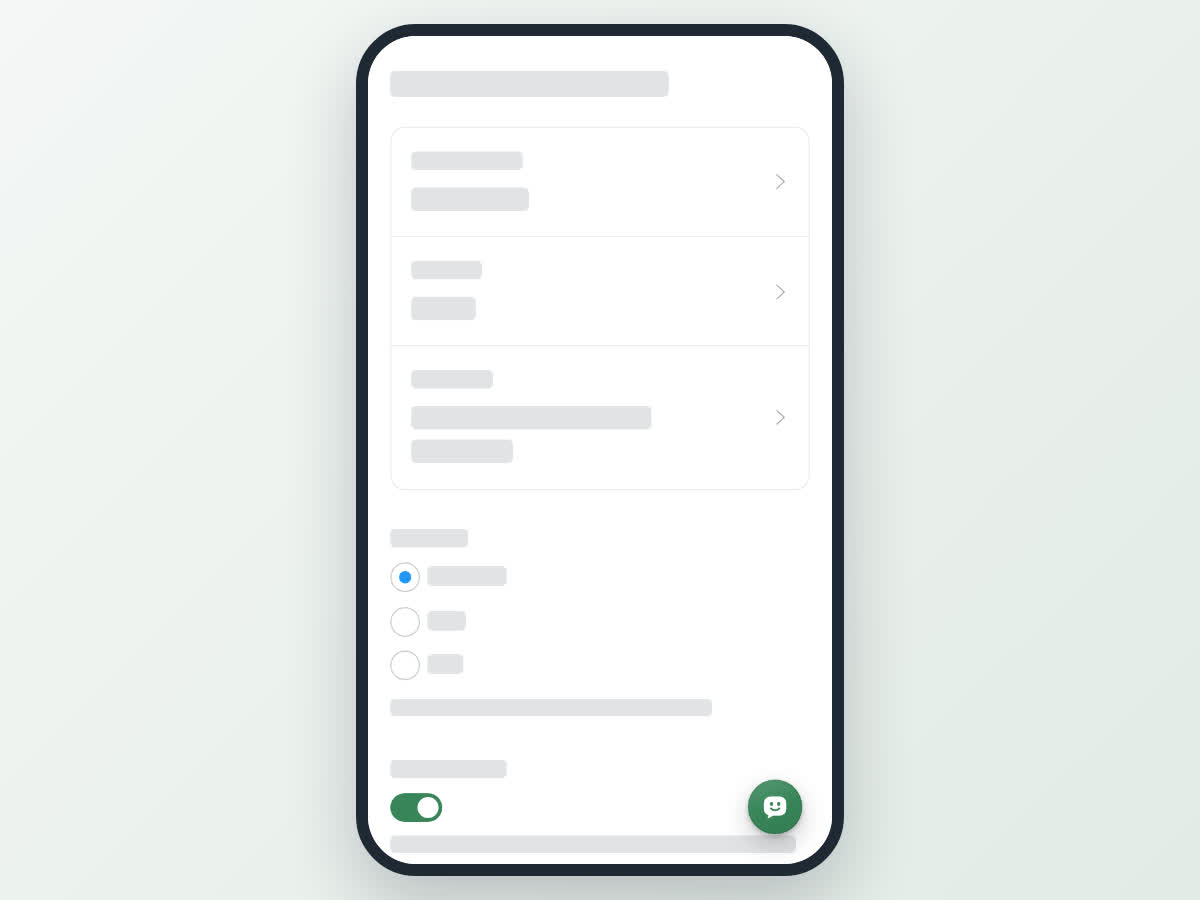
When you are signed out, the website's top bar on a phone has a light and dark toggle, and so does the welcome screen in the app. Your conversations are always one tap away with the speech-bubble icon in the top bar, even with the message button hidden.