Cookie and privacy choices
Choose which cookies Boogir may use with the cookie banner: accept all, reject all or customize Analytics and Marketing. Then find the Privacy Policy, Cookie Policy and other legal pages, and save them as PDF on a computer.
Guide Chanras Sun4 days ago · 4 min read · 2 views
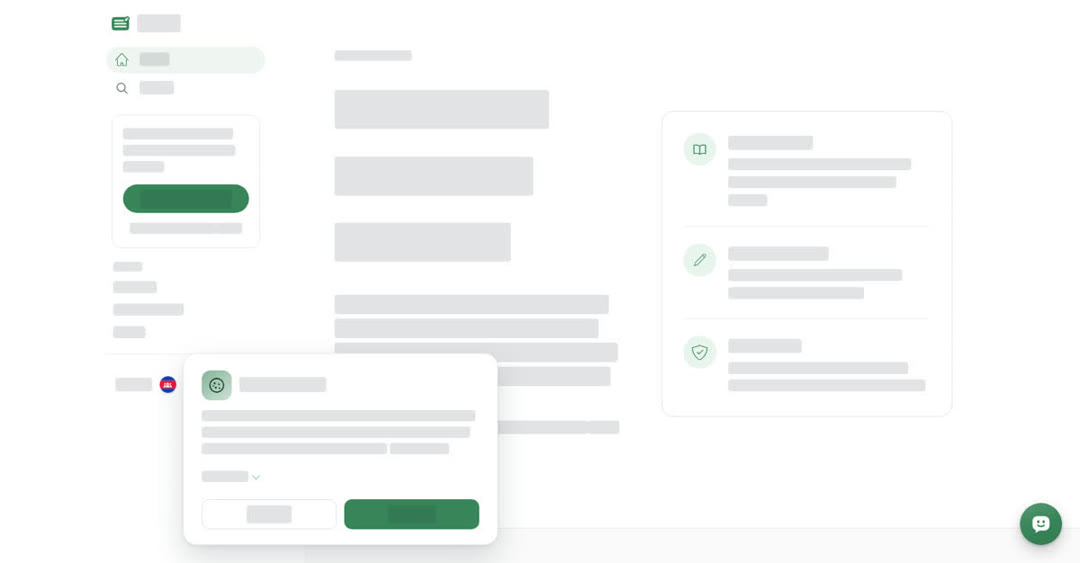
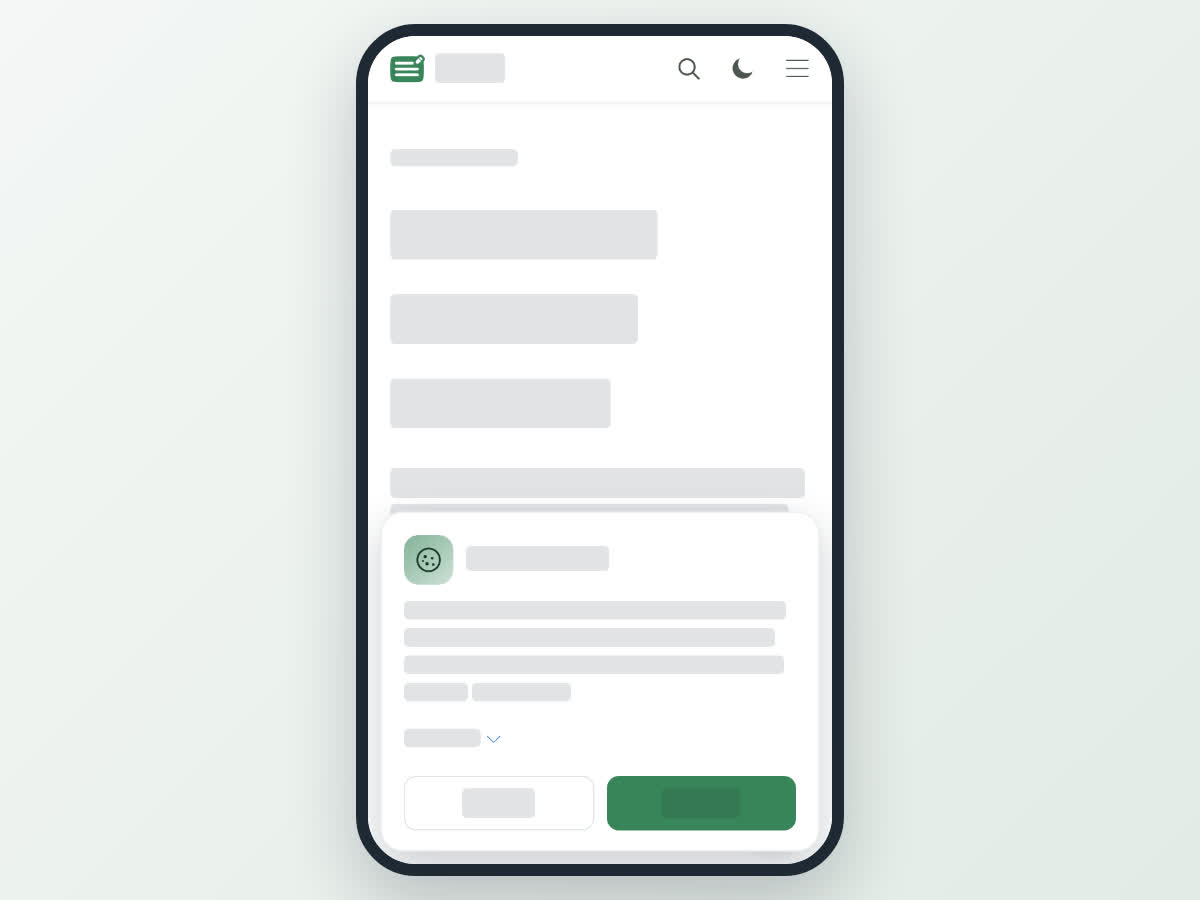
The first time you visit boogir.com in a browser, a We use cookies banner appears at the bottom of the page. Boogir uses cookies to keep you signed in, remember your language and region, and understand how the site is used. The essential ones are always on; the rest are your call.
The banner works the same in a browser on a computer or a phone. The iPhone and Android app does not show it.
Your choices
- Accept all — allow all cookies, including Analytics and Marketing.
- Reject all — allow only the essential cookies.
- Customize — choose category by category.
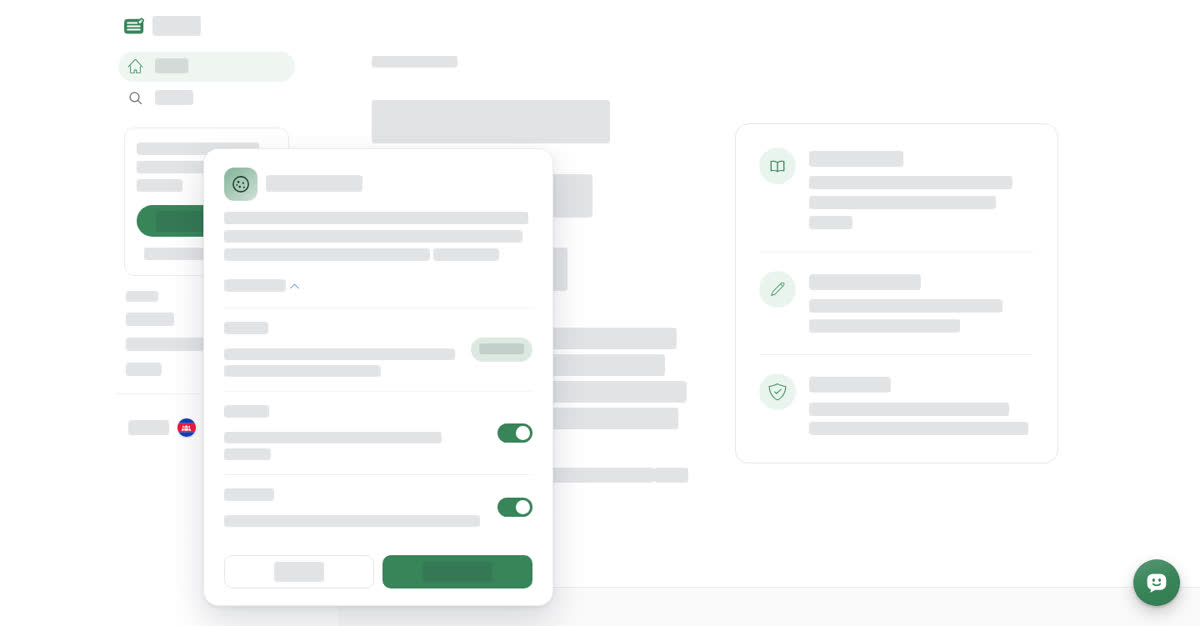
Under Customize, Essential covers signing in, security, and the language and region you picked; it is marked Always on. Analytics tells Boogir which pages get used, so it knows what is worth improving. Marketing covers the offers shown to you and whether they were any good. Both start switched on; turn off the ones you don't want and choose Save choices. Hide options folds the banner again.
The banner text also links to the Cookie Policy, where every cookie is explained in full.
Changing your mind later
Your choice is saved in the browser you made it in, so each browser and device asks once. The banner does not come back by itself. To choose again, clear the site data (cookies and stored data) for boogir.com in your browser's settings, then reload Boogir; the banner appears again.
Legal pages
Boogir's agreements and policies are:
- User Agreement
- Privacy Policy
- Cookie Policy
- Payments and Refunds Policy
- Creator Earnings Terms
- Community Guidelines
Each legal page lets you move between the documents and jump to a section. Expand all opens every section at once; Collapse all folds them again. The Cookie Policy is also linked from the cookie banner, and the Community Guidelines from the report window on the website.
On a computer
The banner sits at the bottom of the page.
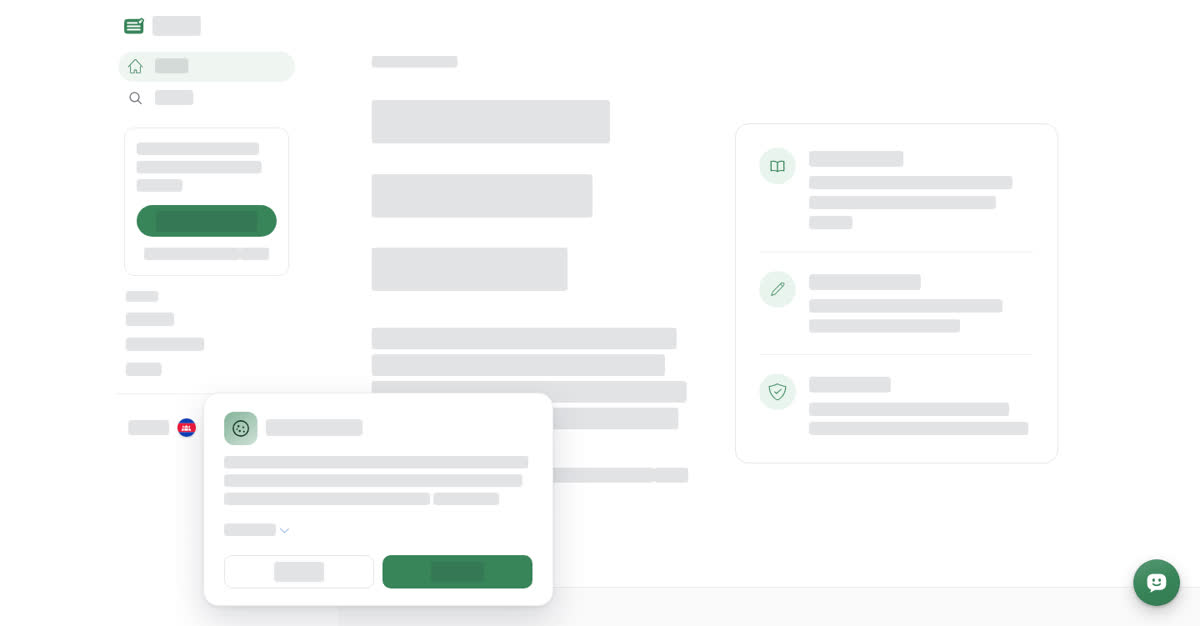
Choose cookies category by category
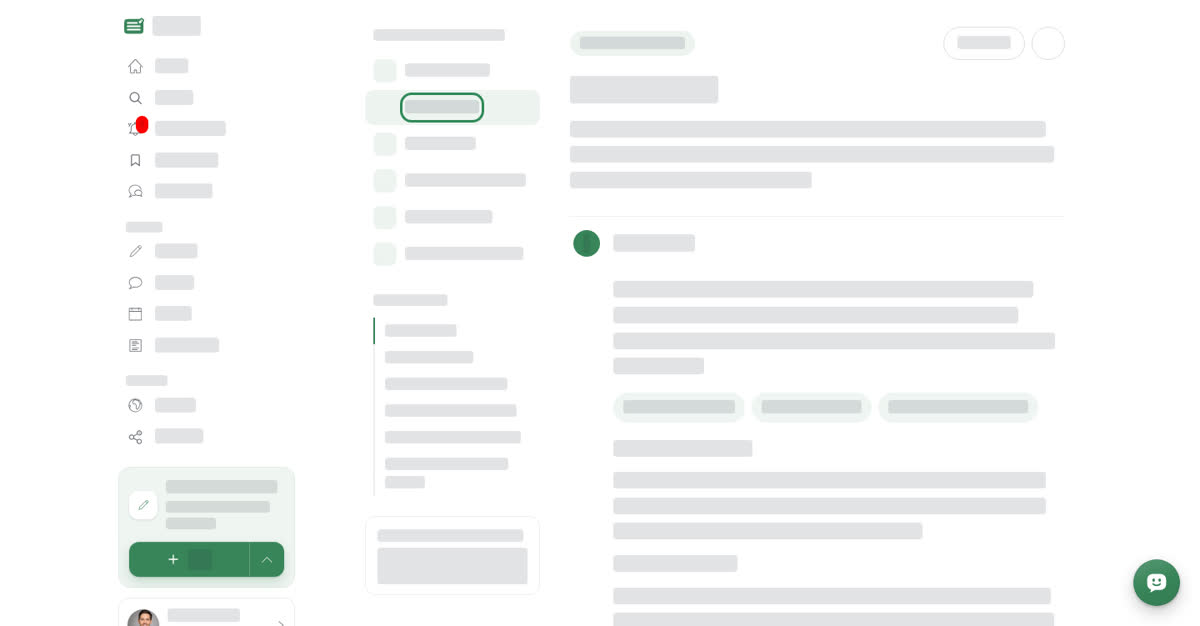
To open a legal page, open the User & Settings menu at the bottom of the left menu. Under Legal you find User Agreement, Privacy Policy, Payments and Refunds Policy and Community Guidelines.
The side of each legal page shows the list of documents and, under On this page, the sections of the one you are reading. Select a section to jump to it. Download PDF (the download icon at the top right) opens your browser's print window. Choose Save as PDF as the printer to keep a copy, or print it on paper.
On your phone
In your phone's browser, the cookie banner appears at the bottom of the screen with the same Customize, Reject all and Accept all buttons.
Open a legal page
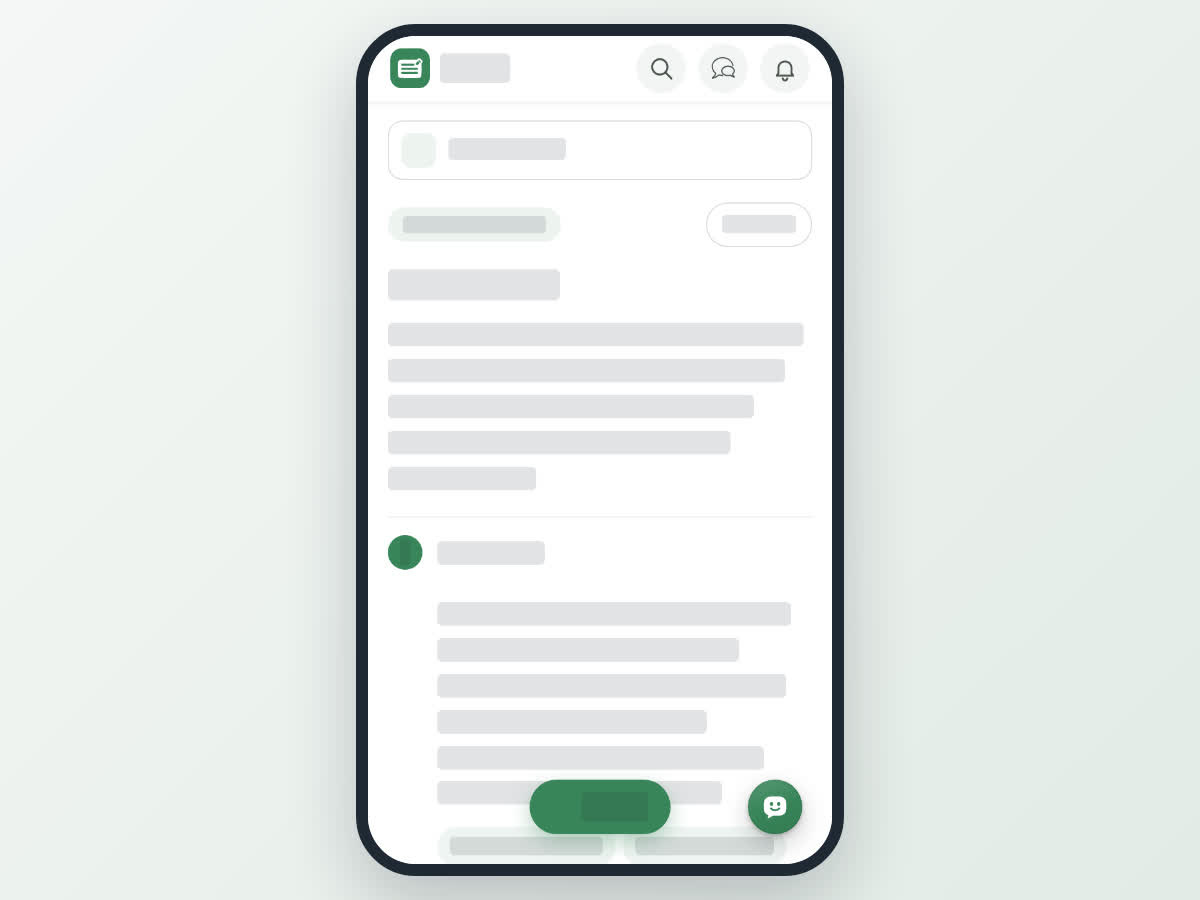
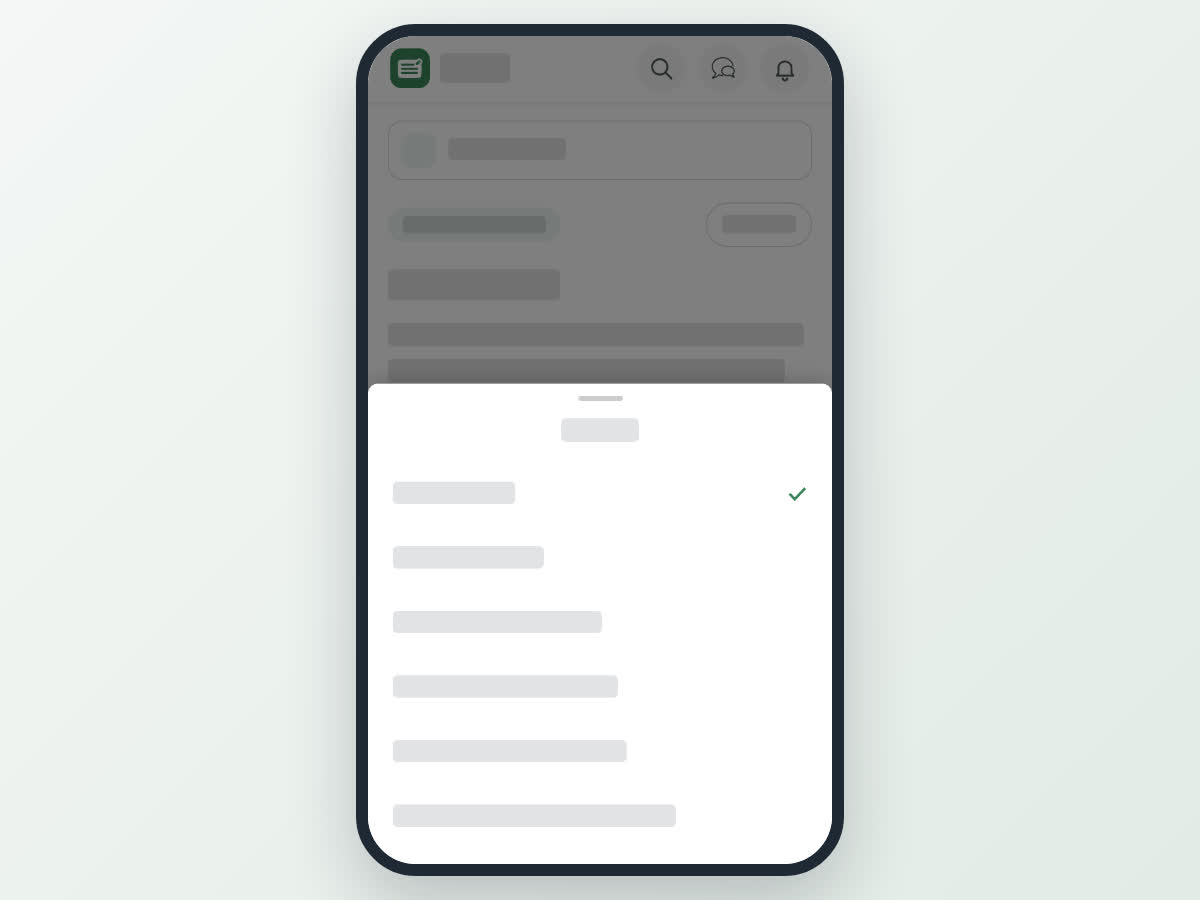
On the website in your phone's browser, the links at the bottom of every page also lead to all six documents, including the Cookie Policy and Creator Earnings Terms. When you are signed out, open the ☰ menu and tap Terms and Conditions.
Have a question about the terms? Use Support in the messenger to send the team a message. See Ask a question or contact support.