Greeting, auto reply and stickers
Welcome customers with a greeting, reply automatically to the first message, send an away message and add your own stickers, and learn which plan you need.
Guide Chanras Sun10 hours ago · 1 min read · 1 view
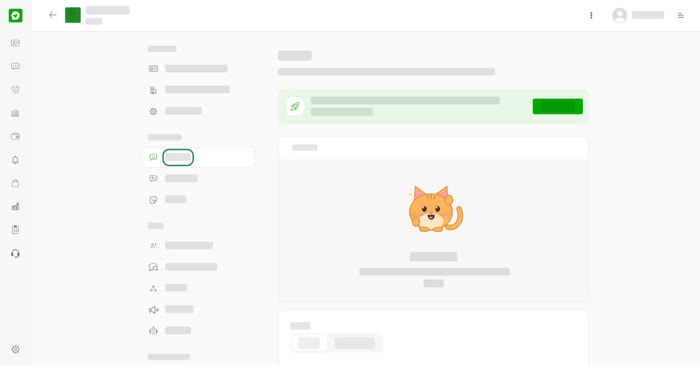
Open your business account and use the Messaging section of the menu.
Greeting
Show a greeting in an empty chat before a customer sends the first message. The page has a Preview so you can see how it looks. Choose a Picture (your Profile image or a Sticker such as a cat, dog or blob), write your Message and select Save. Leave the message empty to use the default greeting.
Auto Reply
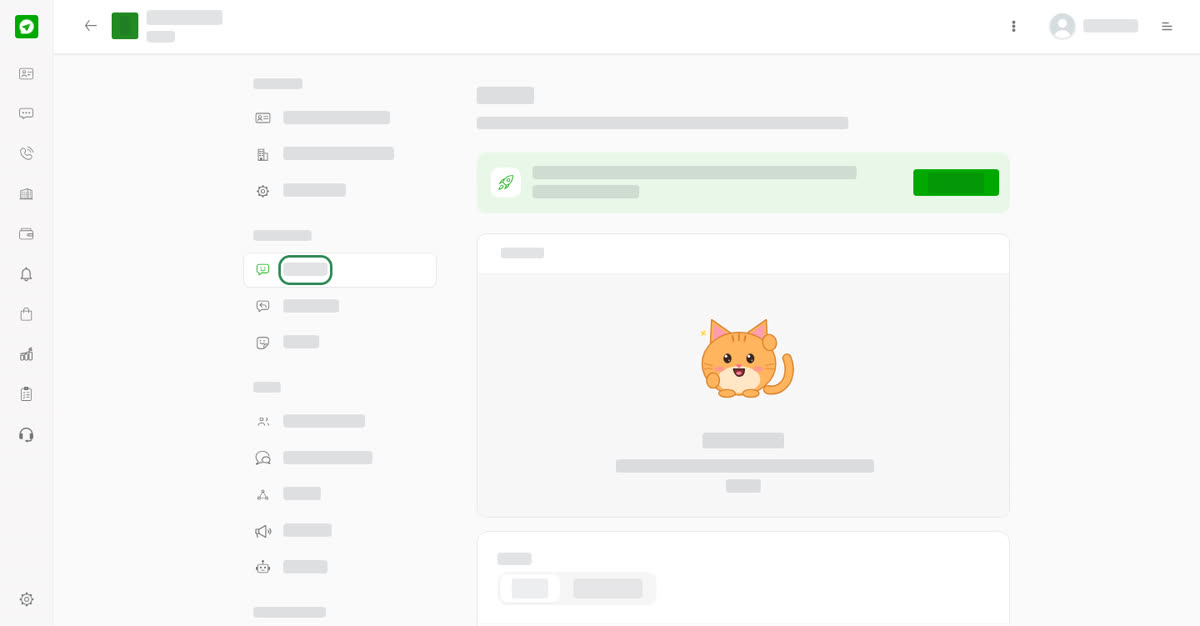
Reply to customers automatically, and let them know when you are away.
- Auto reply message – turn on Send an auto reply. It is sent once, right after a customer's first message in a chat.
- Away message – turn on Send an away message. It is sent once to each customer who writes while you are away.
Select Save under each.
Stickers
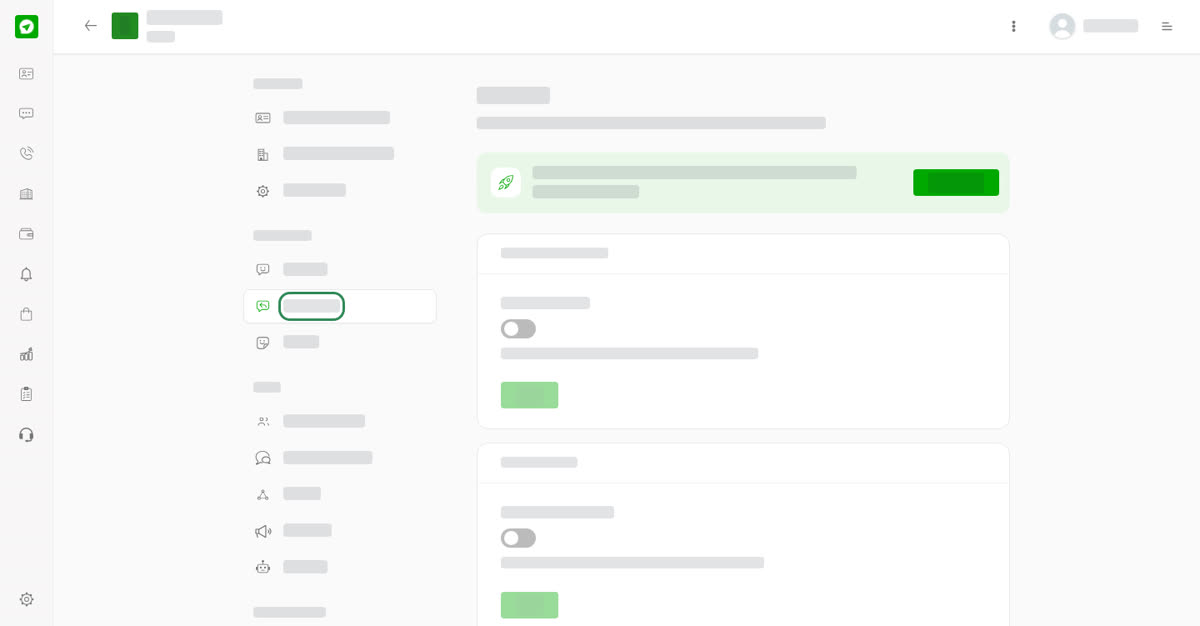
Add up to 10 of your own Lottie stickers (.json, 200 KB max) to use in your greeting and auto replies.
On your phone
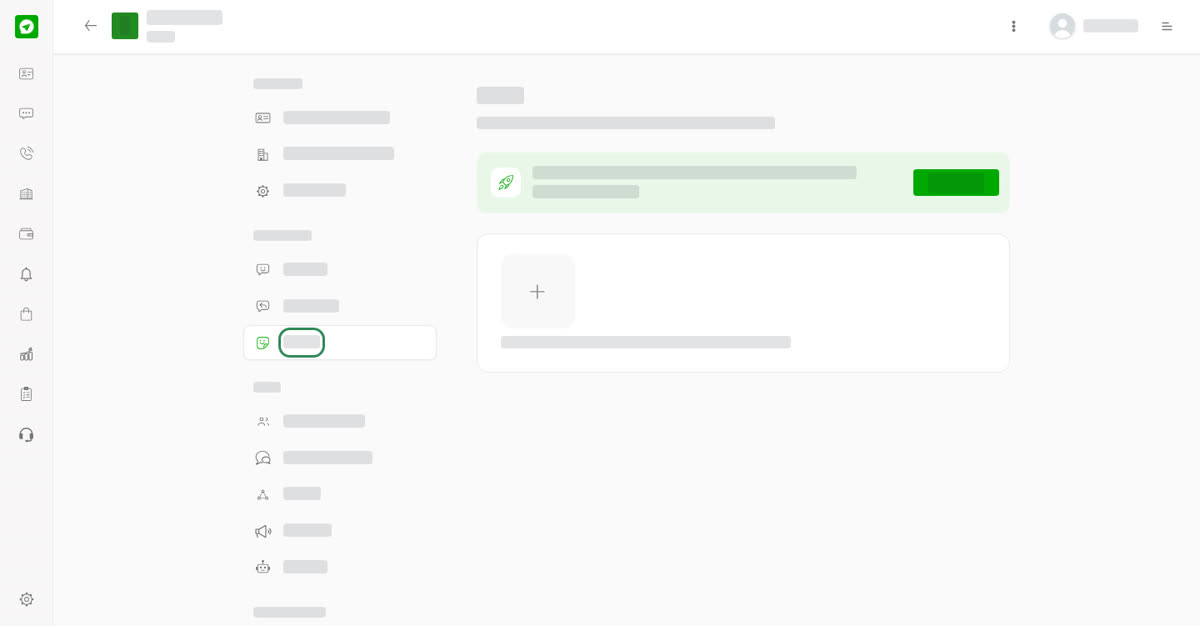
Open your account, tap the three dots at the top and choose Greeting, Auto Reply or Sticker. The settings are the same.