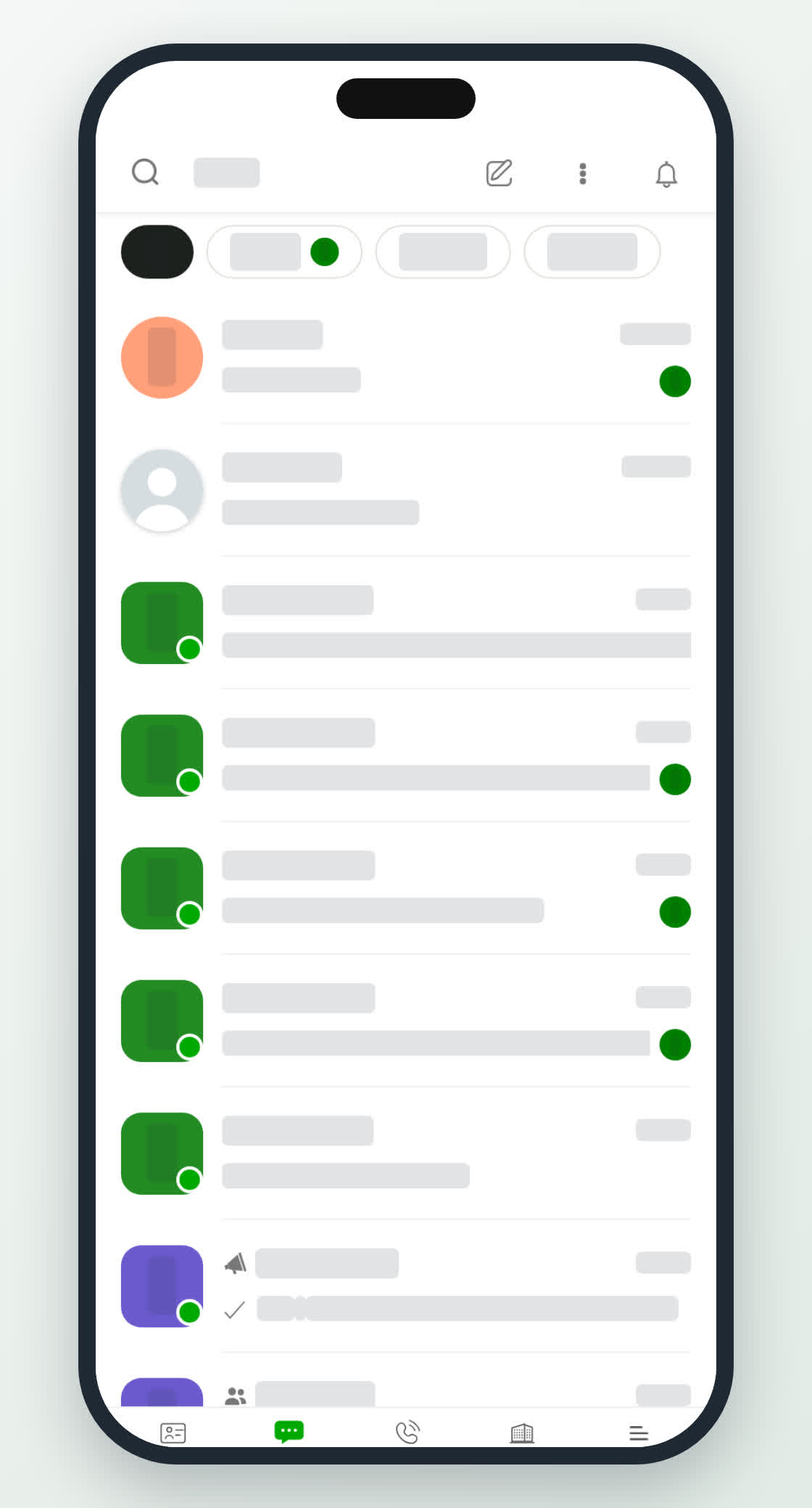
Your chat list
See all your conversations in one place, filter them by All, Unread, Personal or Business, search them and start a new chat, on a computer and on your phone.
Guide Chanras Sun10 hours ago · 2 min read · 1 view
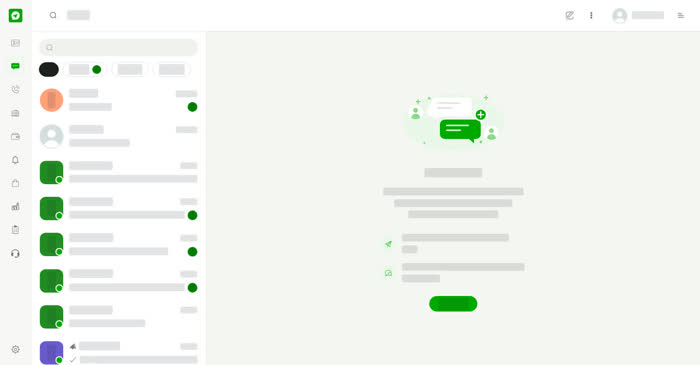
The Chats list shows every conversation you have with people and businesses, newest first. Each row shows the name, the time of the last message and a preview. A green badge shows how many messages you have not read yet.
Filter your chats
Above the list, four filters narrow what you see:
- All – every chat.
- Unread – chats with messages you have not read, with the number next to it.
- Personal – chats with people.
- Business – chats with businesses.
Type in the search box above the filters to find a chat by name.
On a computer
Select Chats in the left menu. The list sits on the left and the open conversation on the right. Before you open a chat, the right side shows Start Messaging with a New chat button.
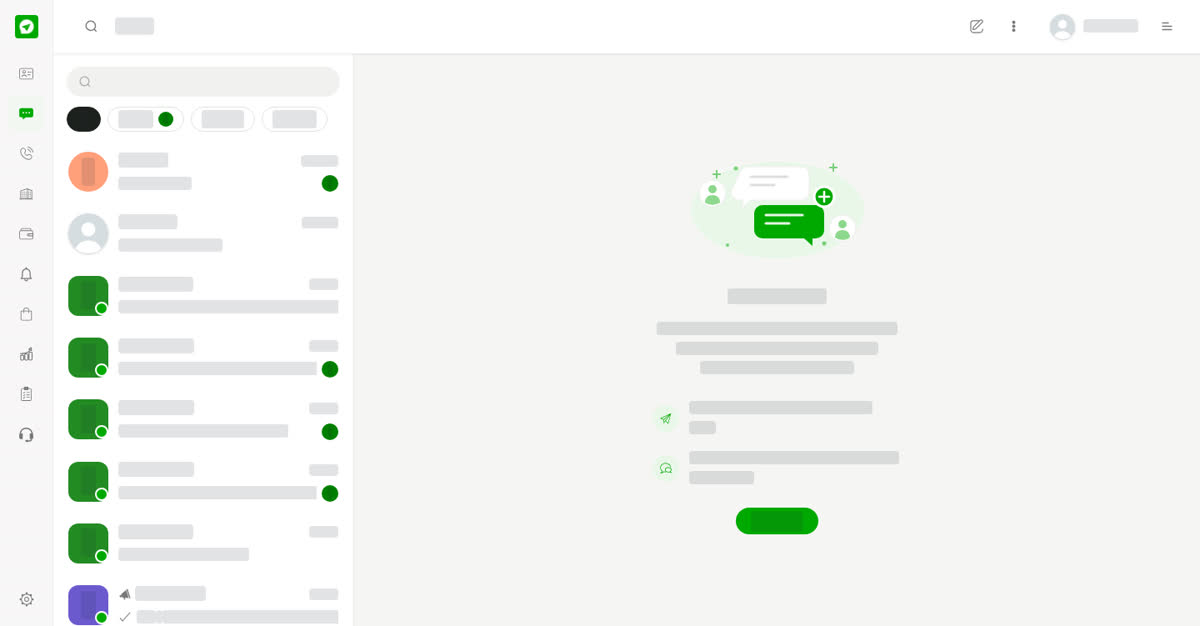
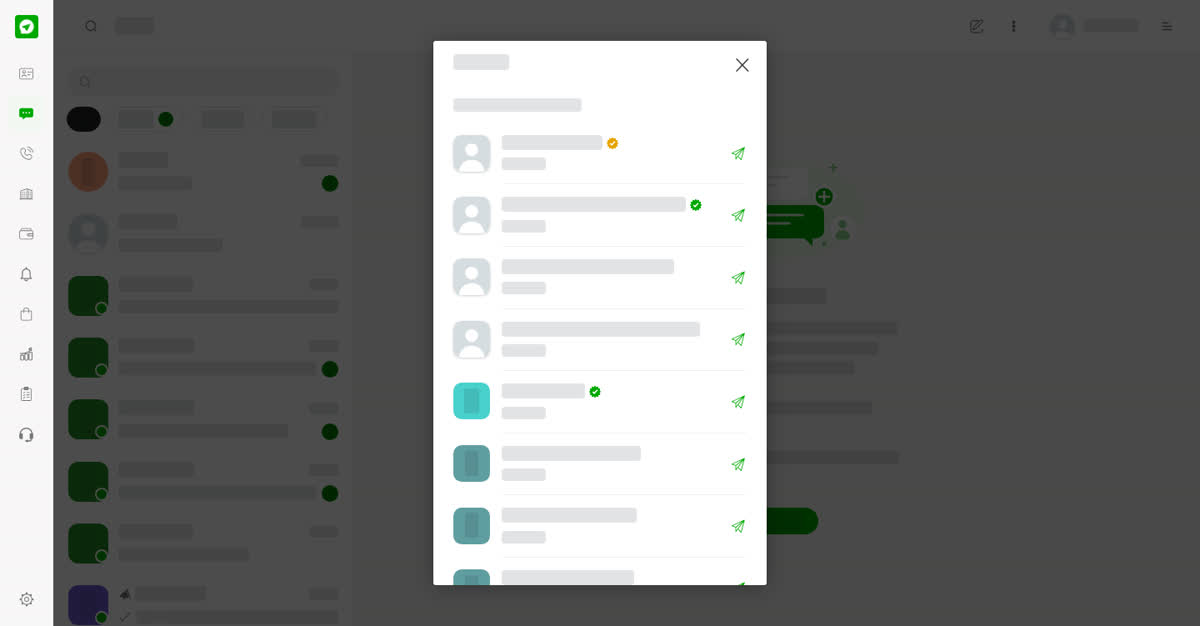
To start a chat, select the pencil icon in the top bar or the New chat button. The New chat window opens with Choose who to message. Pick a person or business from your contacts with the send arrow beside their name.
More chat lists
Select the three dots in the top bar to open Archived Messages, Spam Messages, Blocked Messages and Other Messages. The same menu starts a New business chat, New group or New channel, and links to Wallet, Sales, Deals and Forms.
On your phone
Tap Chats in the bottom bar. The list fills the screen with the same four filters. Tap a chat to open it, and tap the back arrow at the top left to return to the list.