Send messages, photos and stickers
Write and send text, emoji, stickers, GIFs, photos, videos, documents and voice messages in a Talkou chat, with the limits that apply and what differs between a computer and a phone.
Guide Chanras Sun9 hours ago · 2 min read · 1 view
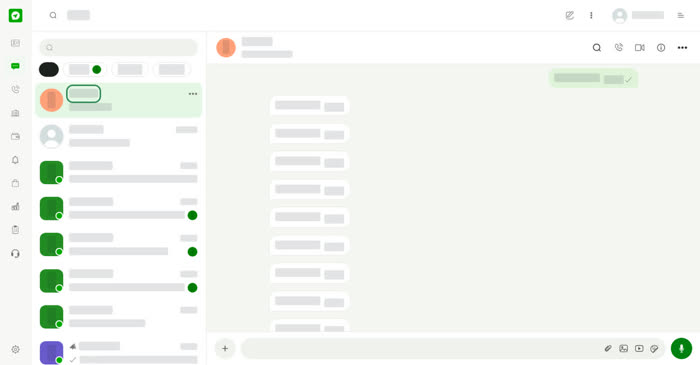
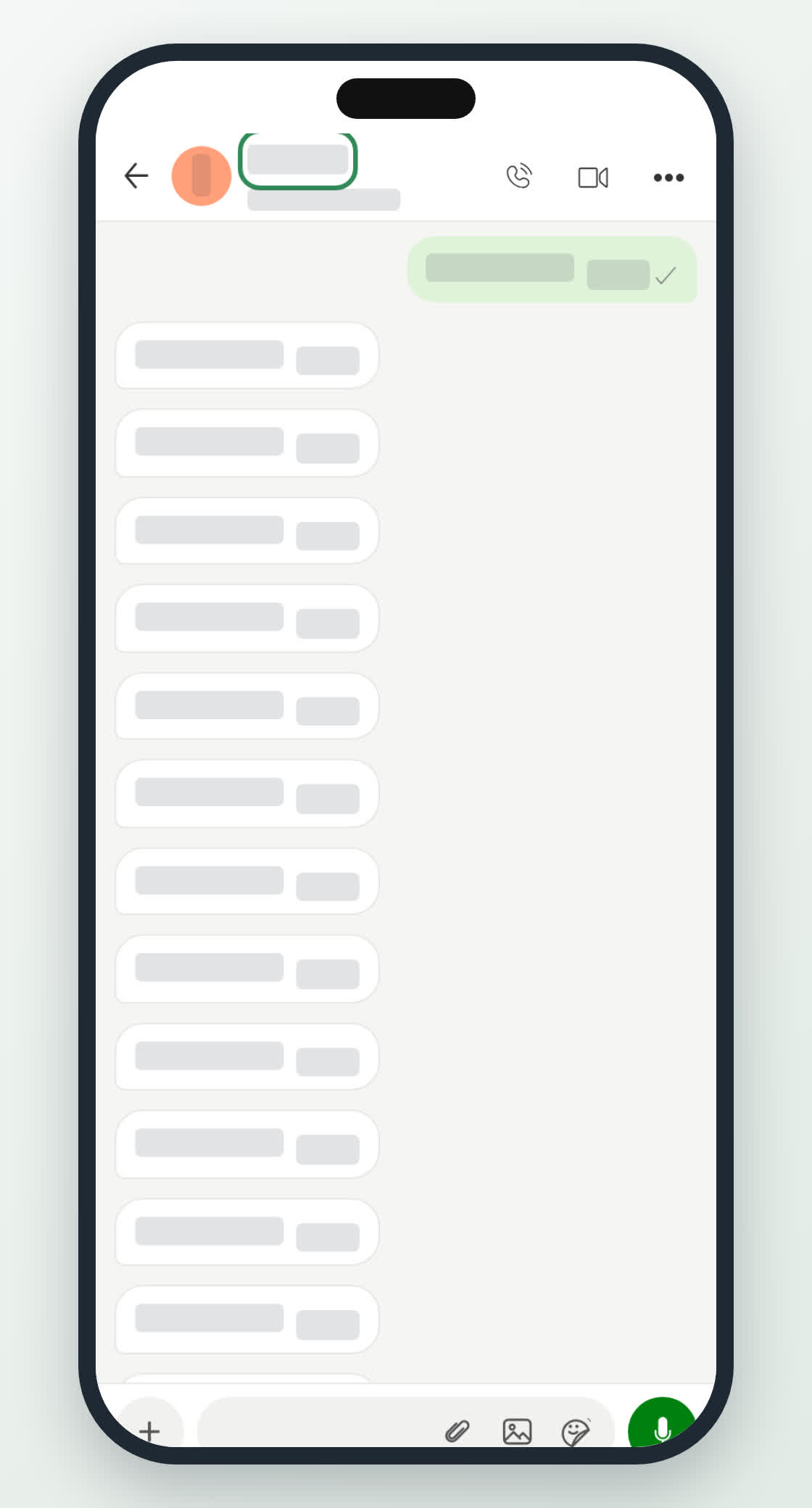
Open a chat from your chat list and use the bar at the bottom of the conversation to reply. Your messages appear on the right in green, and theirs on the left in white. A check mark appears beside the messages you have sent.
The message bar
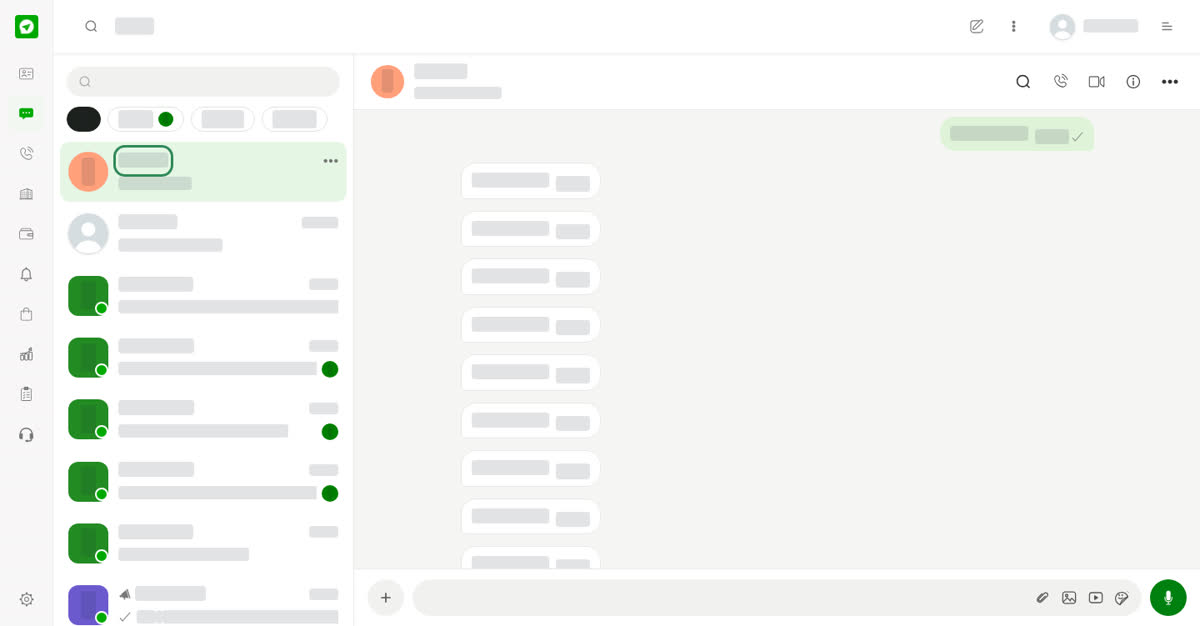
Type in the Message field and send. Beside the field you will find:
- Paperclip – attach a document. A file must be no larger than 5 MB.
- Picture – send a photo. An image must be at least 600 px wide.
- Video – send a video. A video must be no longer than 5 minutes.
- Smiley – open the picker with three tabs: Emoji, Stickers and GIFs.
- Microphone – tap to start recording a voice message and tap again to stop. The recording is attached to the message, ready to send. Your browser or phone asks for microphone access the first time.
When you start typing, the paperclip, picture and video icons give way to the send button.
On a computer
The paperclip, picture and video icons sit inside the message field, and the smiley opens a panel above it. Along the top of the conversation you also have icons to search the conversation, call, video call and see the contact's details, plus a more menu.
On your phone
In a conversation, the header has a back arrow, the contact, a call button, a video call button and a more menu. The + button at the left of the message bar opens more things to send, and the paperclip, picture and sticker icons sit in the field. The video icon appears in the message field on a computer.