Edit your profile
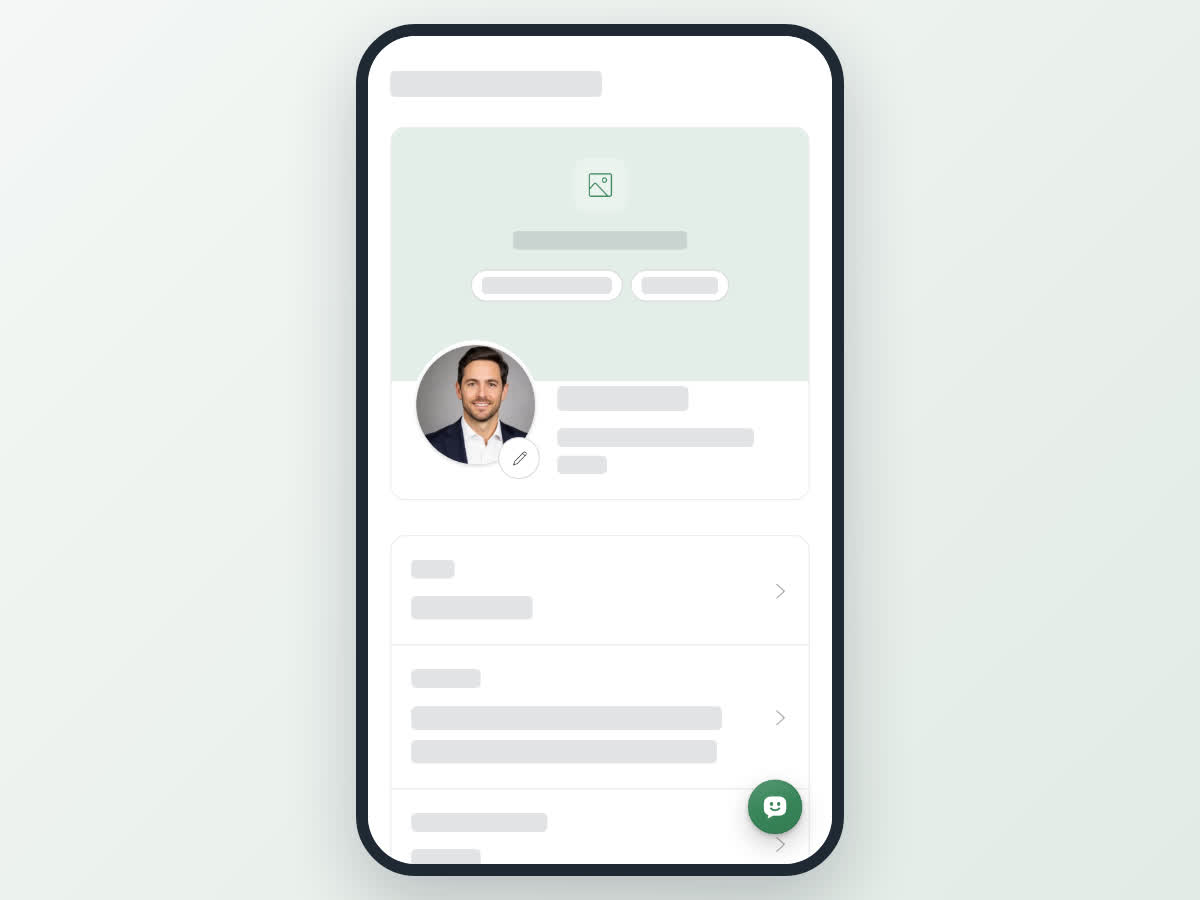
Change your profile photo, cover photo, name and About me, add a Talkou Business ID so people can reach you, choose which tabs visitors see, and check how your public profile looks.
Guide · Tutorial Chanras Sun4 days ago · 3 min read · 3 views
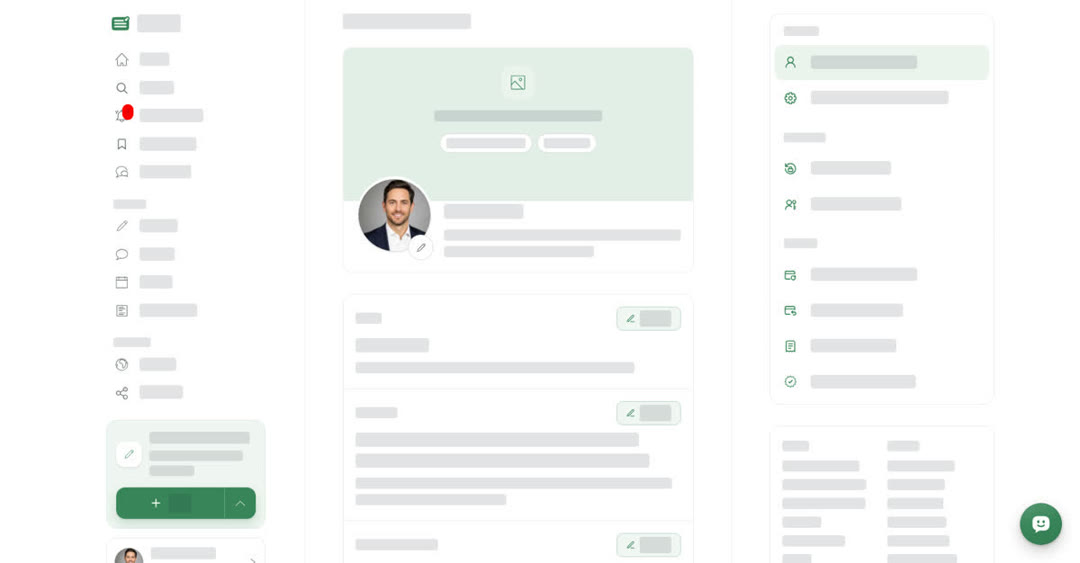
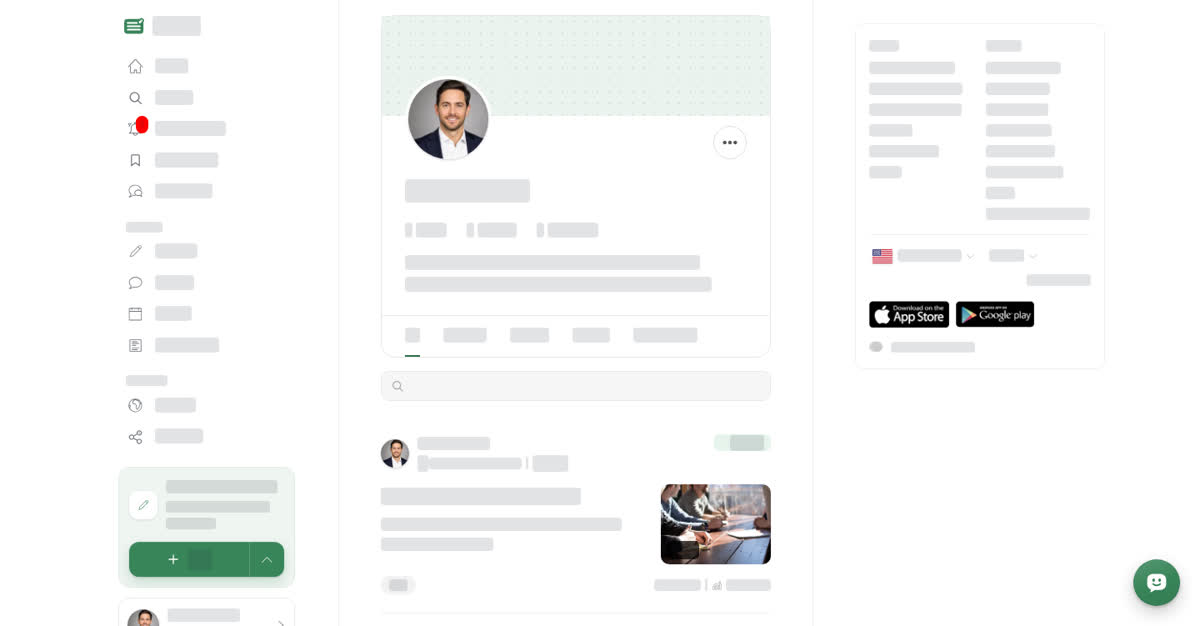
Your profile is the page people see when they select your name on a post or comment. It shows your cover photo, profile photo, name, a short About me and your published posts.
You edit it on the Personal Information page.
What you can change
- Profile photo — use an image at least 450px wide and 450px tall. Smaller images are refused. You frame it in the photo editor with Zoom and Rotate, check the Preview and save.
- Cover photo — the wide image at the top of your profile. Use an image 800px wide or more and 2:1 or wider (at least twice as wide as it is tall). Remove in its top corner takes it off.
- Name — the name shown on your profile, posts and comments. Up to 100 characters.
- About me — describe yourself, the topics you are interested in, and what you love reading and writing about. Between 20 and 1,500 characters.
- Talkou Business ID — optional. When people need to contact you, they will send a message to this business account on Talkou. Up to 100 characters. Leave it empty to receive messages on your own account.
On a computer
Select User & Settings at the bottom of the left menu, then Personal Information under Profile.
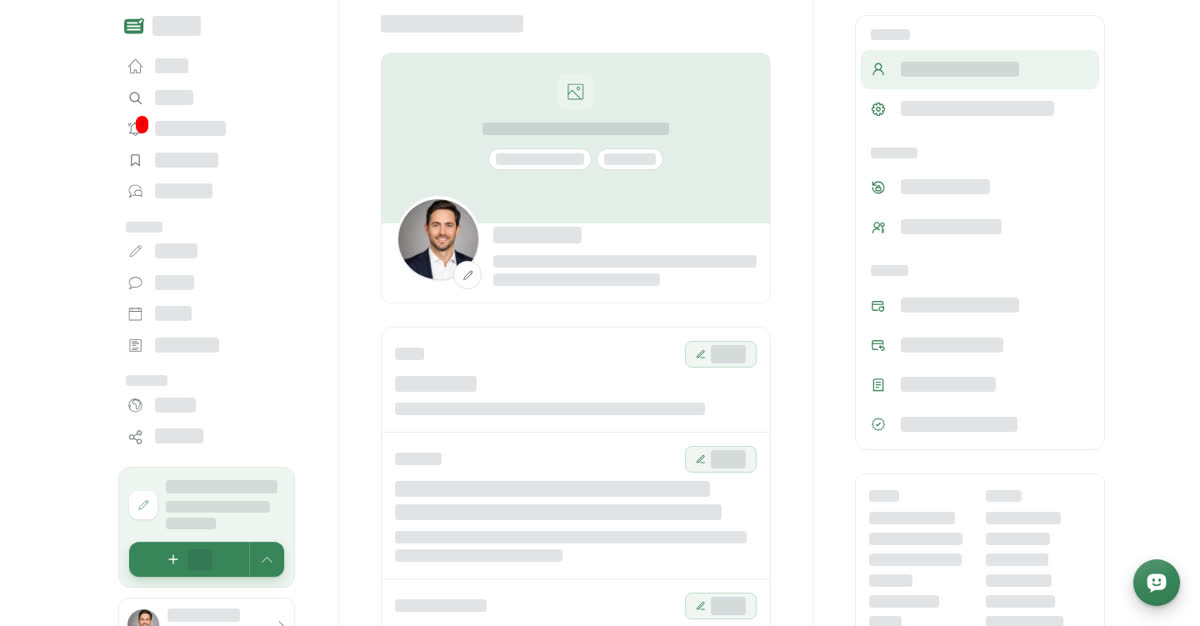
Change your profile photo
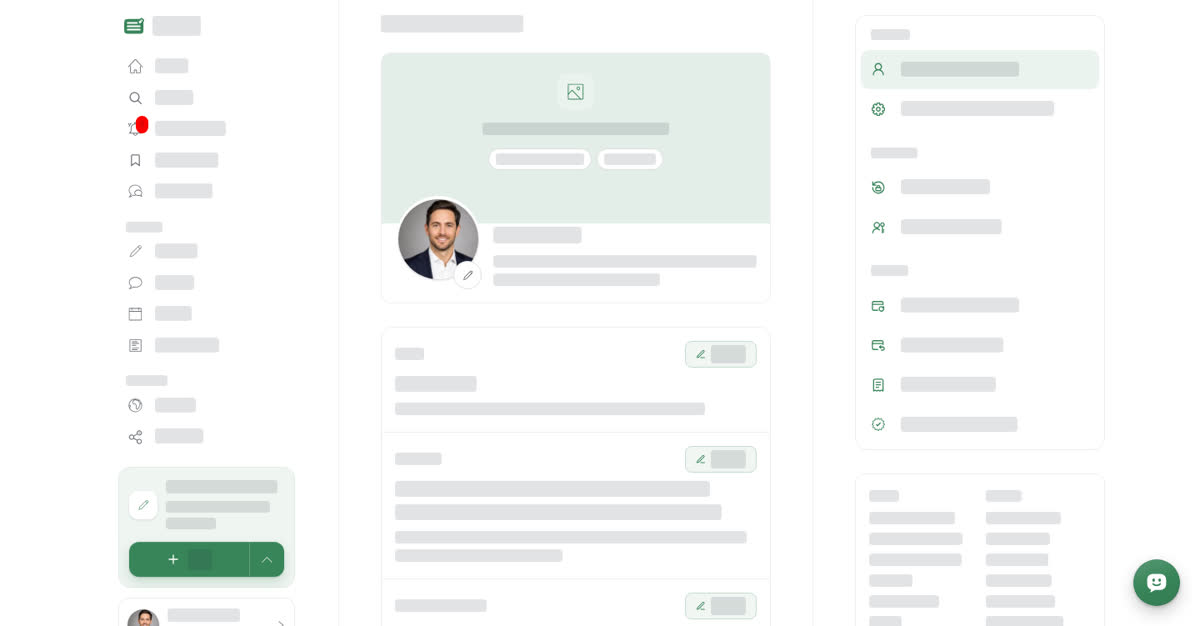
For the cover photo, drag an image onto the cover area or click it to browse.
Name, About me and Talkou Business ID each have an Update button: select it, make your change, then select Save, or Cancel to leave it as it was.
To see your profile the way visitors do, open the User & Settings menu and select View profile.
On your phone
These steps are the same in the Boogir app and on boogir.com in your phone's browser.
Edit your profile
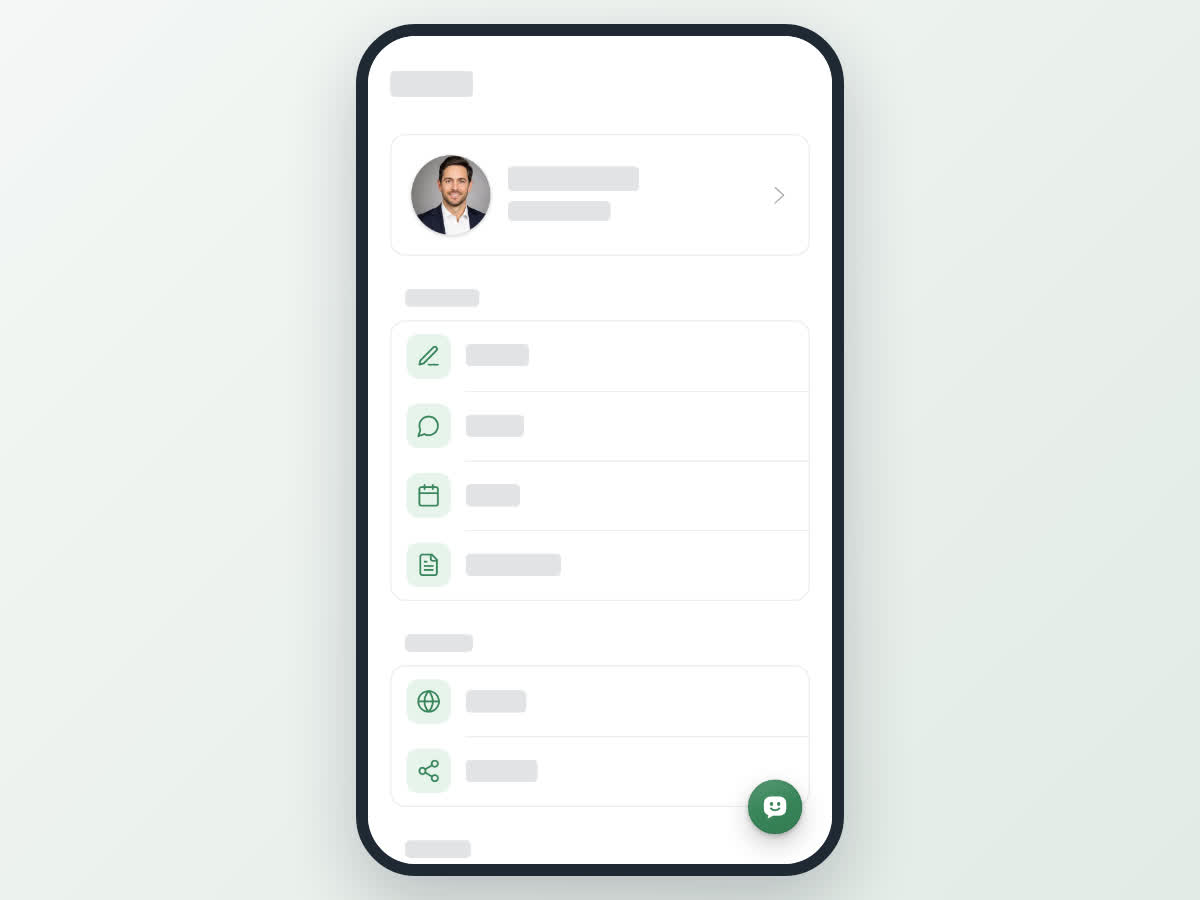
To see your public profile, open Account and tap the card with your name at the top of the page.
Profile tabs
Your posts are grouped in tabs such as Articles, Stories, Events and Guides. You choose which tabs visitors see, and their order, under Profile tabs in Region, Language & Display. See Change region, language and display.