Sign-in security and passkeys
Boogir signs you in with your Talkou account, so your email and phone number are managed in Talkou. Learn where to change them, and how to add or delete passkeys that sign you in with your face, fingerprint or screen lock.
Guide · Tutorial Chanras Sun4 days ago · 3 min read · 3 views
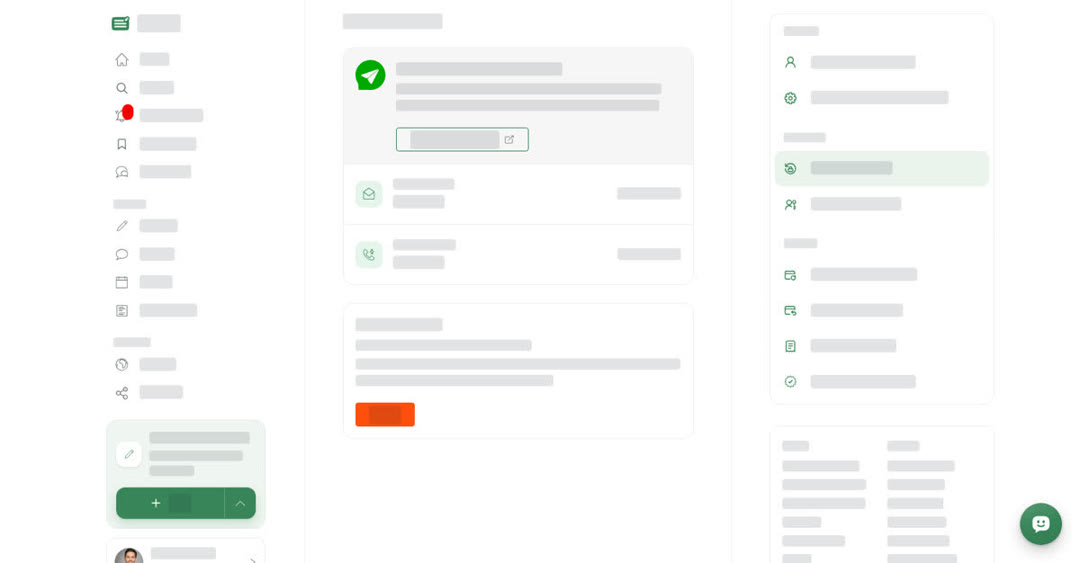
Boogir has no password of its own. You sign in with your Talkou account, and Talkou looks after your email address, phone number and sign-in security. On top of that you can add passkeys, so you can sign in to Boogir with your face, fingerprint or screen lock instead of waiting for a code.
Security & Login
The Security & Login page shows Managed by your Talkou account: Boogir signs you in with Talkou and uses the email and phone number saved there. Your Email address and Phone number are listed, marked From Talkou. If one is missing, it shows Not added with an Add in Talkou link. To change them, use Manage in Talkou; the changes you save in Talkou are used by Boogir too.
The bottom of this page is also where you delete your account. See Delete your account.
Passkeys
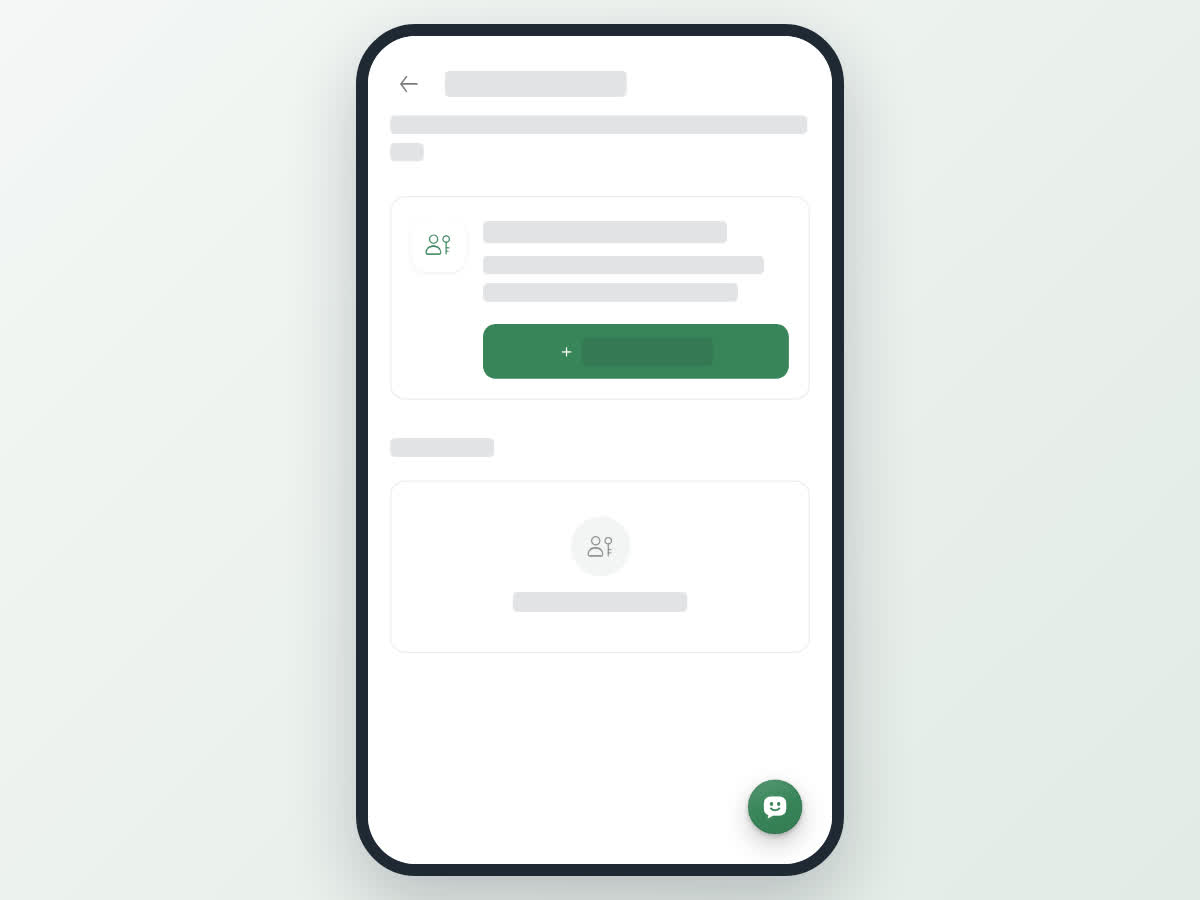
Manage Passkeys lists every passkey on your account under Your passkeys, with the device name and when it was Last used. If there are none, you see You have no passkeys.
The Add a passkey for this device card only shows when the device you are using supports passkeys. Add one on each computer or phone you sign in from, or use a passkey that your phone or password manager keeps in sync across your devices.
Deleting a passkey stops it signing you in to Boogir, but it stays on the device that holds it until you remove it there too, for example in your phone's password settings.
On a computer
Select User & Settings at the bottom of the left menu. Security & Login and Manage Passkeys are under Security. Manage in Talkou opens Talkou in a new tab.
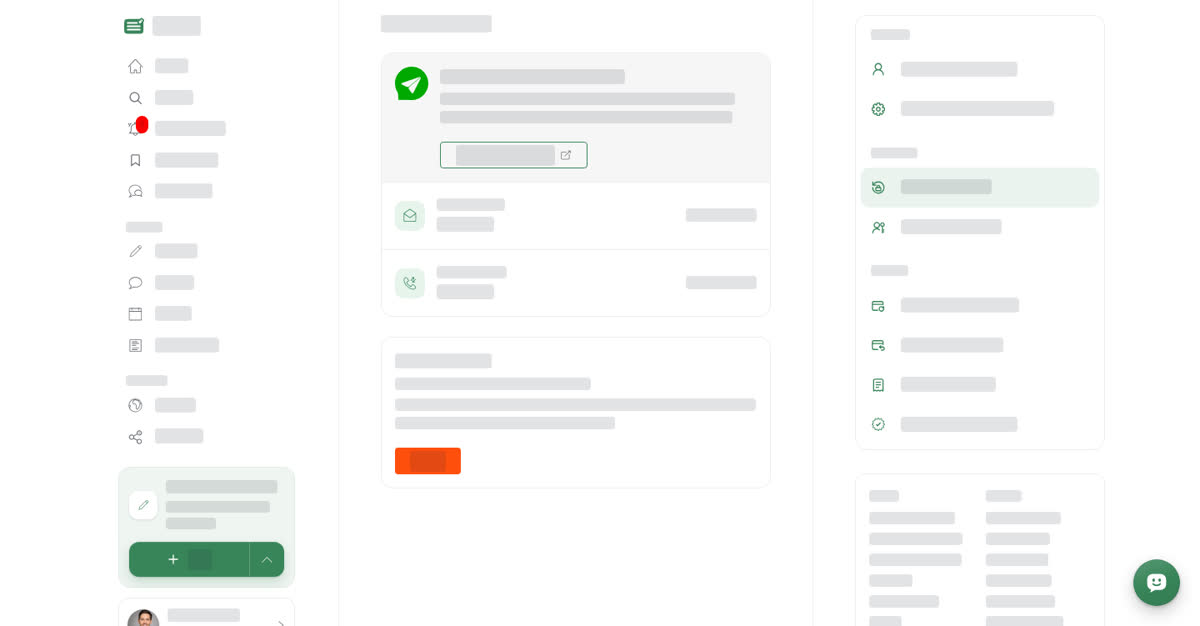
Add a passkey
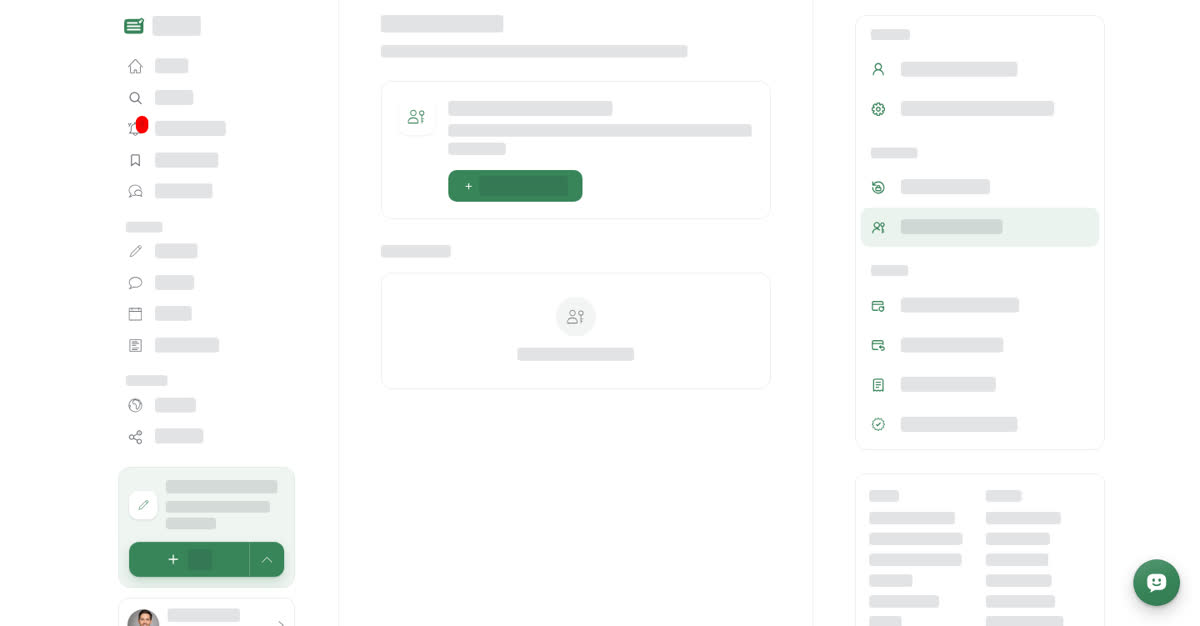
Delete a passkey
On your phone
These steps are the same in the Boogir app and on boogir.com in your phone's browser. Open Account from the bottom bar; Security & Login and Manage Passkeys are under Security.
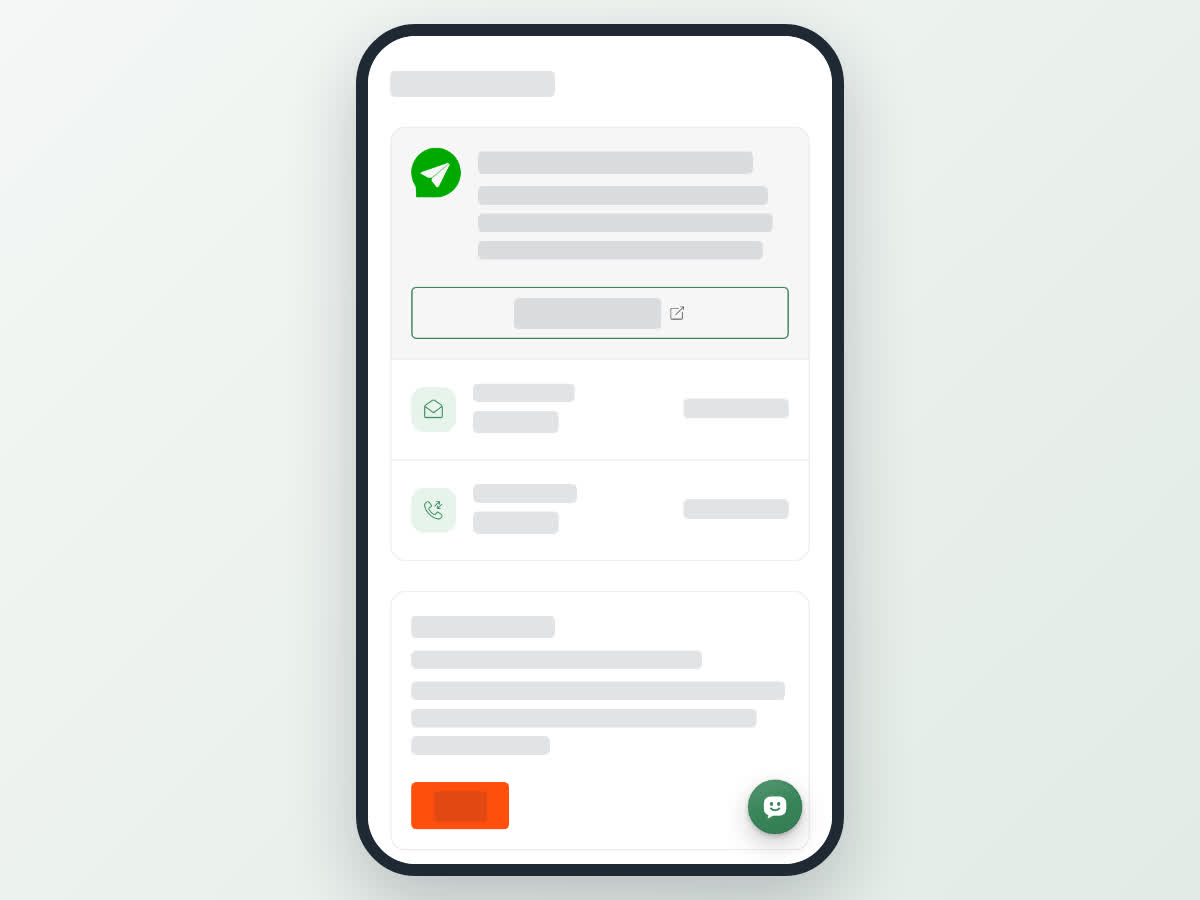
Add a passkey
To delete a passkey, tap Delete on its row under Your passkeys, then confirm.
Use your passkey to sign in
Next time you sign in, choose Log in with passkey on the log in window. See Create your account and sign in.