Add payee details and cash out
Space owners can cash out earnings once the space has at least 1,000 credits. Add payee details first, then request a cash out by Payoneer or UnionPay and follow its status.
Guide · Tutorial · Finance Chanras Sun4 days ago · 4 min read · 3 views
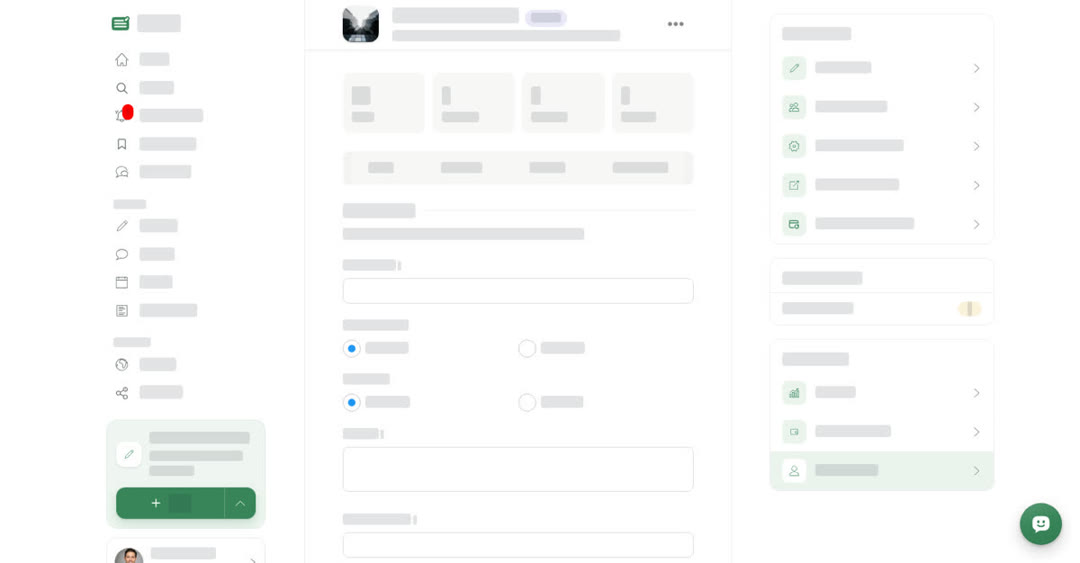
When your space has earned credits (see How creators earn), its owner can turn them into money. Only owners of the space can add payee details and cash out. Managers and members can see the earnings but not these options.
Before your first cash out, add the payee: the person or business every cash out from the space is paid to.
What a cash out asks for
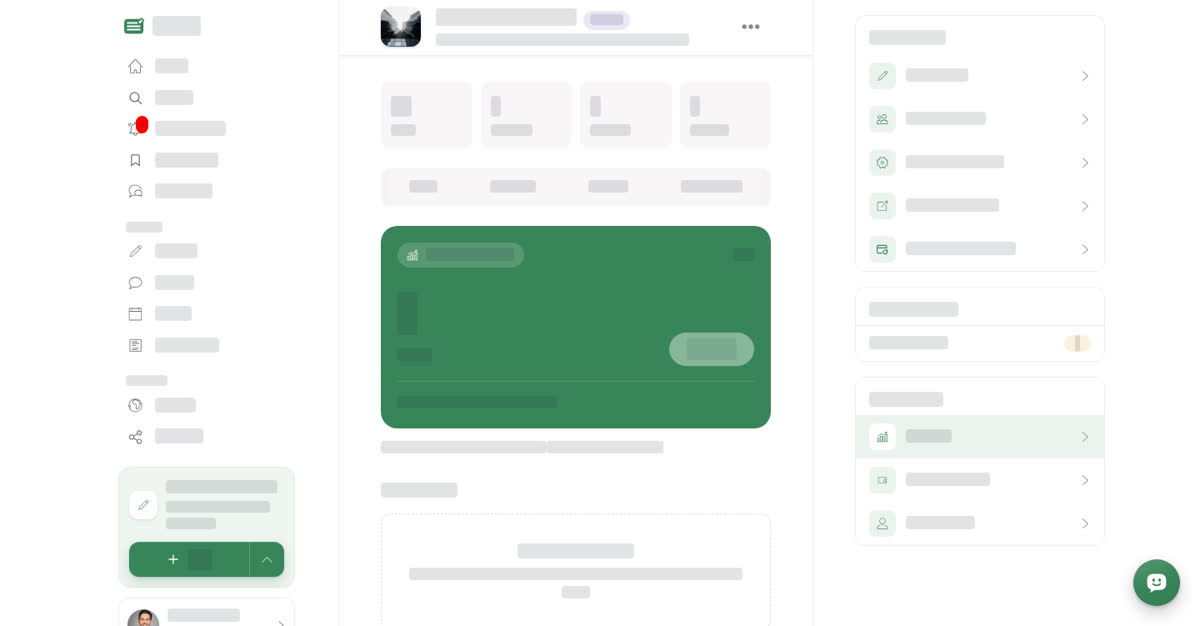
The Cash out button turns on once Current earnings reaches 1,000 credits. Below that, the card shows Minimum cash out · 1,000 credits.
When you cash out, you check the payee under Paid to, pick a Currency and enter the Credits to cash out in whole credits, from the minimum up to your balance. The summary shows the Minimum cash out, the Rate (what 100 credits are worth in the chosen currency) and the amount You receive. When you confirm, Boogir shows Cash out requested and the credits are taken from the space's balance.
How the amount is worked out
Credits are converted at their reference value of USD 0.10 each into the currency you choose, rounded down. The payout provider may charge fees, which come out of the amount paid. Boogir reviews every cash out before sending it and may ask for proof of identity, tax information or other details first. The payee is responsible for any taxes due on earnings.
Follow your cash outs
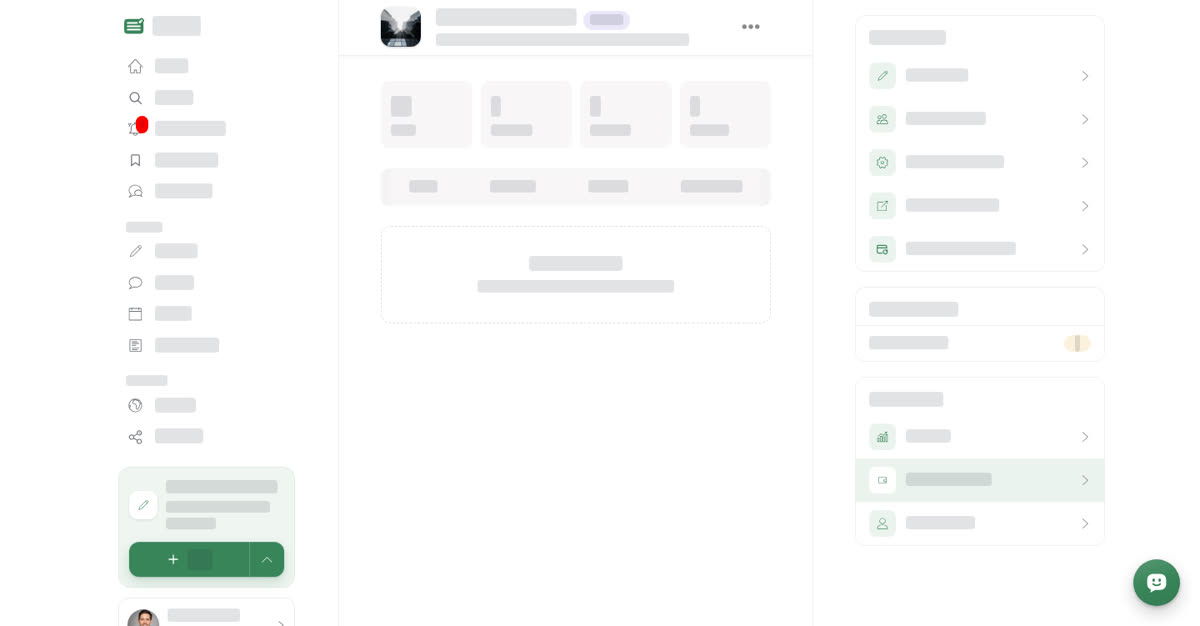
Cash out history lists every cash out for the space. Each one shows its status:
- Requested — Boogir has received the request and is reviewing it.
- Approved — the cash out has been approved for payment.
- Payout sent — the money has been sent to the payee.
Open a cash out to see its Cash out details: the amount, credits, payout method, payee details, Requested on and Updated on dates.
If Boogir declines a cash out, the credits are returned to the space, except where the Creator Earnings Terms say otherwise (for example, earnings from artificial activity).
On a computer
Add payee details
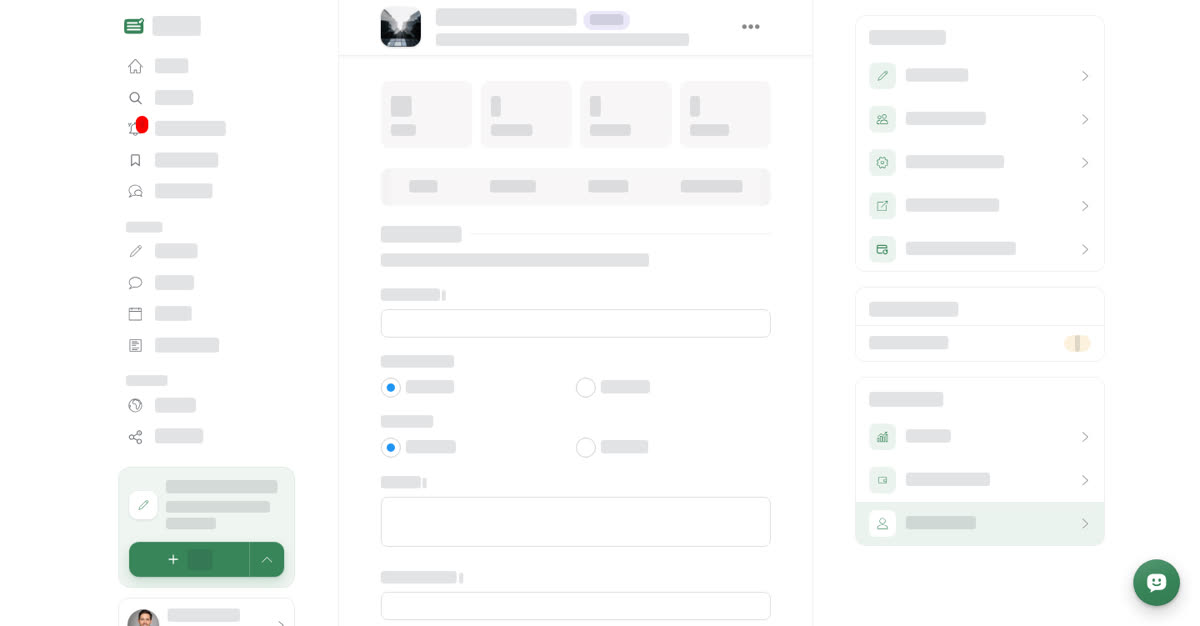
Request a cash out
To follow your cash outs, select Cash out history under Monetization. Select a cash out to open its Cash out details, and Close to go back.
On your phone
These steps are the same in the Boogir app and on boogir.com in your phone's browser.
Add payee details

Request a cash out

To follow your cash outs, tap the Cash out history chip on the space's manage page. Tap a cash out to open its Cash out details in a sheet.