Find your way around
The home page, the dashboard, the bottom bar, and the difference between the desktop and phone layouts.
Guide Chanras Sun6 hours ago · 1 min read · 1 view
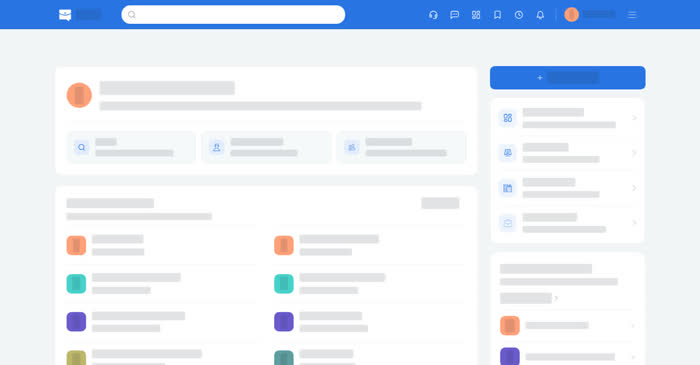
Signed in, qoosi.com opens on your home page. It carries the greeting, a search shortcut for jobs, job seekers and recruiters, a Post a New Job button, quick access to the dashboard and the portals, and lists of employers and agencies hiring near you.
On a computer
The top bar holds the logo, the search box, the help icon, messages, Dashboard, Saved, Applications, notifications and your account menu. The account menu holds your settings, Help & Support and Sign Out. The User Agreement is on the settings page.
The dashboard is a page with a side menu and two groups of pages:
- Posting & Brands – Job Posts and Companies.
- Manage Profiles – Job Seeker and Recruiter profiles.
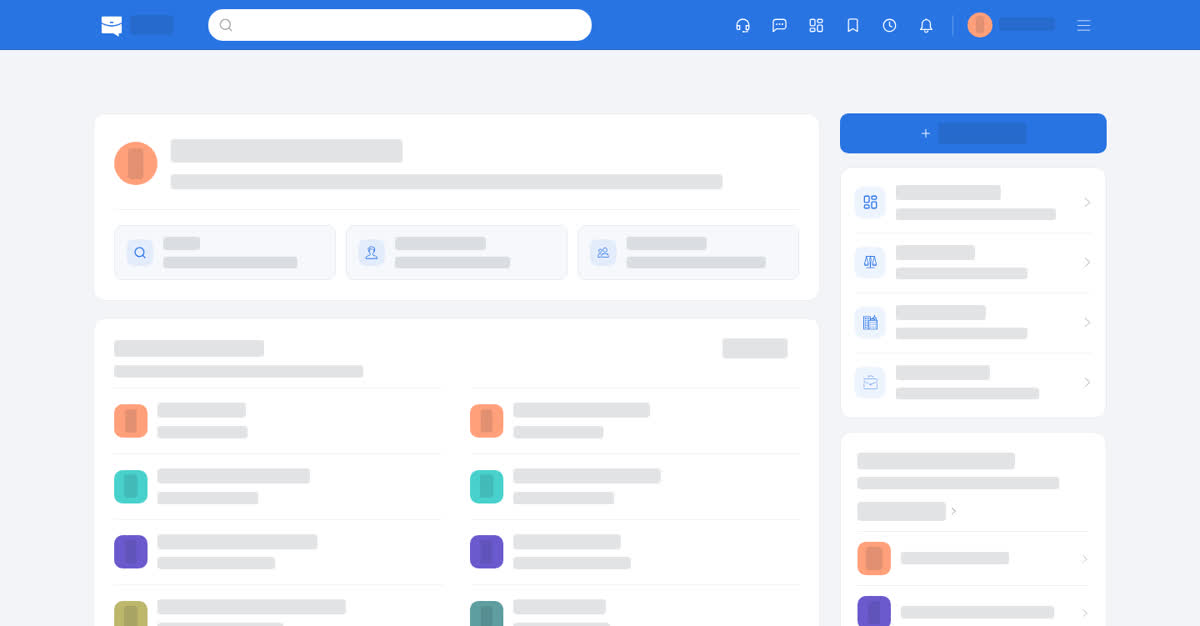
The home page.
On your phone
- In the app the bottom bar has Home, Saves, Applications, Notifications and Account. The header keeps three buttons: the envelope opens your messages, the grid opens the dashboard, and your photo opens the account.
- In the phone browser the bottom bar has Home, Saved, Applications, Notifications and Account, and the dashboard opens as a list of links rather than a side menu.
Pages open one at a time, so most screens push a new page with a back arrow.
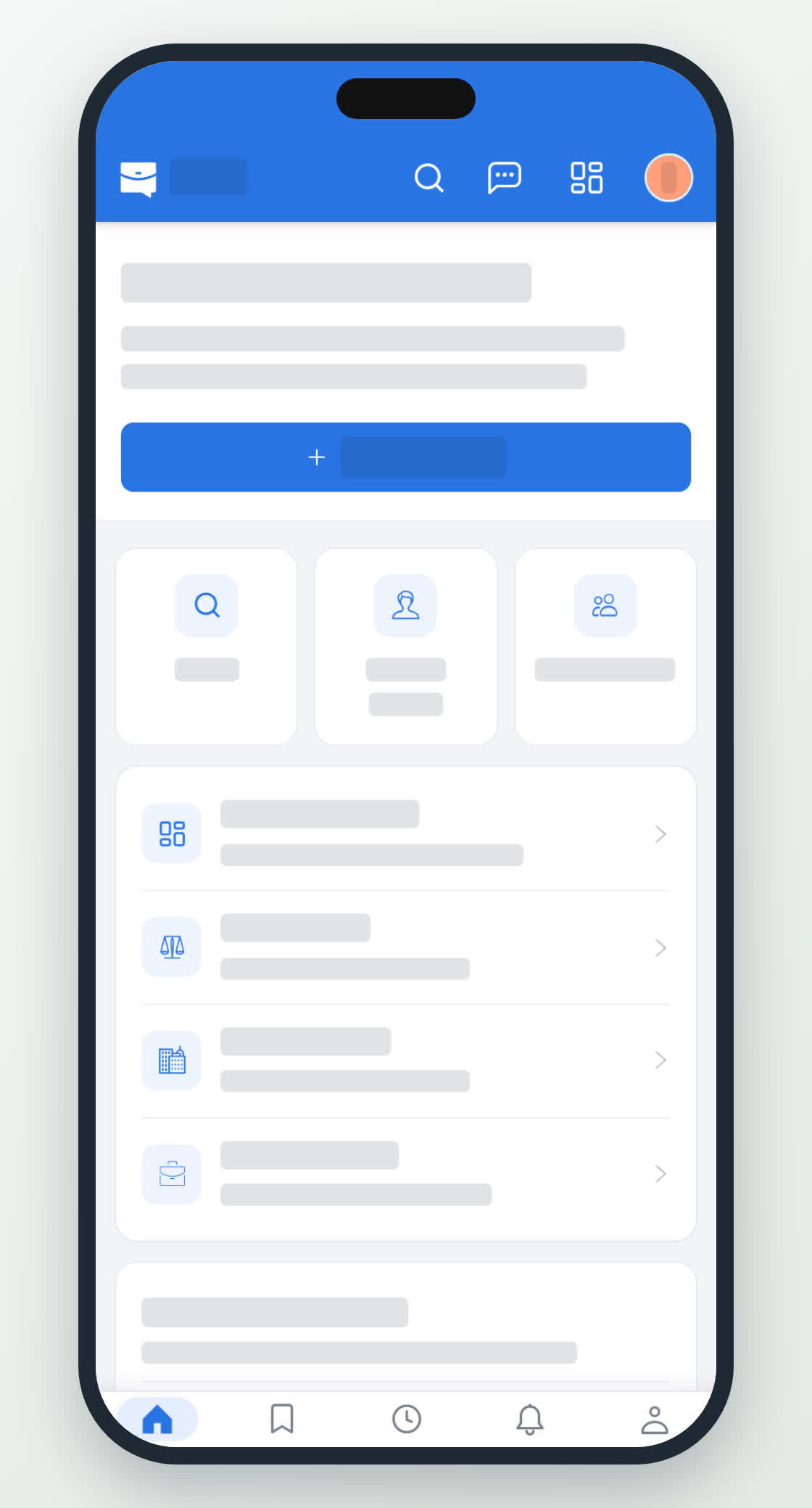
The home screen and the bottom bar.
0
Share
Send in message
Report
Copy ID