Make and receive calls
Place voice and video calls to your contacts, review your call history and missed calls, and allow microphone and camera access on a computer and on your phone.
Guide Chanras Sun10 hours ago · 2 min read · 1 view
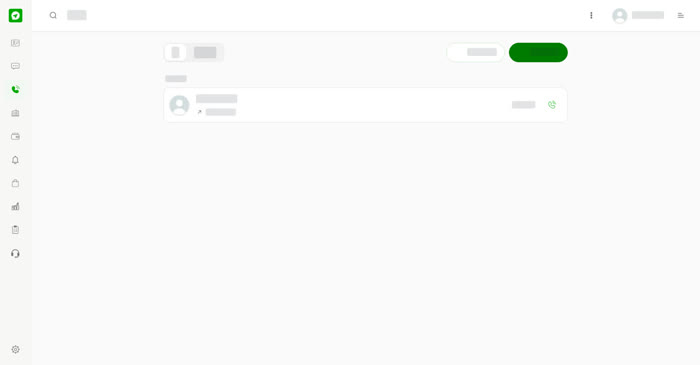
Call anyone in your contacts with voice or video, and keep every call in one history. The first time you call, your browser or phone asks to use your microphone and camera. Allow microphone and camera access to make calls.
Your call history
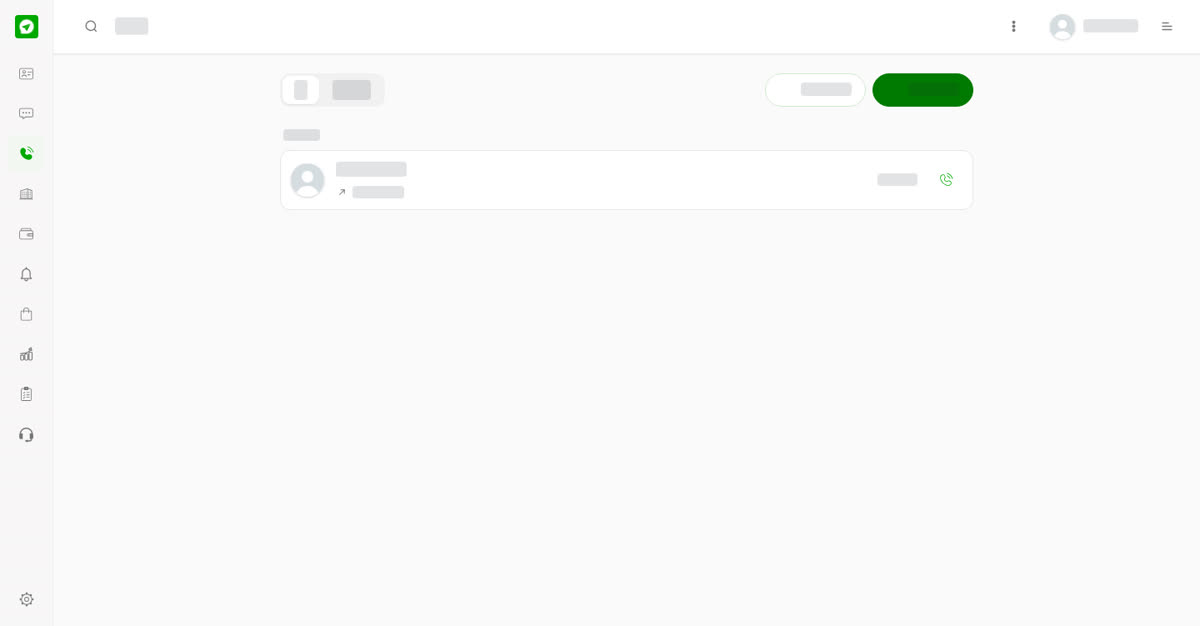
Open Calls. The list has two tabs: All and Missed. Each call shows the person, the date, the time and how it ended, for example No answer. Select the phone icon at the end of a row to call that person again.
On a computer
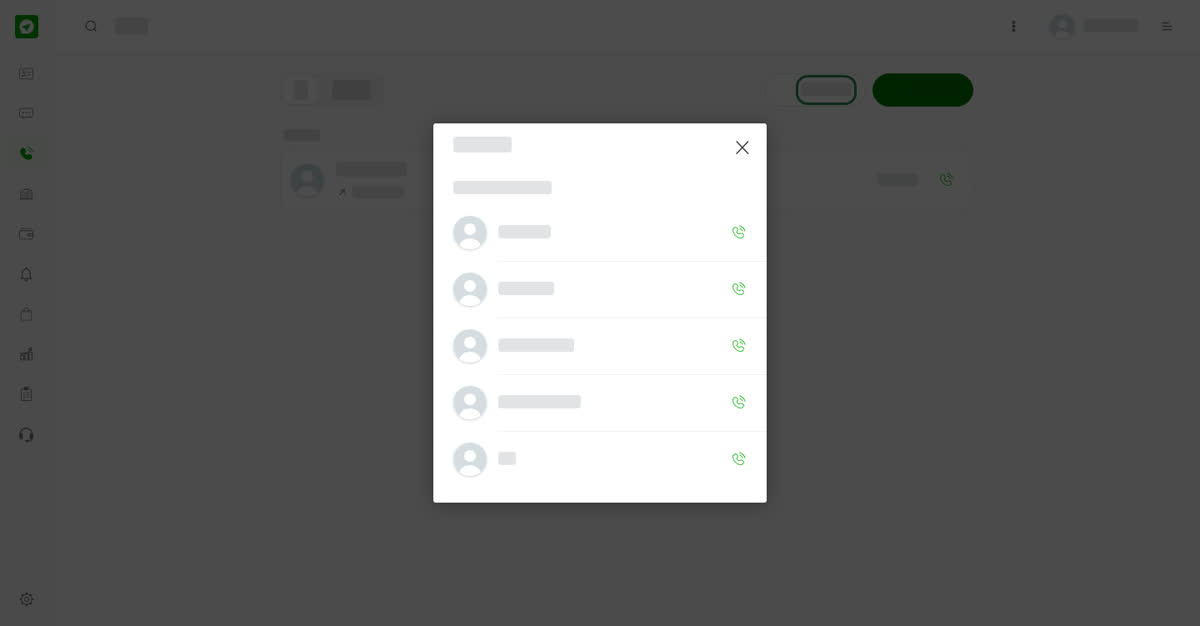
Select Calls in the left menu. Select Voice call or Video call at the top right. The window Choose who to call lists your contacts. Select the phone icon beside the person you want.
On your phone
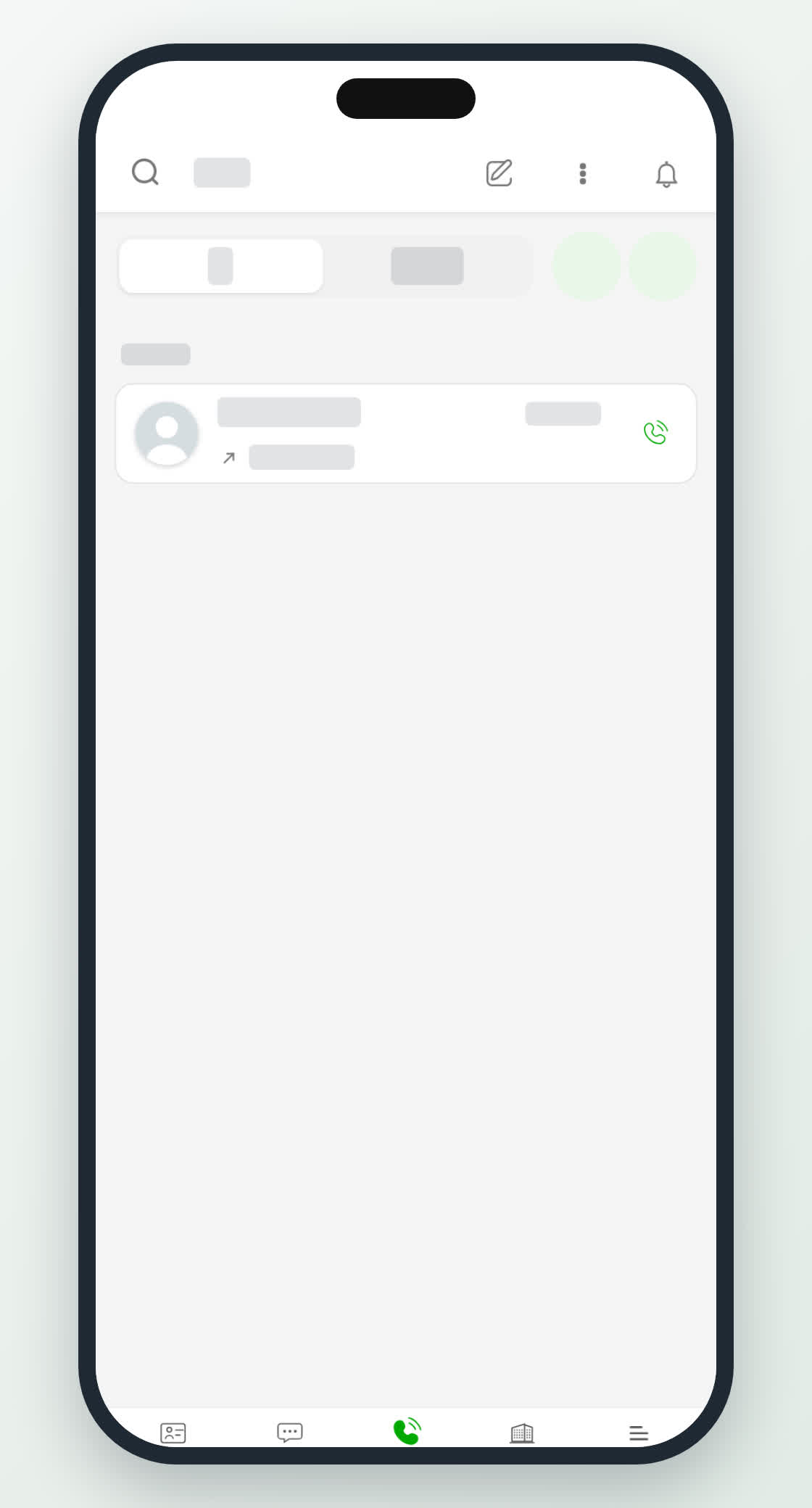
Tap Calls in the bottom bar. The All and Missed tabs are at the top, and two round green buttons at the right start a voice call or a video call.
During a call
When someone calls you, the screen reads Incoming voice call or Incoming video call, with Accept and Decline. When you call, it shows Calling… and then Ringing…. A call ends as Call ended, No answer, Busy on another call or, if you did not pick up, Missed call.