Create your account and sign in
Register, log in with Account Link, a passkey, a QR code or a passcode, and understand how Qoosi uses your Talkou account.
Guide Chanras Sun5 hours ago · 2 min read · 1 view
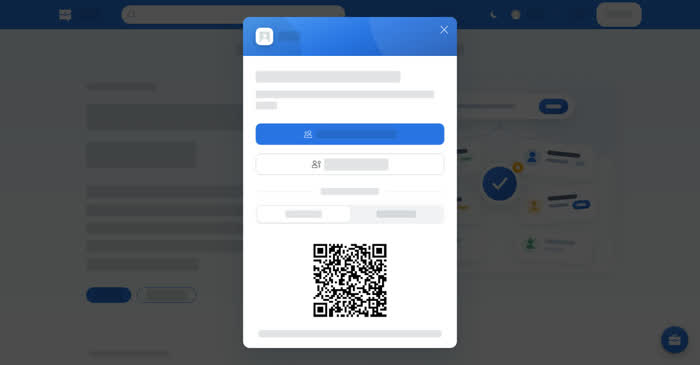
Qoosi has no password of its own. Your account is a Talkou account: your phone number and email belong to Talkou, and Qoosi signs you in through it. That is why the sign-in screen offers Account Link, a passkey, a QR code and a passcode rather than a password.
On a computer
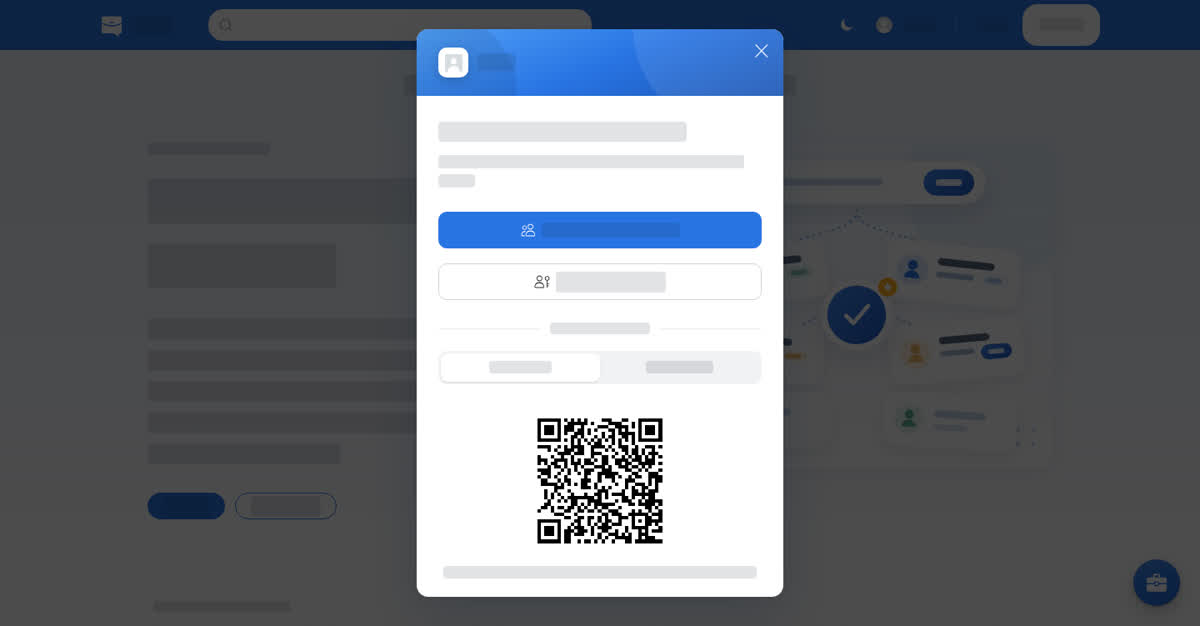
Select Log In in the top bar, or Register if you are new. Both offer the same methods.
- Register uses your Talkou account. Tick the box to accept the User Agreement and the Privacy Policy, then choose a method.
- Log in with Account Link is the first method on the screen.
- A passkey signs you in with the unlock on your device — fingerprint, face or screen lock — with no code to type.
- Use QR code shows a code to scan and approve in the Talkou mobile or web app.
- Use passcode takes a passcode generated in the Talkou mobile or web app.
On your phone
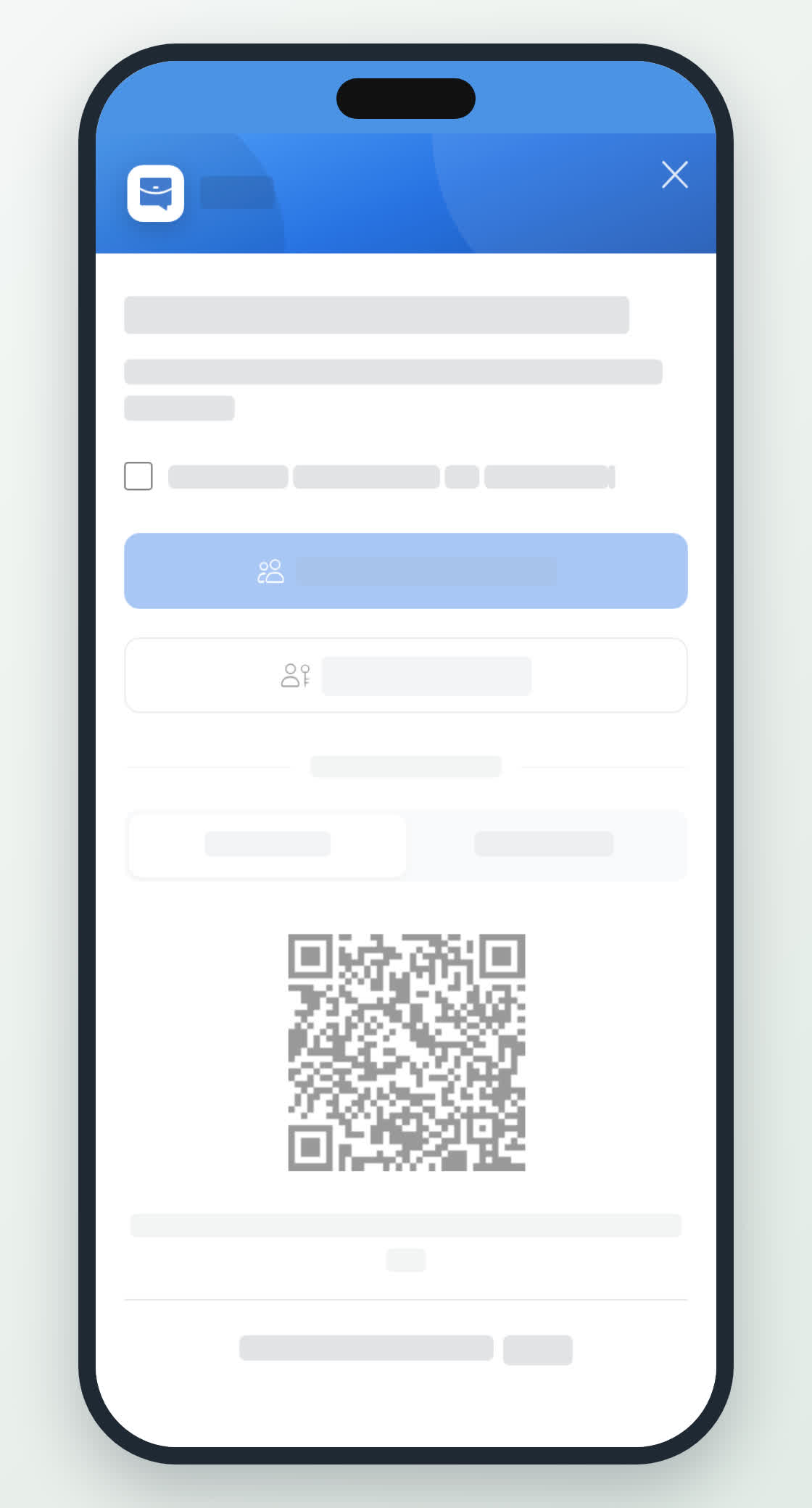
The app opens on the welcome screen, with Log In and Register at the bottom. The methods match the computer: Account Link, passkey, QR code or passcode, and the app's passkey uses your face, fingerprint or screen lock.
After signing in you can turn on notifications, which is what tells you when an employer reads your application.