Ship an order
Send a shipment offer, add tracking and confirm delivery.
Guide Chanras Sun9 hours ago · 1 min read · 1 view
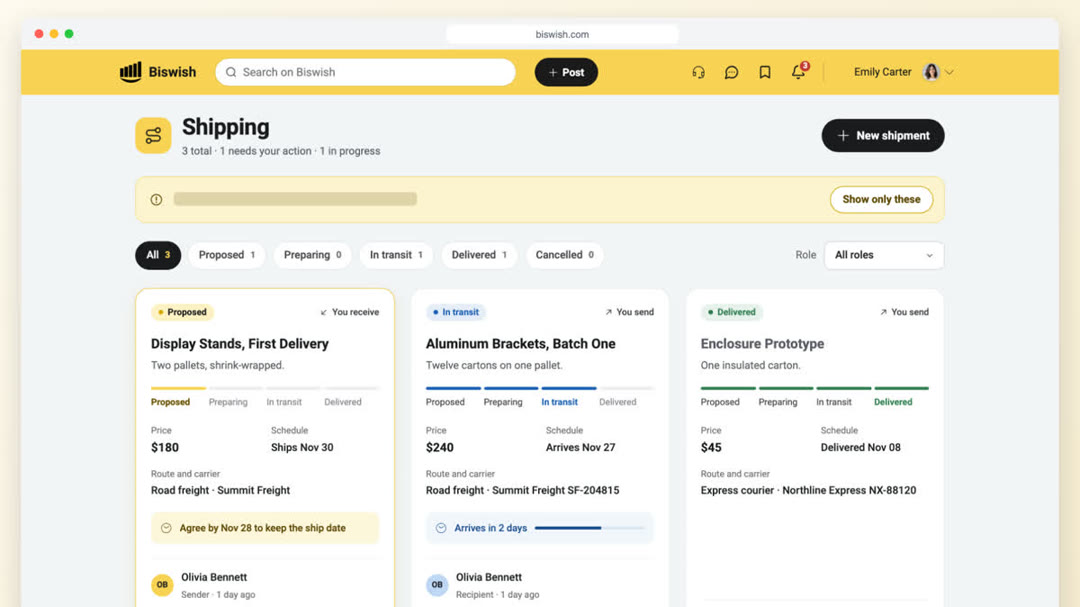
A shipment belongs to an active project and is sent from one of your companies. It moves from Proposed to Preparing, In transit and Delivered.
The recipient is the client of the project you attach. Add or change the carrier and tracking number later with Save tracking.
What you can set
- Shipping method – road, sea, air or rail freight, or express courier
- Import duties paid by – the sender or the recipient
- Insurance – included by the sender or not included
- Packages and Total weight, recipient name and phone, and attachments such as a packing list
On a computer
Open Shipping, then New shipment. Add the contents, delivery address, method, cost and dates, then select Send shipment.
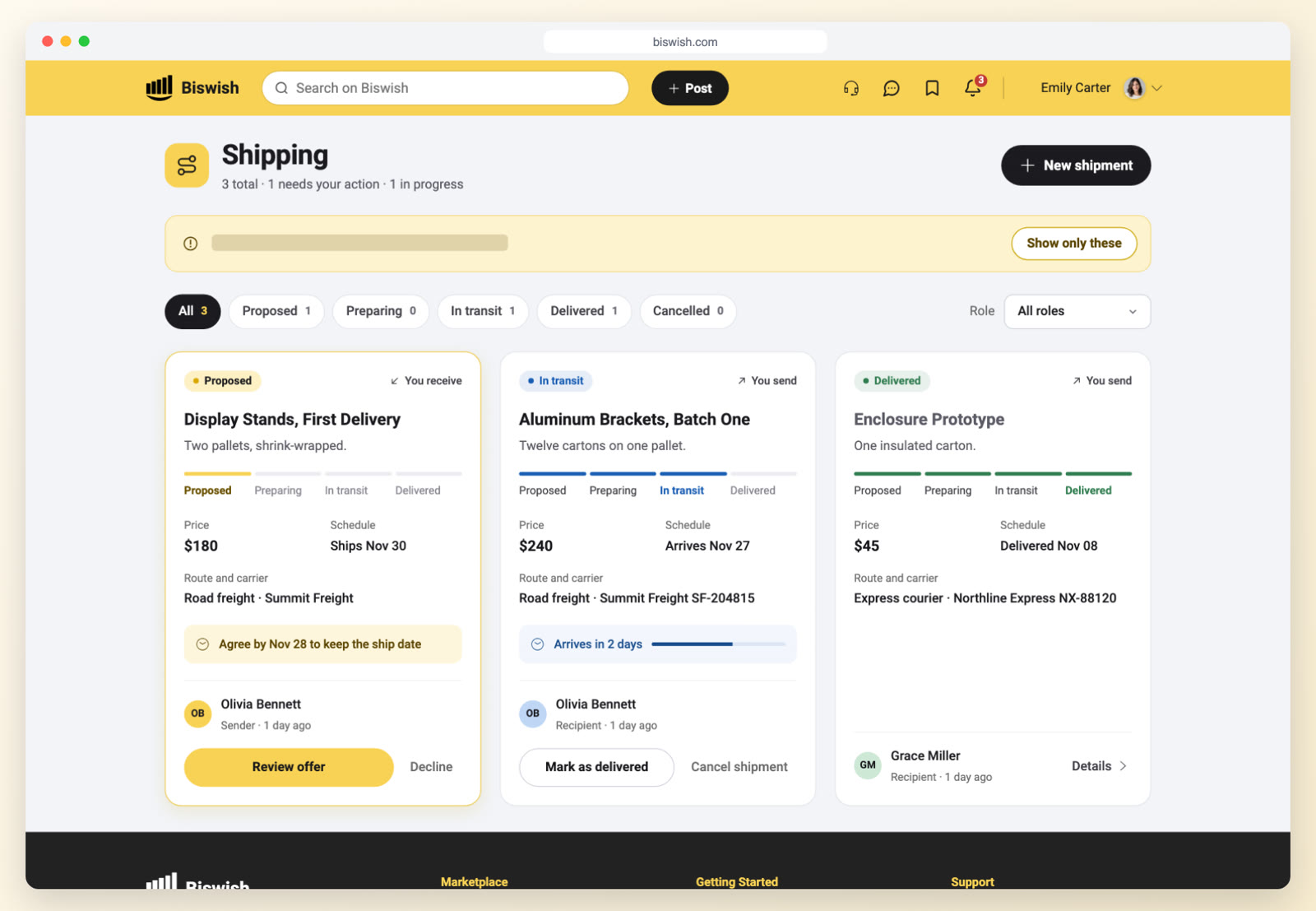
Shipments.
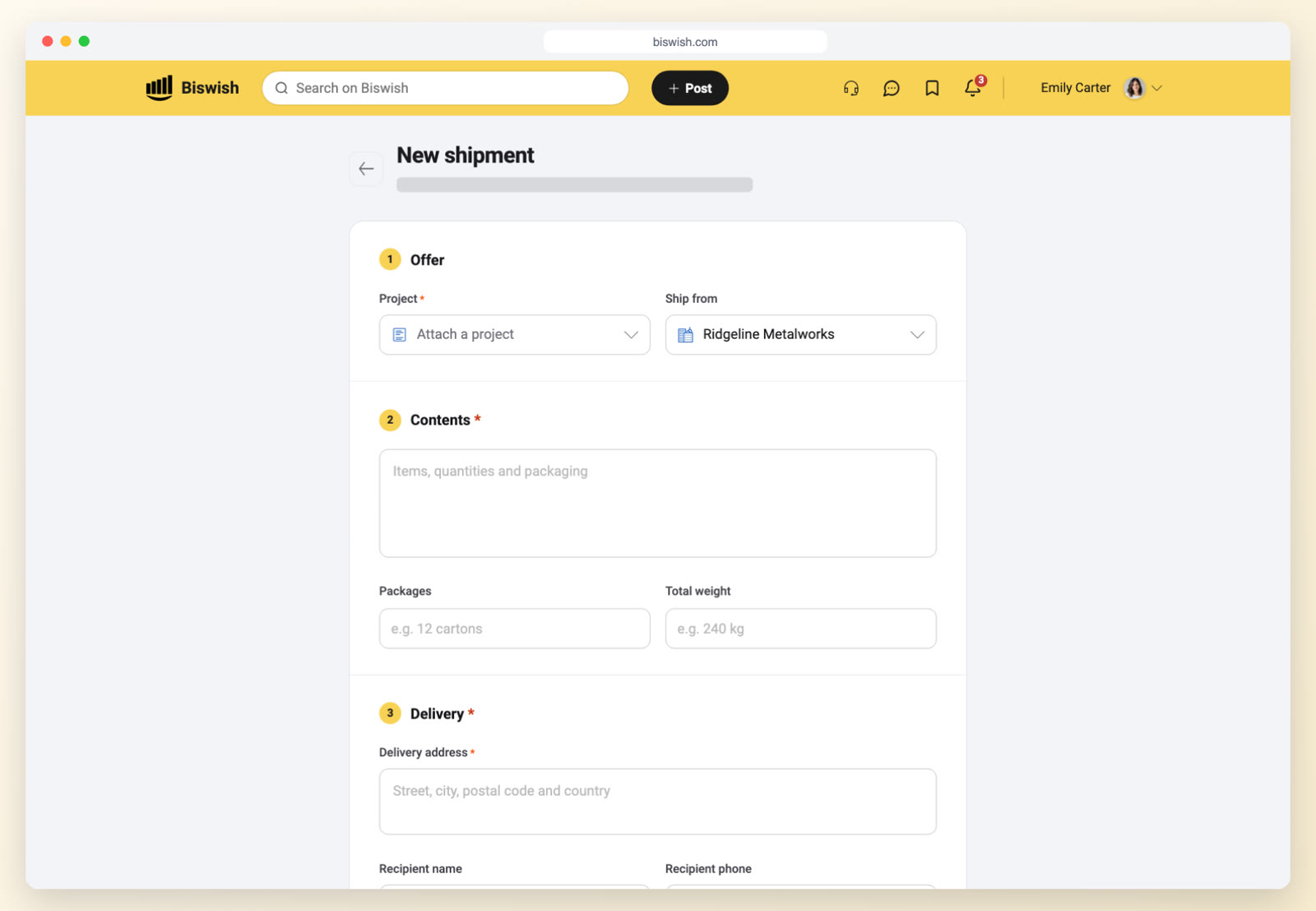
A new shipment.
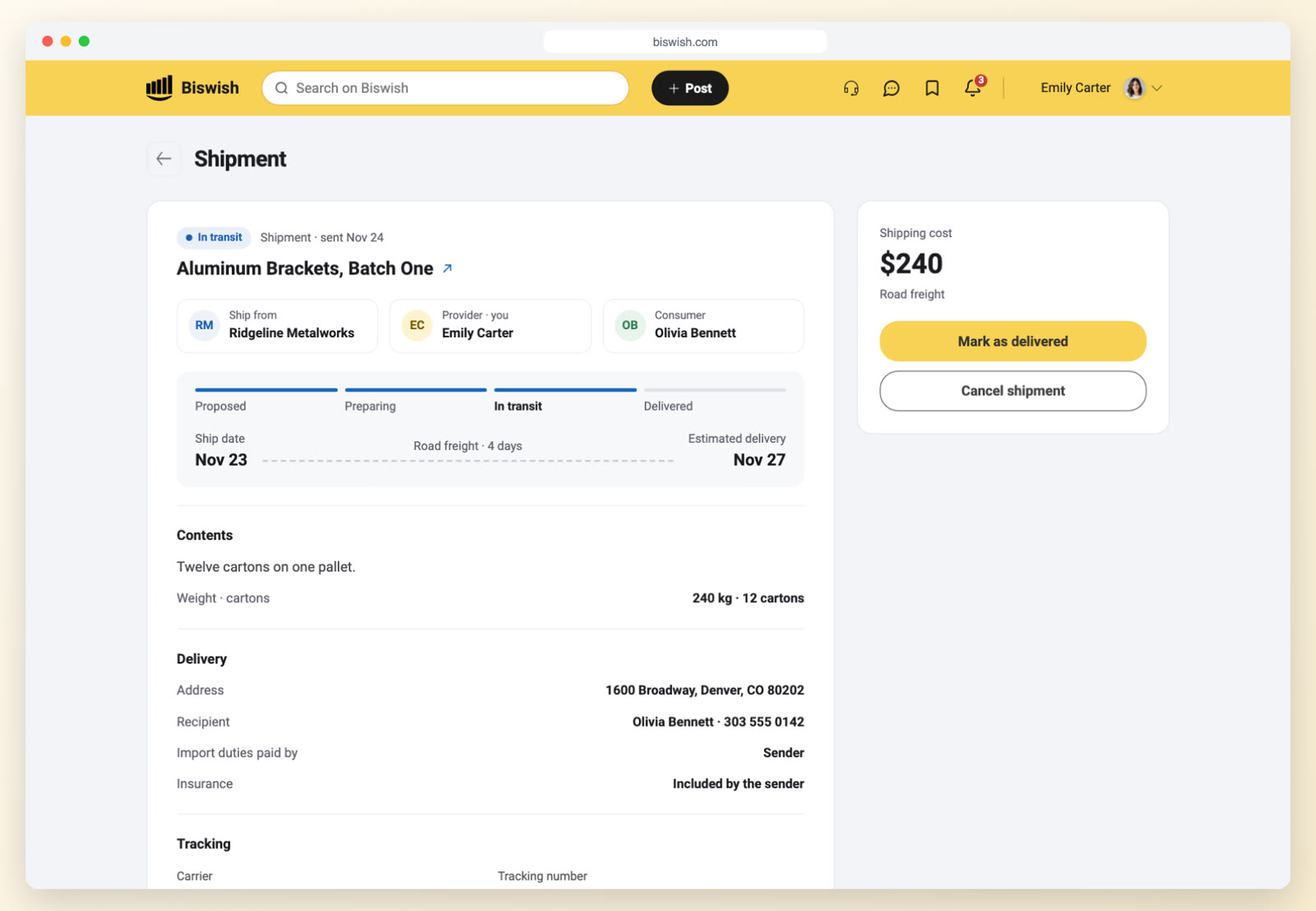
A shipment in transit.
On your phone
Open Shipping, then New. The actions stay at the bottom of a shipment.
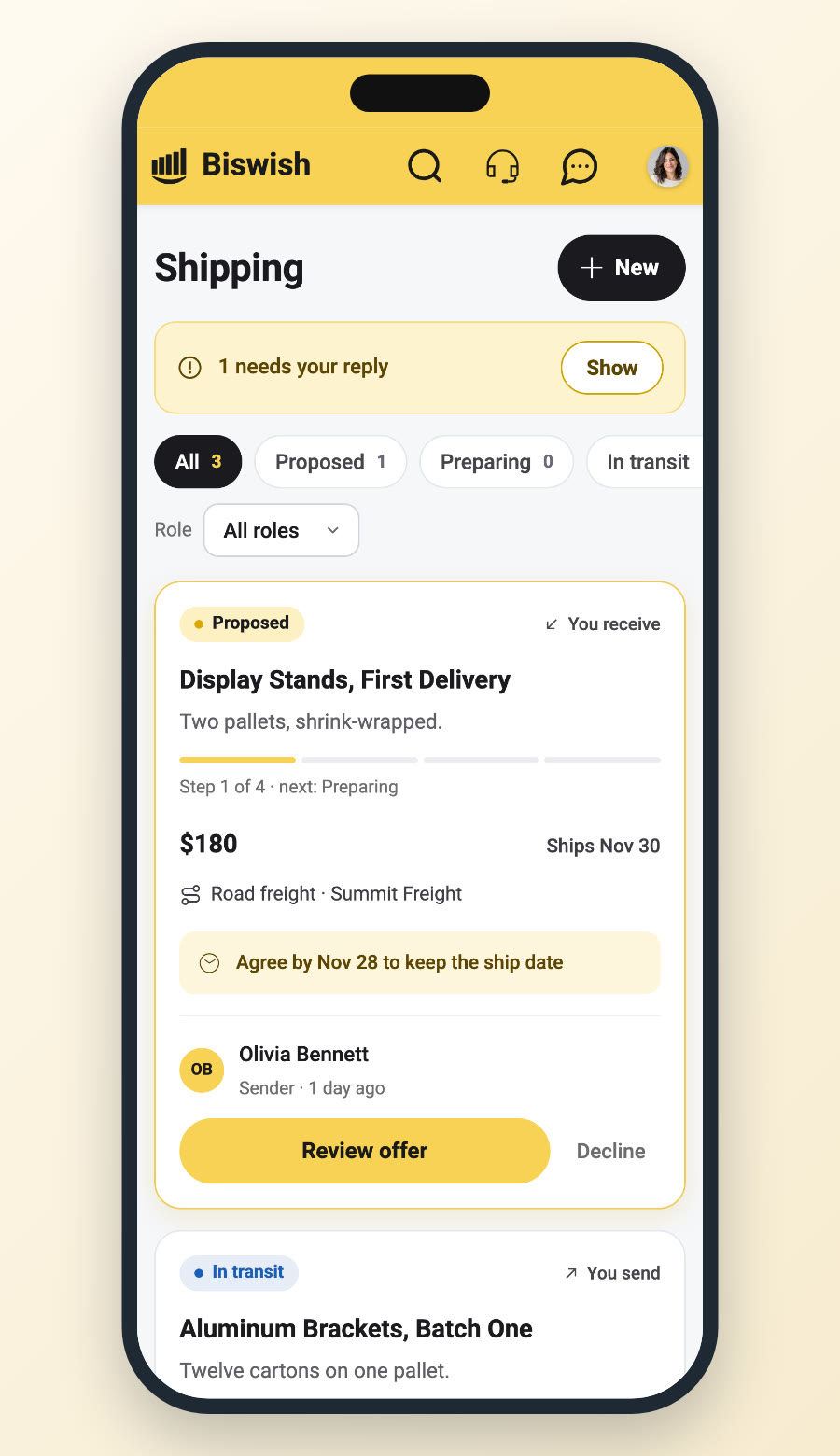
Shipments on a phone.
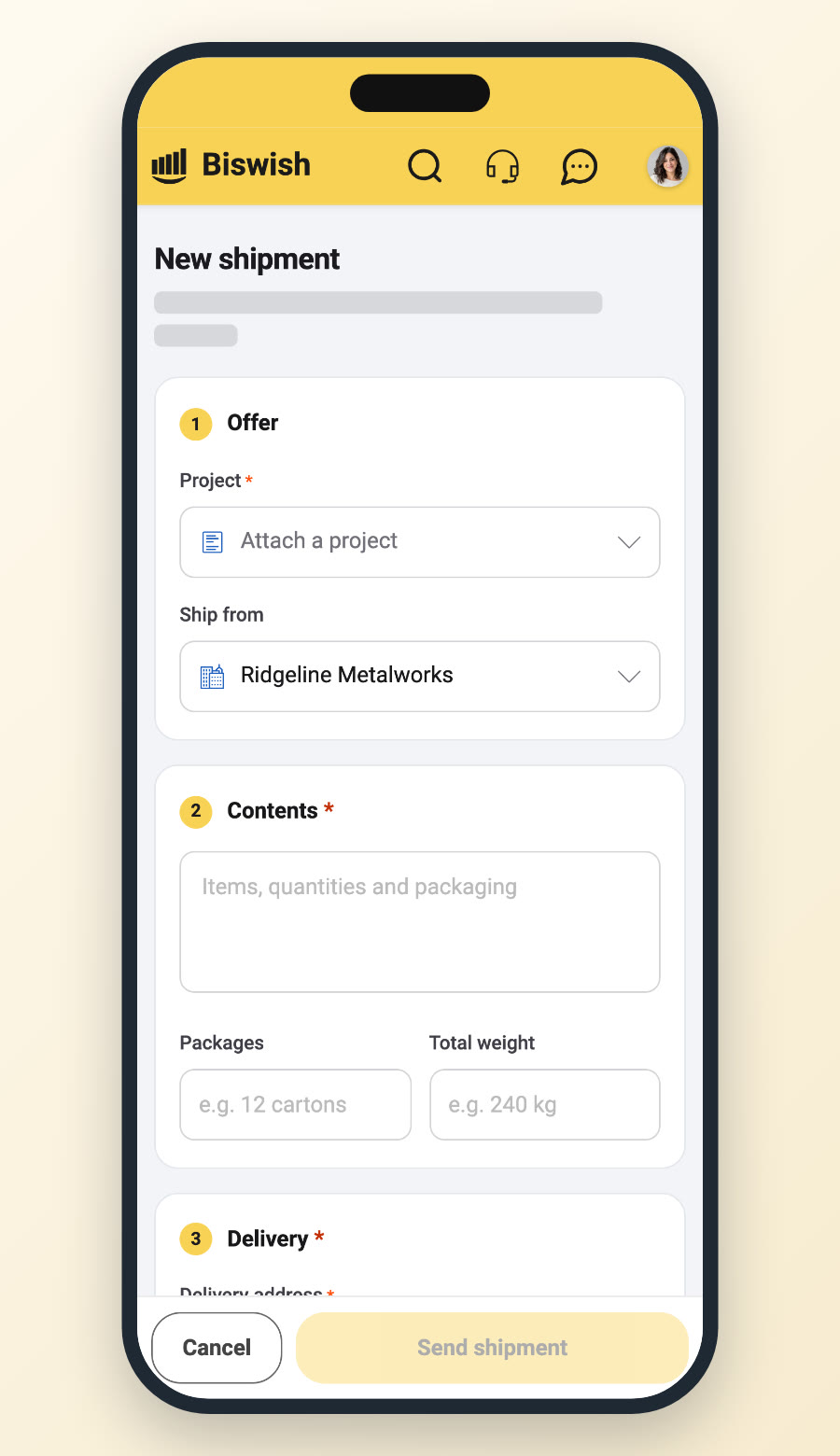
A new shipment on a phone.
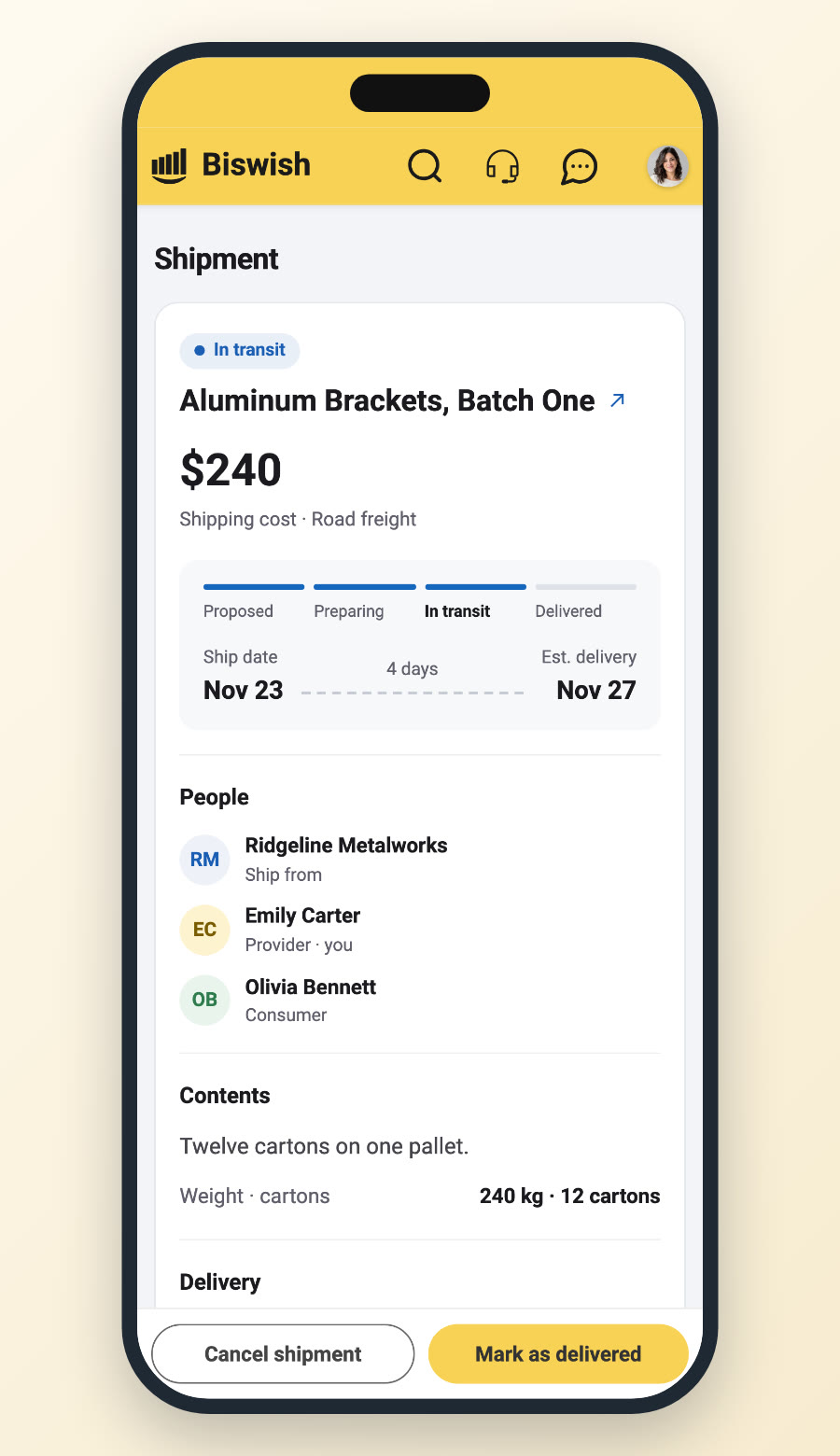
A shipment in transit on a phone.
Ship
01
PreparePick the project and company. The consumer agrees first.
02
ShipAdd the carrier and tracking number, then Mark as shipped.
03
DeliverThe consumer selects Confirm delivery when it arrives, or the sender selects Mark as delivered.
0
Share
Send in message
Report
Copy ID